

Let somebody take a free room at the panel
Somebody is standing at a free room and wants it now. Turning the Walk in button on takes a minute; what it then asks for, how long it grants, and the five reasons the button is not there are the rest of this page.
A free room offers Walk in. Whoever presses it gets the room from now until the length they pick, without opening anything — and because they are standing at the door, a walk-in never needs checking into afterwards.
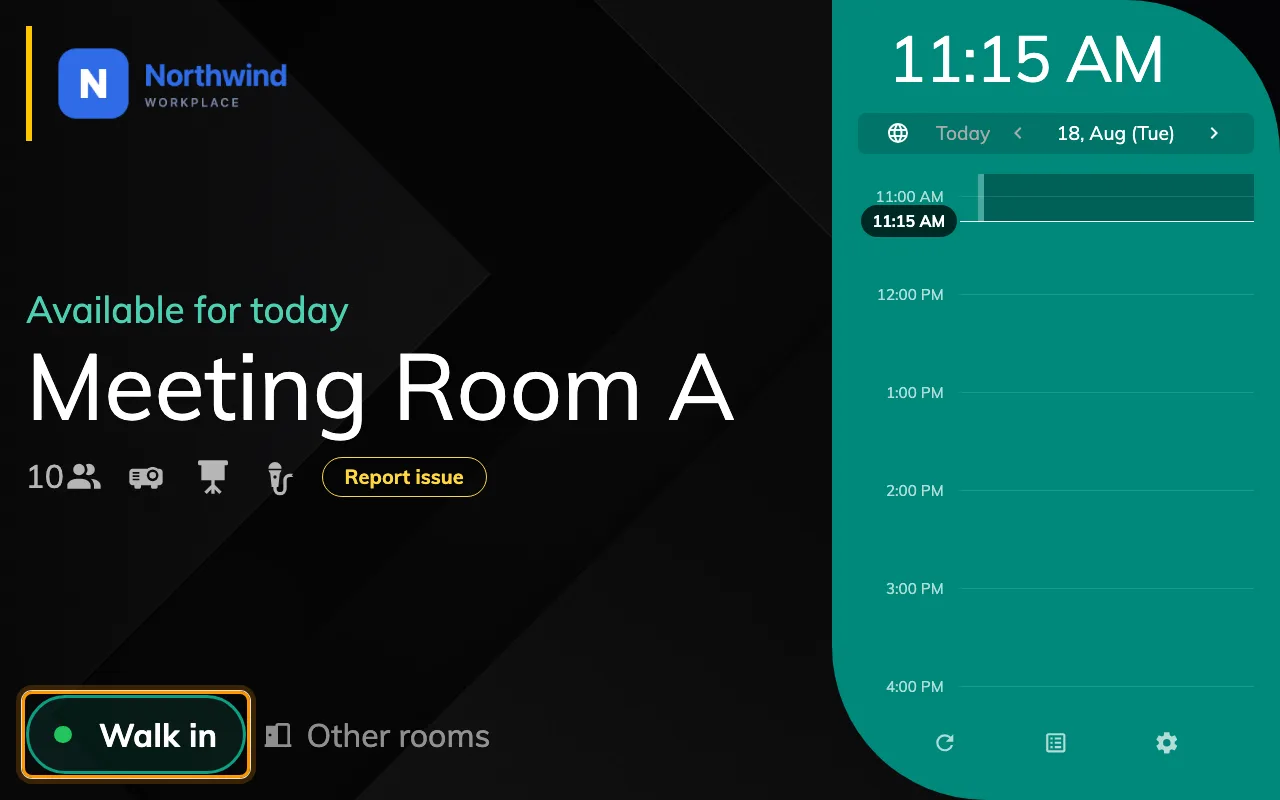
Walk in, on a free room. A room in use offers End now and Extend instead.
1. Turn the button on
Show walk in button is in the panel configuration’s Use a booking group, on its Room booking panel page. It is per configuration, so it lands on every panel sharing it — see How a panel gets its settings.
Open Panel configurations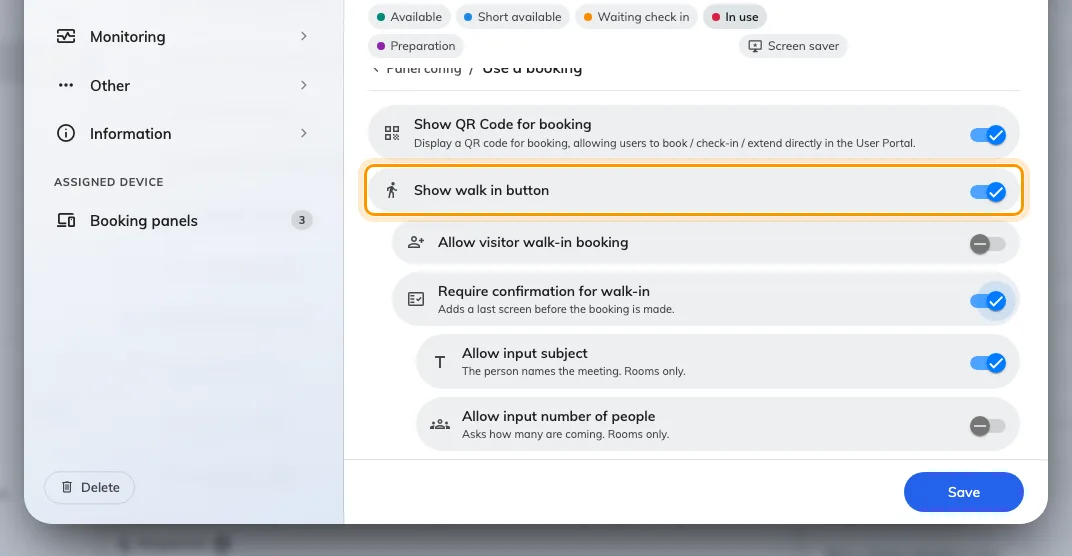
Show walk in button, with the toggles that appear underneath it.
Two more appear underneath it once it is on:
- Require confirmation for walk-in — a last screen before the booking is made. Turning it off makes the whole thing one tap plus identity.
- Allow visitor walk-in booking — lets somebody who is not a member of staff take the room, by identifying as a visitor rather than a user. Needs the Visitor management licence.
Require confirmation for walk-in carries two of its own, deciding what that screen asks for. Both apply to rooms only — every other resource type hides them:
- Allow input subject — the person names the meeting. On to begin with.
- Allow input number of people — asks how many are coming. Off to begin with.
Turning either off changes what the panel asks, never what it stores: an unasked subject still falls back to the walk-in label, and an unasked headcount still counts as one.
2. Decide how long a walk-in may hold the room
This is not a panel setting — it is the resource’s policy, and it is worth doing before anyone finds the button. Three rows there shape a walk-in:
- Limit the booking time length for walk-in booking — a separate, usually shorter pair of limits than the room’s normal ones.
- Disable booking approval for walk-in booking — so somebody at the door is not left waiting for an approver.
- Walk-in Only, as a booking type — the room cannot be booked in advance at all. Right for touchdown desks and phone booths.
All three are documented in Resource policy settings.
3. What the person at the door sees
Tapping Walk in opens the duration picker: a column of lengths, each showing the time it would end at, with a Duration / Time switch above them. It only ever offers what the room can actually give — the list stops at the next booking, and the row underneath says when that is.
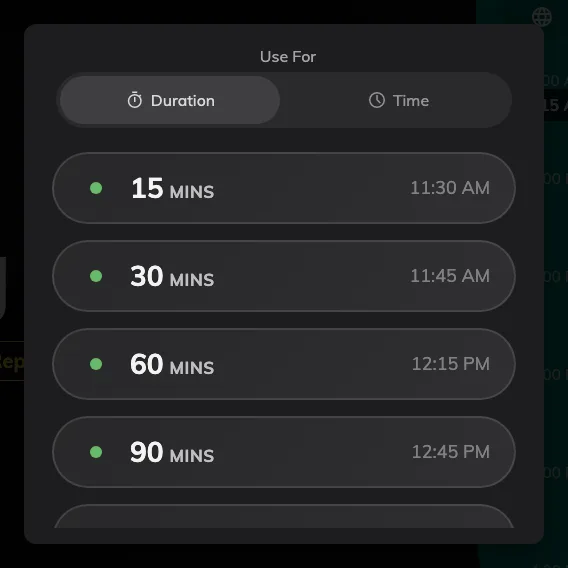
The lengths the room can give, ending before whatever is booked next.
The panel then asks who they are. What it asks for is its own subject — How somebody proves who they are at the panel — and it is also where the option of asking for nothing at all lives.
Last comes the confirmation screen, if you left Require confirmation for walk-in on. It asks for whatever you left switched on above — a subject, a headcount, both or neither. Anything not filled in is left alone: the booking is titled Walk in booking and counted as one attendee.
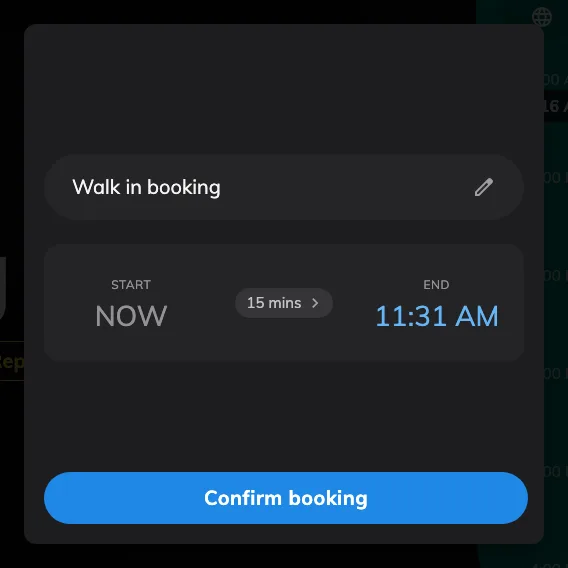
The confirmation screen, asking for a subject. With the toggle off, this step does not appear at all.
Rooms that ask for terms and conditions put that screen before the identification step, and a walk-in cannot skip it.
4. Try it
Stand at a free room, tap Walk in, take fifteen minutes. The panel should go straight to in-use — no check-in step — and the booking should appear in the room’s calendar under your name, or with no organiser if you identified as nobody.
When the Walk in button is not there
Five different things remove it, and only the first is a panel setting:
- Show walk in button is off on that panel’s configuration. So is Touch screen mode, which hides every button on the panel at once.
- The resource policy has Allow booking from booking panel and signage off.
- The resource policy requires booking at least a day ahead. A room nobody may book for today cannot be walked into today.
- The next booking starts within five minutes. The button disappears rather than offering a room somebody is about to walk into.
- The room is not free. Walk in exists only in the free state; a room in use shows End now and Extend, and a room waiting for somebody shows Check in.