

Send email from your own address
Point Offision at your own mail server so notifications arrive from your domain instead of ours. About fifteen minutes, and you can test before saving.
1. Open Email setting
Go to System config › Settings › Email › Email setting.
Open Email setting2. Change the email mode
Out of the box Offision sends through its own mail service, and the first setting on the page says so: Email mode is Send by offision (mail.offision.com). That address is ours, not yours, and nothing on this page can change it — so switching the mode to SMTP Server is not one option among several, it is the whole job. Everything else on this page only appears once you have.
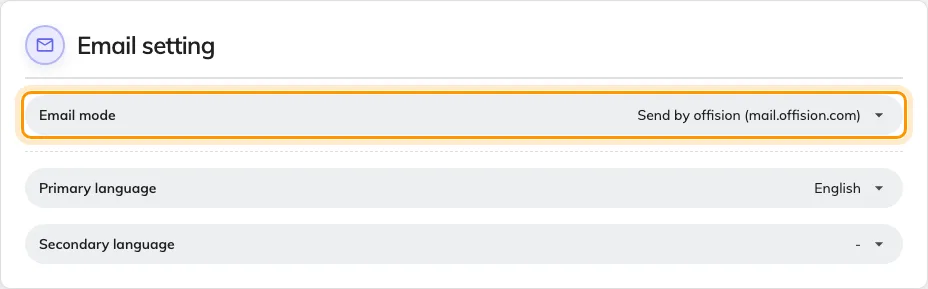
Email mode, still on the Offision default.
Leaving it alone is a perfectly good answer if nobody minds where the mail comes from. Mail sent through your own server is the one that carries your domain, lands in the right spam bucket, and shows up in your own sent-mail auditing.
3. Fill in the server
Email server setting appears underneath. Enter the SMTP server host and Port, then the Username and Password of the mailbox Offision will send through.
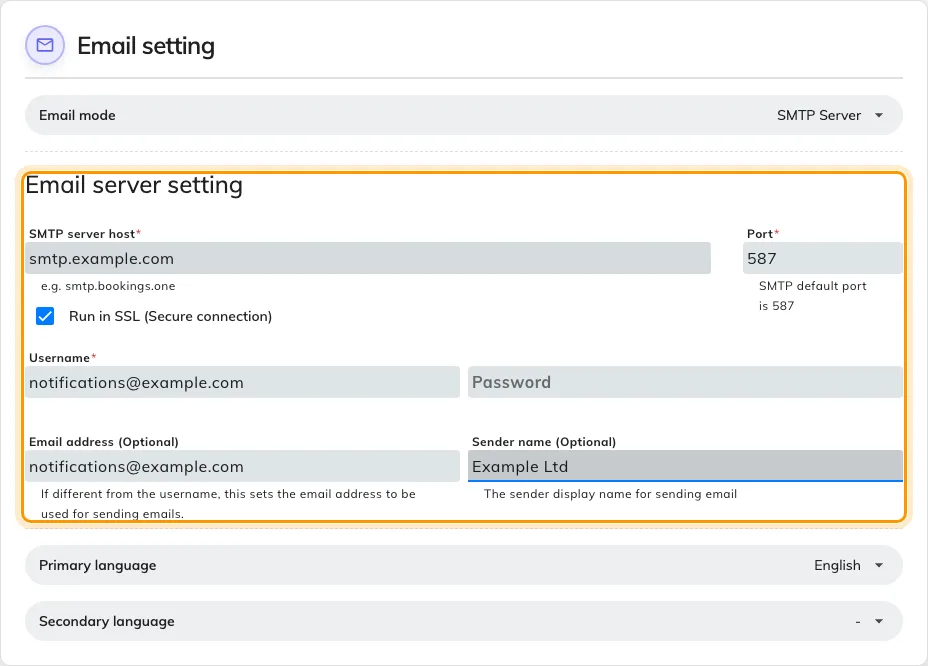
Email server setting, filled in.
Run in SSL (Secure connection) is the one real decision here. Leave it on and the port defaults to 587 and the connection is encrypted. Turn it off and it falls back to port 25 in the clear, which is what the red warning under the checkbox is about — every message, and the password that sent it, crosses the network readable. Turn it off only on a relay that never leaves your own network.
Offision signs in with a username and password. There is no OAuth option, so a mailbox that requires modern authentication needs an app password or a dedicated relay account rather than someone’s normal sign-in.
4. Set who the mail comes from
Two fields at the bottom decide what a recipient actually sees, and both are marked optional because Offision will fall back to the username without them:
- Email address is the address the mail comes from. Leave it blank and the username is used, which is usually right — set it when the account you authenticate with is not the address you want people to reply to.
- Sender name is the friendly name beside that address, so the mail reads as from your organisation rather than from a mailbox.
Offision does not verify the domain, but your mail provider does. A from address outside the mailbox you authenticated with is the single most common reason the settings look correct and the test still fails — check your provider’s rules on sending as another address before assuming the details are wrong.
5. Send a test before you save
Scroll to Email style and choose Send testing email. Enter an address you can read and choose Send.
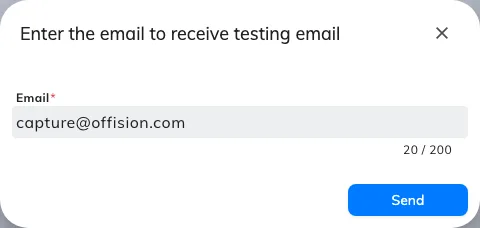
Sending a test to an address you can check.
The test uses what is on screen, not what is stored, which is why it comes before the save rather than after it. A bad host or a rejected password fails here while your working email settings are still untouched.
6. Save
The save bar appears at the foot of the page once something has changed.
7. Check it worked
Send a real message through Offision — inviting someone from Add people to Offision is the quickest — and open it in the recipient’s inbox. The from address and sender name should be yours.
If the test passed but real mail does not arrive, the settings are right and the problem is downstream: look at your provider’s rejected-mail log rather than at this page. And if you were changing the branding as well, that is Put your logo on Offision emails.
Everything Offision sends leaves through this sender, scheduled reports included — so a report that stops arriving is worth checking here before anywhere else. Booking’s is Email your managers a forecast of upcoming bookings.