

Change the wording of an Offision email
Find and edit email templates in the shared rail, preview each language and phone layout, and customize check-in or no-show reminders with booking fields and optional action buttons.
1. Find and preview an email
Open Email Template under System config. Search the Templates list or browse its categories, then select a row. The preview stays beside the list. Select Edit to replace the list with that email’s settings; the preview stays in place. Use the back arrow to return to the list. On a narrow screen, switch between Edit or Templates and Preview.
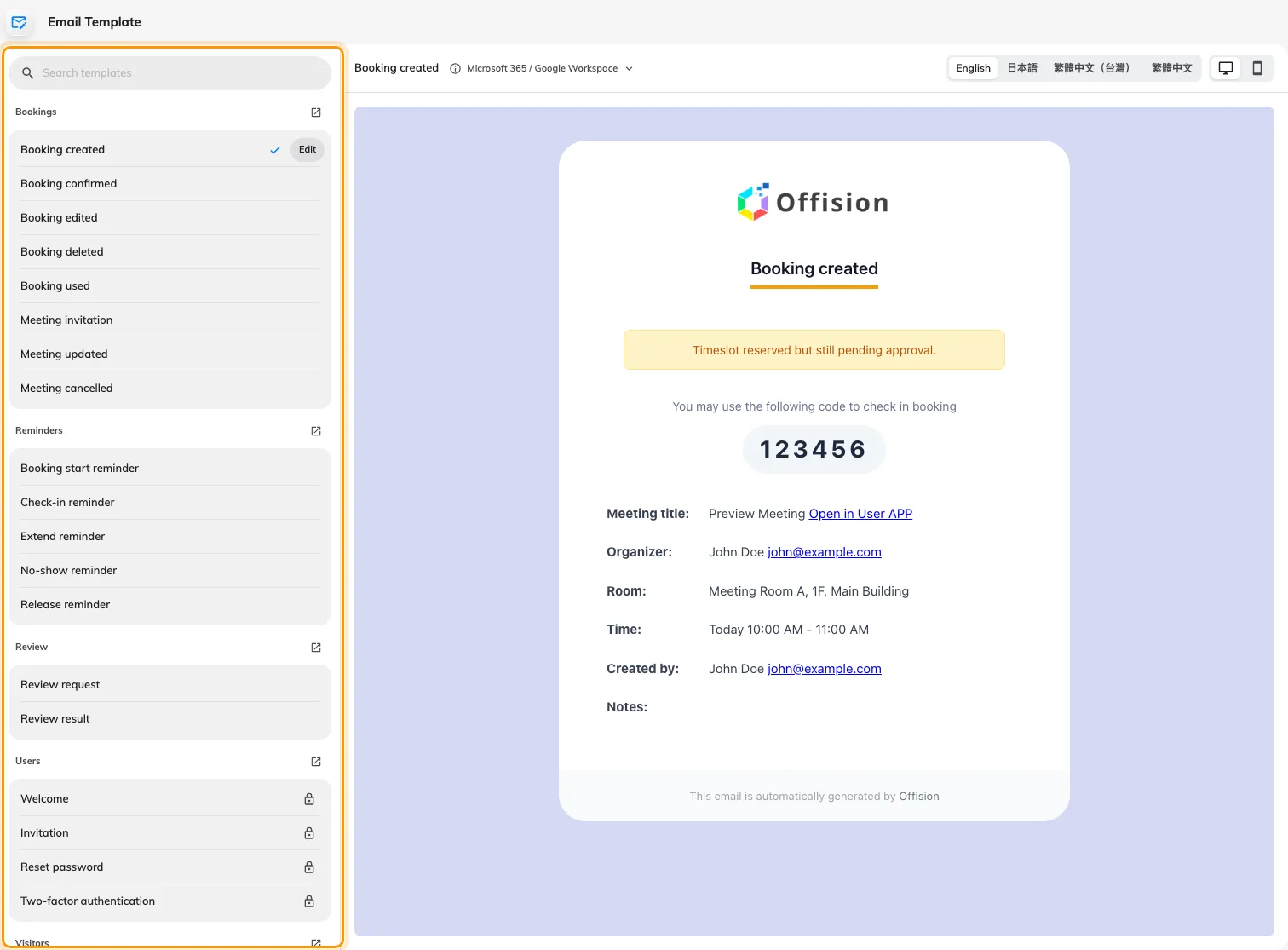
Search and select an email in the left rail, with its persistent preview alongside.
System account emails, including welcome, invitation, password reset, email verification and sign-in codes, are marked System template. Their wording is fixed; they can be previewed but not edited. Older custom wording on them is no longer used. See The limits Offision applies.
2. Edit the subject and messages
For an ordinary template, choose a Title preset, or Customization to write a Custom title. Under Messages, choose a preset or write a Custom message for each editable line. Choose the language above the preview to select the language being edited. Fill in every language the company sends.
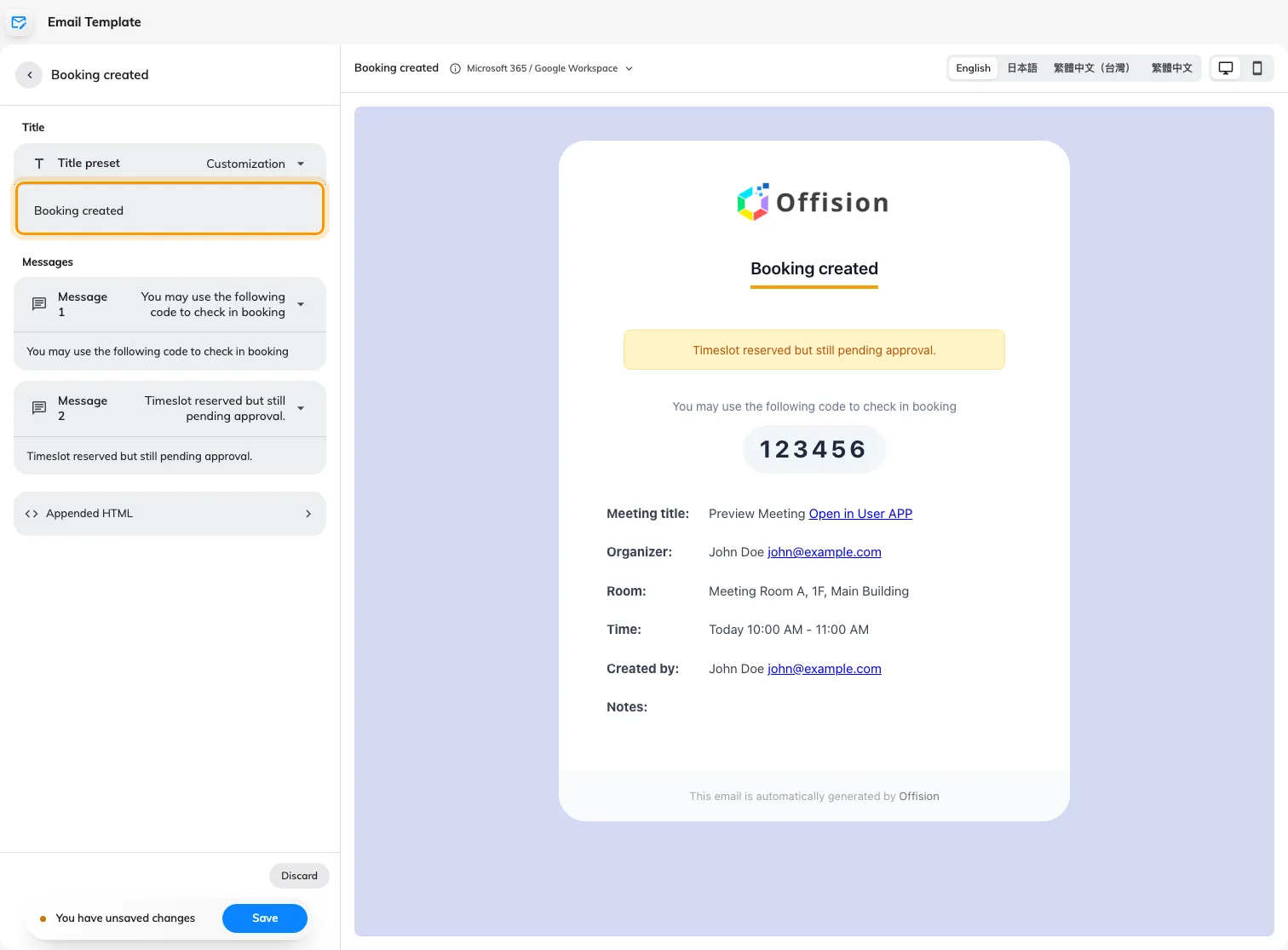
Custom title in the edit rail, with the same email preview alongside.
Open Appended HTML to add content beneath this email. Basic formatting is supported; scripts and advanced styling may not work in email clients. A footer that belongs on every email is set in Email setting.
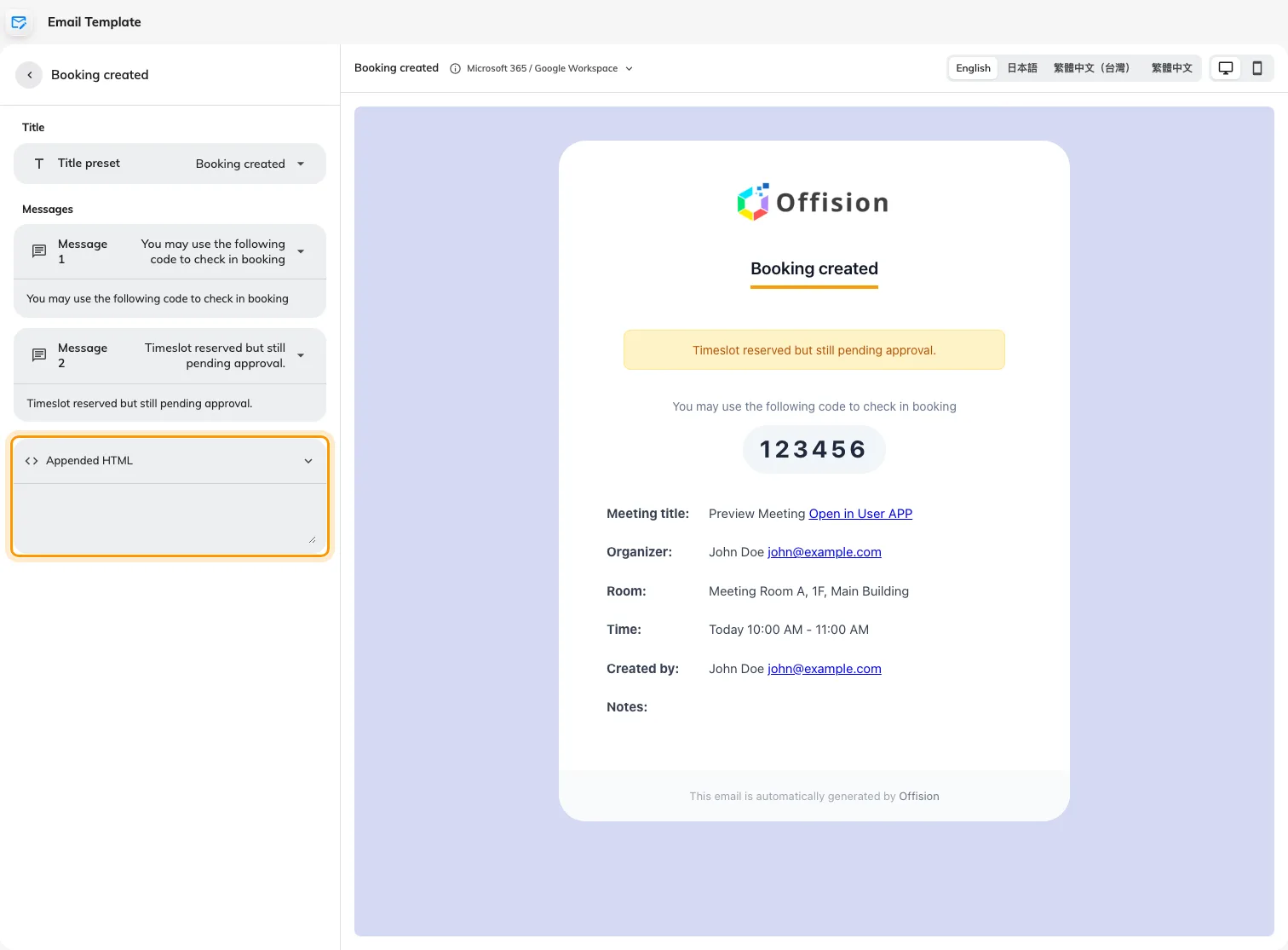
Email wording and Appended HTML are edited in the same rail.
For ordinary presets, choose the first preset to restore the shipped wording. Discard only drops changes since the last save.
Leaving a custom language empty omits that text in that language rather than restoring the original wording. The company’s primary email language and optional second email language appear together in one message, regardless of the recipient’s interface language. See Company languages.
3. Write a check-in or no-show reminder
Select Check-in reminder or No-show reminder, choose Edit, and turn on Write your own. These two reminders have a multilingual Subject and rich-text Body. Use Fields to insert organizer name or email, booking subject, resources, date and time, auto-release minutes or booking links. Insert fields with the picker so the sent message uses the real booking values. Unavailable fields must be removed before saving; the cancel link is available only for the check-in reminder.
Choose whether to include Booking summary and Booking details button. The check-in reminder also offers Cancel booking button. Sign-off can use the default, custom wording or none. Reset to default restores the reminder’s default content and layout; save to apply it. The Sample booking selector lets you inspect room and desk examples.
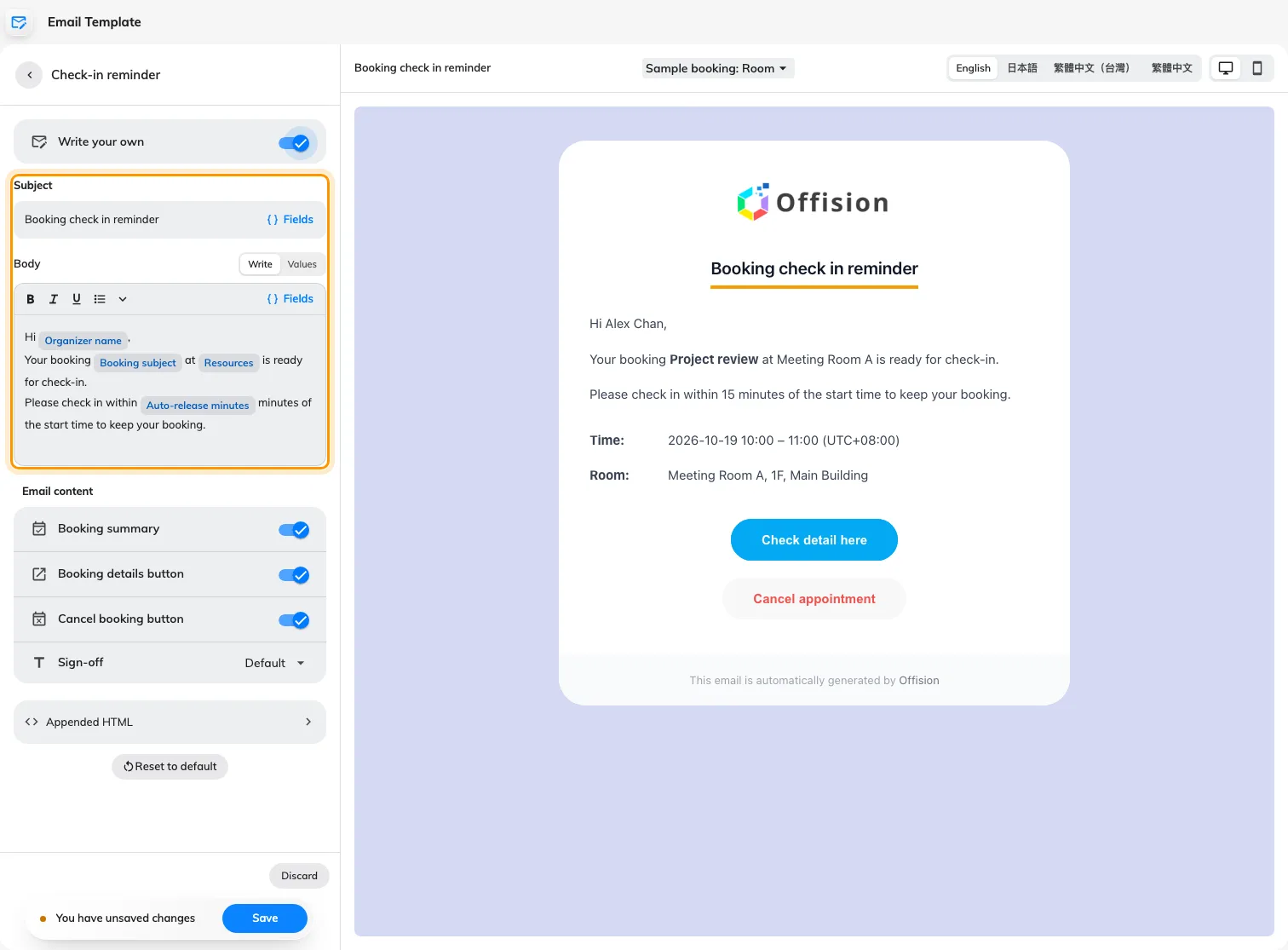
Write your own reminder with booking fields, optional summary and action buttons, beside a sample preview.
This changes wording and layout. To choose whether these reminders are sent, use Reminders. Check-in windows and automatic release are set on the resource’s booking policy.
4. Preview, save and verify
The preview refreshes after edits. Change its language and desktop/phone view, and wait for the email to finish loading. It contains sample booking data; it does not send a message.
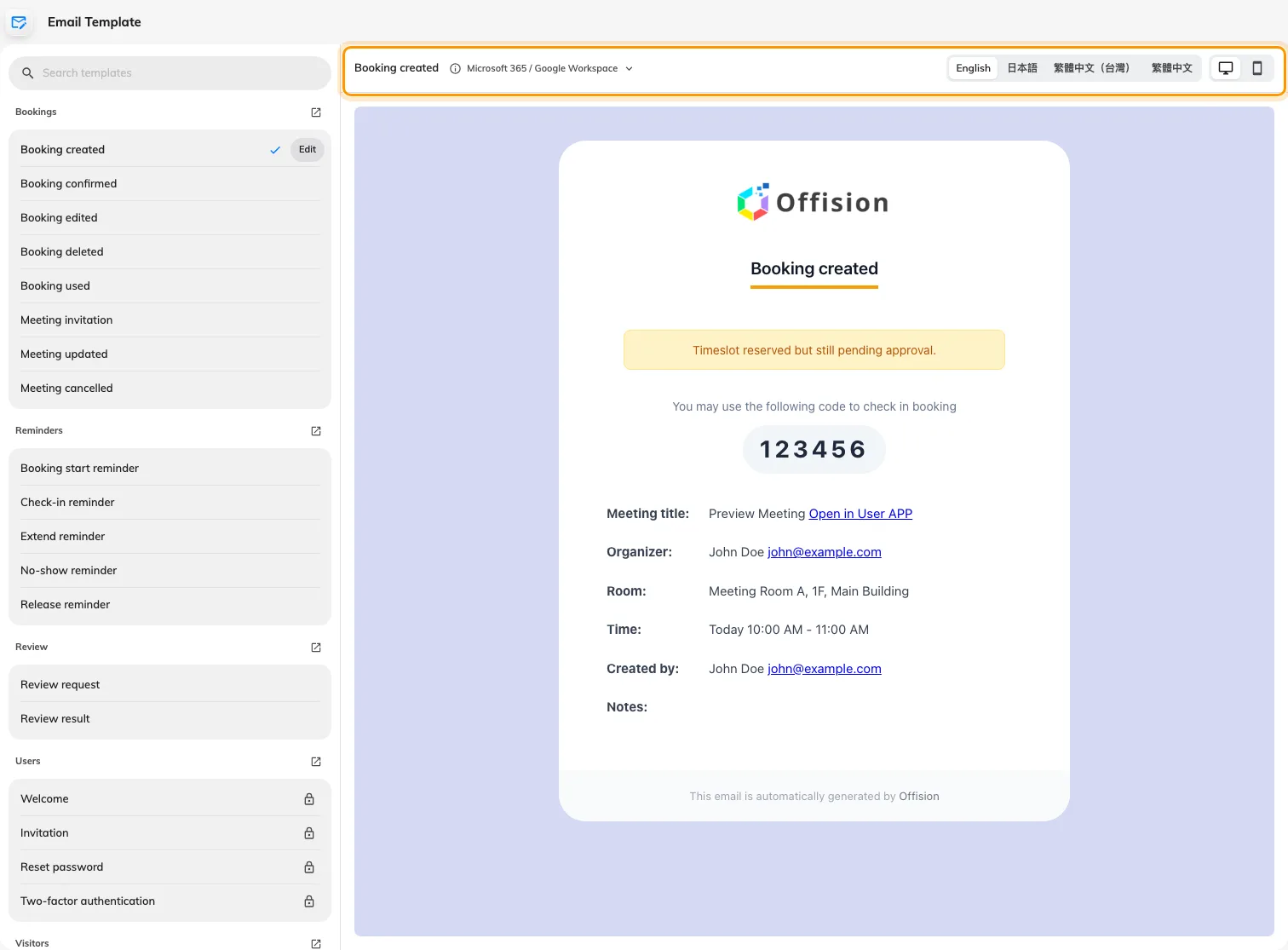
The preview toolbar selects language and desktop or phone presentation.
Choose Save to apply the wording, or Discard to abandon unsaved changes. Leaving an edited template can ask you to discard changes. Test the corresponding real notification and check Email history as well as the recipient’s inbox.
The category arrow opens the feature’s delivery settings. Sender and branding are set separately. Microsoft 365 and Google Workspace send their own calendar invitations; expanding their notice explains which templates this affects.