

Extend a meeting, or end it early
Buying more time from the in-use bar and handing the room back before the hour is up: the four amounts on offer, the cap that decides how far the end time can move, what ending early does to the room and to your quota, and why either button can be missing.
A meeting that has started is past editing. The two things you can still do to it are push its end time out and give the room back before time, and both are on the same small bar that appears while a booking is running.
1. Open the in-use bar
While a booking of yours is running, a dark pill sits at the top of the app on a computer, and along the bottom of the home screen on a phone. It carries the meeting’s title and how long is left; where more than one of your bookings is running it also carries +1, +2 and so on.

The bar while it is closed: the meeting, and the time left.
Click it to open.
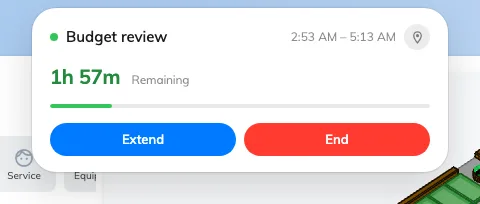
Open: the booking, what is left of it, and what you can do to it.
Open, it repeats the title with the booked period, a countdown against a progress bar, and a row of buttons. Extend and End are the two this article is about; Service, Remote and Check in appear beside them where the room offers them.
Where several bookings are running, the bar opens on a list of them instead, one row each. Choose the meeting first; everything below then works the same.
2. Add time
Extend replaces the buttons with four amounts.
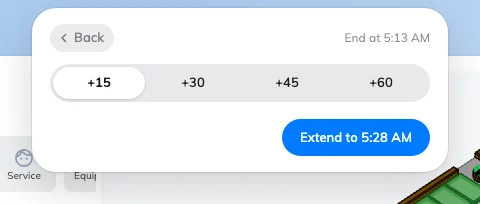
Four amounts, and the new end time on the button that commits it.
+15 is chosen for you, and the blue button underneath reads Extend to followed by the time you would finish at — which is the thing worth reading, rather than the number of minutes you picked. Press it and the bar confirms with Extended to that same time before returning to the booking.
Two things change what you are offered. Any amount that would run past the point the room is free until is dimmed rather than hidden, so you can see what you are not allowed to have. And where less than a quarter of an hour is left to give, the four amounts collapse to a single one that fits exactly — +7, say.
There is no box to type your own number here. The booking’s own card has one, if you need a length that is not on offer: open the booking from My bookings or either calendar, and its Extend button opens a menu with a Custom field.
Time added is charged like time booked. Where your company meters room use, an extension draws on your allowance the same way a longer booking would — see How booking quota works.
3. Or hand the room back
End asks first.
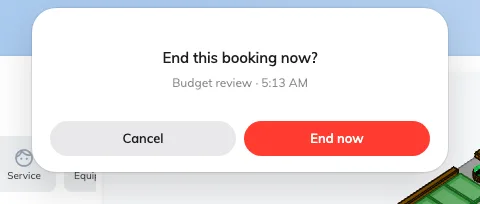
End this booking now? — the meeting and the hour you would be giving back.
The question carries the meeting’s name and the time it was due to finish, so you can see what you are about to cut short. End now does it; Cancel leaves the booking alone.
The room is free from that moment and somebody else can book the rest of the hour. The meeting itself is not undone — it happened, it stays in the record, and it still counts as a room you used.
This is the one people forget. Leaving at three when you booked until five holds the room for two hours nobody can use; the booking has no way of knowing you have gone. On a floor where rooms are short, most of the space that gets reclaimed comes from this button.
4. Check it worked
After an extension the bar shows the new finish time and a longer countdown, and the room reads busy for the extra period in the resource calendar.
After ending, the booking leaves the bar — and if it was the only one running, the bar goes with it. The room should show free from now in the resource calendar.
When Extend will not go further
Sometimes the amounts are all dimmed, or the bar answers There are upcoming bookings instead of offering any.
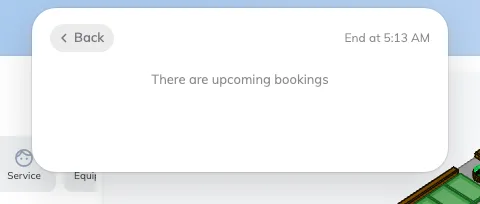
Nothing left to give. One message covers every reason.
That one message covers several different reasons, and the app does not say which. The end time can be pushed as far as the earliest of these, and no further:
| The next booking on that room | Less any turnaround time the room is given between bookings, so the wall you hit can be a little earlier than the next meeting’s start |
| A service ordered into the room | Tea, cleaning or a setup booked into the room counts the same as a booking |
| The end of business hours | And, separately, the end of the day — a booking cannot be extended across midnight |
| An out-of-service period | The room is being held for maintenance from that time |
| The room’s longest allowed booking | Extending is still booking; a room capped at two hours stops at two hours |
| How far ahead the room may be booked | Rarely the binding one, but it applies |
So a room that looks empty on the calendar can still refuse the extra fifteen minutes. If you need to know which of these it was, the person who looks after that room can tell you — the rules behind them are in the resource policy reference.
When a button is missing
Extend and End appear independently: a room can allow one and not the other.
| Why it is missing | What to do instead |
|---|---|
| The booking is not yours | Only the organiser can act on it, unless the room lets attendees do it too. Ask them |
| Extending is turned off for that room | Nothing to do in the app. The room is fixed-length on purpose; book the next slot if it is free |
| Ending early is turned off for that room | The room is checked out for you at the scheduled end instead, so it is never held longer than booked — but it is not given back early either |
| The meeting has not started yet | Change it properly instead: see Edit a booking |
| The meeting has finished | There is nothing left to extend or give back |
| You are too far from the room | Where a room checks people in by location, it also checks it when you extend or end. Move closer and try again |
Two other places with the same two buttons
The bar is the quickest route, not the only one. The booking’s own card carries Extend and End now along the bottom, and the My bookings list on the home screen puts Extend and End beside the time remaining on any meeting that is running.
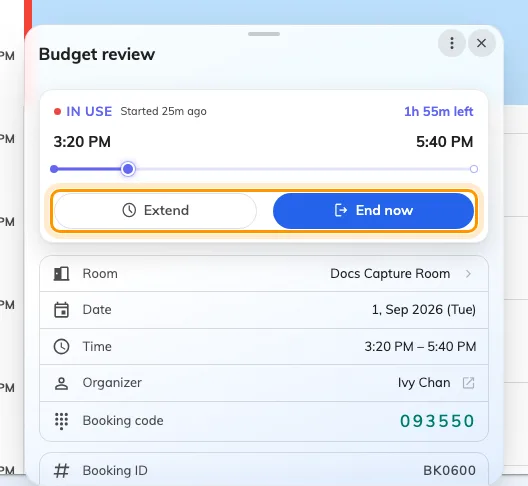
A running booking's own card: Extend and End now along the bottom.
Away from the app entirely, both also work at the panel outside the door — Check in at the booking panel — and by scanning the room or desk’s own code with a phone, which is the usual way on hot desks: Check in and out by scanning a sticker.
What these are not
| Cancel | Calls the meeting off and refunds the quota it used; ending early does neither — see Cancel a booking. Normally only before you check in, though a room may allow it on a meeting already under way, in which case Cancel sits on the card beside Extend and End now |
| Edit | Moves a meeting in time before it starts. A running booking cannot be edited, only extended |
| Being extended on its own | Where a room watches for people, it can keep extending a booking by itself while the room is still occupied. That is a room setting, it repeats without asking, and it is bounded by the same list above |
| Being released for a no-show | Nobody checking in hands the room back automatically, and that is counted against the booking. Ending early is not: see What counts as a no-show |