

Set up a service people order with a booking
Build a tea service with drink options and a cleaning service that runs after the meeting, and put them on the rooms that offer them. About fifteen minutes.
This builds two services, because the same form produces very different things: a tea service that people choose from and configure, and a cleaning service that simply happens after the meeting.
1. Add it from the Booking service page
Open Service › Booking Service and add a service there.
Open Booking Service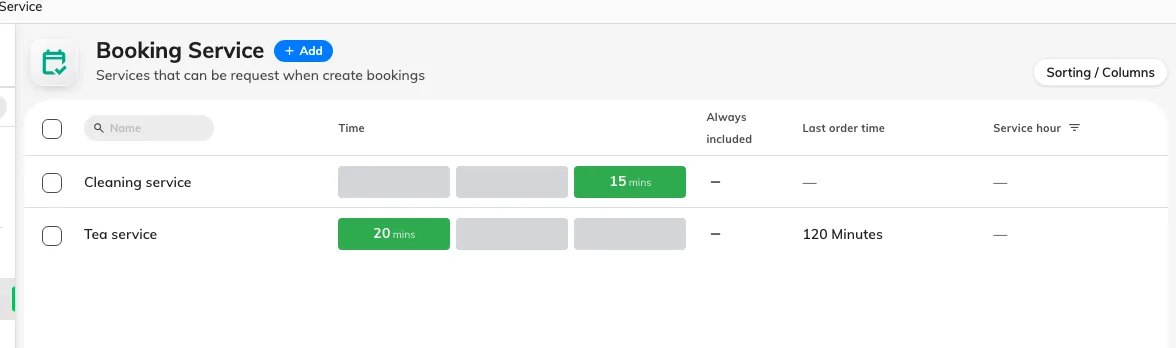
The Booking service list, with the time each service takes around the booking.
The page you add from is what decides how the service is ordered, and it cannot be changed afterwards. A service added here is offered on the booking form. A service added on the In-use service page is offered during the meeting instead — see Set up a service people call for during a meeting. If you get this wrong, the fix is to delete it and add it again on the other page.
2. Name it
Call it Tea service. The description below the name is shown to the person ordering, so use it for what they need to decide — “served in the room at the start of the meeting”, not an internal note.
3. Set when it happens, and how much room time it costs
A booking service is laid out on a timeline rather than in a minutes box. Drag its edges to say how long is needed before booking, during booking and after booking.
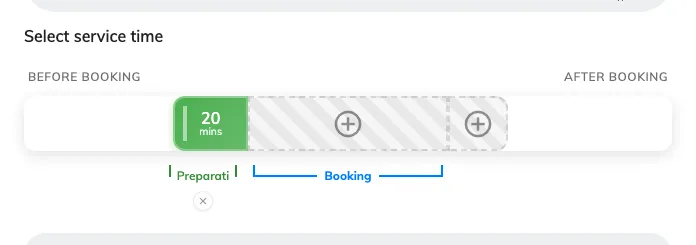
Tea service: twenty minutes before the booking, and nothing during or after.
For tea, twenty minutes before is usually right — long enough to lay it out before people walk in.
Preparation time is taken out of the room, not just out of somebody’s diary. Twenty minutes before means the room cannot be booked by anybody else for those twenty minutes. This is worth being deliberate about: it is the single most common reason a room looks blocked with nobody in it.
Under the timeline, Continuous booking exemption softens that. Turn it on and the preparation is skipped between two bookings that sit close together, up to the gap you set — so back-to-back meetings in the same room are not each charged a setup they do not need. The example strip beside it can be dragged to see the effect before you commit.
4. Decide how late it can be ordered
Last order time is the cut-off, counted back from the start of the booking. Set it to whatever notice the people making the tea actually need — two hours, say. Past that point the service can no longer be added.
Allow editing after last order time is the exception worth having on: it lets somebody who already ordered tea change their order after the cut-off, while still refusing brand-new orders. Without it, a typo at the last minute cannot be corrected at all.
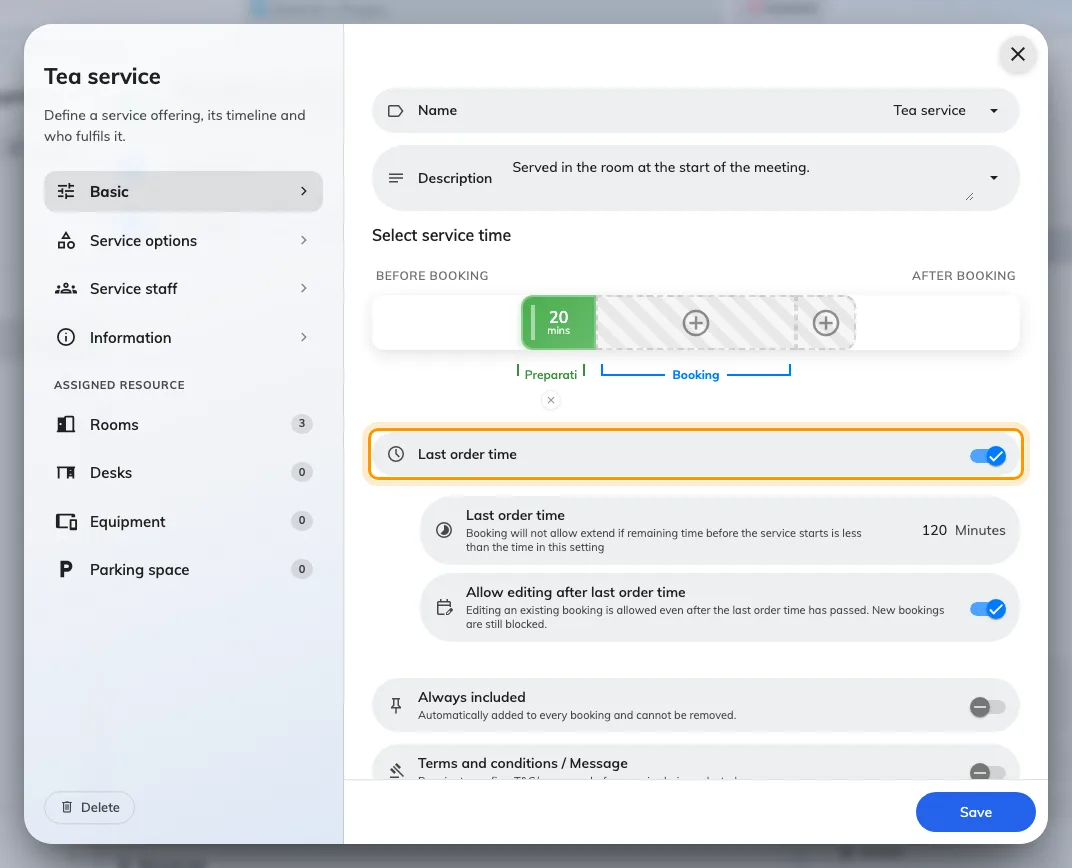
The cut-off, and the exception that still allows edits.
Turn on Always included only for something every booking of these rooms should get. It is added automatically and the organiser cannot take it off.
Add a photo
On Basic, Photo accepts one image of the service. It appears where people choose the service; it does not add another required answer to their order. Both booking services and in-use services have this field.
5. Add the options people choose from
Service options is the second page in the list on the left, and it is what turns “tea” into an order somebody can actually fulfil.
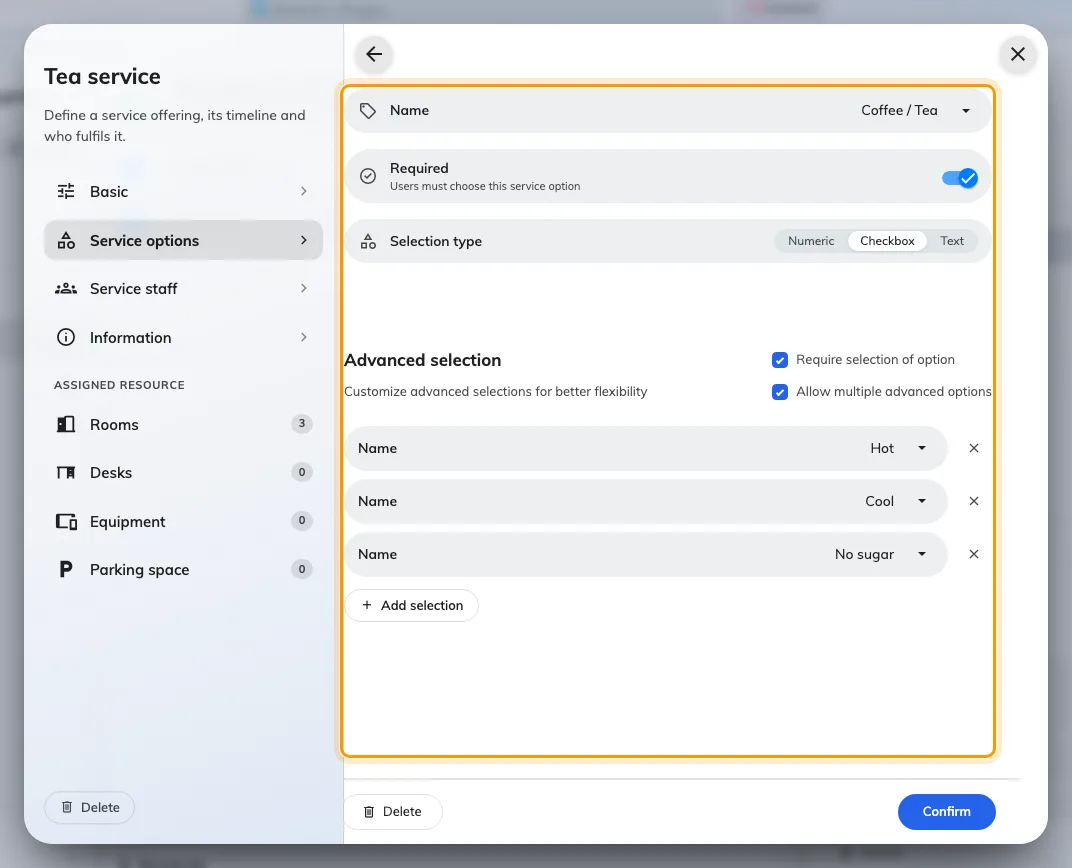
An option has a name, a selection type, and its own list of selections.
Each option has a Selection type:
| Type | What the person ordering does | Use it for |
|---|---|---|
| Checkbox | Picks from a list you write | Drink, and how they want it |
| Numeric | Sets a number with − and + | How many cups |
| Text | Types anything | Allergies, where to put the tray |
For the tea service, three options cover it:
- Coffee / Tea — Checkbox, with selections Hot, Cool, No sugar.
- Cups — Numeric.
- Notes — Text.
Two settings decide how strict the order is. Required means the person ordering must answer that option before they can submit. Require selection of option goes further and makes them pick one of the selections rather than just ticking the option. Allow multiple advanced options lets them take Hot and No sugar together.
6. Say who does it
Service staff is the third page. Name the group who make the tea, and set an Auto assign policy so requests are not left sitting unclaimed. See Assign the people who fulfil requests for what each policy does and why an empty staff list is the setting to avoid.
7. Put it on the rooms that offer it
The bottom of the list on the left is Assigned resource, with one page per resource type and a count beside each. Pick the rooms where tea can actually be served. A service on no rooms is offered nowhere.
8. Now do the cleaning service
Add a second service the same way, and notice how little of it you fill in:
- Name it Cleaning service.
- On the timeline, give it time after booking only — fifteen minutes, say — and nothing before or during.
- No options at all. There is nothing for the organiser to choose.
- Staff: the cleaners.
- Same rooms.
Turn Continuous booking exemption on for this one especially. Without it, every meeting in a busy room costs fifteen minutes of unbookable time even when the next group is already waiting outside.
9. Check it worked
Book one of those rooms as an ordinary user. The services appear on the booking form under Request service, below the attendees.
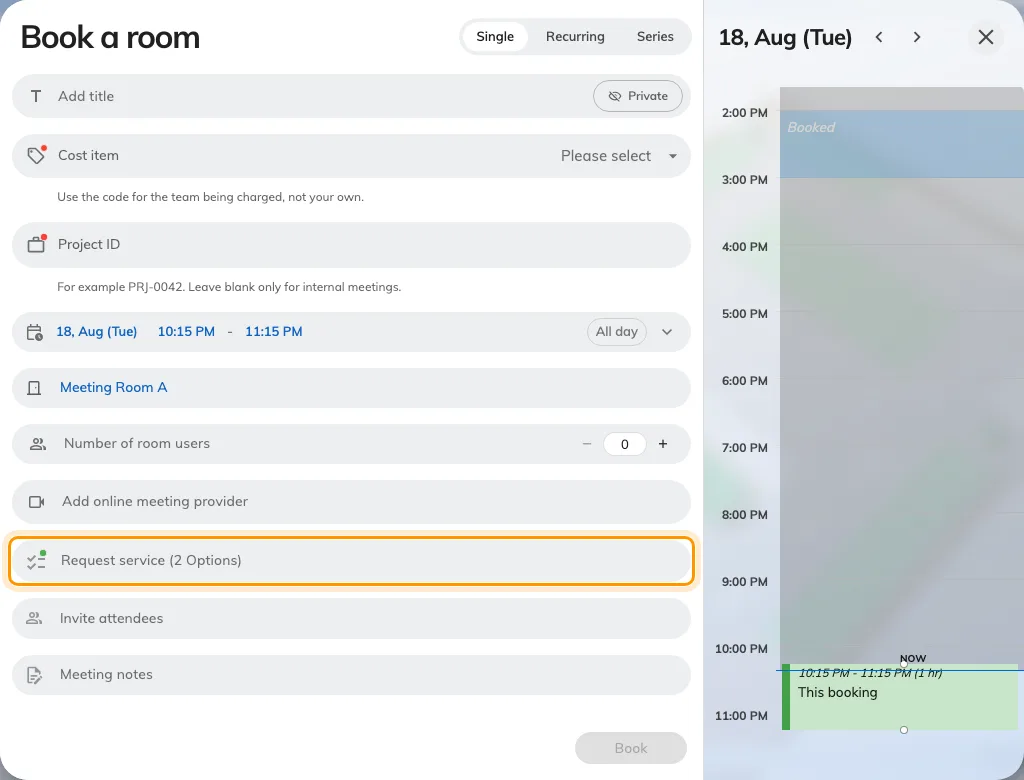
Request service on the booking form. It appears only once a room is chosen.
Open it and both services are listed, each with a checkbox.
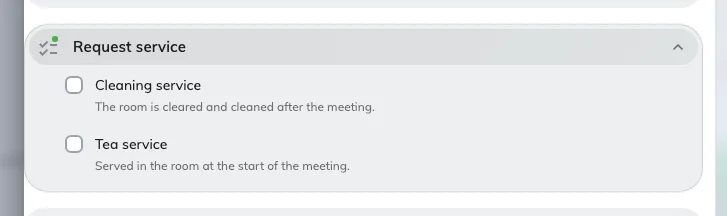
The two services offered on this room.
Tick the tea and the options you wrote in step 5 are what the person ordering is asked — the drink, how many cups, and anything they want to add.
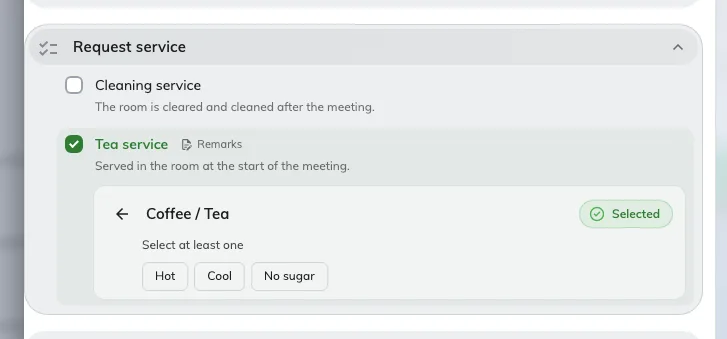
Coffee / Tea, opened: the selections arrive in front of the person ordering.
Save the booking, then look at the room on the management calendar. The preparation time should be visible around the booking, and the slot before or after it should now refuse a new booking. That refusal is the feature working, not a fault.