

The audit trail: every sign-in, role change and setting edit, and how to export it
Export audit logs and role changes as evidence for a compliance review, and read what the trail holds — the Download action and its two-month and 50,000-row limits, the Action and Category filters over sixty-three actions across ninety-six categories, the field-by-field before and after on every change, the sign-in and permission actions by name, and the fixed 180-day window. Also why the trail itself is not on the API and cannot feed a SIEM, though booking and usage data can.
The audit trail is the record of what administrators did in the management console: every sign-in, every role and permission change, and every setting edit across every module. One row per thing that happened, newest first, with the person, the time, where they were, and — for a change — the values before and after.
Two things have to be true before you can open it. The account needs permission to manage settings, and it must not be scoped to a branch: Audit trails is hidden for an administrator whose access is limited to one part of the estate, so a campus administrator will not find the entry at all.
Open Audit trails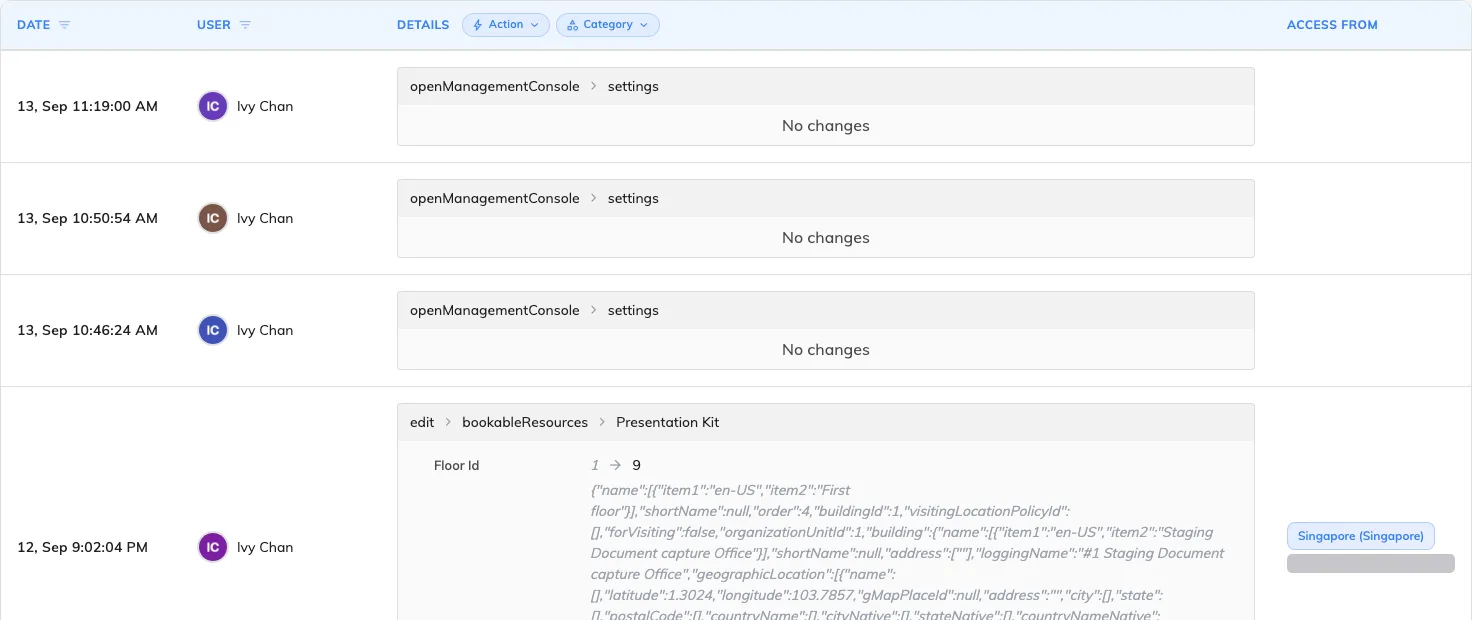
Date, User, Details and Access from — one row per thing that happened, newest first.
Export it
The action menu at the top right of the list holds Reload and Download. Download opens a dialog asking for a period and a file type — csv, xls or xlsx — and builds the file on the server.

The action menu, beside the search box.
One limit shapes how you use it:
- 50,000 rows. Over that the export is refused with This export has too many records. Please narrow the date range or filters and try again. The period itself is not capped — ask for the whole retention window if you want it, as long as the file stays under that count. Filtering first is what keeps it there.
Filter before you download. Whatever the list is filtered to — the people, the actions, the categories, the search text — goes into the file with it. An auditor asking who was granted administrative access this quarter wants the two permission actions and nothing else, not the whole console’s activity.
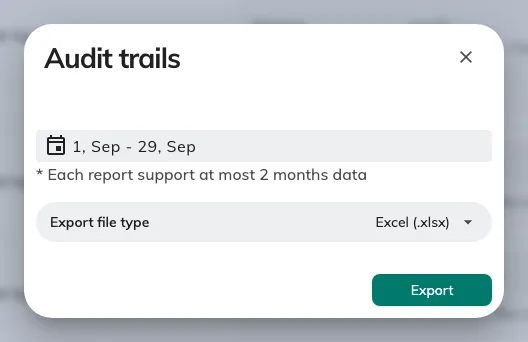
The download dialog: the period, and the file type.
The file carries eight columns — Date, User, Action, Category, Details, Before
change, After change, Access from. Action and Category are written as internal
names (GrantStaffPermission, UserSecurityProfile) rather than the translated
labels on the filter chips, which is how the Details cell names them on screen
too. A value then means the same thing whatever language the file was produced
in.
What one row holds
| Column | What it holds |
|---|---|
| Date | When it happened, to the second, in your own time zone |
| User | Who did it. Blank (-) where Offision itself acted — a scheduled purge, an automatic clean-up |
| Details | What they did: the action, the category, the name of the thing, and the change itself |
| Access from | The city and country the address resolves to, with the IP beneath it. Hover for the full location |
The change, field by field
The Details cell is the substance of the page, and it is not hidden behind an expander — every row shows it. A change lists each property that moved, with the previous value, an arrow, and the new one; where a list gained or lost entries they are labelled Added: and Removed.
Where a property holds a nested object rather than a plain value — a resource’s floor, say, carrying its building — the whole object is printed as raw JSON beside the arrow. That is the record as it was stored, not a rendering fault.
The two small icons on a change copy it, or download it as a JSON file. That is the deepest form of the record — the complete before and after objects, past what the columns summarise — and it is the right thing to attach when a single change has to be evidenced on its own.
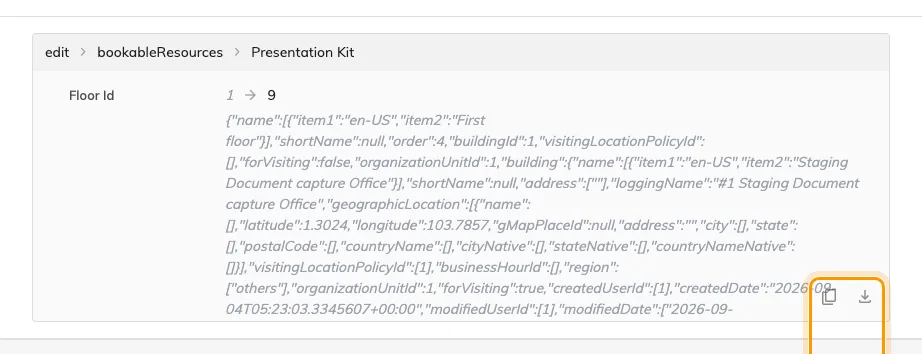
A change, property by property, with Copy and Download beside it.
Narrow it before you export
- Date — a range, on the column header.
- User — one or several people, on the column header.
- Action and Category — the two chips above the Details column. There are sixty-three actions across ninety-six categories, so type into the picker’s own search rather than scrolling it.
- Search — the magnifier in the header. It matches the details and the before and after values, which is why searching a person’s name also finds them inside a change somebody else made to their account.
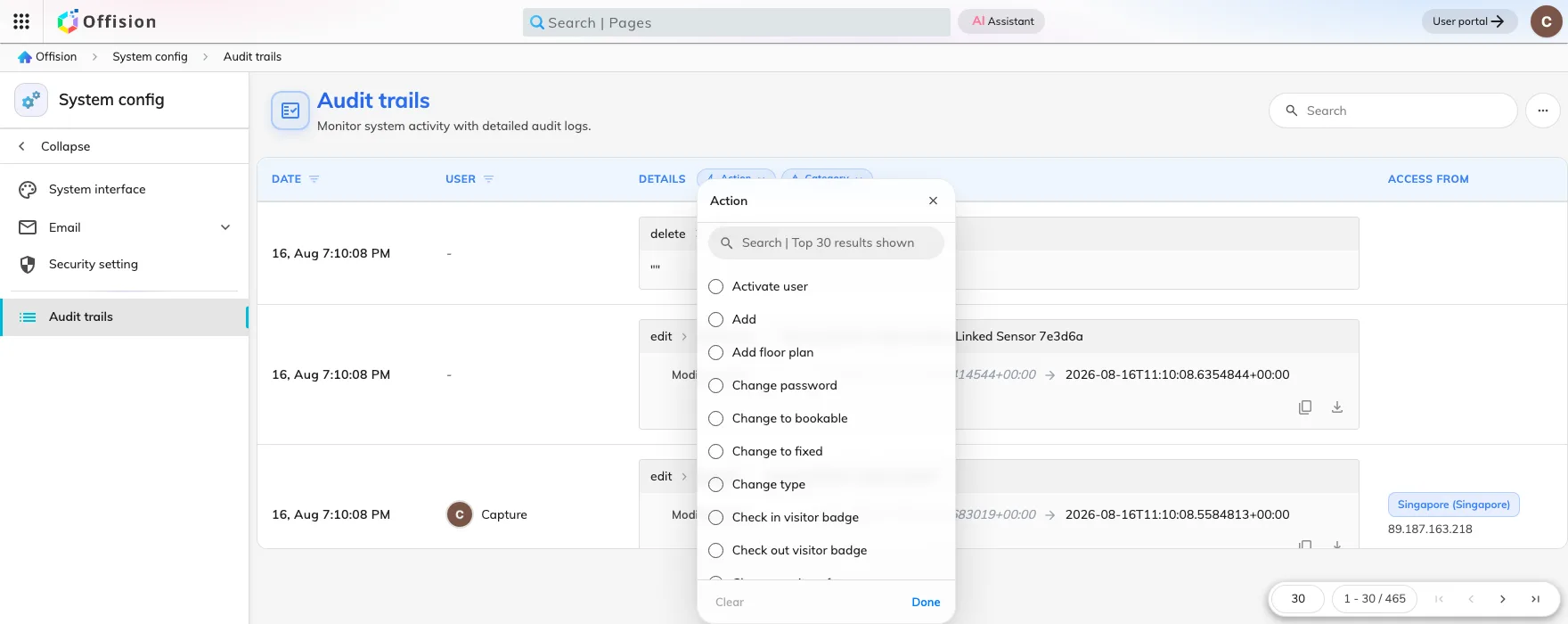
The Action filter, above the details column.
Sign-ins, passwords and two-factor
Login, Login failed, Logout, Logout all, Force logout session, Two-factor verification succeeded, Two-factor verification failed, Enable two-factor, Disable two-factor, Enable authenticator, Disable authenticator, Change password, Reset user password, Reset password by email, and Open management console.
Open management console is the one people overlook. Signing in to Offision and opening the admin console are separate events, so it is the action that answers “who actually went into the console”, as distinct from who used the product.
Role and permission changes
Grant staff permission and Revoke staff permission name themselves, and alongside them sit Activate user, Deactivate user and Edit user security profile. Add, Edit, Delete and Restore on the categories that carry an access decision are recorded too: User, User group, User security profile, Organization units, External authentication settings, OAuth application, Identity server client and Key vault.
This is where the before-and-after is worth most. A permission change records both the old set and the new one, so the row says which rights were added and which were taken away — not merely that somebody was edited.
It is kept for 180 days
Audit trail rows are removed 180 days after they are written. The window is fixed: no setting anywhere moves it, and nothing recovers a row once it has gone.
Plan around it rather than against it. A yearly review cannot be assembled from the console after the fact, so download the trail on a schedule — quarterly sits comfortably inside both the 180-day window and the row limit. Other records have their own, different windows; see Your data: retention, export, deletion and backup.
What the audit trail does not do
- It records changes, not reading. Nobody’s viewing of a page or a report appears here.
- Access cards are not in it. Issuing or deleting a card leaves no row — see How access cards work.
- Each module keeps its own log. Bookings, visits, access control, events, attendance, services, tickets, parcels, counters and expense claims each have a log page of their own, with its own export and its own retention. For those, start at Trace what happened to a booking and See who changed what on an event.
- Nothing here raises an alert. Offision does not flag an unusual sign-in, mark a burst of failures, or email anyone about them. Reviewing the trail is something you schedule.
- There is no API and no live feed. The audit trail is readable in the console and downloadable as a file; it is not on the REST API and there is no log stream to subscribe to, so there is nothing to point a SIEM at. Scheduled exports are the supported route — see Connect your own systems. This is true of the trail specifically: booking, usage and occupancy figures are on the API, via the reporting calls.
Offision’s own information security management system is certified to ISO/IEC 27001, and Offision runs Offision internally — so this is a trail we read for our own evidence as well as yours.