

What a private booking hides
The Private control beside the title, and exactly what it takes off other people's screens: which surfaces show Reserved instead of your subject, who can still read the whole booking, and what happens when somebody manages your calendar for you.
Private is the control beside the title on the booking form. It hides what the meeting is. It never hides that the room is taken.
The part that surprises people is on the other side of that line: your name stays on the booking. A colleague reading the room’s schedule sees the hour, the room and you — everything except the subject. Hiding the organiser is a different setting, and an administrator sets it on the room rather than on the booking.
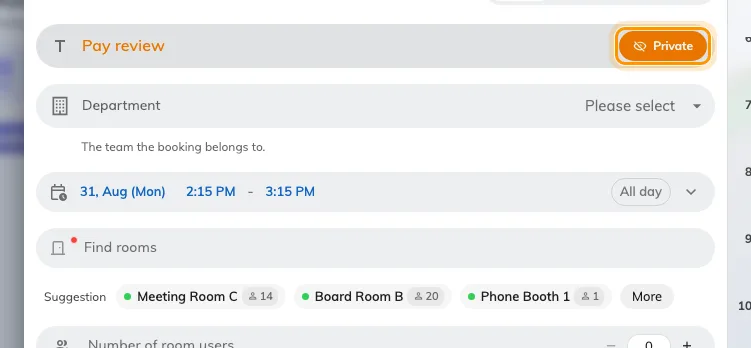
Private, on. The control sits beside the title and applies to this booking only.
What it takes away
Three things, from everybody who is not on the booking: the title, the meeting notes and the attendee list. Nothing else moves — the time, the room, the booking’s status and its check-in are exactly as they were.
Where the subject disappears, and where it does not
| Where | What a colleague sees |
|---|---|
| Resource calendar | Reserved in place of the title, in a block the usual size and the usual place |
| A booking’s card | Reserved where the subject would be, above the hour, the room and who booked it. No notes, no attendee list |
| My calendar, yours | The real title. It is your booking |
| My bookings, an attendee’s | The real title. They were invited, so they can read it |
| Resource calendar, an attendee’s view | Untitled booking — the room’s schedule does not know they are on it, even though their own list does |
| Room panel outside the door | Reserved where the subject would be. On a panel set to show the organiser, the status view still names you and the timeline does not |
| The panel’s screen saver | The room’s state, then a lock and Reserved, then the hours. No subject, no name |
| Signage, a room’s schedule | Reserved, and a lock on the booking’s card |
| Signage, a booking list | Untitled booking. The row keeps its time and its room |
| Email — invitations, reminders, confirmations | The real title. They only ever go to people on the booking |
| Approval, while a reviewer is deciding | The real title. Somebody has to know what they are approving |
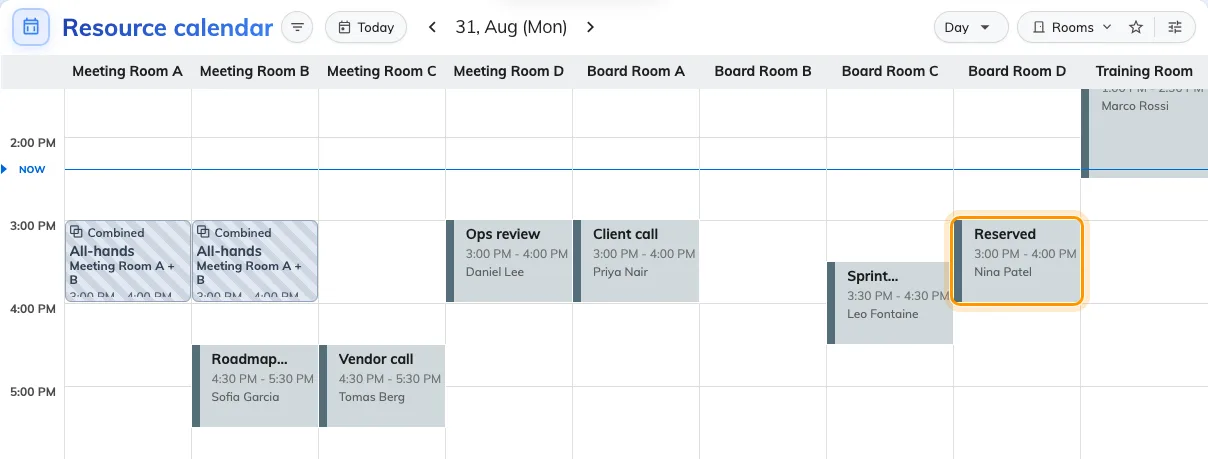
Reserved, where the booking is private — with its hour, its room and the person who made it still on it.
Opening the block does not get anybody further. The card carries the hour, the room and the organiser, and stops there — including where your company has turned on Show full details for others’ bookings, which widens what a colleague sees of an ordinary booking and changes nothing about a private one.
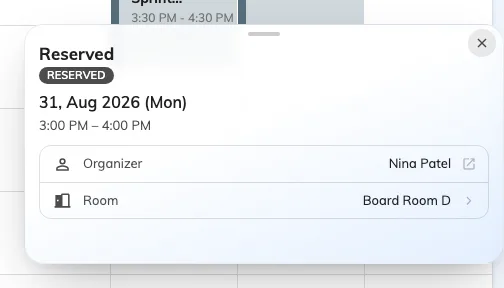
The same booking, opened: the hour, the room and who booked it, and nothing about what it is.
Outside the door, the panel says the same thing to whoever walks past.
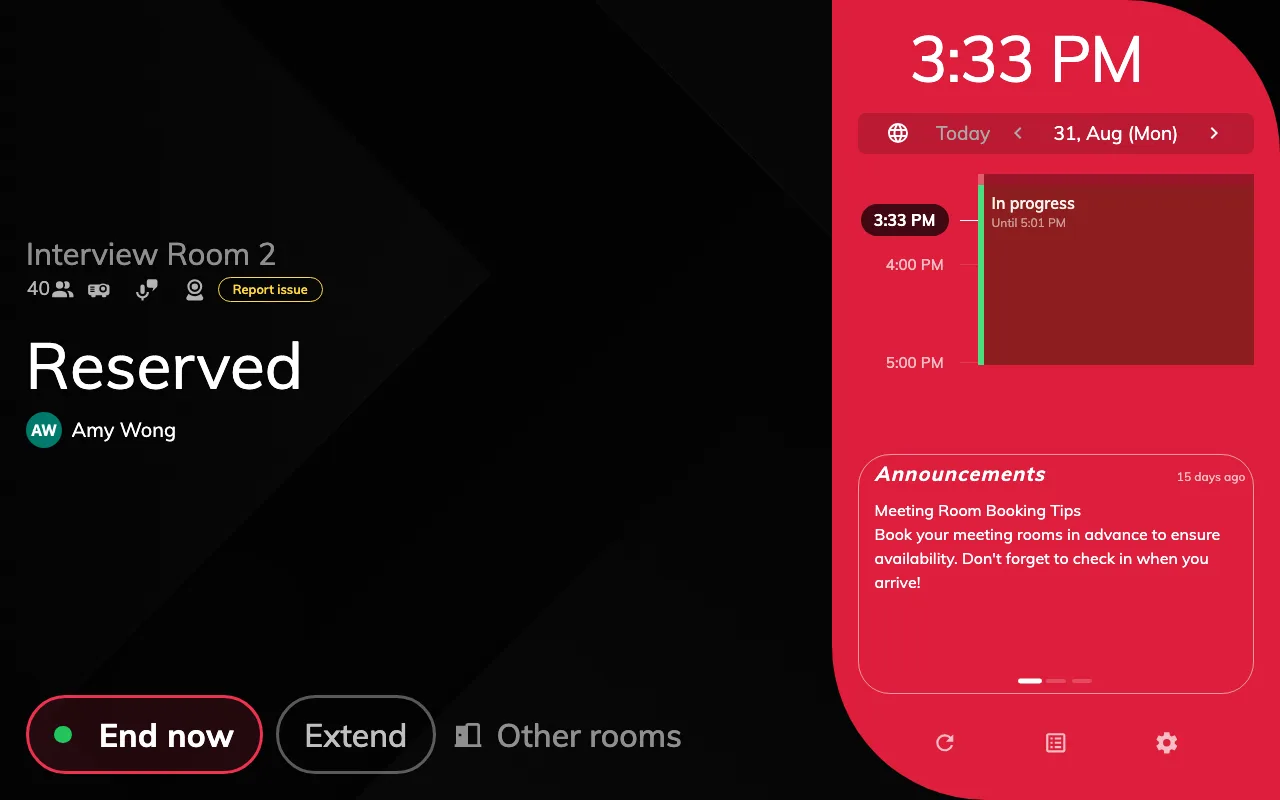
The panel outside the door: Reserved, the hours, and who booked it. The timeline beside it carries neither the subject nor the name.
Who can still read it
- You, the organiser.
- The people you invited, on their own calendar and in their own bookings.
- Whoever administers bookings for your company.
- A reviewer, on a room that needs approval, for as long as the request is theirs to decide.
Nobody else, on any screen.
If somebody manages your calendar for you
Two different arrangements, and two different answers.
- An assistant you added as a delegate in Offision sees the booking in your list with its hour and its room, and not its subject, notes or attendees. Private is judged against whoever is signed in, never the person they are acting for — so being your delegate does not lend them your view of it. Invite them to the meeting, or tell them another way.
- A delegate on your Microsoft 365 or Google calendar is decided outside Offision. Offision marks the meeting private in that calendar too when it writes it there, so whether your delegate can open it is your own mailbox’s setting — in Outlook, whether delegates may see your private items. Offision neither overrules it nor reports it.
What this does not control
- It does not free the room. The hour is visibly taken; that is the point of booking it. A colleague checking your availability still sees you as busy for the hour — busy, and nothing more.
- It does not hide your name. That is the room’s own confidentiality, set by an administrator — see Fit more rooms on screen.
- It does not hide custom answers. A field your company added to the booking form and chose to show to others still prints on signage. Do not put in one what you marked the title private for.
- It is not a permission. It changes what people read, not what they may open. A room some people should not see at all is a team space.
- It has to be allowed. The control appears only where Allow private booking is on for the booking form — see Booking form fields.