

Find a visit on the visiting calendar
Search the visiting calendar by visitor, by the person who invited them, by building, by room or by visiting purpose — then narrow the results by status and period, and export exactly what you are looking at.
Reception asks about a visitor by name, not by date. The visiting calendar draws one period at a time, so the name is the one thing it cannot be browsed by — which is what the search box is for.
1. Type in the search pill
It sits at the top right of the calendar header, and opens across the row when tapped on a phone.
Open InvitationTyping offers live suggestions under four headings:
- Visiting appointments — the visits themselves, each labelled by its visiting purpose, with the day, the time, a status dot, the building or room and who invited them. Choosing one opens its card.
- Visitors — the people, with their company. Choosing one filters to them.
- Inviter — the colleagues who invited somebody.
- Building — where the visit is.
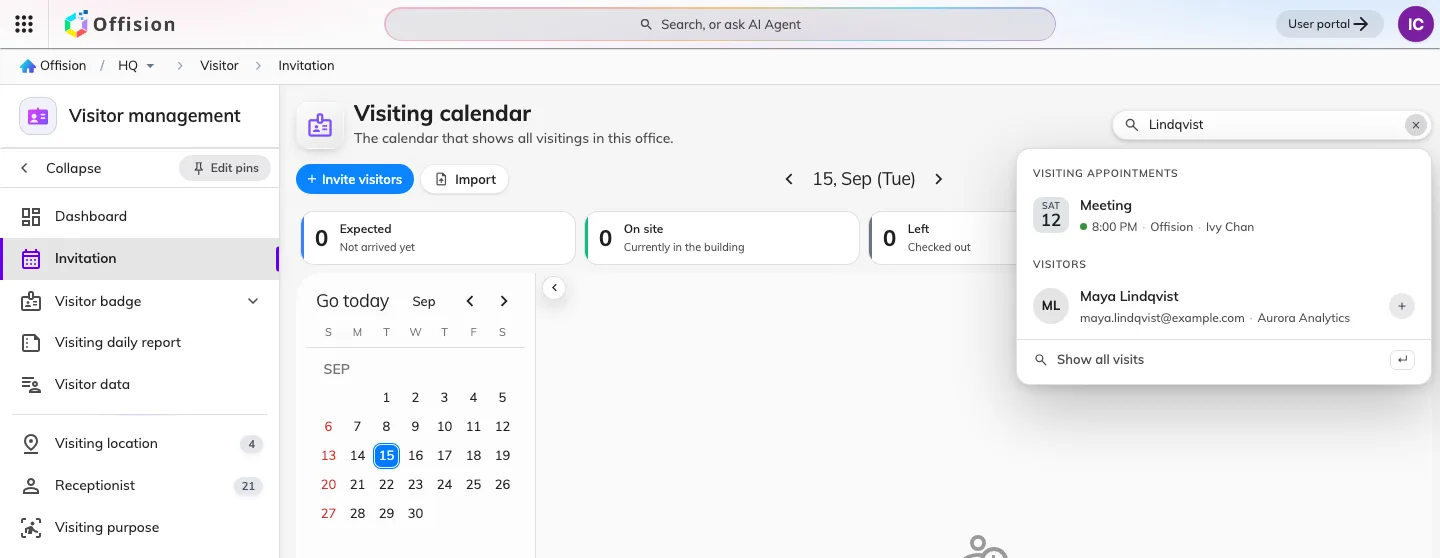
A visitor's surname, matching both the visits and the person.
2. What the keyword actually searches
Not the words of the visit, but the things attached to it. One term is matched against the visitor, the colleague who invited them, the building, the room and the visiting purpose — so a person, a place or a purpose each find a visit, and any one of them is enough to remember.
Two things it does not do. It does not read the visit’s own subject or the
reception remarks. And it matches the box whole: chan tower looks for that
run of characters in one of those five, not for a Chan in a Tower — so search one
thing and narrow the rest with the chips.
3. Show all the matches
Press Enter, or choose Show all visits at the foot of the palette. The board gives way to a list, with filter chips and a count above it.
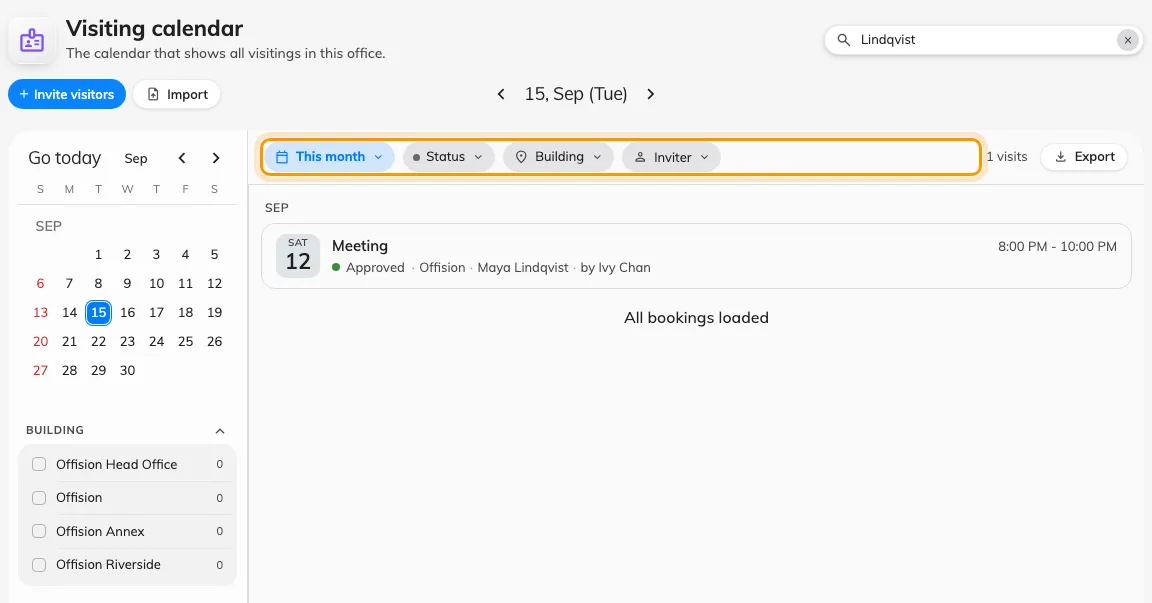
Results in place of the board: the chips narrow them, the count says how many.
The tiles along the top — Expected, On site, Left, Needs attention — step aside while results are showing. They count the period’s board, not your result set, so leaving them up would say something untrue about what you are reading.
4. Narrow it with the chips
| Chip | Narrows to |
|---|---|
| The period | Today, This week, This month, Next 30 days, or Custom for two dates of your own |
| Status | Await, Visiting, Left, No show and the rest — see When a visitor badge works |
| Building | One or more buildings. There is no floor level here: a visit is scoped to a building |
| Visiting purpose | The purposes actually present in the period you are looking at |
| Inviter | The colleague who invited them |
5. Take the results away
Export beside the count opens the export dialog on exactly this search — see Export the visits you are looking at.
Clearing the box puts the board back on the day it was on.
The search is in the address bar
Period, status, building, purpose, inviter and visitor all live in the page’s own address, so a search survives a reload and can be pasted to a colleague.
What this does not cover
- Deleting or editing in bulk. Results open one visit at a time. To work through visitor records themselves, see Find and delete a visitor’s record.
- Bookings. Room bookings have their own search on the management calendar — see Find a booking on the management calendar.
- Anything a demo board is showing. While sample data is switched on, the search box is hidden rather than answering a fabricated board with real records.