

Check in and out by scanning the sticker on a desk or room
What happens when you scan the QR code stuck to a hot desk or a small room — taking it there and then, confirming a booking you already had, adding time, handing it back early, and what each of the refusals means.
Hot desks and small rooms often have a printed QR code stuck to them instead of a screen on the wall. That code is the whole booking interface for that desk: point a phone at it and you can take the desk, confirm the booking you already made, give yourself another half hour, or hand it back when you leave.
One code does all four, and which of the four you get is not something you choose — it is whatever the desk needs at the moment you scan it.
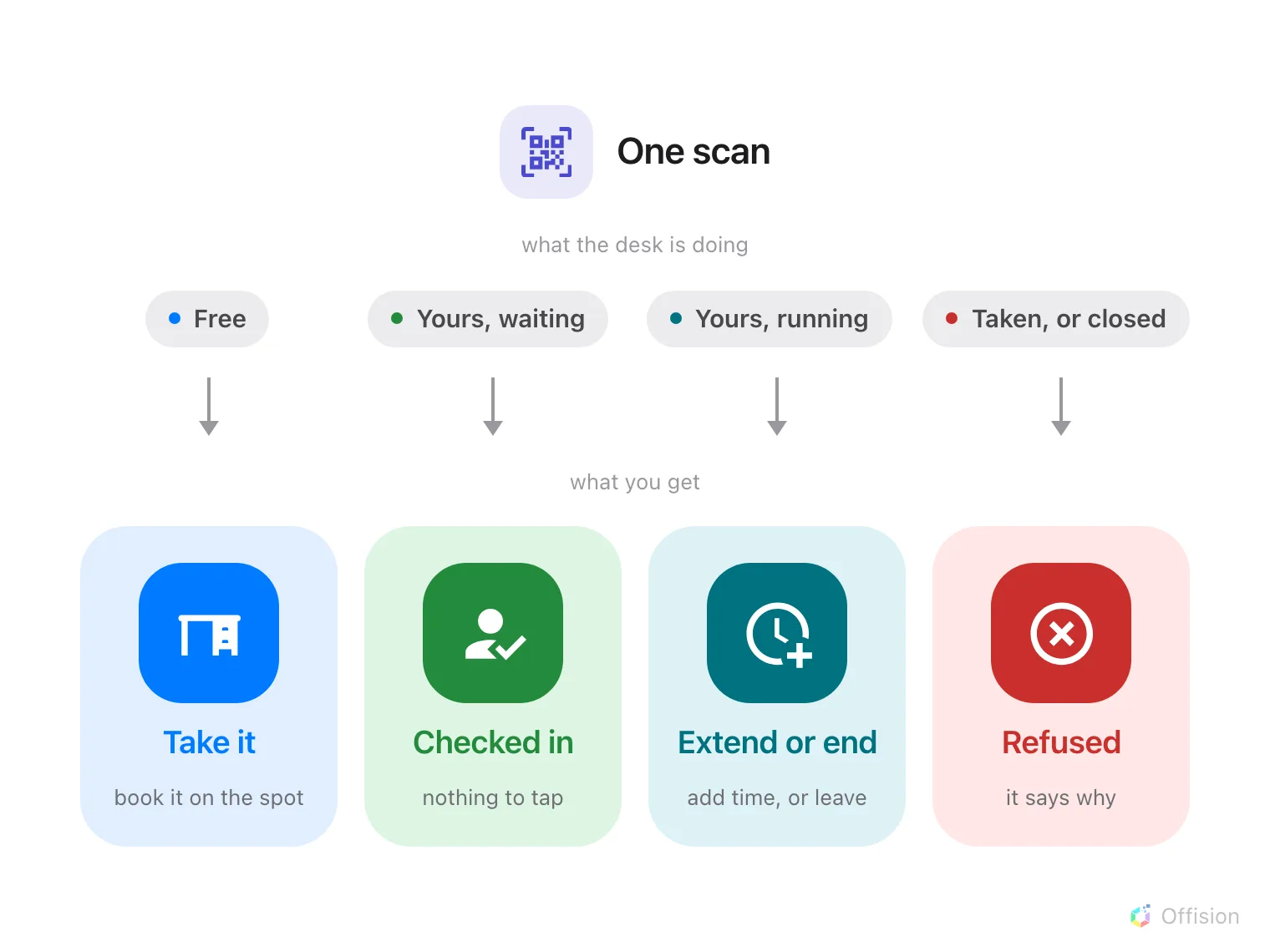
You do not choose what a scan does — the desk's state does, and there are only four of them.
1. Scan the code
Use the camera, or the scanner in the Offision app. The link opens Offision, signs you in if you are not already, and acts immediately — there is no menu of things to choose from, and nothing to confirm before it does whatever the desk needs.
If you are signed out, you will be asked to sign in first and the scan carries on by itself afterwards.
2. If the desk is free, take it
You get a short form for the desk you are standing at, already filled in except for one thing: how long you want it. Set End time, or switch to Duration and pick a length, then Book.
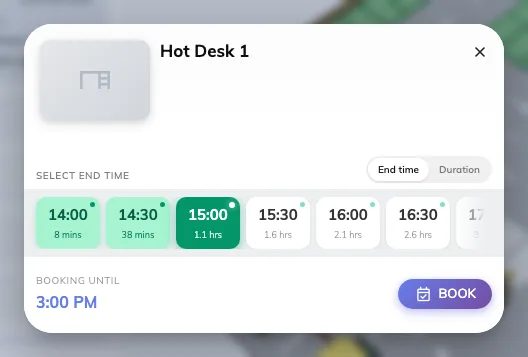
Scanning a free desk. It is yours from now until whatever you set here.
Two things worth reading before you confirm:
- Has other booking beside a time means somebody has the desk later. You can still take it now — just not past that point.
- No available slots means the desk is free this second but booked so soon that there is nothing usable left. Find another one.
The desk is yours from the moment you press Book — there is no separate check-in to do afterwards.
3. If you booked it already, you are checked in
Scanning a desk you have already booked does not ask you anything, and does not stop to confirm. The scan checks you in and puts you on the app’s home screen.
This is the scan that matters most. Where a desk or room requires check-in, a booking nobody confirms is treated as a no-show and handed back part-way through — so the scan is what stops the desk being given away while you are sitting at it. See How check-in and no-show work for how long you have.
4. While you are using it, add time or hand it back
Scan the same code again during your booking and you get the booking itself, with how long it has been running and how long is left.
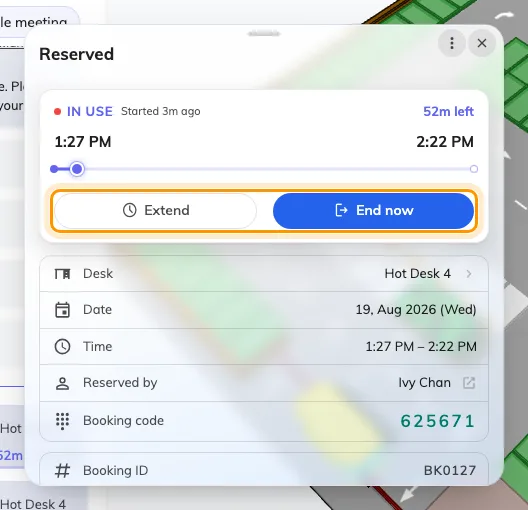
The booking while it is running. Extend buys more time; End now gives the desk back.
- Extend adds time, if nobody else has the desk next and your organisation allows it.
- End now finishes the booking there and then.
End now is the one people forget. Leaving at three when you booked until five holds the desk for two hours that nobody can use — the booking does not notice you have gone. One scan on the way out puts it back in the pool. On a floor of hot desks this is where most of the reclaimed space comes from.
Neither button appears if your organisation has turned it off for that desk, and on somebody else’s booking you may only be able to do this if you are on the invitation.
5. When a scan refuses
Four things stop a scan, and the message says which. None of them mean the code is broken.
Somebody else has it. The desk is booked and running for another person. Nothing you can do here — find another desk.
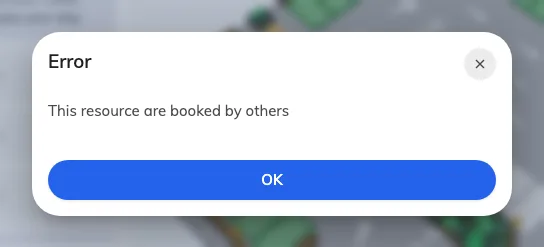
This resource are booked by others — the desk is in use by someone else.
It is out of service. Taken out of use deliberately, usually because something on it is broken or being worked on.
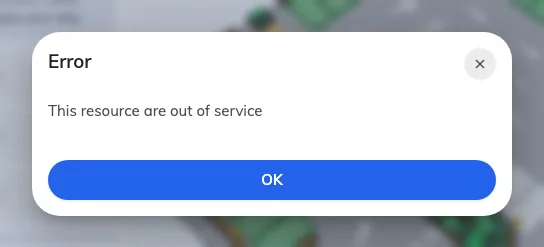
Out of service. The desk is not bookable by anyone until that period ends.
It is outside its hours. The desk or room can only be booked during set hours, and you are scanning outside them.
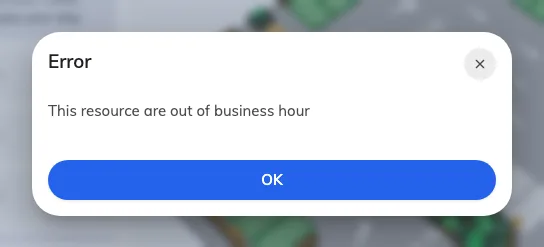
Outside business hours. Scanning again inside them works normally.
You are not allowed to book it. The desk belongs to a team you are not in. It is not a fault and scanning again will not help — this one needs whoever manages the floor.
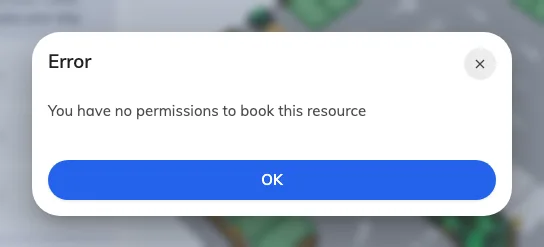
No permission. The desk is reserved for another team.
6. Check it worked
Whichever of the above happened, the booking is in My calendar in the app afterwards — a desk you have just taken appears there, and one you checked into shows as in use. If it is not there, the scan did not complete, and scanning again is safe: it never books the same thing twice.
What this does not cover
- The screen on a meeting room door. That is a panel, and the code on its screen changes as the room does — see Checking in by QR code, and proving you are there.
- Booking ahead. Scanning only ever gives you the desk now. To book next Tuesday, use the app — see Book a meeting room.
- Cancelling. End now stops a booking that has already started; cancelling one that has not is a different thing — see Cancel a booking.
- Where the sticker comes from. An administrator prints and places it — see Print and put up resource stickers.