

Both maps
Set up a Neat Board as wayfinding signage
A Board is a wall-sized touchscreen, so it can show a whole floor at once and hand the route to somebody's phone. Enrol it through Neat Pulse, pair it as signage, and place it on the floor plan — which is where routes start from.
A Neat Board is a 50 or 65-inch touchscreen on a wall or a stand. At that size a floor plan is readable from across a lift lobby, which is what makes it the screen to put where people arrive and do not yet know where they are going.
Wayfinding on a Board is two halves. The screen shows the floor — which rooms are free, where they are — and a Wayfinding QR code hands the route to the visitor’s own phone, so the directions walk with them instead of staying on the wall. Routes are calculated from where the Board itself stands, which is why placing it on the floor plan is a step here rather than an afterthought.
Choose route guidance for the map family in use: Classic route networks or Map 2.0 directions. Map 2.0 derives walking space from its walls and openings; Classic Route-mode editing does not repair a Map 2.0 route. Verify the starting position after switching families.
What to have ready
- A Neat Board 50 or Neat Board Pro
- A Neat Pulse organisation with the Offision app available to enable
- Mains power at the wall — a Board draws far more than any panel and has no PoE option
- A wall mount or stand. Neither is in the box; only the table stand is
- About thirty minutes, plus whatever the mount takes
Both are landscape, so build the content that way. And both take Ethernet, which on a wall-mounted screen in a public area is worth using — a Board that drops off WiFi is a blank wall in the busiest part of the building.
1. Build the floor content
Go to Signage › Content, choose Add, and pick Floor display.
Open Signage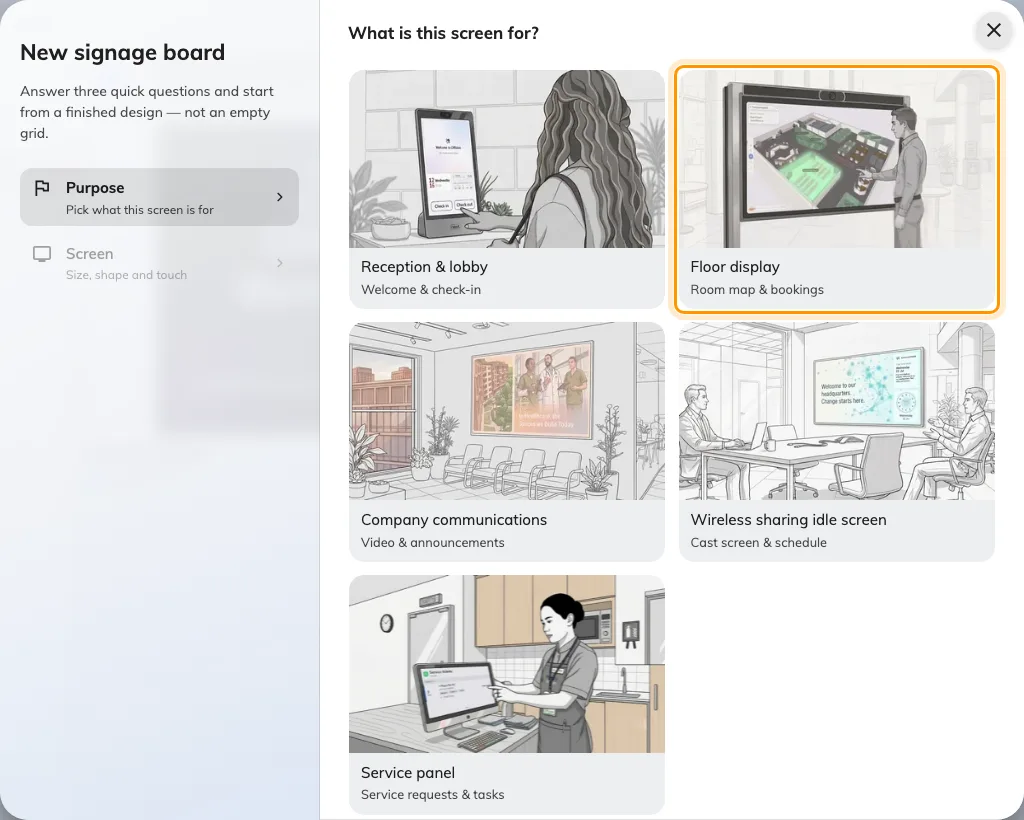
Floor display, the second purpose. It starts the design with the floor's availability map.
Answer the screen questions to match the Board — landscape 16:9, and Touch screen on. A Board is a touchscreen, and saying so is what lets people work the map with their hands rather than only reading it.
The purpose starts the design with the floor’s availability map already placed. Everything about the editor, and what else can go beside the map, is in Build signage content; the map itself is covered in Booking status map.
2. Add the wayfinding tiles
Two things turn a floor map into wayfinding, and both are added on the content:
- Wayfinding QR code — a tile in the Workplace category. Somebody scans it and gets a search page on their phone, already routed from this Board’s position. This is the one that matters on a screen people walk past.
- Scan-to-go QR on route — a setting on the availability map itself. With it on, a route drawn on the map carries a QR the visitor can pick up and keep.
3. Enrol the Board in Neat Pulse
A Neat device takes its apps from Neat Pulse rather than from an address you type, and the enrolment is the same for every Neat device. It is explained once, with the two codes it involves, in Connect a Neat Pad room booking panel.
In short:
- In Neat Pulse, open the Apps tab, enable Offision and disable every other app.
- Go to Devices › Add devices, name the device and choose Continue. Pulse shows an enrollment code.
- Power on the Board and follow its on-screen setup until it shows the Neat Pulse screen. Type the enrollment code.
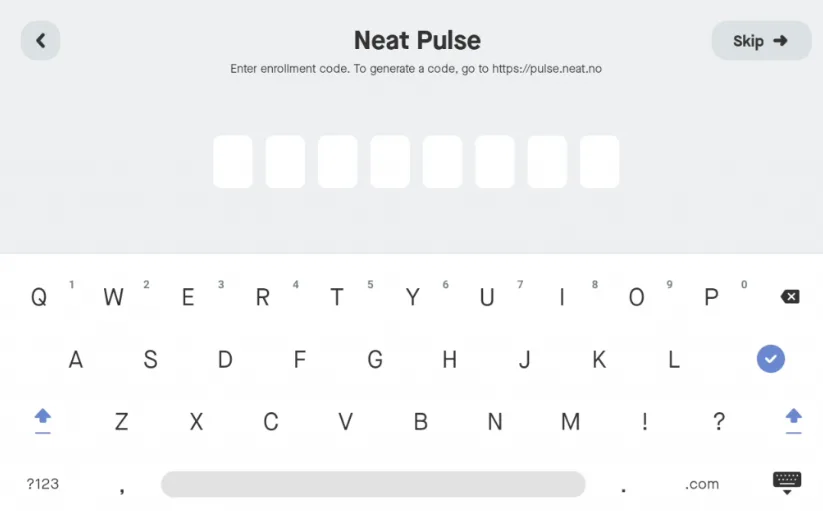
The Board asking for the Neat Pulse enrollment code. This is Neat's code, not Offision's.
Do this at desk height if you can. Everything up to the pairing code is easier before the Board goes on the wall.
4. Let Pulse install Offision
Once the Board pairs with Pulse, choose Continue on the device. On the Choose apps page, select Offision and choose Continue.
The Board downloads and launches the app, then shows a six-character pairing code.
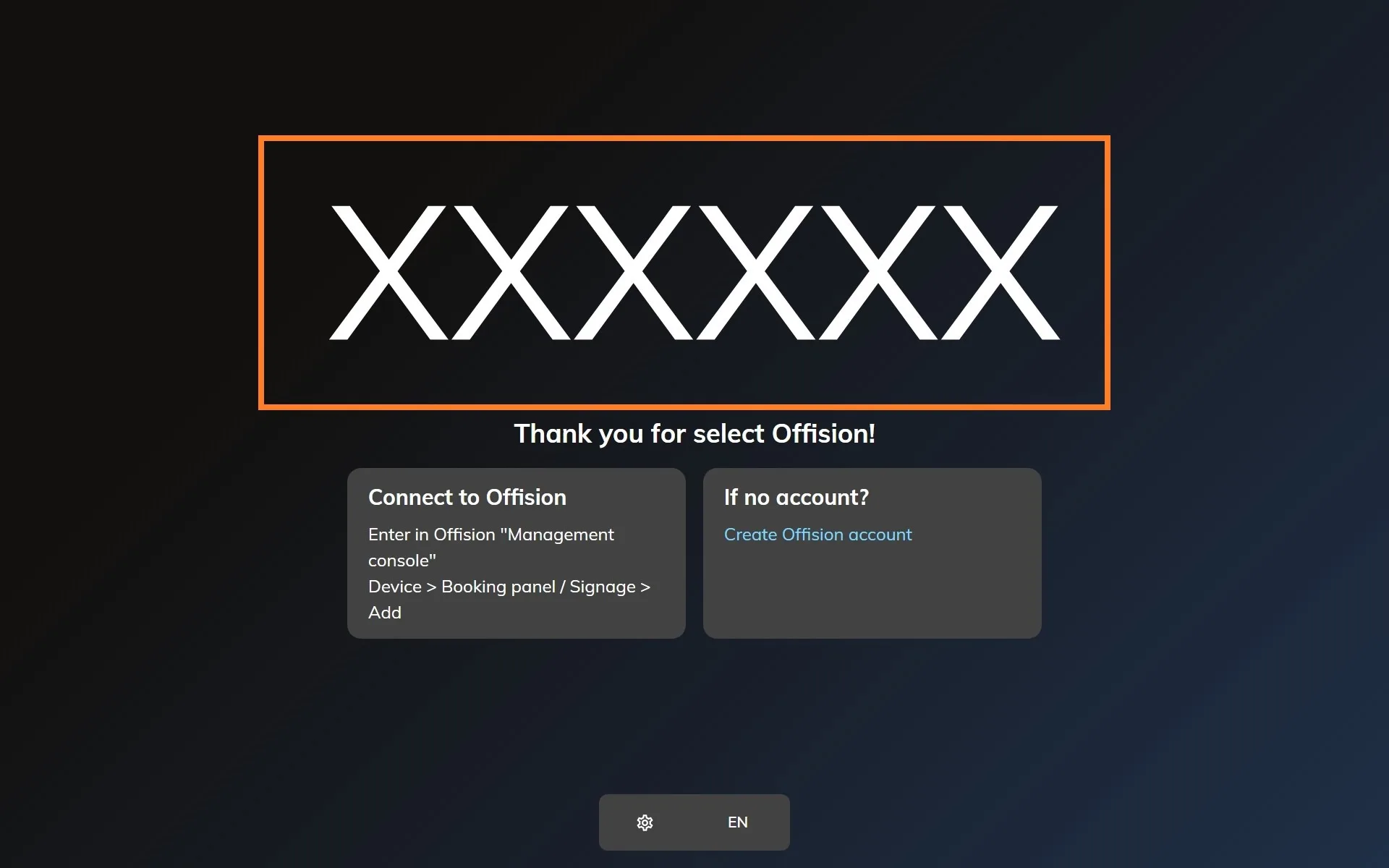
The Offision app on a freshly enrolled Neat device, waiting to be claimed.
5. Pair it as signage
In the console, go to Devices › Signage › Devices and choose Add.
Open Signage devicesThe wizard asks three things: the content this screen will play, the brand of hardware, and then the code. Choose the floor content from step 1, then Neat Board.
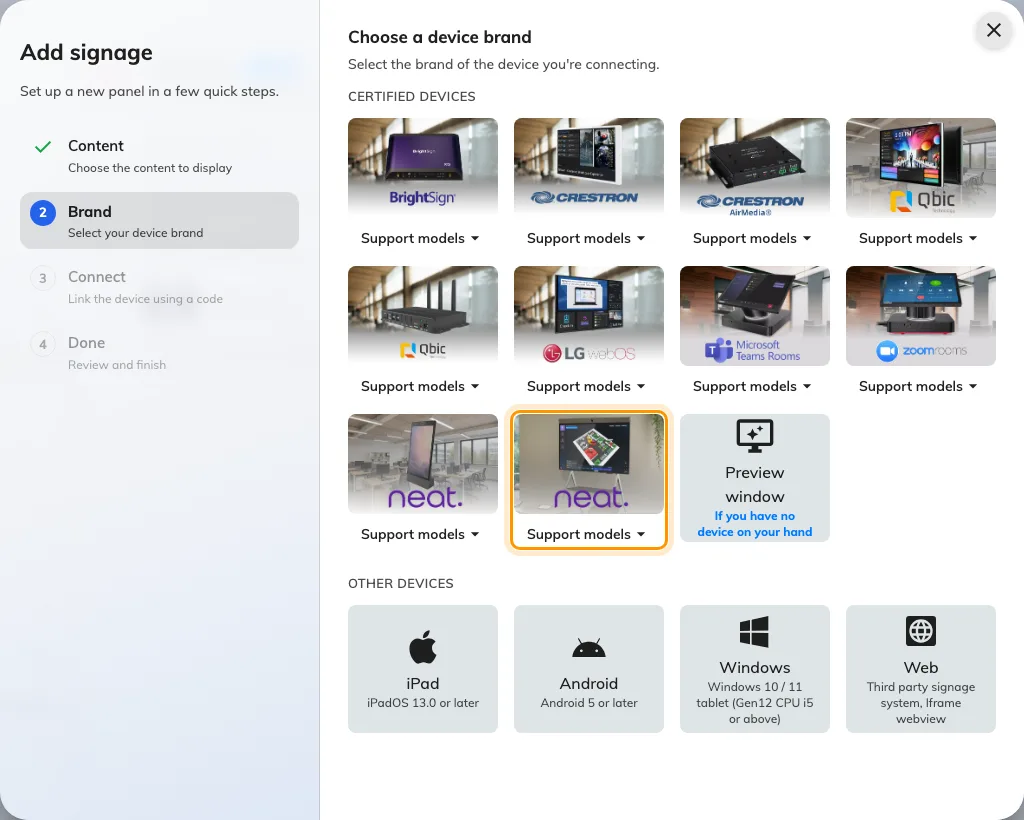
Neat Board, tenth in the certified devices grid.
Type the six characters from the Board. The field submits itself on the last one.
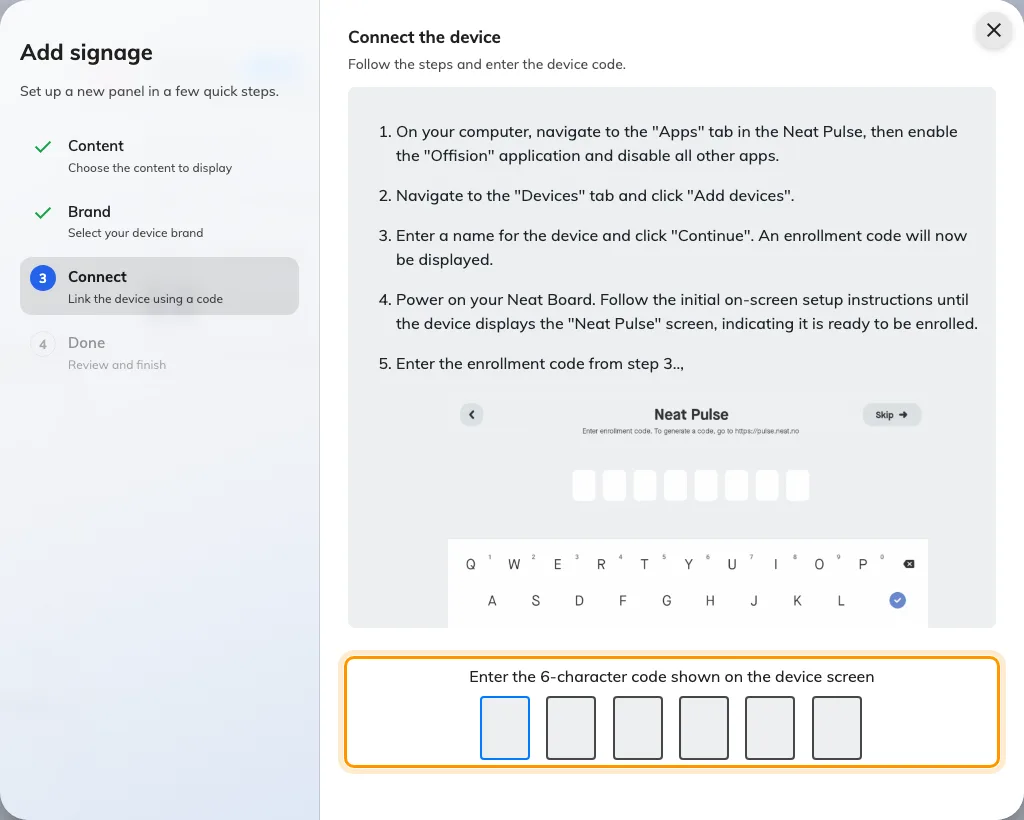
The Neat Board guideline, and the field that claims the screen.
6. Place it on the floor plan
Routes start from the Board, so the Board has to be somewhere. As the wizard finishes, choose Set location and put the device where it physically stands — by the lifts, inside the entrance, wherever it ended up. The same thing can be done later from the device’s own row.
A Board that is not placed still shows the floor. It just cannot route from here, because there is no here.
Routes use the selected floor map. For a missing route, check the Classic route network or Map 2.0 walls and openings, according to the map family.
7. Check it worked
Within a few seconds the Board stops showing the code and starts showing the floor. Then walk the thing people will actually do:
- On the Board, tap a room on the map. It should tell you about that room.
- With a phone, scan the wayfinding code. The Board’s code opens a search rather than a route, so pick a room on another part of the floor and tap Take me there; the first step should start at the Board rather than at the far end of the building. What the visitor sees next is What a visitor sees after they scan.
When it goes wrong
| What you see | Usual cause |
|---|---|
| The map shows, but scanning gives no directions | That floor has no wayfinding licence assigned |
| Directions start from the wrong end of the building | The device is not placed on the floor plan, or is placed where it used to be. Set its location again |
| The floor is drawn but rooms are missing from search | Those places are not on the floor plan. Rooms are found by what the plan carries, not by what exists in the building |
| Nothing responds to touch | Touch screen was answered no when the content was created |
| Choose apps does not list Offision | The Offision app was not enabled in the Pulse Apps tab. Enable it, then restart the Board |
| The Board goes blank in the evening and stays blank | It is honouring a screen time-out or a schedule. Check the content’s schedule before suspecting the hardware |
| The pairing code is refused | Read it off the Board again — a device that has restarted or lost the network since is showing a different code, or the cannot-connect message in place of one |
| The Board shows a room or content, and no pairing code | It is still claimed by an earlier record. Disconnect it there first — see Reuse a panel that was set up for something else |
What this does not do
- It does not draw your floor plans. The map is whatever the floor plan carries. A route can only pass places that were drawn on it.
- It does not turn the Board into a room panel. A Board paired as signage shows content. Booking a room from it is what the content’s own widgets do, not a panel mode. A Board that should be a room panel instead has to be released from this record first — see Reuse a panel that was set up for something else.
- It does not use the camera or microphones. Those belong to Neat’s meeting features; Offision only draws on the screen.
- It does not manage the device. Firmware and which app runs stay in Neat Pulse. Sensor readings are a separate connection — see Connect Neat Pulse.