

Put Offision devices on a locked-down network
Offision never needs an inbound firewall rule. Panels, kiosks, players and the apps all open the connection themselves, outbound on 443, so a filtering proxy is enough — provided it allows all three of the names a device uses.
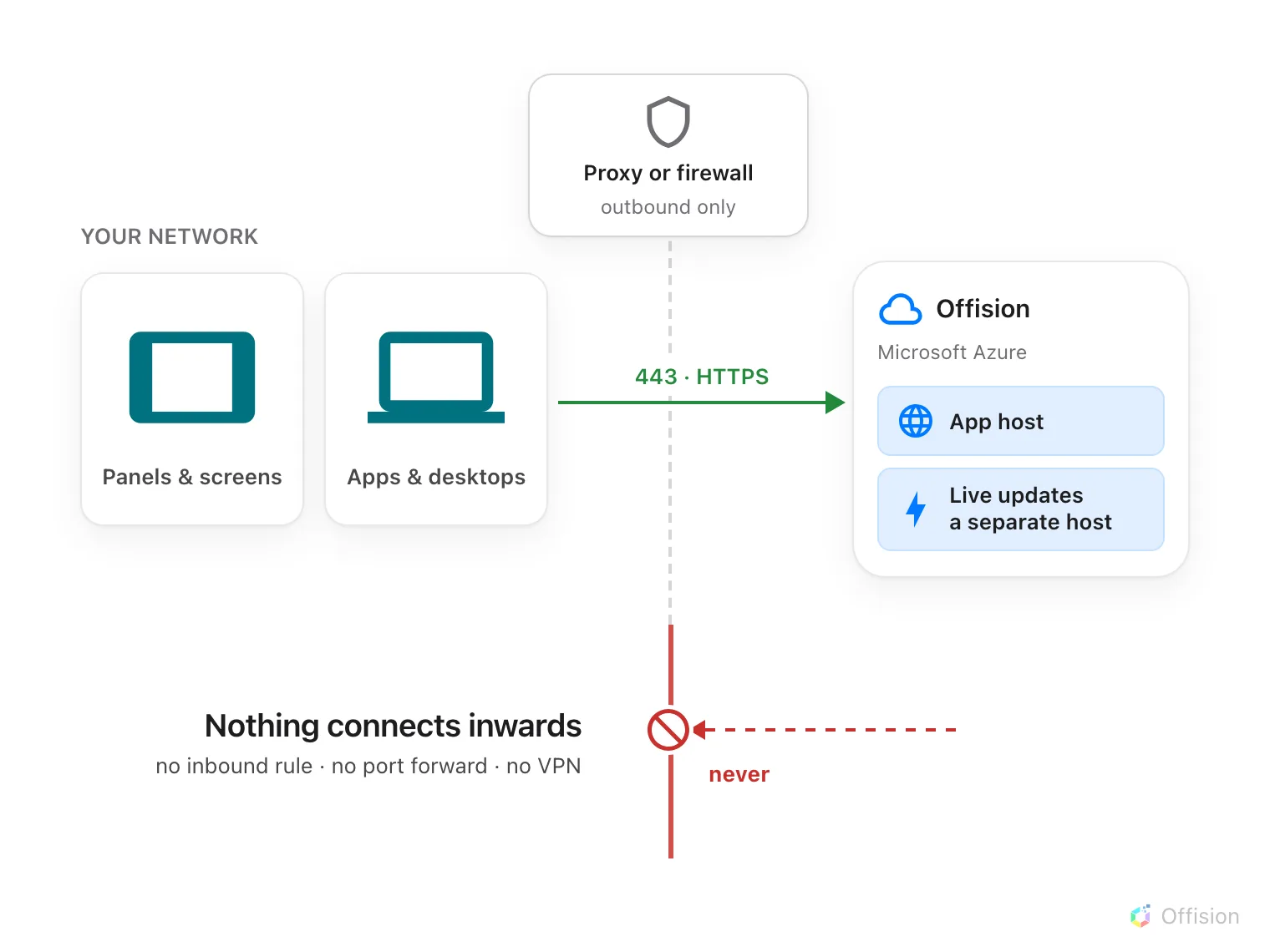
Every device opens the connection itself. Nothing connects inwards, so there is no inbound rule to write.
Offision never connects to your network. Every device — a room panel, a reception kiosk, a signage screen, the desktop app, a phone — opens the connection itself and keeps it open. Everything Offision sends back, including commands like unlocking a door or changing what is on screen, travels back down the connection the device already opened.
So there is no inbound firewall rule to write, no port to forward, and no VPN. A network with every inbound port closed is a network Offision works on.
Through a filtering proxy
Devices use ordinary outbound HTTPS on TCP 443, the same traffic a browser makes. A proxy that allows the hosts in Every address Offision connects to is enough. Nothing needs to be exempted from inspection, and no device needs a public address of its own.
One egress point is enough
Every Offision device uses the same short list of hosts. There is no per-device-type exception, so a single controlled egress point serves the whole estate — panels, kiosks, screens, sensors, the control processor and the apps people run. Nothing needs general internet access beyond that list.
This holds on a segmented or air-gapped network, where only one route out exists. Point that route at the hosts in the allowlist and every device type is covered by the one rule.
Sensors are the exception worth knowing about, and it works in your favour: most of them need no egress at all. See which sensors need a route out.
Three names, not one
This is the part that catches people out. A device does not talk to one host, and a partial allowlist does not fail loudly — it fails quietly, hours later.
The pairing host. A brand-new panel or kiosk has not been told which data centre it belongs to yet, so the first thing it contacts is a shared registration service. That is where its six-character pairing code comes from. A device that cannot reach it shows a code that never appears in the console, or no code at all.
The app host. Once paired, the device is sent to its own region and loads everything from there — its configuration, its bookings, its screen content.
The real-time host. Live updates travel over a separate address from the app host. This is the one that gets missed, because missing it looks like nothing is wrong: the panel starts, signs in and draws a screen. Then it simply stops changing. A booking made in the app never appears on the wall, an occupancy sensor never turns the panel red, and a door-open button does nothing. There is no error message, because from the device’s point of view nothing failed.
Your region decides two of them
The app host and the real-time host are different names in each data centre, and your account lives in exactly one. See Where your data is hosted for which one you are on, then take that column of the allowlist.
The pairing host is shared, so it is the same entry whichever region you are on.
What this does not cover
The network inside your building. A control processor reaching AV equipment on the room’s own subnet — a matrix switcher, a TV, a microphone — never leaves your network, so none of it appears in the allowlist. If those are on a separate VLAN from the processor, that is an internal routing question.
Restricting who may sign in. An allowlist decides what a device can reach, not who may use Offision once it gets there. Sign-in restrictions are set in the console; see How sign-in security works.