

Connect a Neat Pad room booking panel
A Neat device is never pointed at an address. It is enrolled into Neat Pulse, which installs the Offision app for it — so setup runs through two codes, one from Neat and one from Offision.
A Neat device runs Android, and it does not let you browse to an address. It takes its apps from Neat Pulse, the cloud service that manages Neat hardware — so making a Neat Pad show Offision means enabling the Offision app in Pulse, and letting Pulse install it.
That shape is the same for every Neat device Offision supports, and it is worth reading once before the steps. Two codes are involved, from two different systems, and confusing them is the commonest way this goes wrong:
| Code | Comes from | Typed into | What it claims |
|---|---|---|---|
| Enrollment code | Neat Pulse, when you add the device there | the device, during its own setup | the hardware, into your Pulse organisation |
| Pairing code | the Offision app, once Pulse has installed it | the Offision console | the screen, into your tenant |
The first code is Neat’s and is about owning the device. The second is Offision’s and is about which room this panel shows. A device that never enrolled has no Offision app to give you a pairing code, which is why the order below cannot be shortened.
What to have ready
- A Neat Pad. It is the only Neat booking panel Offision is certified against
- A Neat Pulse organisation, with the Offision app available to enable
- PoE on the port the Pad sits on. The Pad takes 802.3af Class 0 and has no power supply of its own
- Network the Pad can reach your Offision server from
- About twenty minutes, most of it waiting for the app to install
The side LEDs are why a Pad reads from down a corridor, and they are also the one place its colours are more limited than other panels’ — see What the panel’s colours mean.
A Pad also carries air-quality sensors, and pairing it as a panel does not bring their readings with it. Those arrive over a different connection — see What Neat Pulse syncs into Offision.
1. Enable Offision in Neat Pulse
On a computer, sign in to Neat Pulse and open the Apps tab. Enable the Offision application, and disable every other app.
That second half matters more than it looks. Pulse offers the device whatever apps are enabled, and the Pad’s own setup screen asks which one to run — so a Pulse account still offering Teams and Zoom is a Pad that can be finished as a Teams panel by whoever installs it.
2. Add the device in Pulse
Go to the Devices tab and choose Add devices. Give the device a name — this is Neat’s name for the hardware, not Offision’s name for the room — and choose Continue.
Pulse shows an enrollment code. Keep the page open; the code is what the next step needs.
3. Start the Pad and choose room availability
Power on the Pad and follow its on-screen setup — language, network and so on — until it reaches the Choose Setup page.
Choose Add Neat Pad for room availability.
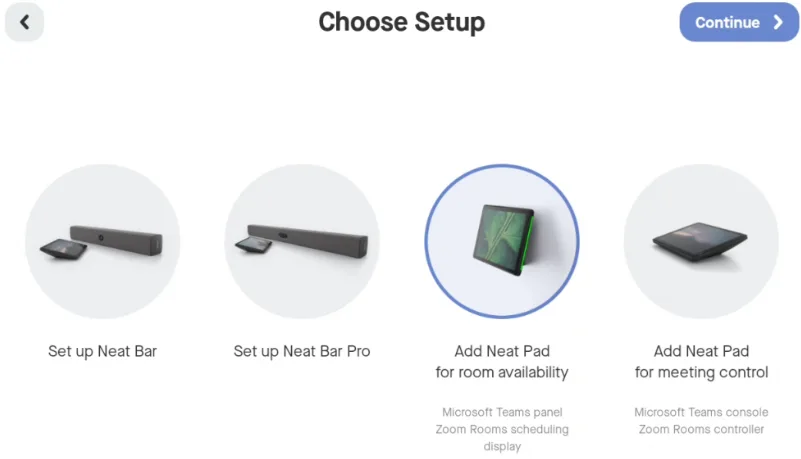
Choose Setup, with room availability chosen. The other Pad option makes it a controller for a Neat Bar instead.
This is the choice that decides what the Pad becomes. Add Neat Pad for room availability makes it a scheduling display standing on its own, which is what a booking panel is. Add Neat Pad for meeting control makes it the touch controller for a Neat Bar in the room, and a Pad set up that way never becomes an Offision booking panel.
4. Enter the enrollment code
Continue until the Pad shows the Neat Pulse screen — it is telling you it is ready to be enrolled — and type the enrollment code from step 2.
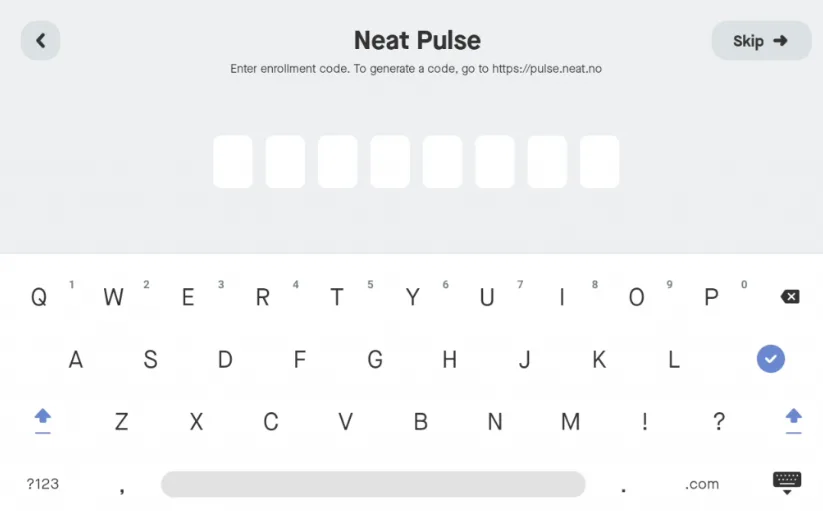
The Pad asking for the Neat Pulse enrollment code. This is Neat's code, not Offision's.
5. Let Pulse install Offision
Once the Pad pairs with Pulse, choose Continue on the device. On the Choose apps page, select Offision and choose Continue again.
The Pad downloads and launches the Offision app. This is the slow part — leave it alone until it finishes and shows a six-character pairing code.
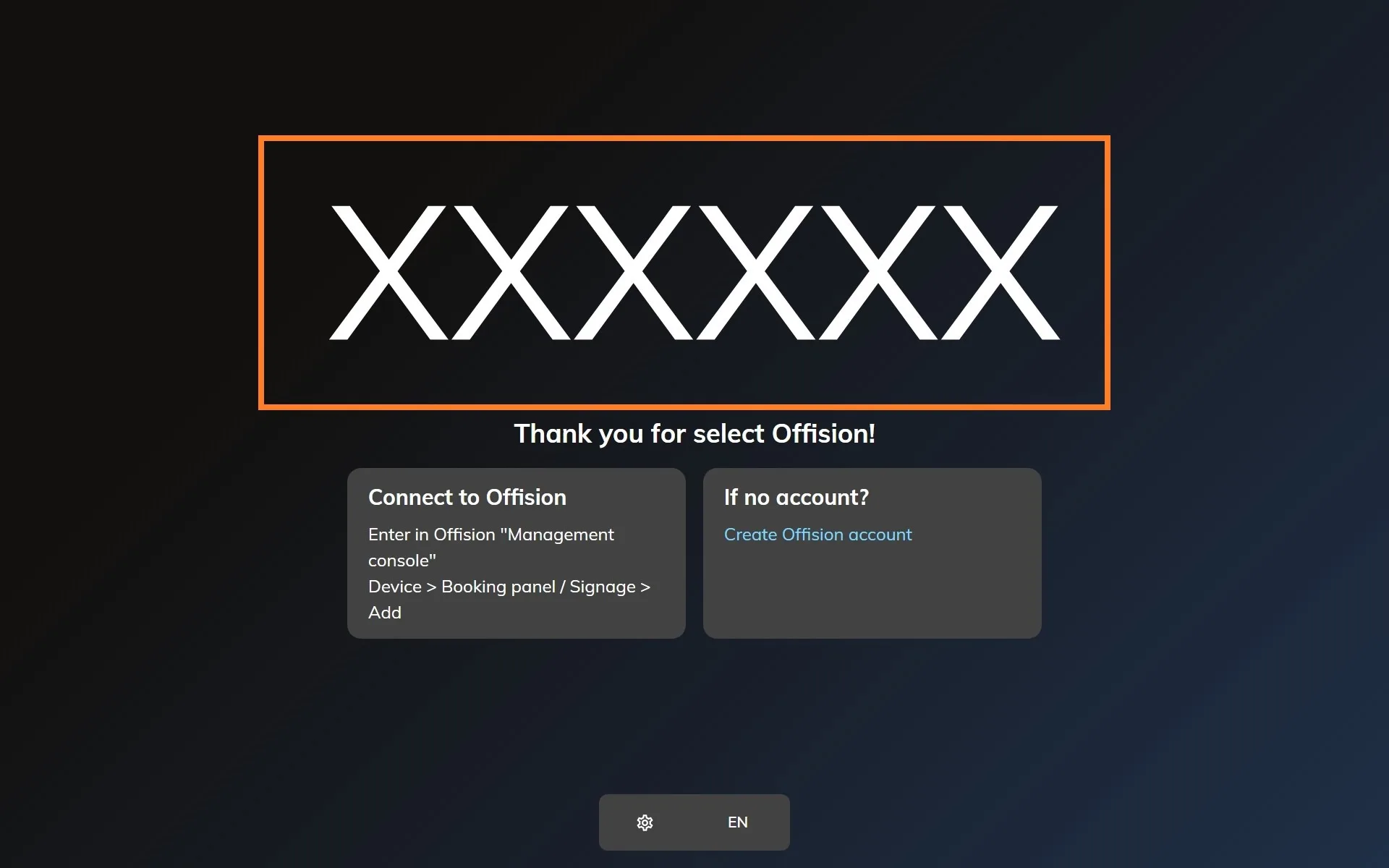
The Offision app on a freshly enrolled Neat device, waiting to be claimed.
6. Pair the panel
In the console, go to Devices › Booking panel › Devices and choose Add.
Open Booking panelPick Room booking panel, then the room, then Neat Pad under Certified devices.
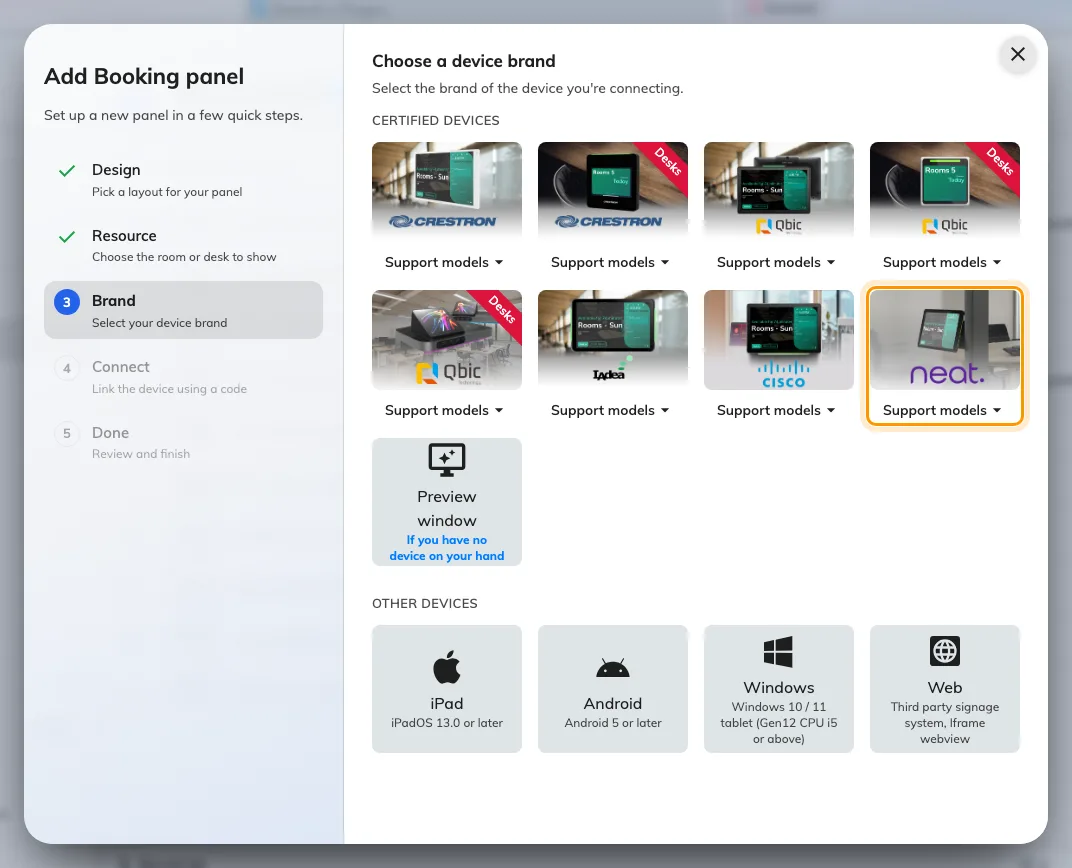
Neat Pad, eighth in the certified devices grid.
Type the six characters from the Pad; the field submits itself on the last one. The wizard’s steps, and the pass code every new panel raises afterwards, are covered in Connect a booking panel to Offision — including why that pass code should be changed before the panel goes up.
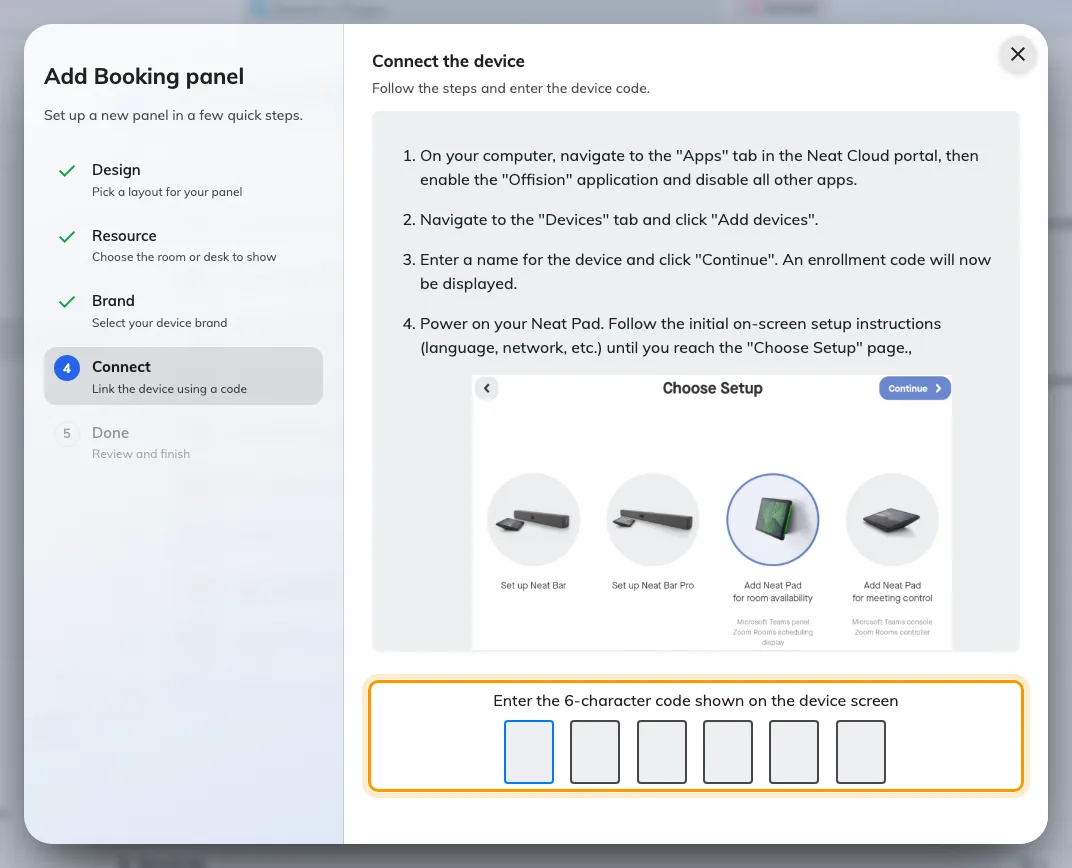
The Neat Pad guideline, and the field that claims the panel.
7. Check it worked
Within a few seconds the Pad stops showing the code and starts showing the room. Its row in Devices › Booking panel › Devices goes online within a minute.
Then prove it end to end: book the room for yourself, watch the Pad change while you are standing at it, and check that the side LEDs change with it.
When it goes wrong
| What you see | Usual cause |
|---|---|
| The Pad finishes setup as a Teams or Zoom panel | Other apps were still enabled in Pulse. Disable them in Apps, then factory reset the Pad and enrol it again |
| Choose Setup offers no room availability option | The Pad is being set up as part of a Neat Bar’s flow. Go back to the first screen and start from the Pad’s own setup |
| The Pad never reaches the Neat Pulse screen | It has not finished its own network setup, or it cannot reach Neat’s service. This is between the Pad and Neat; Offision is not involved yet |
| The enrollment code is refused | The code has expired or was already used. Generate another from Devices › Add devices in Pulse |
| Choose apps does not list Offision | The Offision app was not enabled in the Pulse Apps tab, or the tab was saved after the device enrolled. Enable it, then restart the Pad |
| The app installs but shows no pairing code | It is still starting. If it stays blank, the Pad cannot reach your Offision server — a network problem at the Pad end |
| The pairing code is refused | Read it off the Pad again rather than retyping what you noted down. A device that has slept or restarted is showing a different one |
| The Pad shows a room or a board, and no pairing code | It is still claimed by an earlier record. Disconnect it there first — see Reuse a panel that was set up for something else |
| The Pad is online but the room is wrong | The room is chosen in the wizard, before the code. Change it on the panel’s own row rather than re-enrolling the device |
What this does not do
- It does not connect Neat Pulse to Offision. Enrolling the hardware is Neat’s side only. If you also want Neat’s sensor readings — people count, air quality — that is the marketplace integration, set up separately in Connect Neat Pulse.
- It does not put the Pad on a desk. A Pad can be paired as a desk or fixed-seat panel through other paths in the same wizard, and those are different screens with different settings.
- It does not manage the device. Firmware, factory resets and which app runs stay in Neat Pulse. Offision only knows about the panel that paired.
- Teams and Zoom modes are Neat’s own. A Pad running Offision is not simultaneously a Teams panel; the app that owns the screen is chosen once, at enrolment.