

Show signage on an LG webOS screen
An LG signage display runs no Offision app. Its own Play via URL loader is pointed at Offision, the display reboots, and it then shows a six-character code that claims it for a piece of content.
An LG signage display is not running an Offision app. Nothing is installed on it, and nothing can be. What plays the content is the display’s own firmware: webOS signage carries a loader that opens one web address at boot and keeps it on screen, and that address is Offision. Setting the screen up is therefore two minutes in the display’s menus and a six-character code — there is no file to copy and no USB stick to prepare.
What to have ready
- An LG signage display, and its remote control
- A network the display can reach Offision on — wired or Wi-Fi
- In Offision, an account that can manage signage and devices, and a piece of signage content already built
- About twenty minutes, including one reboot
Which displays this covers
The console’s tile is LG web OS devices, and the model it lists under Support models is simply LG Web OS. That is deliberate: the loader this article uses is a webOS signage feature rather than a property of one panel, so what decides whether a display works is the menu in front of you, not the model number on the back.
The test takes a few seconds. Open the display’s signage menus and look for Play via URL. If it is there, this article applies. If it is not, the display is not a webOS signage set — a consumer television, for instance — and there is no way to make it play Offision.
1. Get the display on the network
From the home screen, open Network and connect the display, by cable or by Wi-Fi.
Do this first and confirm it took. The loader in the next step accepts an address whether or not the display can reach it, so an unconnected display gets all the way to a black screen before anything tells you why.
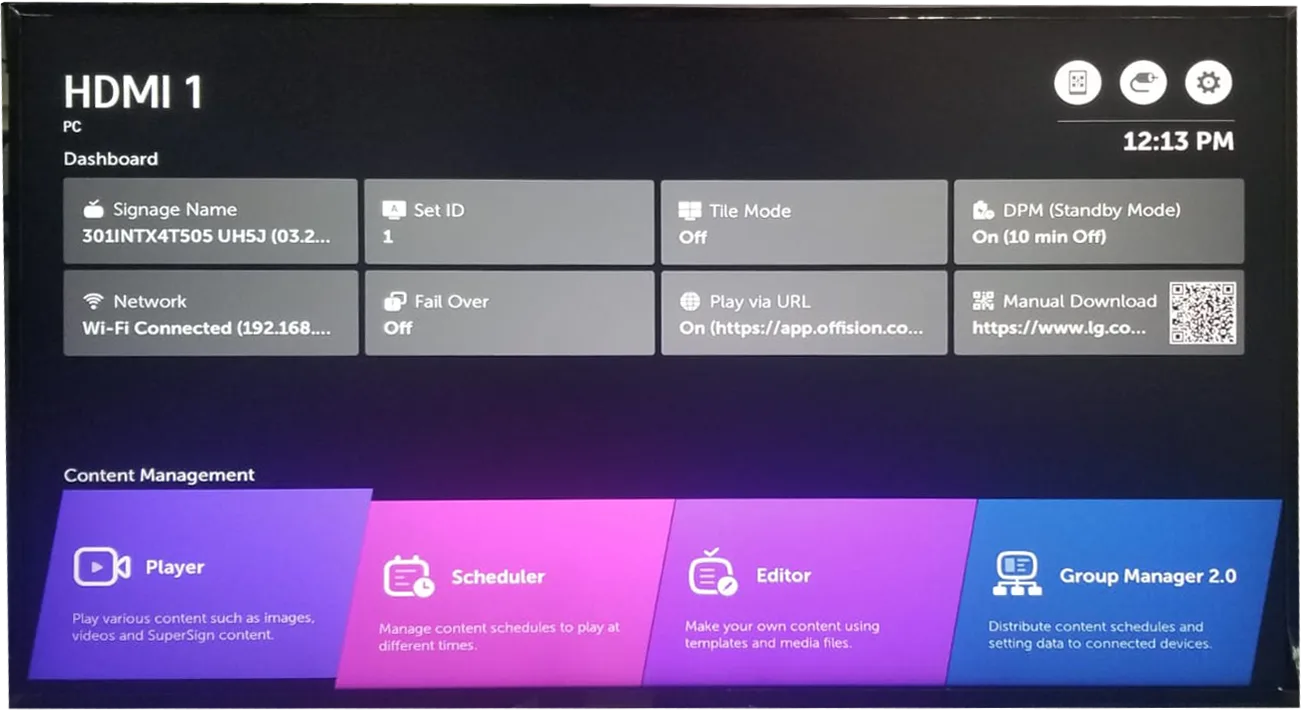
The signage dashboard. Network reports what the display is on; Play via URL is the tile you set next.
The dashboard is also where you check your work later — both tiles show their current value, so a glance at this screen tells you whether the display is connected and what address it is set to open.
2. Point the display at Offision
Open Menu › Play via URL, then:
- Turn URL Loader on.
- Put the Offision player address in Set URL.
- Choose Save.
- Choose Reboot to apply.
https://app.offision.com/player
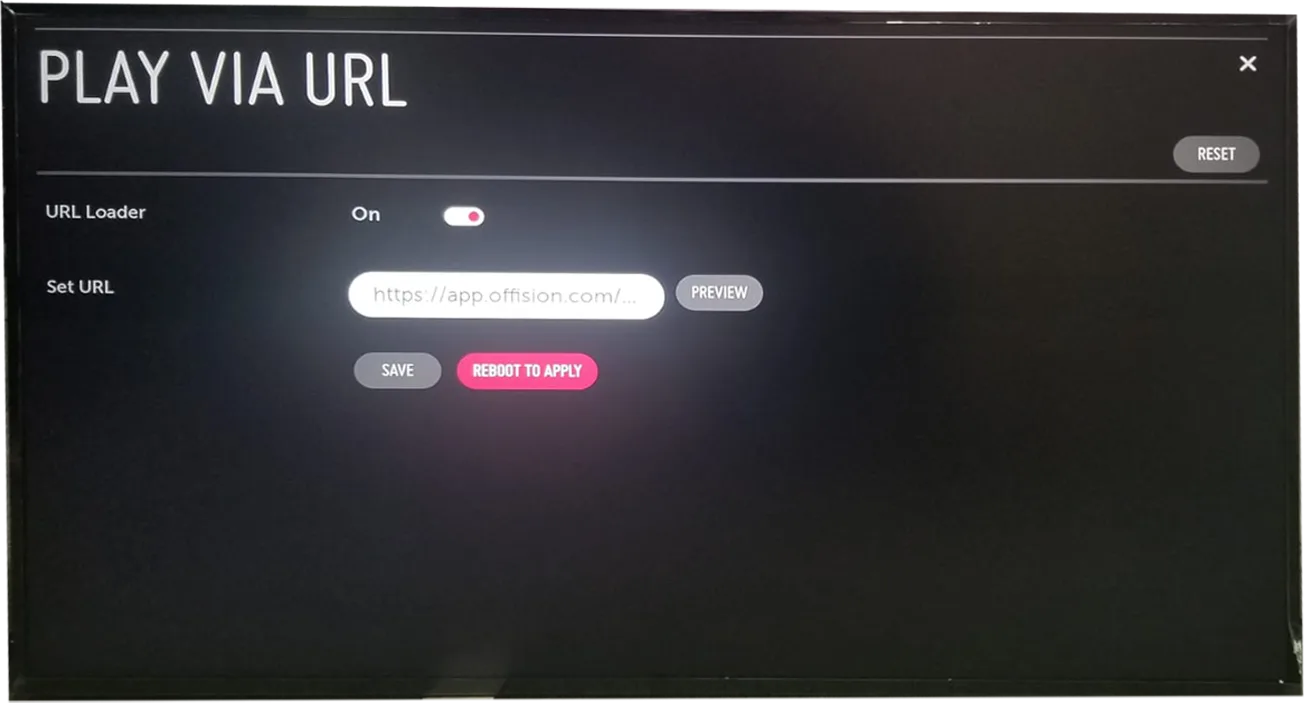
URL Loader on, and the player address in Set URL.
Preview opens the address without saving it. It is worth using before you commit: it separates a mistyped address from a network the display cannot get out of, and it does so while you are still standing at the screen.
3. Add the device in the console
After the reboot the display shows a six-character registration code. That code is what claims the screen; until somebody uses it, the display is connected to Offision but belongs to nothing.
In the console, go to Devices › Signage › Devices and choose Add.
Open Signage devicesThe wizard asks three things: the content this screen will play, the brand of hardware, and then the code. Choose LG web OS devices in the Certified devices grid.
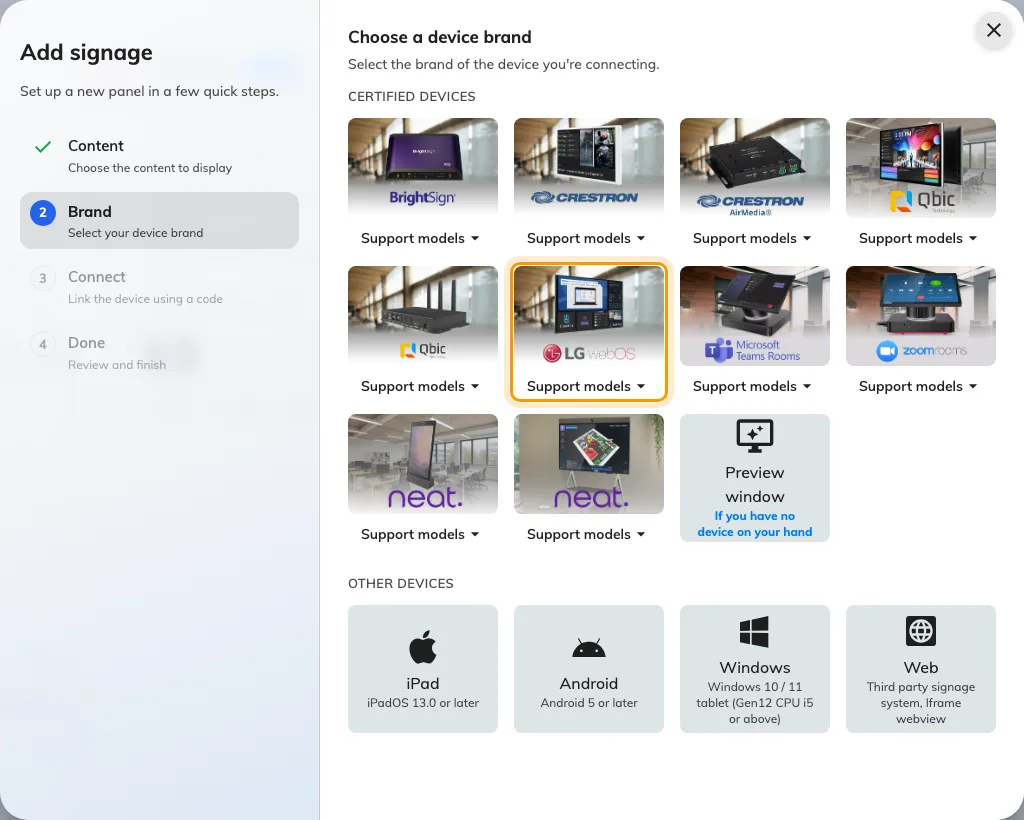
LG web OS devices, in the certified devices grid.
4. Claim it with the code
The brand’s own short guideline opens beside the code field — the same steps you have just done, kept there for whoever sets up the next screen. Type the six characters from the display. It submits itself on the last one.
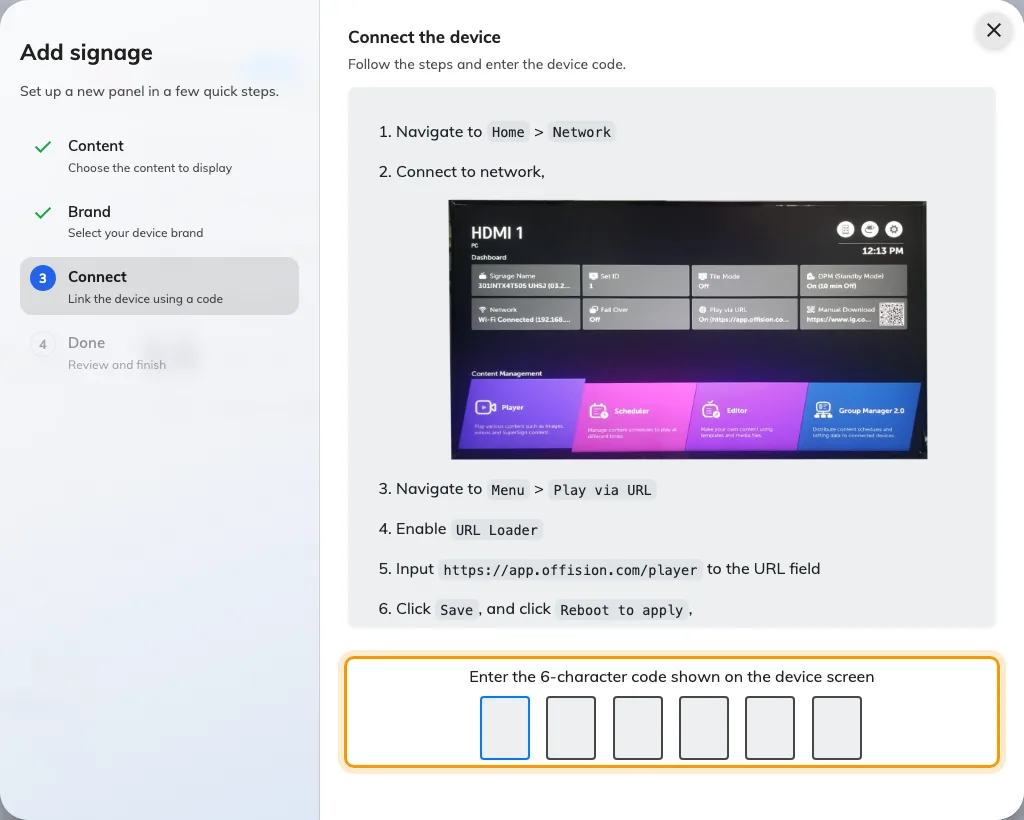
The brand's guideline, and the field that claims the screen.
Check it worked
Within a few seconds the display stops showing the code and starts showing the content. Then confirm both halves:
- On the display, the content is playing and the code is gone.
- In the console, the screen appears in Devices › Signage › Devices and reports as online.
Then pull the power and put it back. A signage display is a screen nobody visits, so the only setup worth trusting is one that survives a restart on its own: the loader should reopen the address and the content should return with no code and no remote.
When it goes wrong
| What you see | Usual cause |
|---|---|
| The display still shows what it showed before | It was saved but not rebooted. Choose Reboot to apply |
| A blank or black screen after the reboot | The address is wrong, or the display cannot reach it. Check it against the address above, including the /player at the end, then use Preview to tell the two apart |
| The address is right but nothing loads | The display is not actually on the network. Network on the dashboard reports what it is connected to |
| Play via URL is not in the menus | The display is not a webOS signage set. There is no way to make it play Offision |
| The code is refused | Read it off the display again rather than retyping what you noted down. The code lives on an open connection, so a screen that has slept or rebooted since is showing a different one |
| A video on the content never plays | Uploaded video files are not played on this hardware. Host the clip on YouTube and use the YouTube widget instead — see Play your brand on an idle panel |
| The screen never sleeps | Offision does not control the backlight here. Use the display’s own DPM setting — see Save energy on room panels |
What this does not do
- Offision does not manage the display. It is not enrolled, monitored or updated from the console. The address is set on the display, so changing it later means going back to it with the remote.
- Nothing is stored on the display. Content is fetched as it plays, so uploaded video files are skipped and the playlist moves on, and a screen that loses the network loses the content.
- It is a signage screen, not a booking panel. It cannot take a check-in, scan a QR code, print a visitor badge or report occupancy.
- The display still holds a device licence while it is paired, the same as any other screen.