

Hide the Android navigation bar on a Qbic device
A Qbic device shows Android's back, home and recents buttons along the bottom of the screen, over the player. The Offision app's console hides them, and so does Fullscreen in the device's own Player settings — which takes away the only way off the screen you are standing on, which is why it goes last.
Android keeps its back, home and recents buttons in a bar along the bottom of the screen. On a panel on a wall that bar has nothing useful to offer and sits over the player, so a finished-looking installation usually wants it gone.
There are two switches for it. On a device running the Offision app in Panel mode, the panel’s own console has one, and it starts on. Qbic’s Player settings has the other, Fullscreen, and it applies to whatever the device is running.
If the device runs the Offision app
Open the panel’s console, go to Setting, and look under Display for Hide navigation bar. It is on unless somebody turned it off, and on a Qbic it also sets the device’s own Fullscreen, so the two never disagree. Turn it off to get the bar back while you work on the device; leaving Panel mode gives it back too.
The row is there only on the Android app from 4.5.20. On an older app, or with the device running something else, use Qbic’s own setting below.
1. Do everything else first
Fullscreen takes the navigation buttons away from every screen, including the settings screen you turn it on from. It applies a moment after you tap it, and from then on there is nothing to navigate with.
So anything else the device needs — the network, the time zone, the content field, a firmware update — do it now. Coming back to any of it means rebooting the panel first.
2. Turn on Fullscreen
On the Configuration screen choose Settings, then Player settings, and scroll to SCREEN.
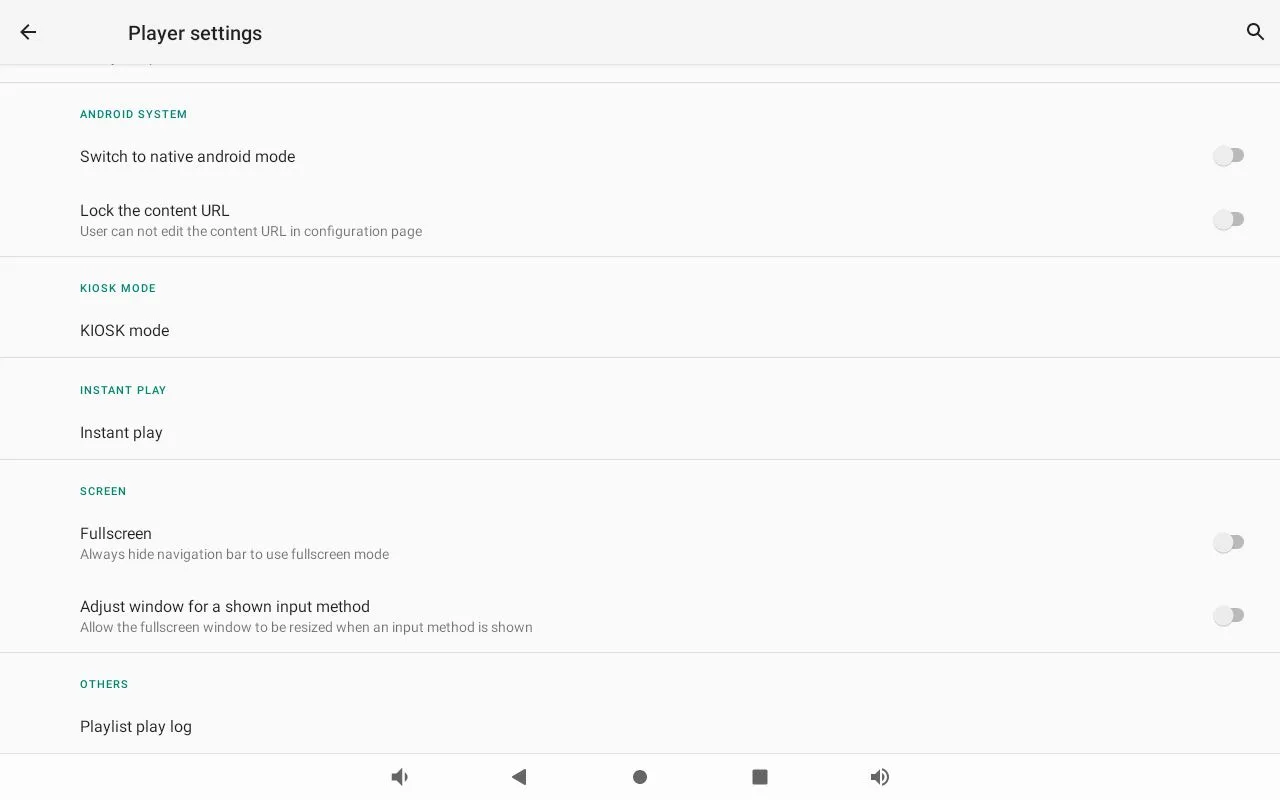
Fullscreen, in the SCREEN section of Player settings.
Fullscreen — “Always hide navigation bar to use fullscreen mode” — is the one to turn on. Leave Adjust window for a shown input method below it alone unless the device is one people type on.
3. Check it worked
Reboot, and watch what comes back. A device that lands on its room or its playlist with nothing along the bottom edge is finished.
Then tap the screen once. The player’s own controls should come up and the Android bar should not.
When you need the bar back
On the current app, turn Hide navigation bar off in the console. Otherwise, turn Fullscreen off again in the same place — but with no navigation buttons you have to get to Player settings first, and on a device running the Offision app that means leaving the app. The console’s Setting › Back to Android does it, and it is in Install the Offision app on a Qbic device.
What this does not do
- It is not a kiosk lock. The bar is hidden, not disabled by policy — anyone who leaves the app still reaches Android. Locking the device down is KIOSK mode, further up the same screen, and it is Qbic’s to explain.
- It does not change what the panel shows. The room, the design and the functions are all chosen in the console when the device is paired.
- The console switch is not on every app. Only the Android app from 4.5.20 carries Hide navigation bar; a panel on an older app is fixed in Player settings.