

The panel has no buttons on it
Somebody is standing at a room and there is nothing to press. Five causes, and only the first is a switch called what you would search for — the other four are a second configuration, the room's own state, its policy, and a design that has nowhere to draw them.
The panel is answering, the room’s name and colour are right, and there is nothing to press. Five things do that, and four of them are working as intended.
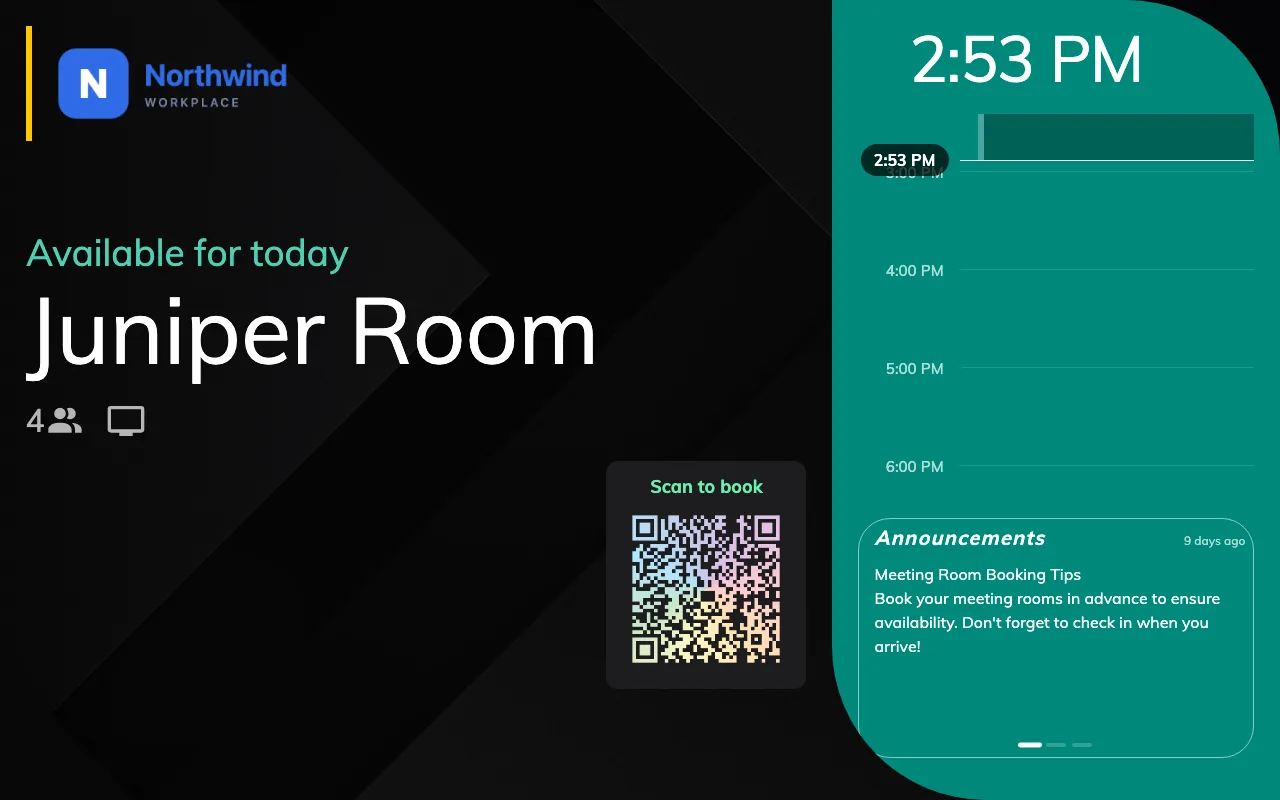
A free room on a display-only panel. Status, schedule, code — and nothing to press.
Touch screen mode is off
Most common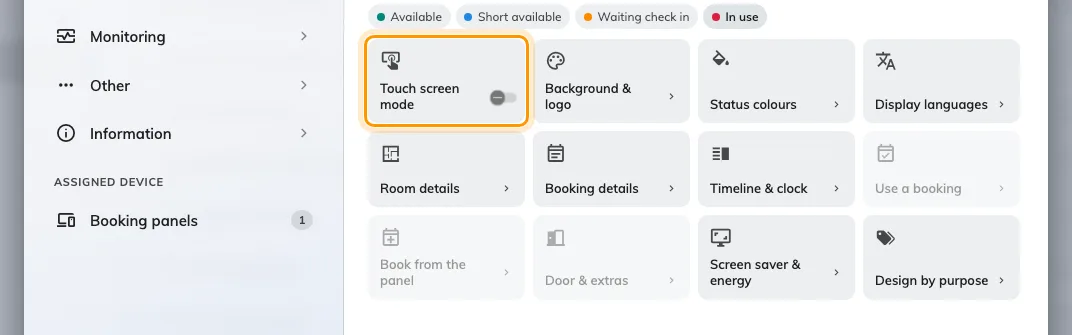
Touch screen mode off: Use a booking, Book from the panel and Door & extras step back behind it.
This is the switch that removes every button at once, and it is easy to arrive at by accident because it is a setting of the configuration rather than of a panel — somebody setting up one non-touch screen can take twenty panels with them.
Open the configuration the panel follows and look at Room booking panel. The first cell of its group menu is Touch screen mode. Off, the panel is display-only, and Use a booking, Book from the panel and Door & extras are dimmed behind it — open any of the three and it holds one line, Turn on Touch screen mode above to use these, and nothing else.
That dimming is the fastest confirmation: three grey groups mean this is the cause, and nothing else on this page produces it.
If it was deliberate, Run a panel as a display-only screen is the page for it — including the QR code that has to go on with it, or the room genuinely cannot be booked from the door at all.
The panel is on a different configuration from the one you edited
Common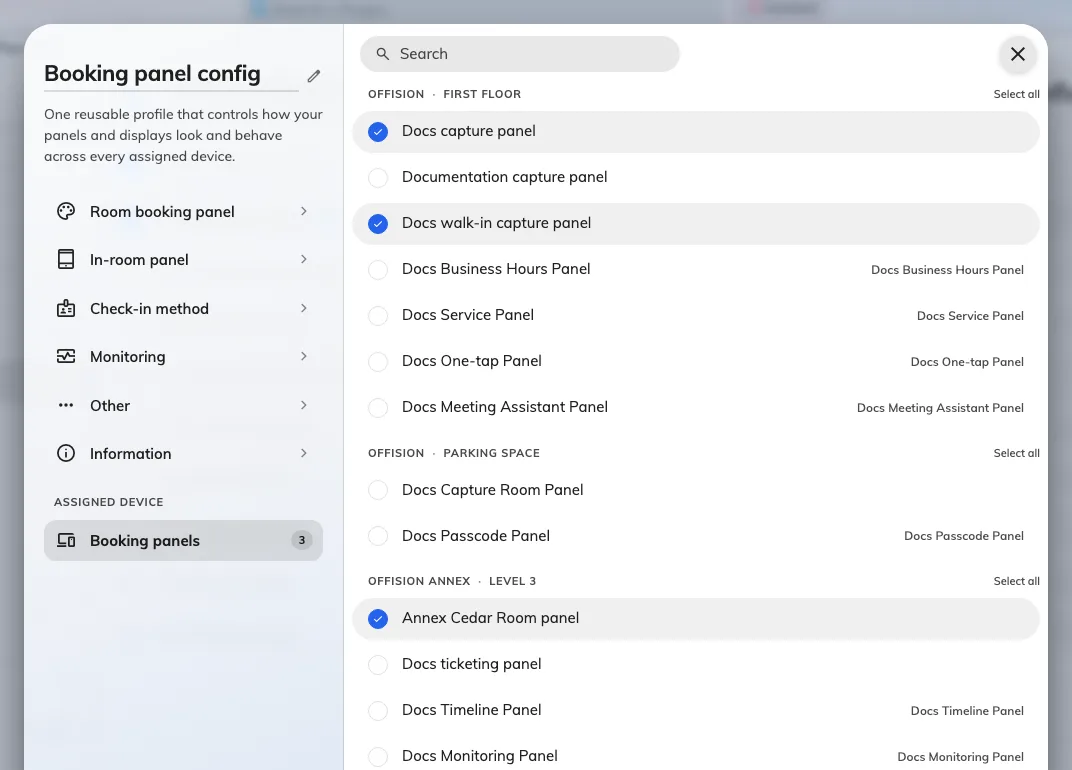
Every panel in the estate, by building and floor, with this configuration's ticked.
The commonest way a correct setting fails to arrive. Turning the switch back on in one configuration changes nothing at a panel following another, and the console gives no hint at the panel end which one it is on.
Open the panel’s own record in the device list and read its configuration, or open each configuration’s Booking panels list under Assigned device and find which one has this panel ticked. Then edit that one. How a panel gets its settings covers both directions.
The room is in a state that has nothing to offer
Common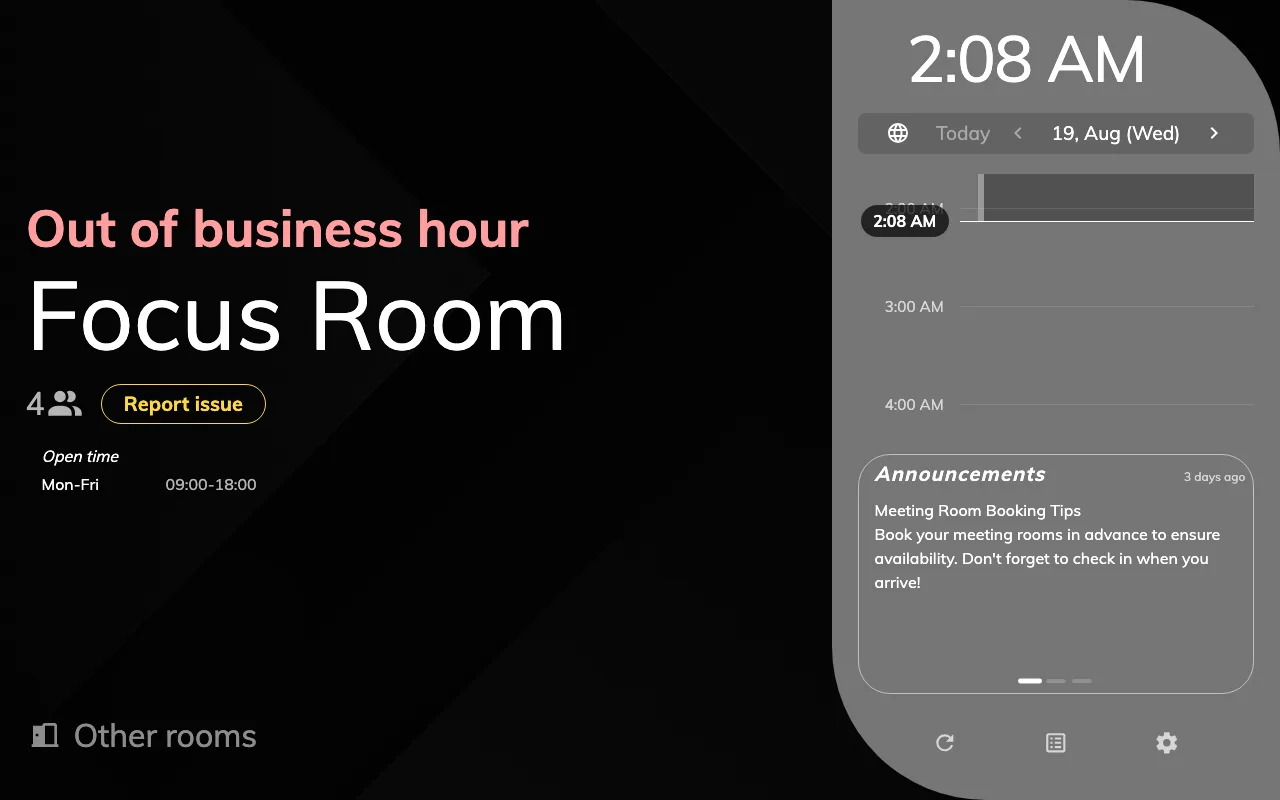
Outside business hours: no action buttons at all, and the open hours on display.
Buttons follow the room, not only the configuration. The action row exists for a meeting waiting for its organizer, one being prepared, one in use, and a free room — and for nothing else.
A room that is out of service, outside its business hours, or outside the period it may be booked for draws no action buttons at all, however many switches are on. The screen colour says which of those it is, and What the panel’s colours mean reads it: this cause always comes with a screen showing one of the unavailable states rather than a free or in-use one.
Two narrower versions of the same thing catch people out on a room that looks free:
- Extend is not offered when the next meeting starts within five minutes of this one ending. There is nothing to extend into.
- Walk in is not offered when another booking starts within the next five minutes.
The room's policy does not allow booking from the panel
CommonDistinct from the panel’s own Show walk in button, and it produces the identical symptom: a free room with no Walk in on it. The resource’s policy decides whether the panel is an interface it accepts bookings through at all, and whether a booking may start today.
Both have to be true for a walk-in to be offered — a room whose booking period starts a day or more ahead cannot be taken now by anybody, at the panel or anywhere else. See Resource policy settings.
If turning Show walk in button on changed nothing, this is where to look next.
The panel runs the Center design
Less common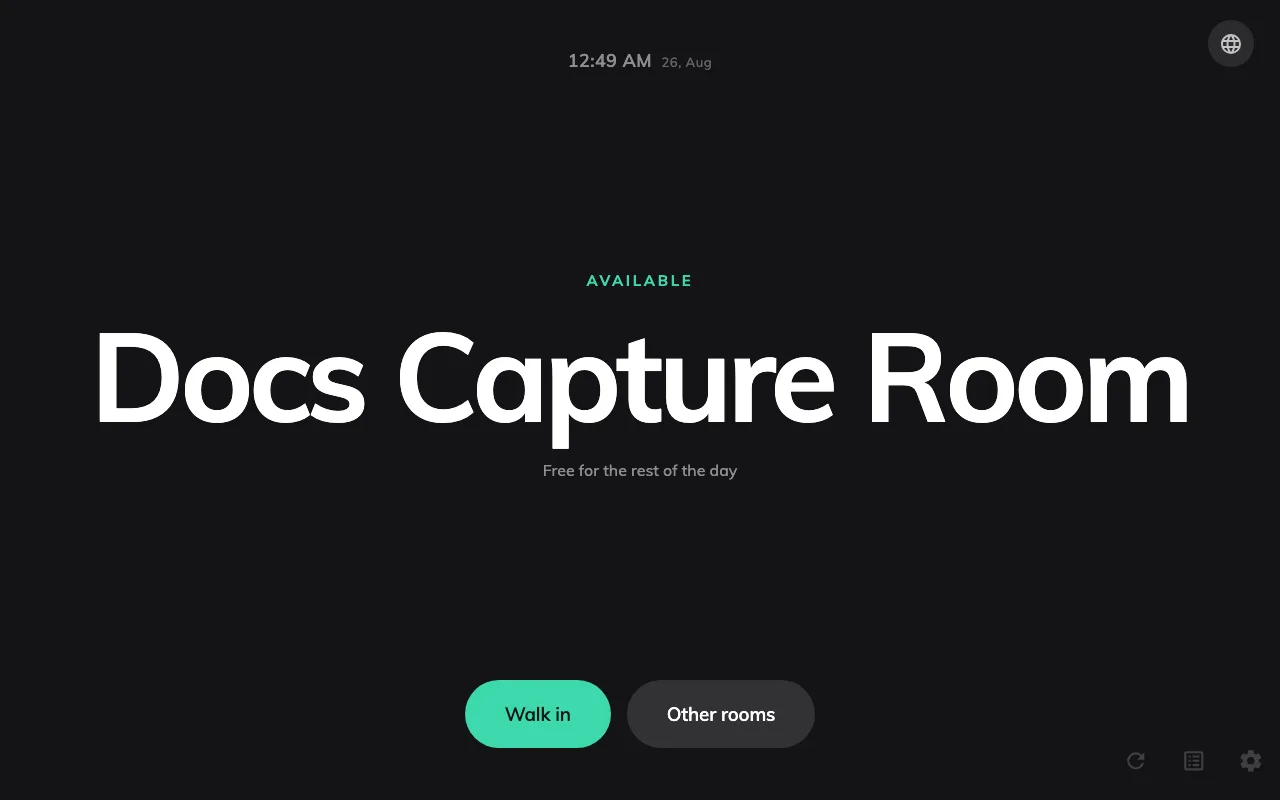
The Center design: one column of type, and no surface for several of the buttons.
Center is one column of type, and several things have no surface on it to be drawn on: booking ahead from the timeline, the booking-details dialog and its Cancel booking, the report-issue button, and the booking QR. Their switches are disabled in the console while Center is the design in play, which is the tell.
The action row itself survives — check in, extend, walk in are all still there — so this cause takes away some buttons rather than all of them. See Choose a panel design.