

Email someone when a device goes offline
Turn the warning email on for a set of booking panels or signage screens, choose how long to wait first, and name the people who should hear about it.
The setting lives on a configuration, not on a device — so turning it on once covers every panel or screen sharing that configuration. Doing this for booking panels and for signage is the same job on two different lists.
1. Open the configuration
For booking panels, open Devices › Booking panel › Panel configurations and open the one your panels use.
Open Panel configurations2. Go to the Monitoring page
The configuration opens on Room booking panel. Monitoring is further down the same rail, and it holds two settings: Ask before remote control, and the alert.
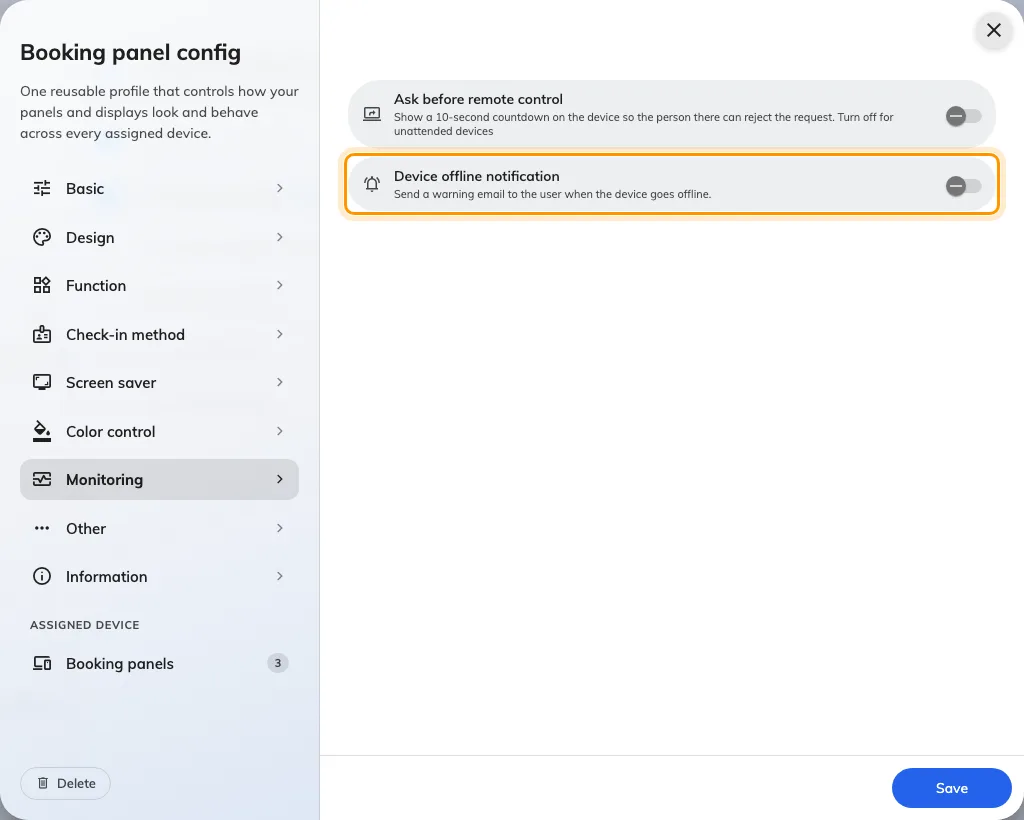
The Monitoring page, with the offline notification switch off.
3. Turn on Device offline notification
Switch on Device offline notification — Send a warning email to the user when the device goes offline. Two more settings appear underneath it, and neither has a useful default, so treat this as one step in three parts rather than a switch you can flip and leave.
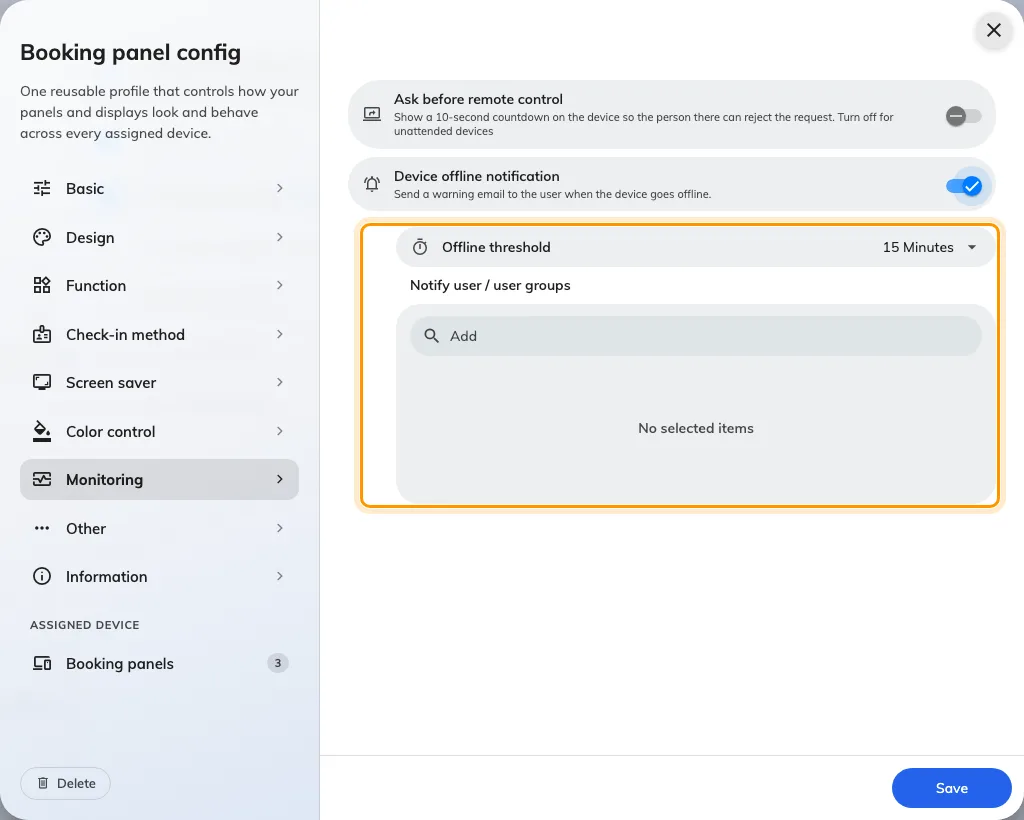
Switched on, the threshold and the recipient list appear beneath it.
4. Choose the Offline threshold
Offline threshold is how long a device must stay unreachable before anybody is emailed. Pick from the list; the middle of it suits most estates.
Short values are the common mistake. On ordinary office wireless, a panel that drops for two minutes and comes straight back is normal, and a five-minute threshold turns that into mail somebody eventually stops reading. Start longer than feels right and shorten it if real faults are going unnoticed.
5. Name who to notify
Notify user / user groups takes people, groups, or a mixture. Everyone listed gets the same email, and being in two of the named groups still means one copy.
Prefer a group over a list of individuals where you can. The people who should hear about a dead panel change over time, and a group can be updated once instead of on every configuration that names them.
6. Save, and do the same for signage
Save the configuration. Devices pick the change up without being restarted.
Signage screens have the same page on their own configurations, under Devices › Signage › Device configurations. The settings are identical; the lists are separate, so turning it on for panels does nothing for screens.
Open Device configurations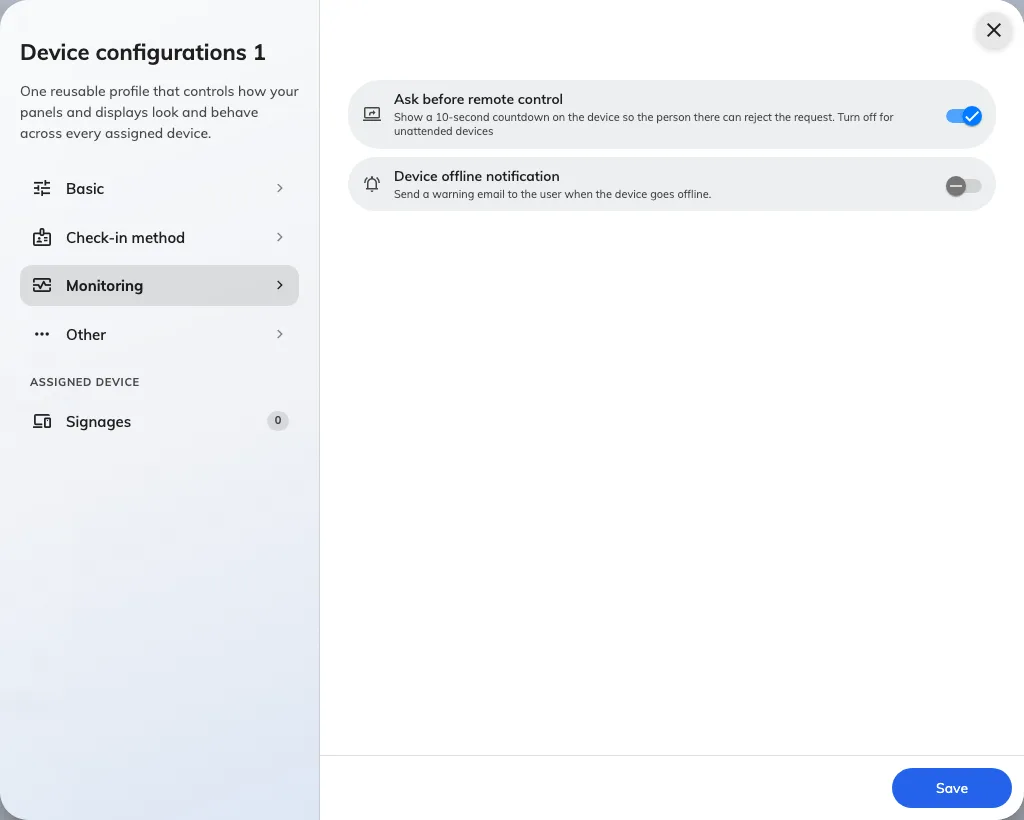
The same Monitoring page on a signage configuration.
7. Check it works
Unplug the network from one panel on that configuration — or take it off the wireless — and leave it. After the threshold has passed, everyone on the list should receive Device offline, naming that panel. Plug it back in and Device resume normal follows shortly after.
Do this once, on purpose, before you rely on it. A configuration that looks correct and mails nobody is the failure this feature is prone to, and the only way to find out is to try it. If nothing arrives, work through no offline email arrived.