

Connect Minew e-paper tags
E-paper room and desk labels driven from Minew's cloud. What to buy, the two files you import into the Minew portal before anything renders, and how to bind the tags to rooms.
A Minew tag is a battery label. It has no network of its own and nothing to touch: it sits on a door or a desk showing a picture, and it holds that picture for months without power.
Offision does not draw that picture. It signs in to your Minew account and sends words — the room’s name, its status, who has it, the next booking — into a template that lives in the Minew portal, and Minew’s own gateway carries the result to the tag. That is the whole shape of this integration, and it is why the portal has to be prepared before a single label renders: with no templates and no fields to put the words in, tags bind and then show nothing useful.
What to have ready
- Your Minew portal sign-in — the server address, username and password
- The store the tags belong to in Minew
- The rooms and desks the labels will name, already created in Offision
- About thirty minutes for the first controller
1. Add the controller
Go to Devices › E-paper, choose Add, and pick MINEW. The same thing sits in the Marketplace as Minew Server, and opens the same list.
Open E-paper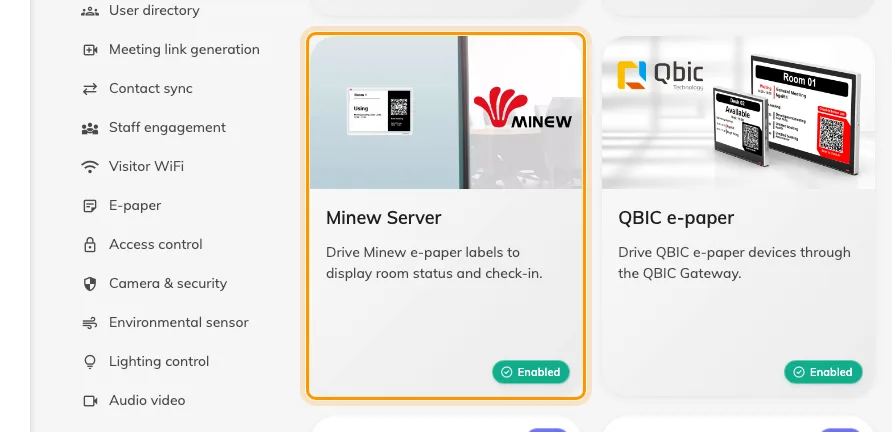
The Marketplace, with the Minew Server tile.
Name it and choose the language its tags render in — a property of the wall, not of whoever is signed in. Then fill in Connection: Server Url, Username, Password and Store ID.
Store ID is a picker, not something you type. It stays empty until the three fields above it are right, then lists the stores your account can see. An empty list is the first sign the credentials or the address are wrong.
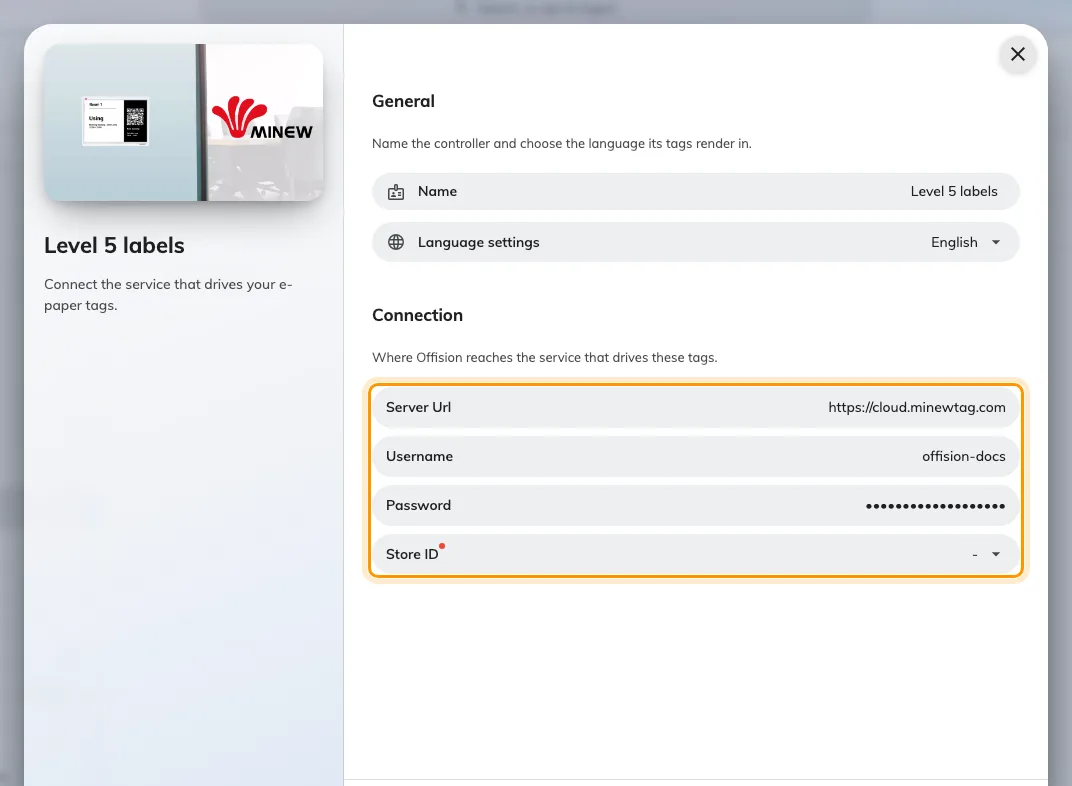
A new Minew controller: its name, the language its tags render in, and the connection to your Minew account.
2. Import the templates and fields into Minew
Save the controller and open it. Its config page carries two downloads and the two places they go.
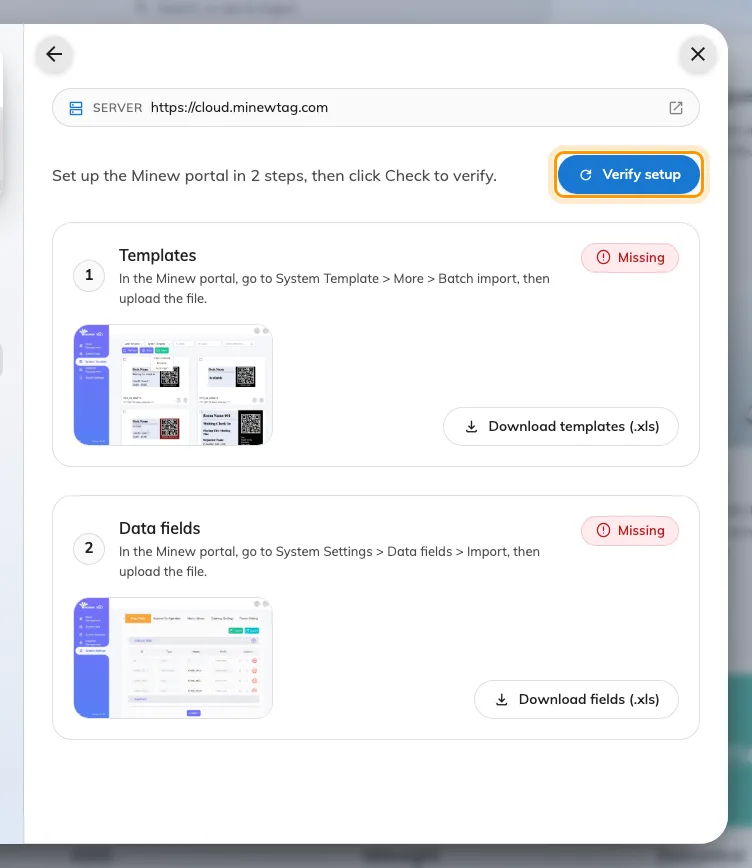
The two setup steps, each with its download and its status, and Verify setup above them.
Choose Download templates (.xls), then in the Minew portal go to System Template › More › Batch import and upload the file. It adds six templates — one for each of available, in use and waiting check-in, in each of the two panel sizes.
Then Download fields (.xls), and in the portal go to System Settings › Data fields › Import and upload that one. It adds the nine fields the templates print: the resource name and status, the current booking’s owner, title and time, the same three for the next booking, and the QR code.
Both are matched by name. Renaming a template or a field in the portal, or importing only one of the two files, leaves the tag bound to something that cannot be filled.
3. Verify setup
Choose Verify setup. Each step turns Ready or Missing, and once both are ready the controller’s own button reads Config complete.
Leave it Missing and Offision will still accept tags — it just cannot draw them. That is the failure this step exists to catch.
4. Add the tags
On the controller, choose Add devices. Offision reads the tags out of your Minew store and lists them by MAC Address, with size, battery and whether they are online; anything already registered is marked and cannot be picked twice.
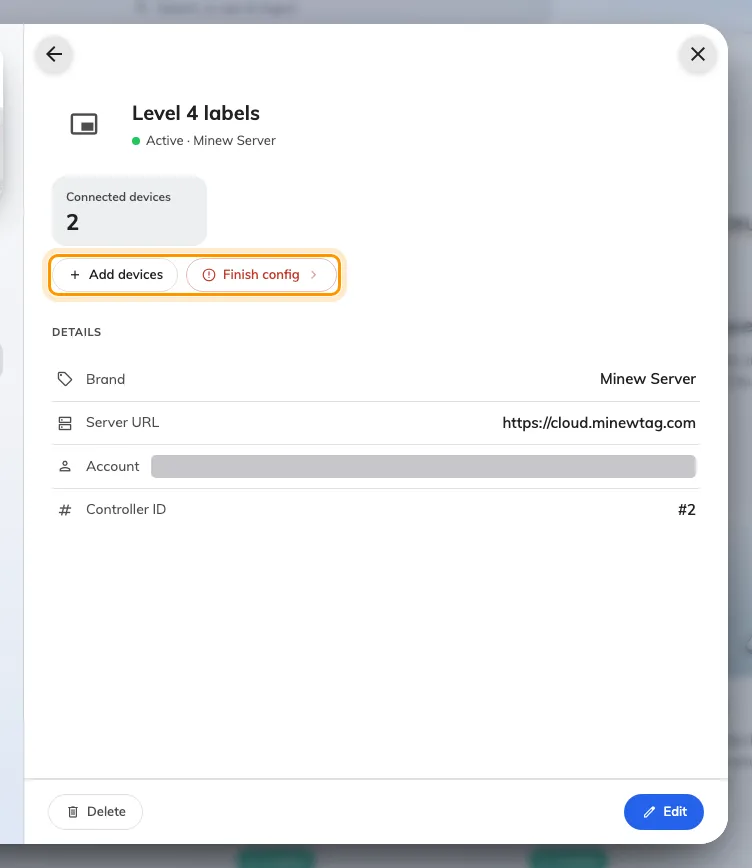
A Minew controller: how many tags it drives, and the two things you do from it.
Everything added this way is a Room booking tag. For a Desk booking, Equipment booking, Signage or Microphone indicator label, add it on its own and choose the type there.
The size is not yours to choose. The tag reports the panel it is, and Offision picks the template to match: the 7.5-inch one for a room, the 2.9-inch one for a desk or a piece of equipment.
5. Check it worked
Give it a few minutes. Tag status is read back about once a minute, so a tag that has just been added has not necessarily reported yet.
Then check both ends. On the wall, a tag should be showing its room or desk. In the console, its row reports a battery percentage and a green dot, and the same tags appear in Device monitoring.
Book the room and watch the label change. A repaint follows a booking within a few seconds of the change settling.
When it goes wrong
| What you see | Usual cause |
|---|---|
| Store ID never lists anything | The server address, username or password is wrong. Offision cannot sign in, so it has no stores to offer |
| A step stays Missing after importing | The file went to the wrong page in the portal, or a template or field was renamed afterwards. Both are matched by name |
| Setup incomplete on the controller | One of the two imports has not been done. Tags will not display correctly until it is |
| A tag is refused when added by hand | Its MAC address is already on another tag, or the format is wrong |
| A tag was added but never repaints | It is out of the gateway’s range, or its battery is flat. Minew has to reach it before Offision’s words can land |
| A tag shows the wrong layout | Its panel size and the bound template disagree — a 2.9-inch tag cannot render a 7.5-inch template |
| Everything renders except the QR code | The code is refreshed daily with the room’s access key; a tag that missed that pass picks it up on the next change |
What this does not do
- A tag is not a booking panel. It has no touch, no card reader and no light bar. Somebody standing at the door books through the QR code or their phone — for a panel, see Supported booking panel hardware.
- It does not manage the gateway. The radio, its coverage and the tags’ registration stay in the Minew portal. Offision never talks to a tag directly.
- It does not design the label. The layout is the template you imported. To change how a label looks, change the template in Minew.
- Only two panel sizes are supported — 2.9-inch and 7.5-inch. A tag of any other size has no template to bind to.