

Run a panel as a display-only screen
Some screens are not touchscreens, and some are behind glass. One switch turns a booking panel into a sign that shows the room's status and nothing anybody can press — and the QR code that has to go on with it, or nobody can book the room at all.
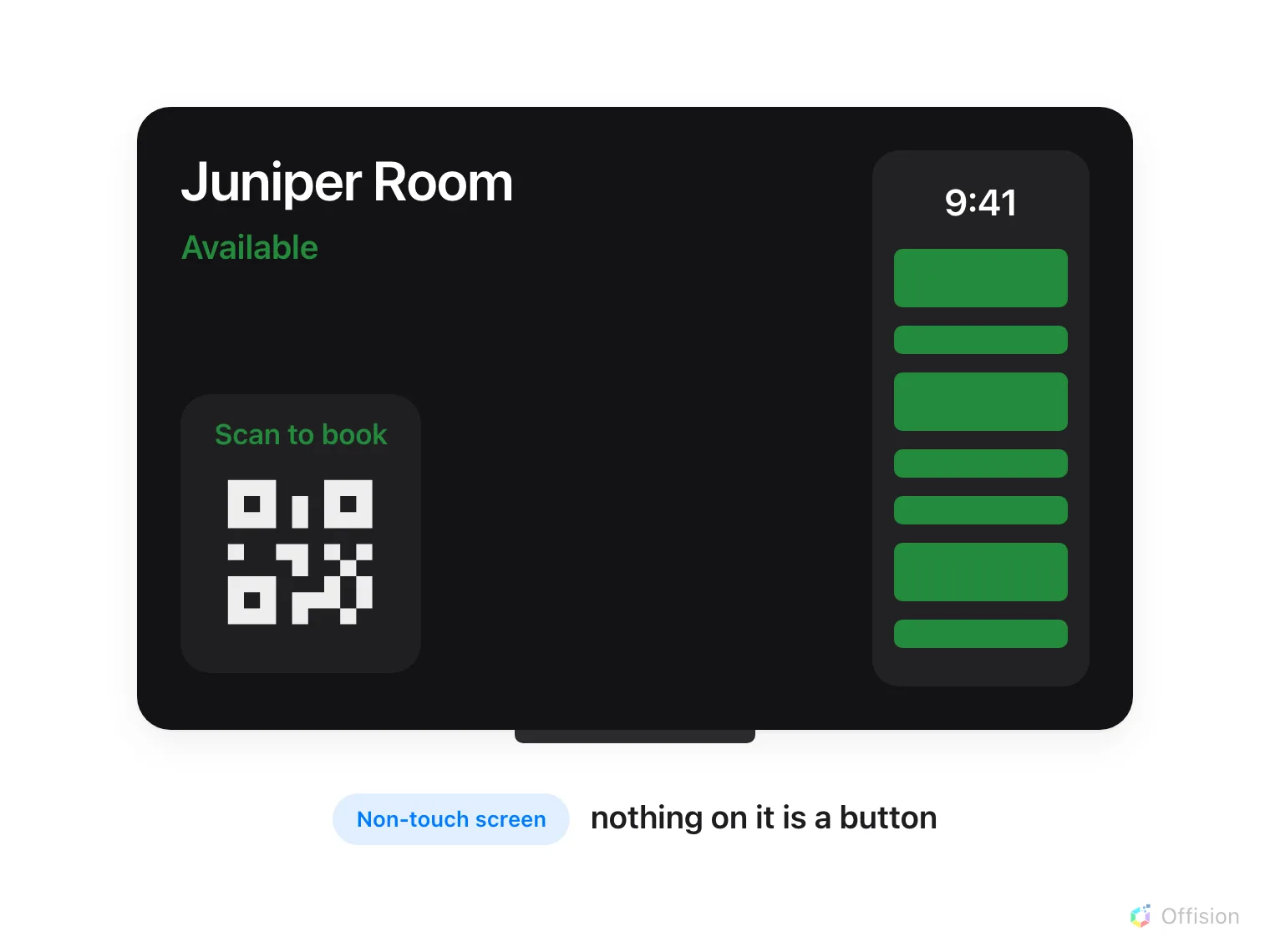
A non-touch panel is a sign. The room, its state, the day's schedule and a code to scan — and nothing on it is a button.
Touch screen mode decides whether a booking panel is something people operate or something they read. Turn it off and the panel becomes a sign: it still shows the room, still paints its whole screen the room’s status colour, still draws the day’s schedule — and offers nothing anybody can press.
That is what you want on a screen behind glass, a display driven by a media box that has no touch layer at all, a panel in a lobby nobody should be able to book from, or a screen mounted too high to reach.
Open Panel configurations1. Give these panels a configuration of their own
The switch is a setting of a configuration, not of a panel, so it lands on every panel that configuration drives. If your non-touch screens are sharing a configuration with ordinary panels, build them a second one first and move them onto it — both halves are one dialog, and How a panel gets its settings walks it.
Saving raises This change will effect the following devices and names them. Read that list rather than confirming through it.
2. Turn the booking QR on — before anything else
This step comes first, and the order is not a preference. With the buttons gone, Show QR Code for booking is the only way anybody acts on the room: the panel draws it up beside the room’s status instead of down among the buttons that are no longer there. Scanning it opens the User Portal on that room, where a person books, checks in or extends from their own phone.
Open the configuration with the edit action. It opens on Room booking panel, a live preview with the settings groups underneath. The switch is in Use a booking, and on a room panel it is off until you turn it on.
3. Turn Touch screen mode off
Back on the group menu, Touch screen mode is its first cell — not a drill-in, the switch itself.
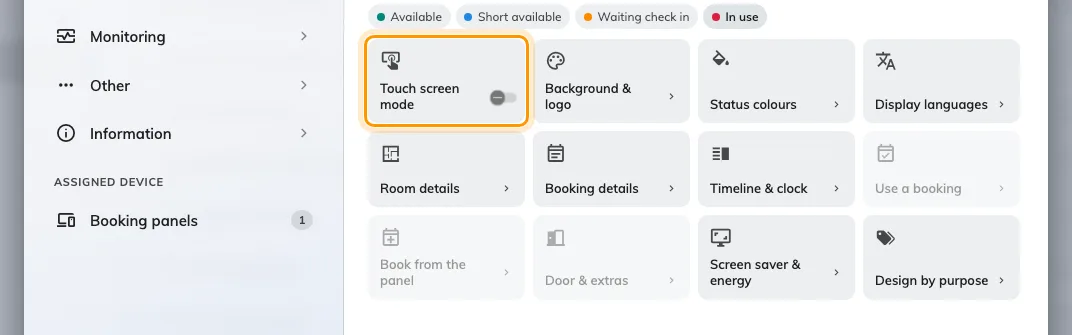
The group menu with the switch off. Use a booking, Book from the panel and Door & extras step back behind it.
Three groups dim the moment it goes off — Use a booking, Book from the panel and Door & extras. They are not broken, and they still open; there is simply nothing left for them to put on the screen, so each one holds the same line telling you which switch to turn back on.
4. Check it at the panel
Save, then look at a panel on that configuration — it redraws itself within about a second. The screen should still be coloured by the room’s state, still carry the schedule column, and have no buttons anywhere on it. Scan the code with a phone and confirm it opens that room.
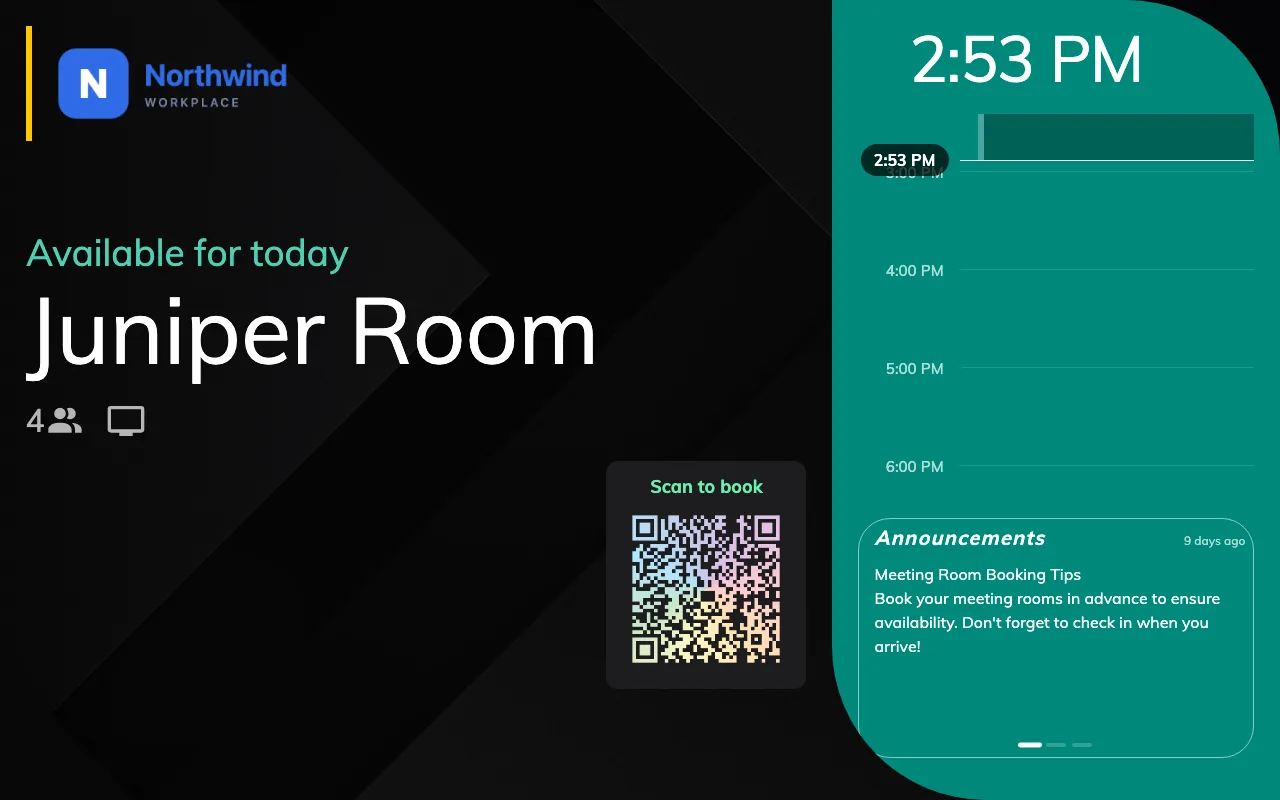
A free room on a display-only panel. Status, schedule, code — and nothing to press.
If the buttons are still there after a minute, the panel is almost certainly on a different configuration from the one you edited — see The panel has no buttons on it, which covers that from the other direction.
What goes with the buttons
The action row is the obvious loss: Check in, End now, Extend, Walk in, Open door, Other rooms and Report issue all go at once, whatever their own switches say. Three things go with them that people do not expect:
- The language button. A panel showing two languages loses the button that swaps between them, so a display-only panel is stuck on one — the configuration’s Default language, or the first entry in its language list where no default is set. Settle both before the screen goes up; nobody can change it at the door.
- The control bar in the corner — which is the way into the panel’s own settings from the panel. Once it is gone, reaching a panel means remote-controlling it from the console. Set that up, or know the pass code, before you hang a screen you cannot get into.
- The schedule column stops responding. It is still drawn — a display-only panel still shows the day — but tapping a free slot no longer starts a booking and tapping a meeting no longer opens its details.
On a very small screen, where the panel draws itself as one tap-anywhere surface rather than a screen with buttons on it, that whole surface goes dead and the code takes its place.
None of this is hidden — the buttons are not drawn at all. On glass someone will touch anyway, an invisible button is still a button, so there are none.
The in-room panel has the same switch
A meeting assistant panel on the table inside the room carries its own Touch screen mode, in the first cell of the In-room panel page’s group menu. Off, it keeps the hero — the room, the meeting, the countdown — and drops Extend, Check out, Walk in, Find another room and Take attendance, along with the dock underneath them. Its corner QR is unaffected: it is passive, and stays exactly where it was.
The two switches are independent. One configuration can drive an interactive panel by the door and a display-only screen inside the room, or the reverse — see The meeting assistant panel, inside the room.
What this does not control
- Whether the screen is on. Display-only is not sleep. A panel that should switch its backlight off out of hours is Save energy on room panels.
- What the panel shows while idle. The screen-saver playlist runs on a display-only panel exactly as on any other — see Play your company video on idle room panels.
- Whether the room can be booked. Nothing here changes the room’s policy. People book it from the user app, their calendar, or by scanning the code; the panel simply stops being one of the ways.
- Check-in. A booking on a display-only panel still has to be checked in wherever its policy says, and the panel is no longer one of the places — see How check-in and no-show work.
- The status colours. They are unchanged, and mean exactly what they mean on any other panel — see What the panel’s colours mean.