

The booking panel, outside the room
The screen by the door — what it shows of a room and its meeting: your logo, the room name, the meeting title, the organizer, the participants and the time left, which of those you can switch off, and what a confidential room hides.
The booking panel is the screen on the wall by a meeting room’s door. It answers the person in the corridor: is this room free, whose meeting is on, and until when. Everything it shows comes from the panel’s configuration, so one change reaches every panel sharing it — see How a panel gets its settings.
What someone at the door sees
On the Scheduling design, the full panel:
- Your company logo, top left, where it is switched on.
- The room name, with its capacity and amenities where those are switched on.
- The status — the whole screen takes the room’s colour. A free room also says how long it stays free: Available for 5 minutes, Available for 2+ hours, Available for today.
- The current meeting, while one is running or waiting for check-in: its title, the online-meeting logo (Teams, Zoom, Google Meet, Webex), the organizer, and the attendees.
- The day’s timeline on the side rail, with the clock and the language button.
- The action row — check in, extend, end early and the rest; see Every switch that puts a button on the panel.
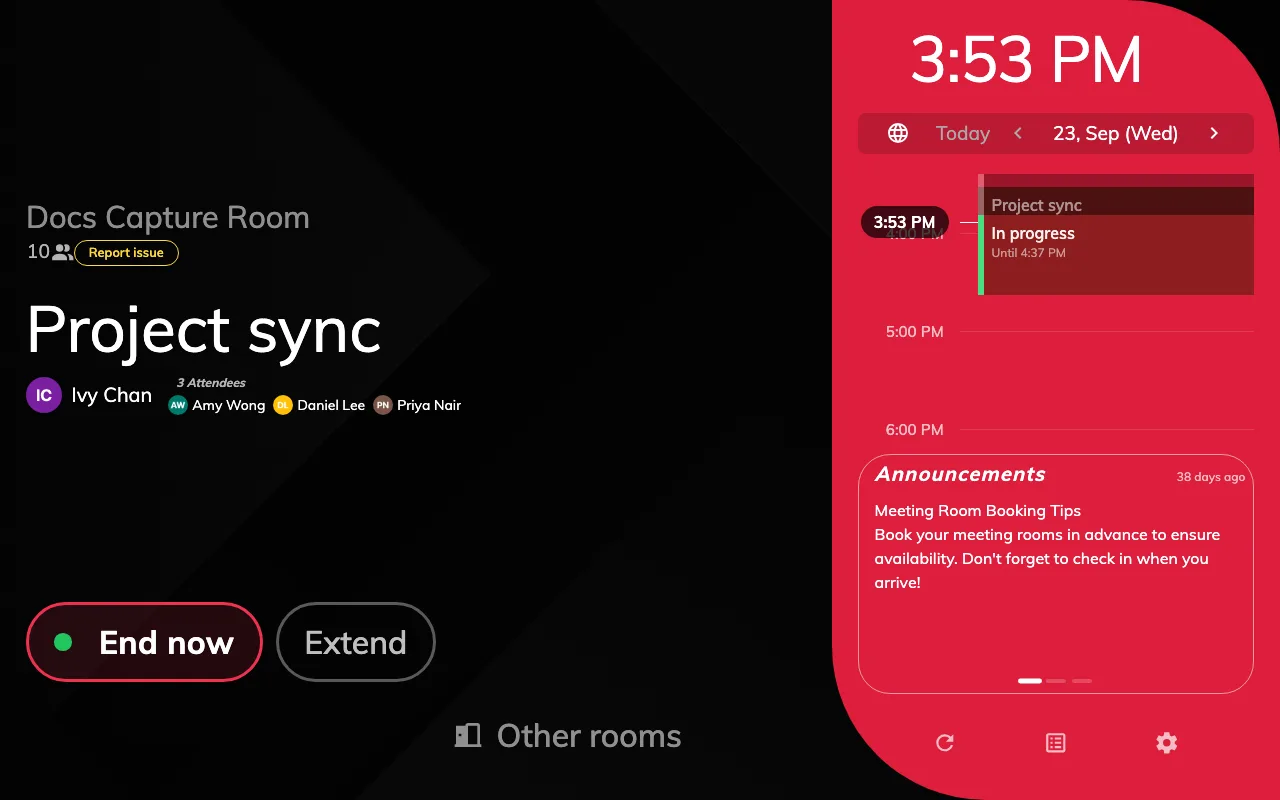
A meeting in use: the title, the organizer, three attendees, and the day on the side rail.
Choose what a meeting shows
The meeting’s details are the Booking details group of the configuration:
| Setting | What the panel shows |
|---|---|
| Booking title display | The booking title, chosen booking form fields, or both |
| Show Organizer | The organizer’s name |
| Show Organizer’s Title | Their job title, under the name |
| Show Organizer’s Staff ID | Their staff ID |
| Show “Anonymous” when a booking has no organizer | Anonymous for a booking made at the panel without identification |
| Show user thumbnail | A photo beside the organizer and each attendee |
| Show attendees | An N Attendees heading and the first three names |
| Show Online Meeting Logo | The Teams, Zoom, Google Meet or Webex mark before the title |
Participants are a count and three names, not a full list. With more than three, a More info button opens the booking’s details with everyone in it — where Enable show booking details is on. Attendees can be missing where Offision has no access to the organizer’s calendar.
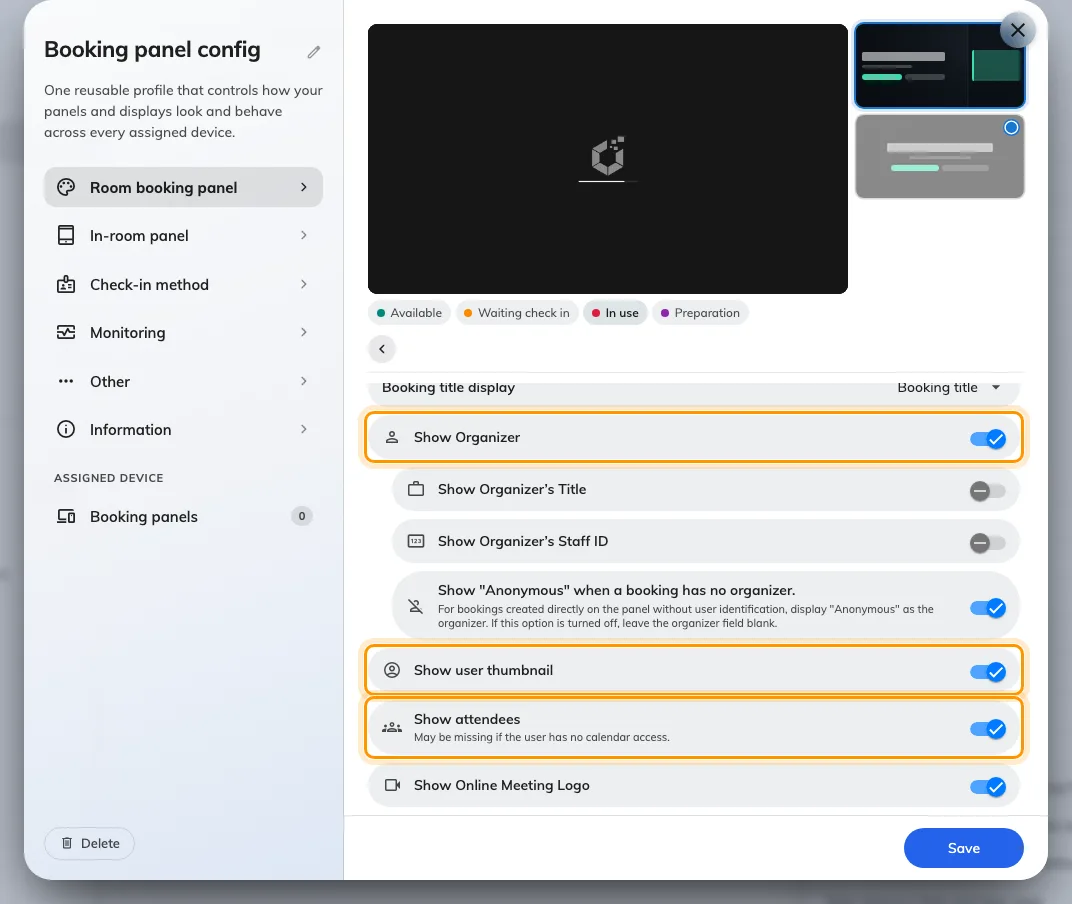
Booking details: the organizer, the thumbnails and the attendees are three separate switches.
Your logo
Show company logo is under Background & logo. The suggested size is 336 × 144 pixels, as a PNG, and it is set per configuration — so different buildings can carry different marks. Steps in Show your company logo on a room panel.
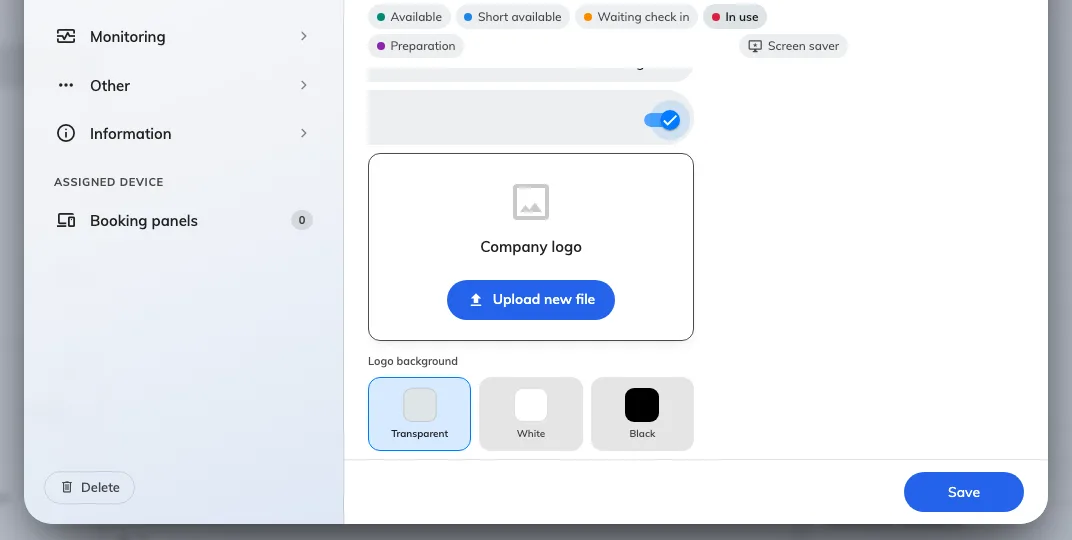
Background & logo, with Show company logo on.
Time left
The door panel does not run a countdown across its screen — that is the meeting assistant panel inside the room. The side rail marks the running meeting In progress with its end time, and a tap on the meeting opens its details with the time left in large type: Remaining while it is in use, Start in before it begins, and the time left to check in while it waits. The tap works where Enable show booking details is on.
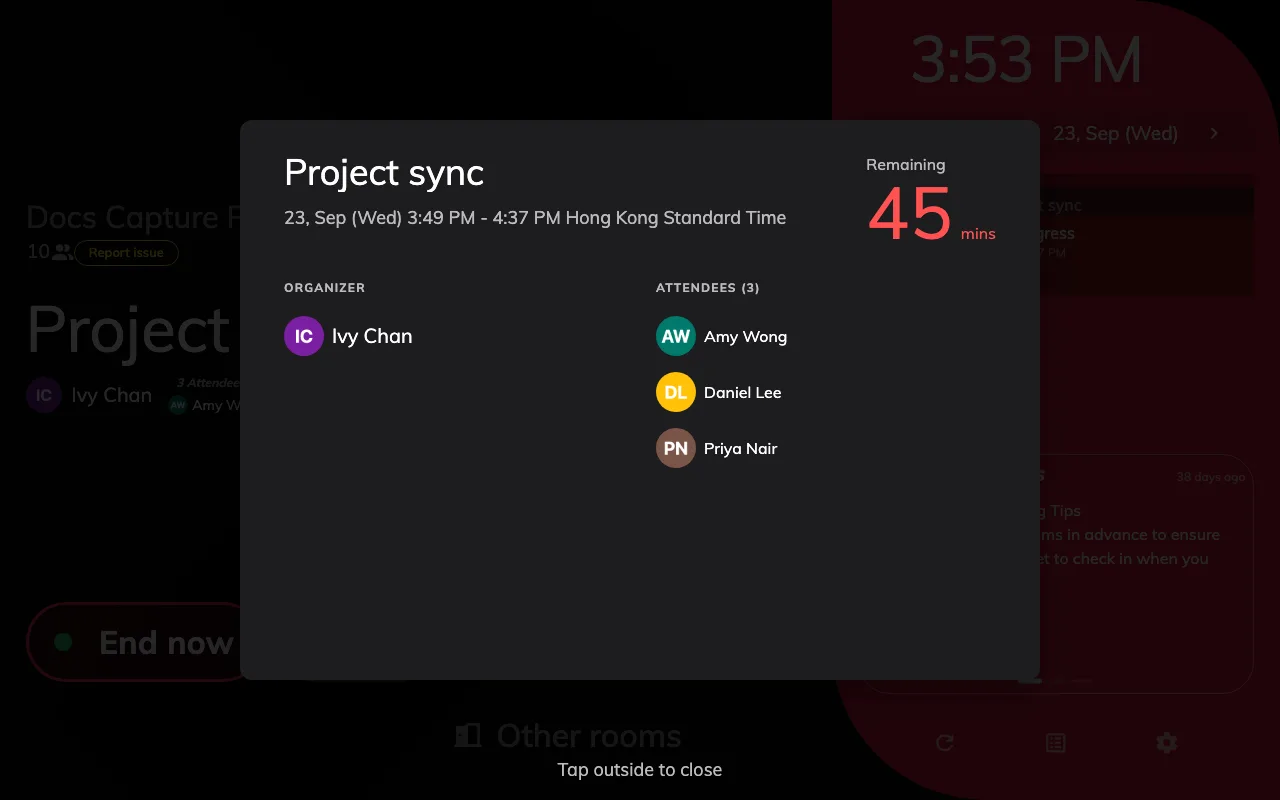
A tap on the meeting: organizer, attendees, and the minutes remaining.
Where a sensor is about to release an empty booked room, an Auto-release in badge counts down in minutes and seconds — see Keep the room when the sensor says it is empty.
Center shows less
The Center design is one column of type. Its headline is the room name while the room is free and the meeting title while it is not, with the time under it and one grey line: the organizer’s name and the attendee count. It draws no logo, no photos, no organizer title or staff ID, and no timeline. When the room is free it says Available for … and Next · 14:00, or Free for the rest of the day. See Choose a panel design.
A confidential room shows less
A room’s Information Confidentiality Level, on its booking policy, decides whether the title and names appear at all:
| Level | Title | Organizer | Attendees |
|---|---|---|---|
| Hide all booking detail | Reserved | Hidden | Hidden |
| Hidden booking detail, except organizer name | Reserved | Shown | Hidden |
The same holds in the app and on signage for anybody not in the meeting. A single booking marked private shows Reserved too — see Keep a booking private and the resource policy reference.