

Let people book at the panel without signing in
A phone booth nobody has to identify themselves to use. How to leave Allow anonymous as the only method on one panel, what the person then taps, and which actions still ask for a credential whatever the setting says.
A phone booth is not worth signing in for. Somebody wants it for four minutes, and asking them to find their phone, open the app and scan a code is how a room ends up unbooked and occupied anyway.
A panel can be told to ask for nothing. Allow anonymous adds a Use directly option, and where it is the only method left on that panel there is nothing to choose between — the panel books the room without ever asking. What remains is Walk in, a length, and the room is theirs.
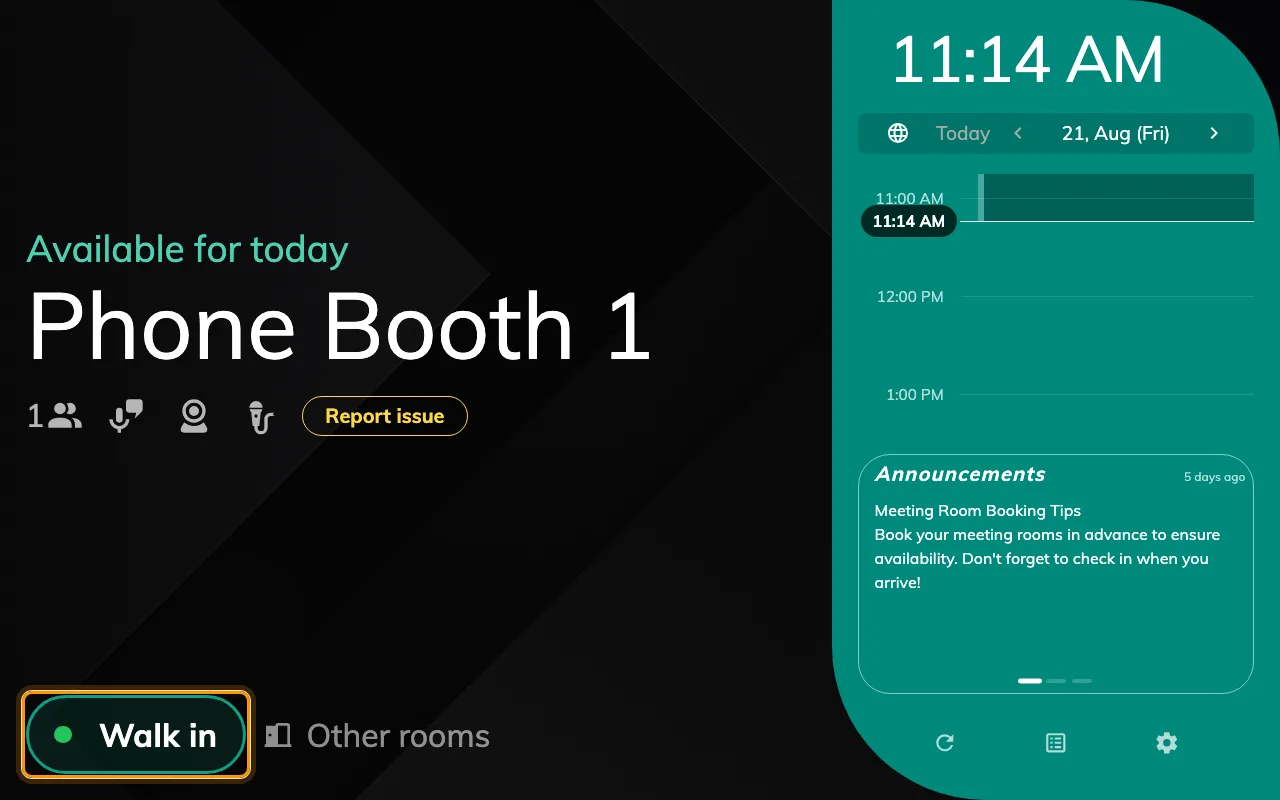
A free phone booth. One button, and nothing behind it that asks who you are.
1. Give these panels a configuration of their own
Anonymous suits a phone booth, a touchdown desk and almost nothing else — and a panel configuration is shared by every panel assigned to it. Put the booths on their own configuration before changing anything, or the meeting rooms stop asking too. How a panel gets its settings covers making one.
Open Panel configurationsSelect the configuration in the list and open it; everything below is a page of that one dialog.
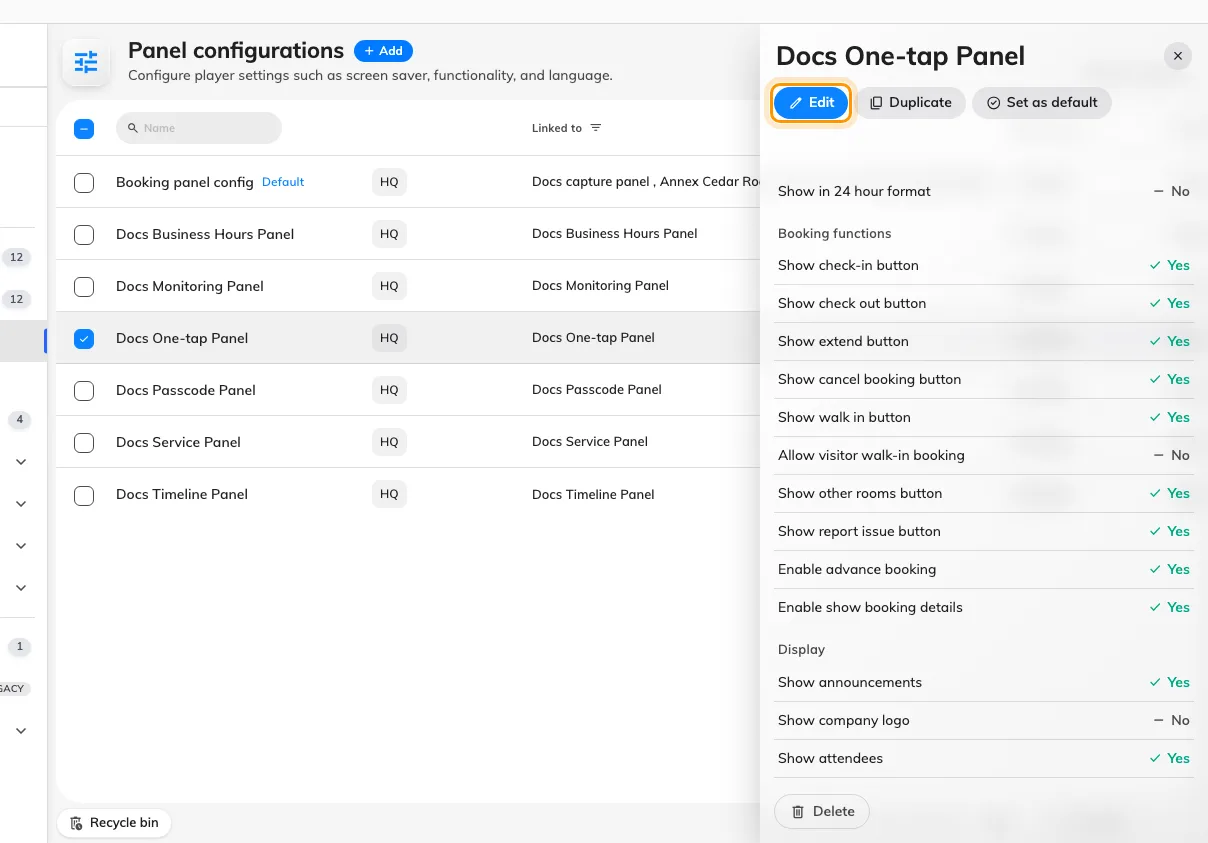
Selecting a configuration, and the action that opens it.
2. Leave Allow anonymous as the only method
Open the dialog’s Check-in method page and turn on Override the system user identification settings. Until that is on, the panel simply follows the organisation-wide User identify settings, where there is no anonymous option to find.
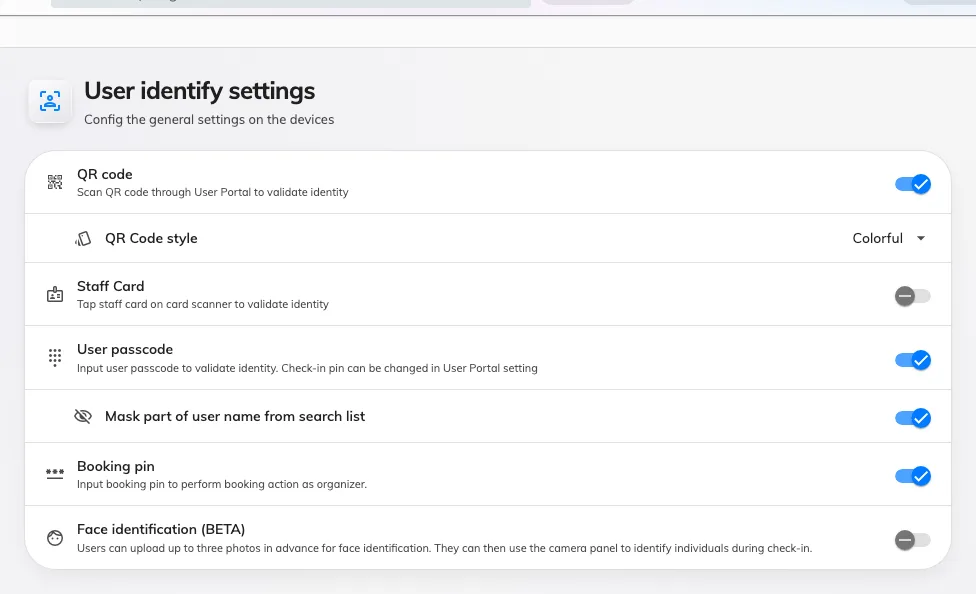
User identify settings — the organisation-wide default the override replaces.
Then turn every credential off — QR code, Staff Card, User passcode, Face identification — and turn Allow anonymous on.
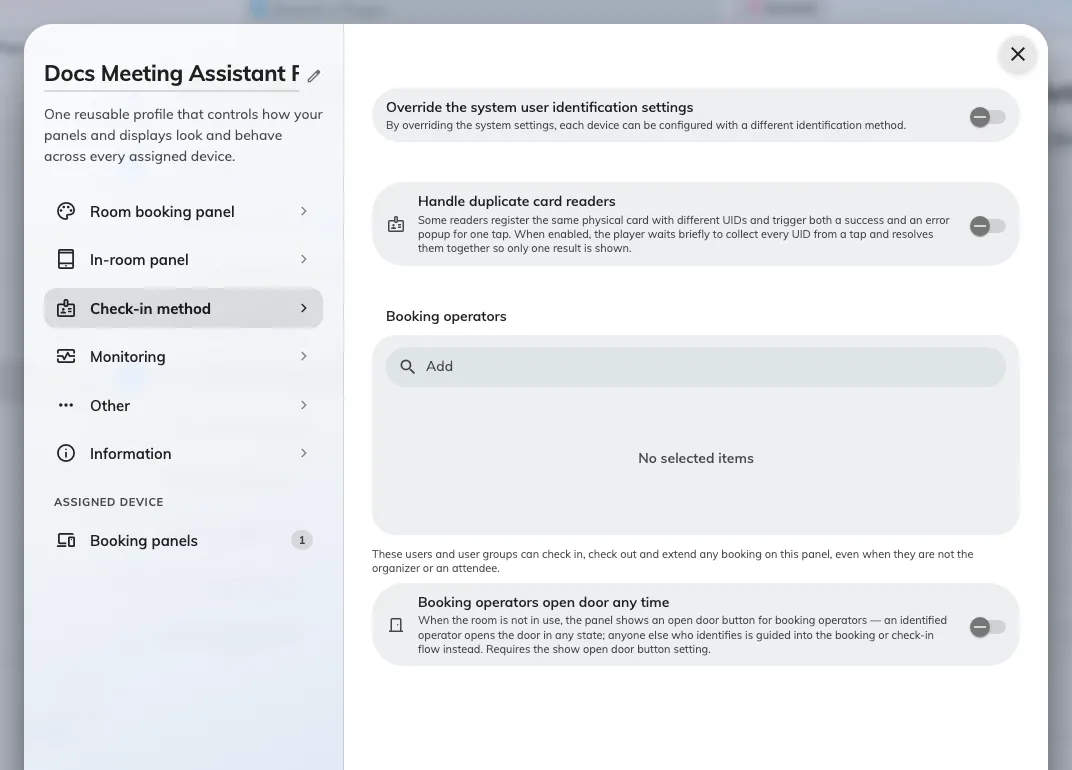
Nothing left but Allow anonymous, which is what removes the question entirely.
That last toggle is doing two jobs. It is what offers Use directly, and it is also the only reason the panel still works at all: a panel with no method whatsoever refuses the action and says so. Leave one credential on beside it and the reader gets a chooser with two options instead of a room — which is fine, and is what How somebody proves who they are at the panel describes, but it is not one tap.
3. Make the booking itself one tap
In the Use a booking group, Show walk in button puts the button on a free room. Underneath it, turn Require confirmation for walk-in off: that screen exists to ask for a subject and a headcount, and neither question has an answer when nobody is signing in. If you would rather keep the confirmation as a deliberate second tap, leave it on and switch Allow input subject and Allow input number of people off instead — the screen then confirms without asking anything.
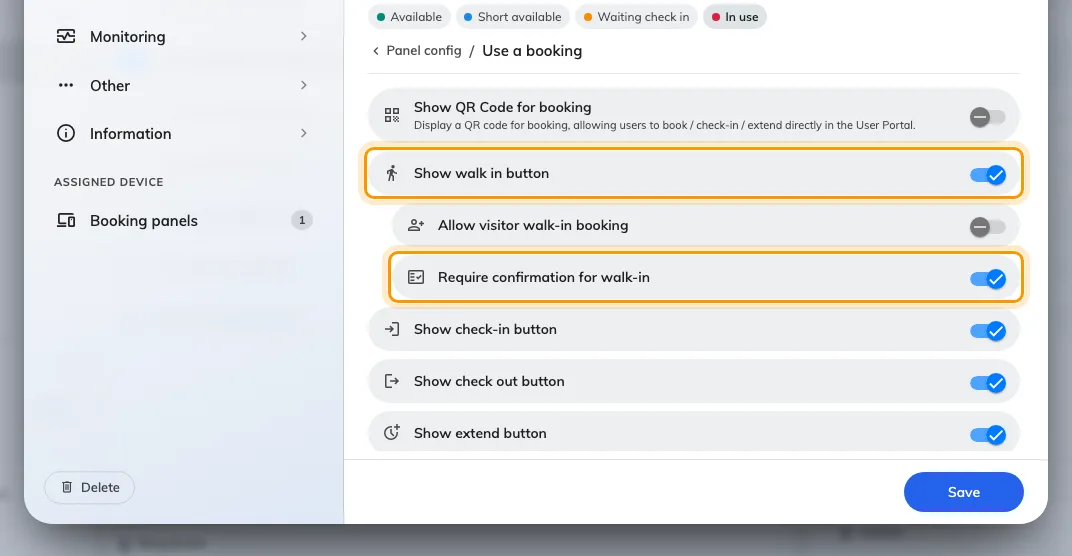
Show walk in button on, and the confirmation screen off.
4. Decide what the panel calls the booking
An anonymous booking has no organiser, and the panel has to print something where the name goes. In the Booking details group, with Show Organizer on, Show “Anonymous” when a booking has no organizer. chooses between the word Anonymous and an empty space.
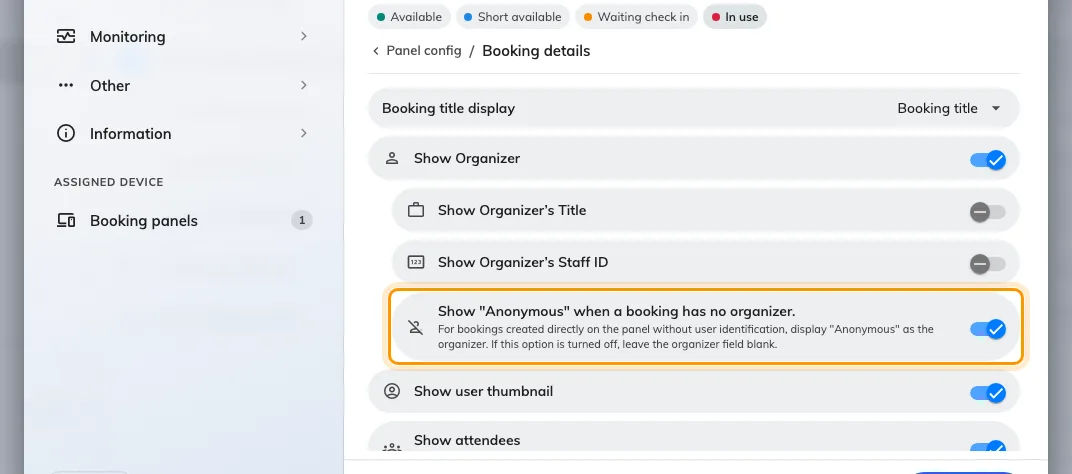
What the panel shows where an organiser would be.
Save. A shared configuration raises a confirmation listing every panel it lands on — worth reading, since that is the list of rooms that stop asking.
5. Try it
Stand at a free booth and press Walk in. The only thing between the tap and the room is the length:
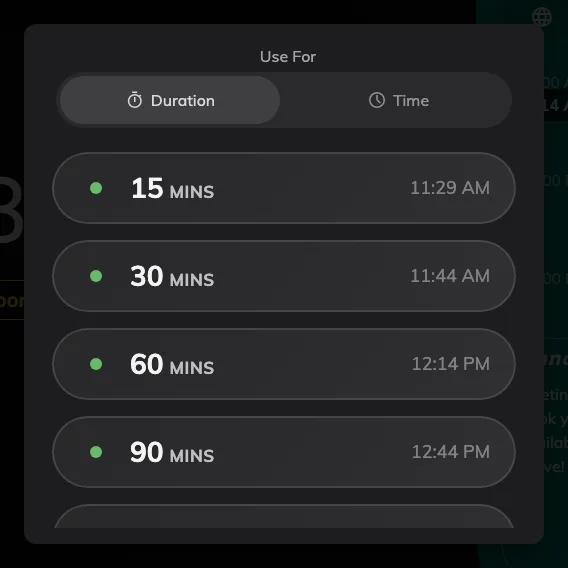
The lengths the room can give, ending before whatever is booked next.
Pick one, and the panel goes straight to in use. No identification screen appears at any point, the booking is titled Walk in booking, and the organiser reads Anonymous.
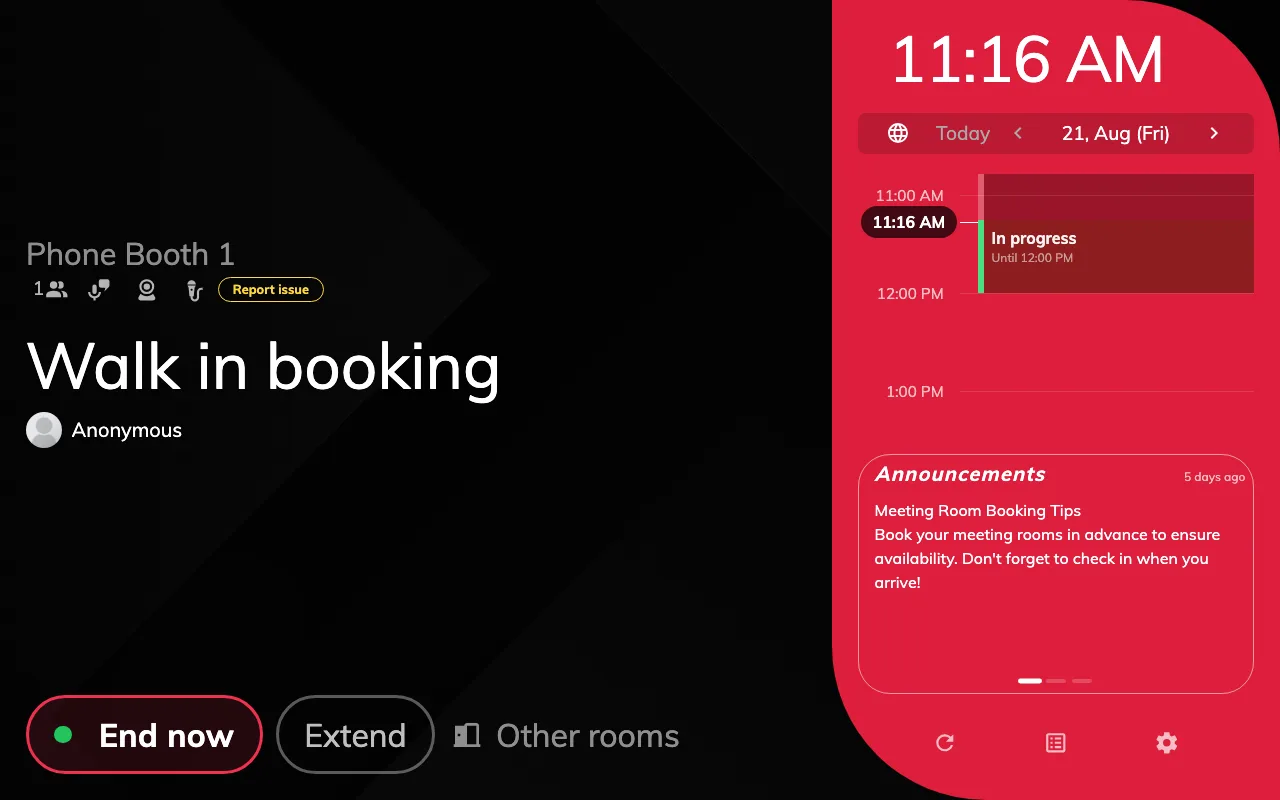
In use, with nobody's name on it.
What still asks for a credential
Allow anonymous applies to taking a room and nothing else. Walking in, booking ahead from the panel, booking another room and taking a seat all offer Use directly; checking in, checking out, extending, cancelling and opening a door never do, because each of those acts on somebody else’s booking.
This is worth knowing because the setting’s own description says otherwise — it reads “Allow booking, check-in, and check-out without user identification”, and check-in and check-out are precisely the two it does not cover. On a one-tap booth it rarely matters: a walk-in is already checked in, and End now is the button people reach for.
If you need those actions to skip identification too, that is a different setting on the room’s booking rules — Skip user verification in booking panel, listed in Booking rules reference.
What this does not control
- Who may book the room. Identification and permission are separate questions; a room nobody may book from a panel stays unbookable however little it asks for.
- Which buttons the panel offers. That is the configuration’s Room booking panel page — see Let somebody take a free room at the panel.
- The door. Where a panel drives a lock, unlocking rides along with the action; opening a door on its own still asks who is standing there.
- Any record of who took the room. There is none, and that is the trade. The booking holds the room and names nobody, so nobody can be asked to give it back.