

Install the Offision app on a Qbic device
The Offision Android app is installed on a Qbic device from a USB drive, which means turning on the device's native Android mode, installing the package, and then pointing the Content field at the app instead of at a web address. Covers booking panels, signage boxes and reception kiosks.
A Qbic device runs Android behind its own launcher, and out of the box that launcher shows a web address. Installing the Offision app changes what it launches — and installing it is a manual job at the device, because Offision does not push apps to Qbic hardware.
The steps below are the same on a room booking panel, a signage box and a reception kiosk. Whether you should install the app at all — what it adds over the panel’s own browser, and what quietly does not work without it — is Run the player as an app or in the browser.
What to have ready
- A USB drive the device can read, formatted FAT32
- Ten minutes at the device
- Somewhere to plug in a keyboard, or the on-screen one, for typing into the Content field at the end
For more than a handful of devices, install through Qbic’s own device management instead — the same tool that pushes firmware. Everything below is the one-device method.
1. Download the app
Copy the app to the USB drive.
offision.apkThat link always serves the current release, so download it again rather than reusing a file kept from the last install.
2. Turn on native Android mode
The Qbic launcher normally keeps Android out of reach, so the first move is to let it out of the way.
On the Configuration screen choose Settings, then Player settings.
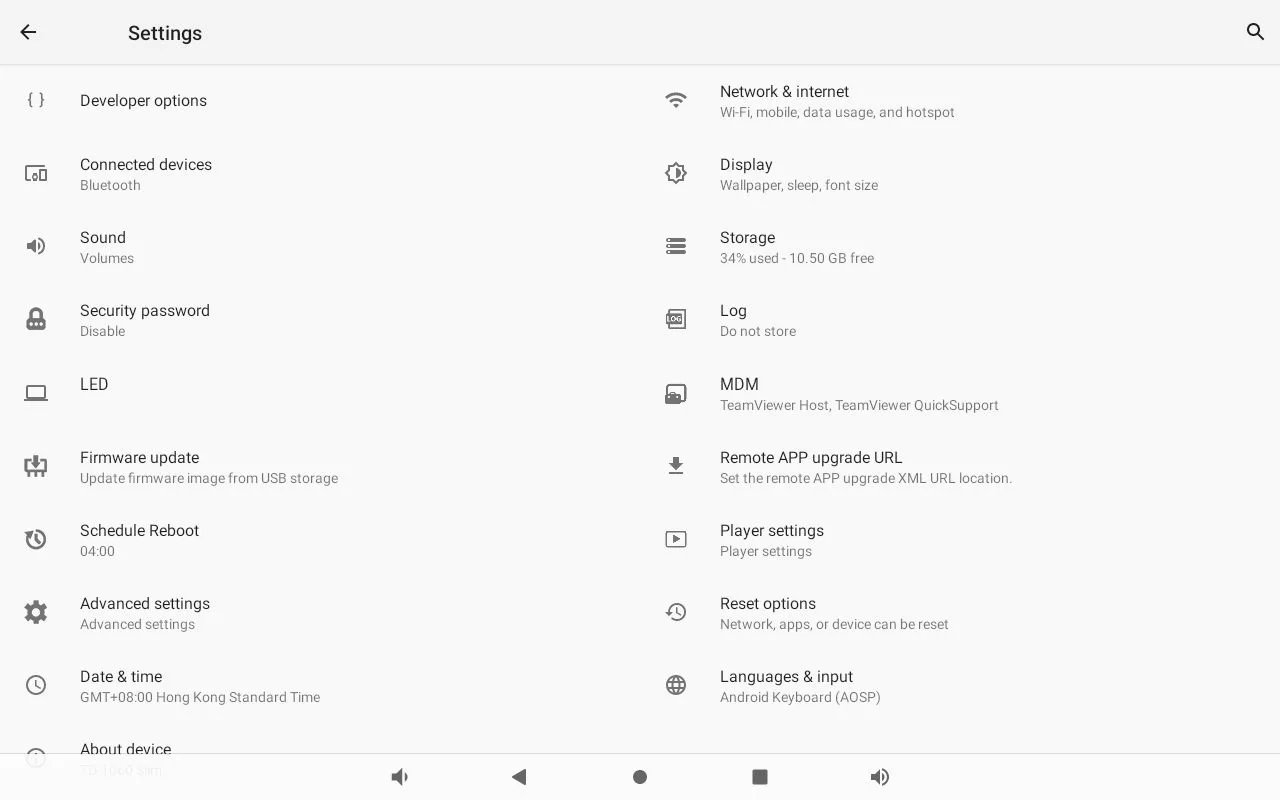
The device's Android settings. Player settings is on the right, below MDM.
Under ANDROID SYSTEM, turn on Switch to native android mode. The device drops to the ordinary Android home screen.
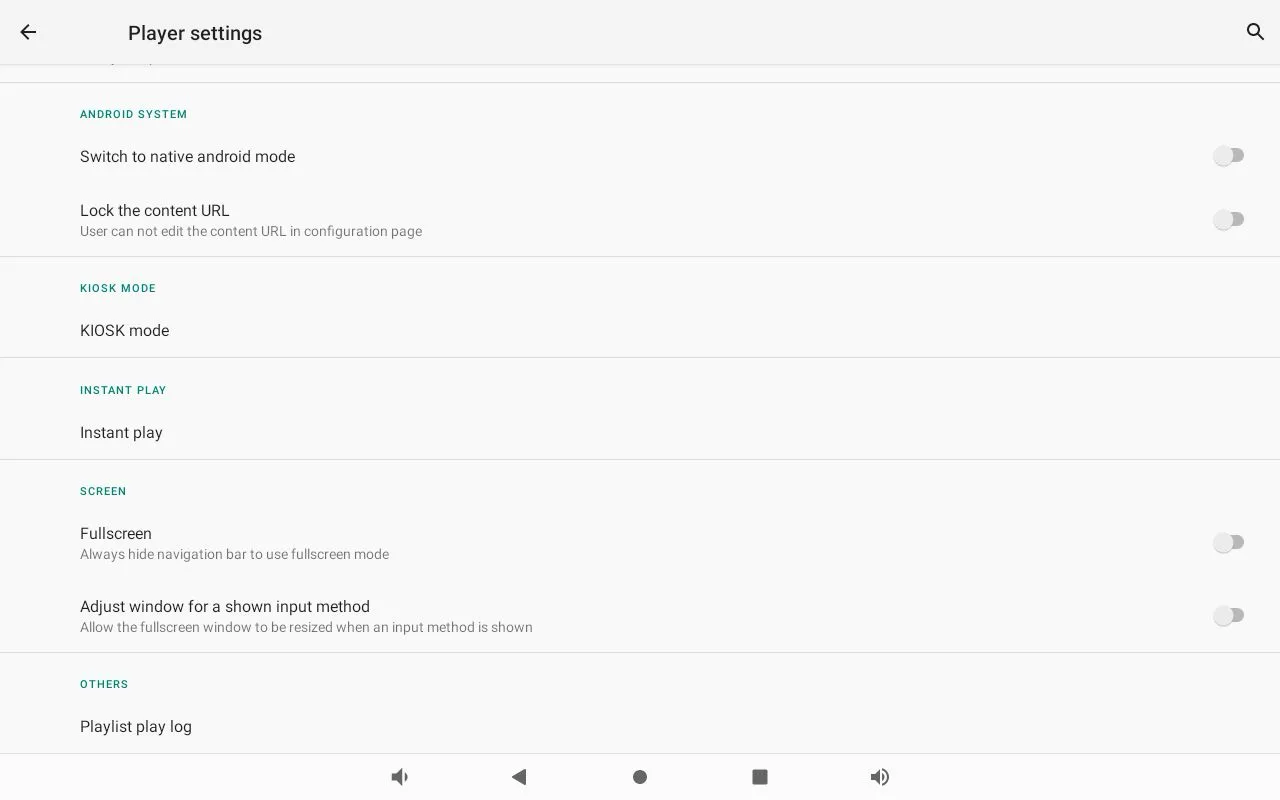
Switch to native android mode, at the top of Player settings. Leave Lock the content URL alone — it blocks the step this article finishes with.
3. Install from the USB drive
Plug the drive in, open the File app, and browse to the drive.
Choose the APK. Android asks for permission to install from this source the first time; allow it, and confirm the install.
4. Turn native Android mode back off
Go back to Settings › Player settings and turn Switch to native android mode off again.
This step is easy to skip and the device will not recover on its own. Native Android mode replaces the Qbic launcher with the plain Android home screen, and the launcher is what starts Offision at boot. Left on, the device comes back from every restart sitting on a home screen showing nothing.
5. Point the Content field at the app
Back on the Configuration screen, the Content field still holds a web address — or nothing. Clear it and use the magnifier beside the field to pick Offision from the installed apps. It fills the field in with the app’s component name:
com.offision.app/.MainActivityThen choose SAVE AND PLAY.
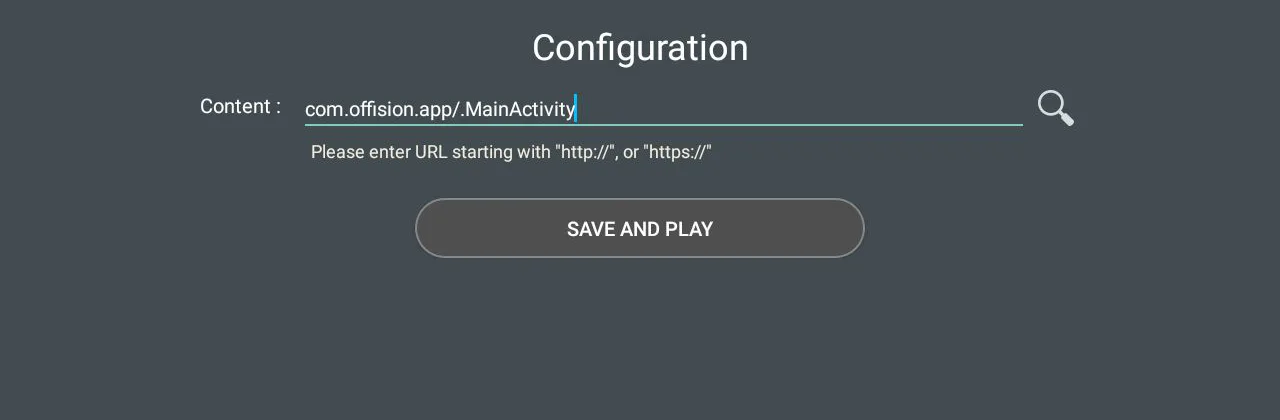
The Content field pointed at the installed app rather than a web address. The magnifier is the app picker.
The hint under the field asks for a URL starting with http:// or https://.
Ignore it — an app component name is exactly what belongs there, and the device
accepts it. This is the step that decides whether the device runs the app you
just installed or goes back to the browser, so it is worth confirming the field
reads as above before moving on.
6. Check it worked
The app opens and takes itself the rest of the way: it recognises the Qbic hardware it is running on, switches into player mode on its own, and settles on a screen showing a six-character pairing code. There is nothing to set for that to happen.
The device prints where to go next — Device › Booking panel / Signage › Add — and claiming the code there is Connect a Qbic room booking panel, from step 3 onwards.
Open Booking panelA BXP or FHD signage box is claimed under Device › Signage › Devices instead — see Show signage on a Qbic screen.
Restart the device once before you leave it. A device that comes back up showing the pairing code, or the room, is finished; one that comes back to an Android home screen still has native Android mode on.
Closing the app
A device running the Offision app has no obvious way out of it, and on a panel that is the point. When you do need one — to reach the device’s own settings, or to hand the screen back — the app carries it: unlock the panel’s console with its pass code, choose Setting, and among the action cards at the foot is Back to Android, formerly Leave Offision.
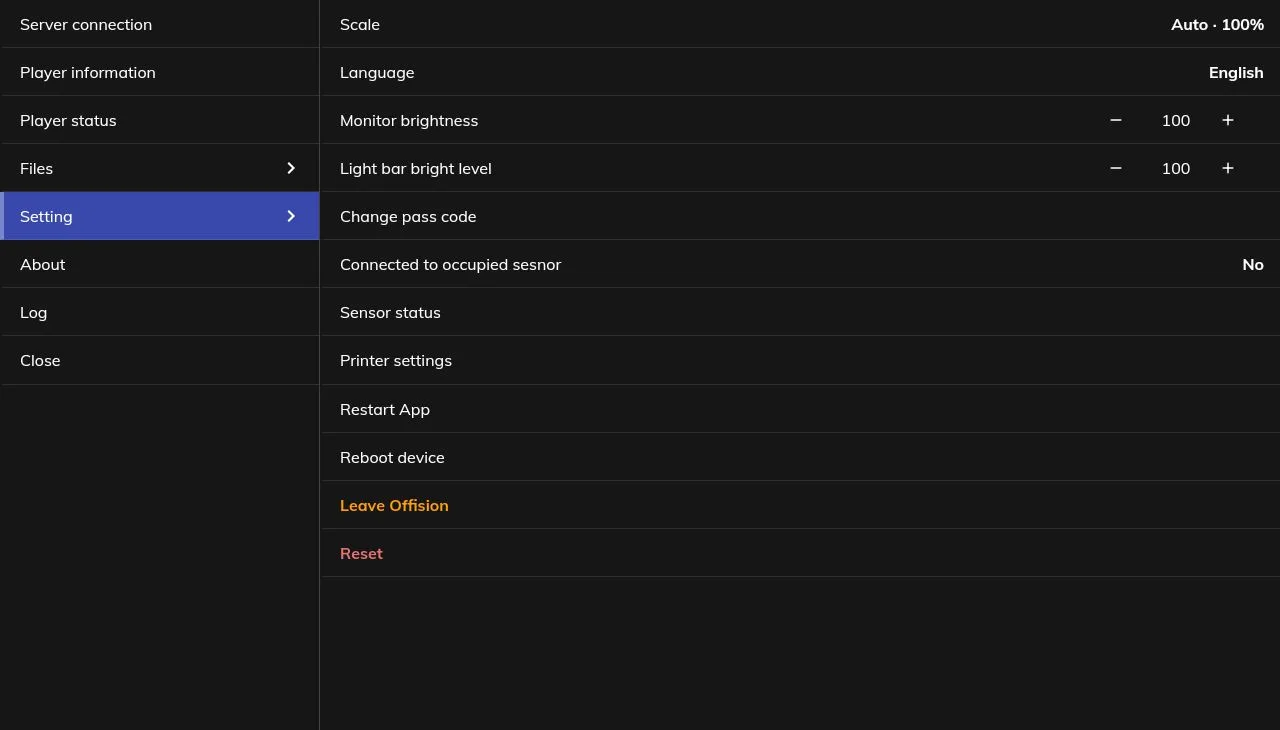
Back to Android, an action card at the foot of Setting in the panel's own console.
Once confirmed, it closes the app and hands the screen back to the Qbic launcher. It does not start again by itself — a reboot brings it back. The card exists only on a device running the installed app; in browser mode there is nothing to leave.
Getting into that console, and the pass code in front of it, is Set the pass code that unlocks a panel’s settings.
When it goes wrong
| What you see | Usual cause |
|---|---|
| The File app does not see the drive | The drive is not FAT32, or it is drawing more power than the port supplies. Try a smaller drive |
| The install is blocked | Android refuses an unknown source until you allow it for the File app, once, at the prompt |
| Not enough space, on a device with room to spare | Known on the TD-1060 Slim, where a Wi-Fi driver fault fills internal storage with crash dumps. Clear them, or ask Qbic for a firmware update, before retrying |
| The device boots to the Android home screen | Native Android mode was left on. Step 4 |
| The device boots to a browser or a blank page | The Content field still holds a web address. Step 5 |
| The Content field will not accept the app | Lock the content URL is on in Player settings. Turn it off, set the field, and turn it back on afterwards if you want it locked |
| The install reported success but nothing runs | Re-open the app from the Android app list before blaming the field. An install that half-finished leaves the app listed but unstartable, and installing again over it is the fix |
| A pairing code appears on a device that was already paired | Expected. A device set up in the browser does not carry its pairing into the app — claim the new code on the device’s existing row rather than adding a second device |
| You need to close the app and cannot see how | The console’s Setting › Back to Android, behind the panel’s pass code |
What this does not do
- It does not pair the device. The app installed and running is a device showing a code; the room, the design and the settings are all chosen when that code is claimed in the console.
- It does not change what the hardware can do. A device with no built-in card reader does not gain one, and the models are in Which booking panel hardware Offision supports.
- It does not update the player. The player updates itself. The app around it is an Android package like any other, updated by installing a newer one the same way.
- It does not tidy the screen. Android’s navigation bar still sits along the bottom edge over the player until the device is told to hide it — Hide the Android navigation bar on a Qbic device.