

Every switch that puts a button on the panel
Three groups of Room booking panel decide what a person at the room may do — walk in, check in, extend, open the door, and whether they may cancel the meeting at all. Every switch, row by row, and what still cancels a booking when the panel cannot.
Select the configuration, open it with the edit action, and it lands on Panel config. The three groups below are tiles in that menu — Use a booking, Book from the panel, Door & extras — and all three are greyed while Touch screen mode, the switch in the menu’s first cell, is off.
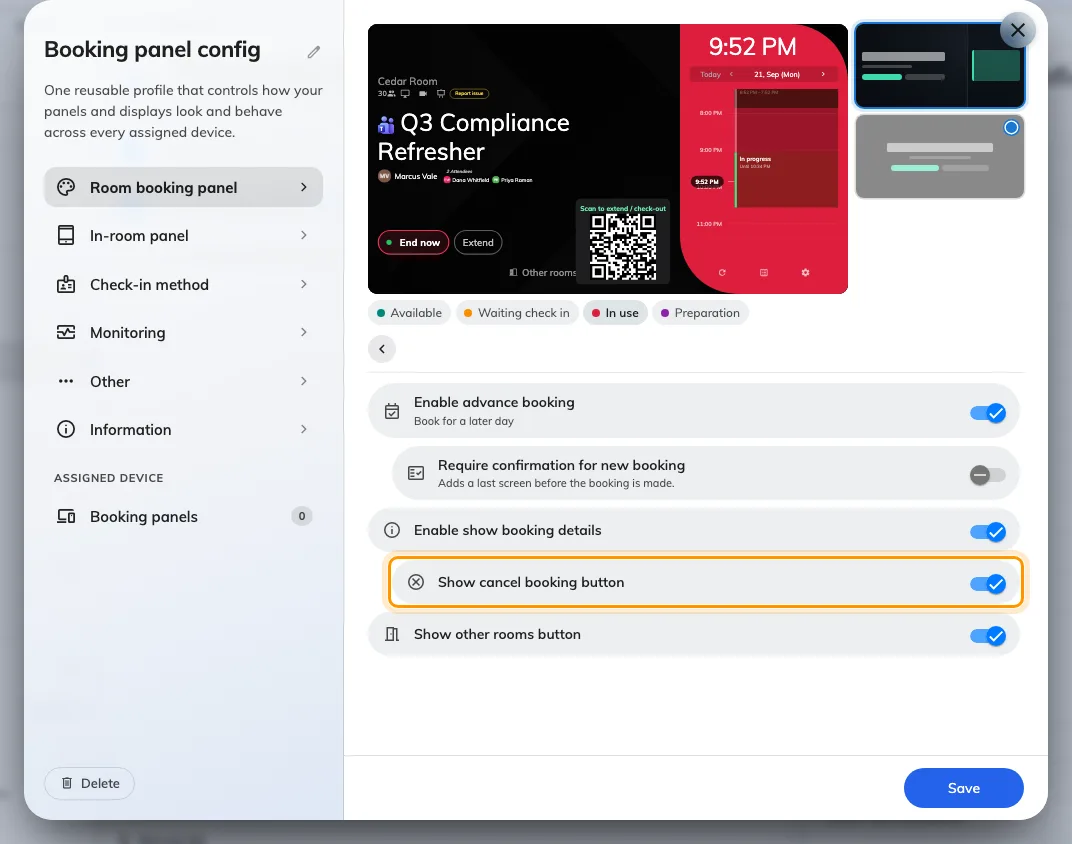
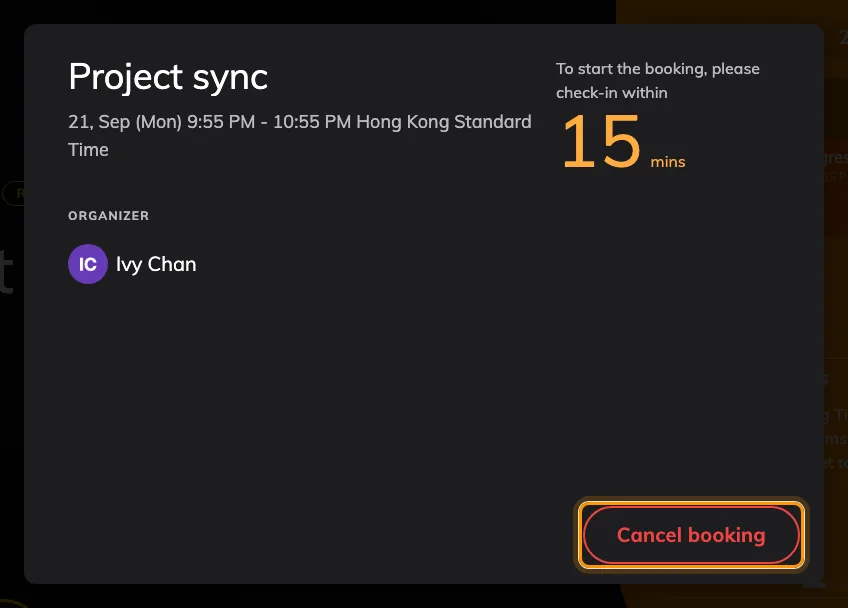
Book from the panel, with Show cancel booking button under Enable show booking details.
Door and service-call buttons start off. All panels sharing a configuration receive these settings; see Panel configurations.
Buttons follow room state: Walk in when free, Check in while waiting, and End now, Extend and eligible Call service while in use. Advance booking and booking details use the timeline; Cancel booking is inside the details dialog.
The two switches that frame everything else
| Setting | What it does | When to change it |
|---|---|---|
| Show QR Code for booking | Floats a QR card on the panel; scanning it opens the User Portal to book, check in or extend from a phone. | Off where the card crowds a small screen, or you want everything to happen on the panel itself. |
| Touch screen mode | On, the panel is interactive and shows action buttons. Off, it is a display-only screen with every button hidden. | Off for a glanceable status display — a screen behind glass, or one nobody should operate. Run a panel as a display-only screen is the whole flow. |
Use a booking — what may be done to the meeting in front of you
| Setting | What it does | When to change it |
|---|---|---|
| Show walk in button | A free room offers Walk in — the room from now, no app involved. The whole flow is its own page. | Off where passers-by should not be able to take the room. |
| Allow visitor walk-in booking — under walk in | Lets somebody identify as a visitor rather than a user when walking in. Needs the Visitor management licence. | On in visitor-heavy spaces; off keeps walk-in to staff. |
| Require confirmation for walk-in — under walk in | Adds a last screen before the booking is made. | Off for a one-tap flow; on where bookings should carry a real title. |
| Allow input subject — under walk-in confirmation | The person names the meeting. Rooms only. | Off to force the automatic label. |
| Allow input number of people — under walk-in confirmation | Asks how many are coming. Rooms only; off to begin with. | On to measure occupancy against capacity. |
| Show check-in button | A booking waiting for its organizer offers Check in — see Check in at the booking panel. | Off where check-in happens elsewhere — the user app, or a sensor. |
| Show check out button | A meeting in use offers a way to end early and release the room. | Off where rooms should hold their slot to the end regardless. |
| Show extend button | A meeting in use offers Extend, up to the next booking. | Off where back-to-back schedules must not stretch. |
| Require confirmation for extend — under extend | Asks for a confirmation before the extension is submitted. | Off for one tap; on to prevent accidental extends. |
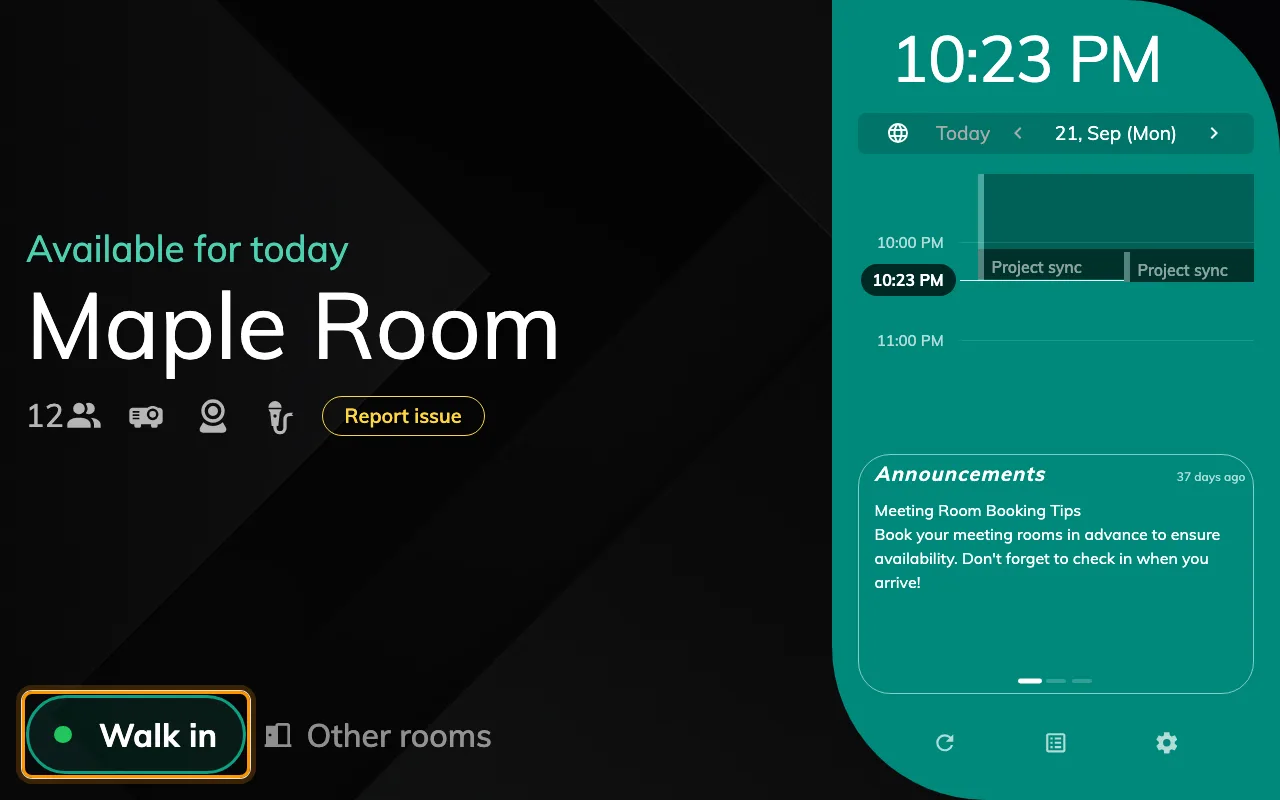
Walk in — from Show walk in button.
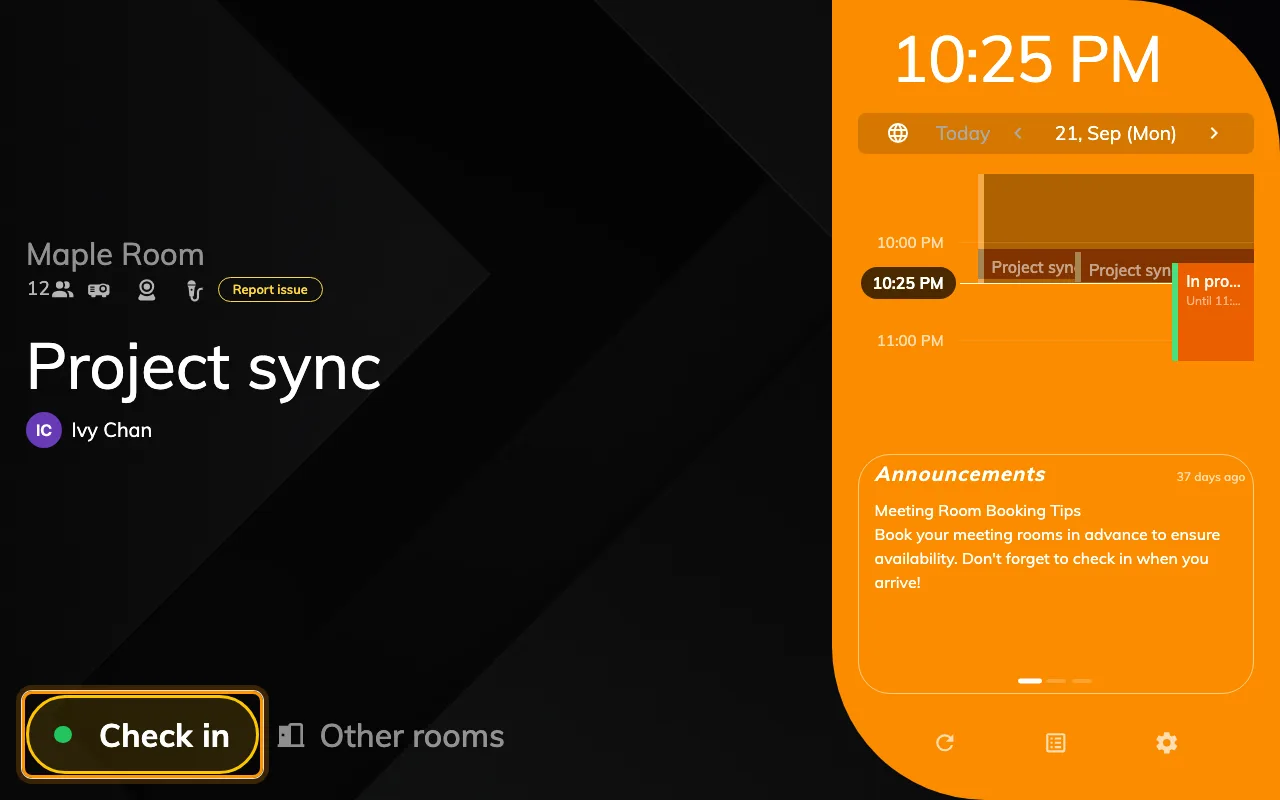
Check in — from Show check-in button.
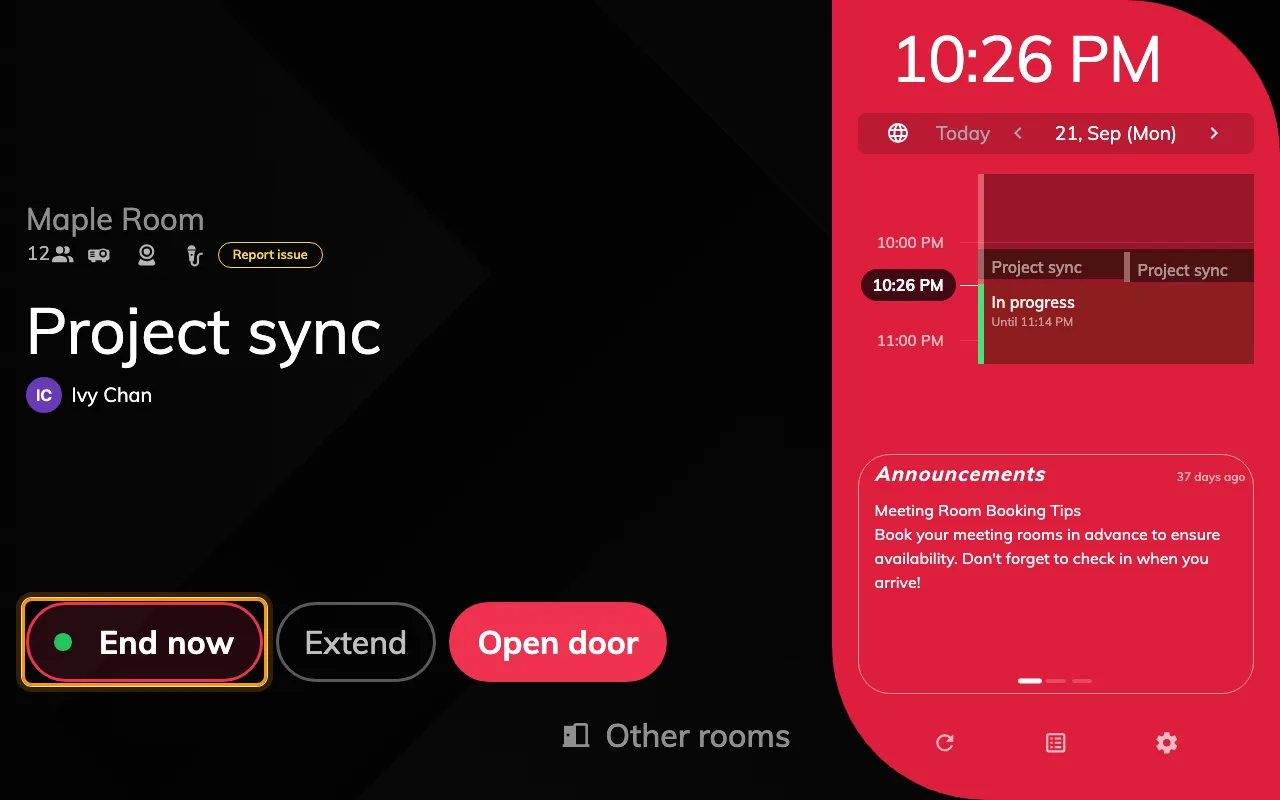
End now — from Show check out button.
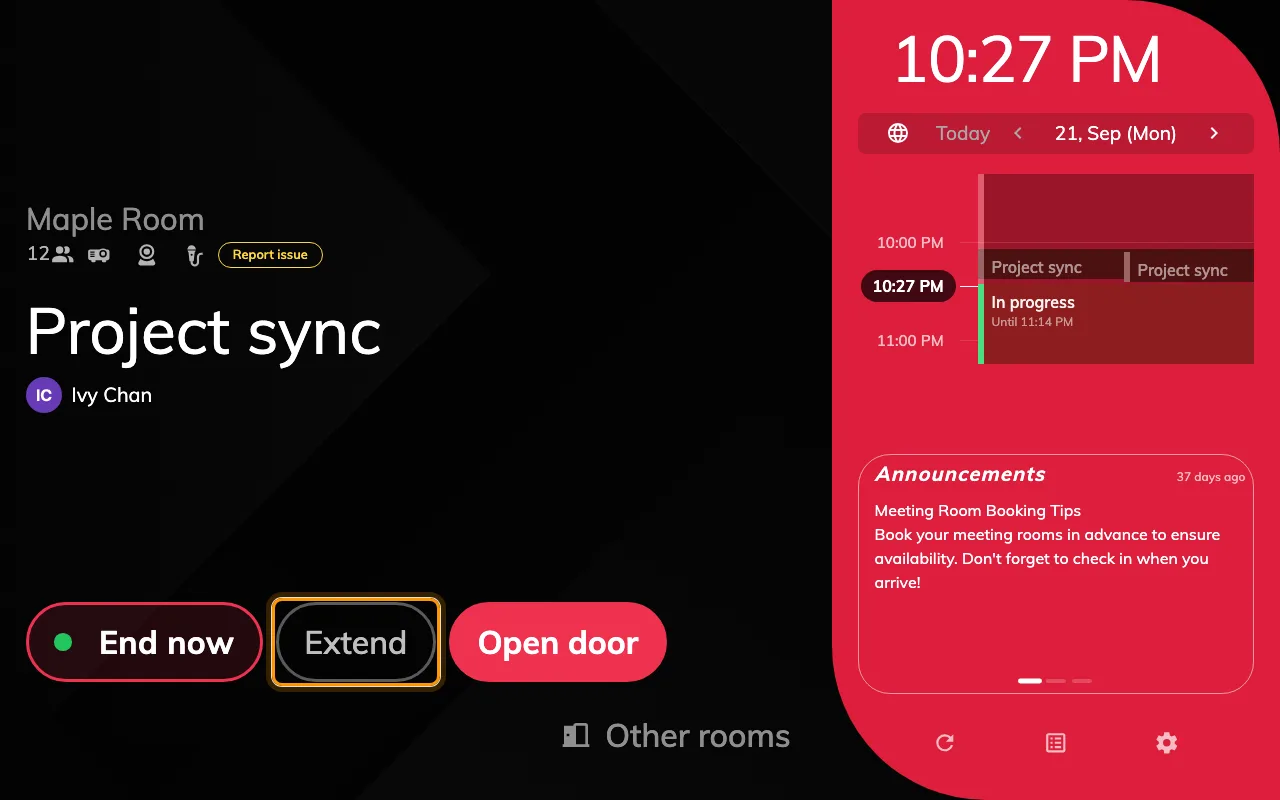
Extend — from Show extend button.
Book from the panel — booking ahead, the cancel button, and other rooms
| Setting | What it does | When to change it |
|---|---|---|
| Enable advance booking | The timeline can be tapped to book ahead — now and the coming few days. | Off where the panel is for the current meeting only and booking ahead belongs to the user app. |
| Require confirmation for new booking — under advance booking | Asks for a confirmation before the new booking is submitted. | Off for one tap; on where a mis-tap on the timeline is easy. |
| Allow input subject — under new-booking confirmation | As above, on the booking-ahead screen. | Off to force the automatic label. |
| Allow input number of people — under new-booking confirmation | As above, on the booking-ahead screen. | On to measure occupancy against capacity. |
| Enable show booking details | Tapping a booking opens its details — title, organizer, attendees. | Off where meeting titles and names are not for whoever walks past. |
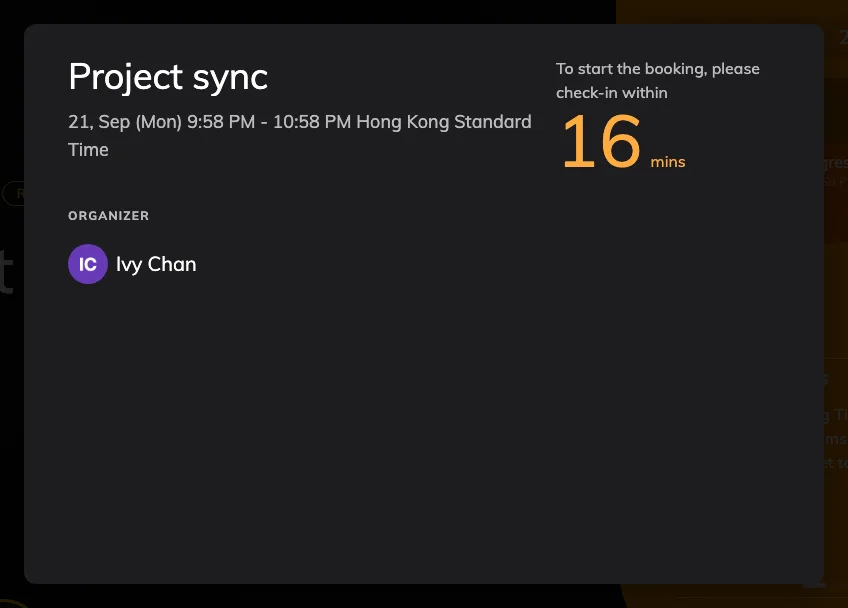
| Show cancel booking button — under booking details | The details dialog offers Cancel booking, deleting the meeting from the screen. | Off to stop people canceling meetings at the door. They can still see the details; they just cannot remove the booking. |
| Show other rooms button | Offers another room in the building, in every room state. Off closes the lot: this button, the in-room Rooms nearby and Move to Other Room, and Find other available in the time picker. | Off where the panel should speak only for its own room. |
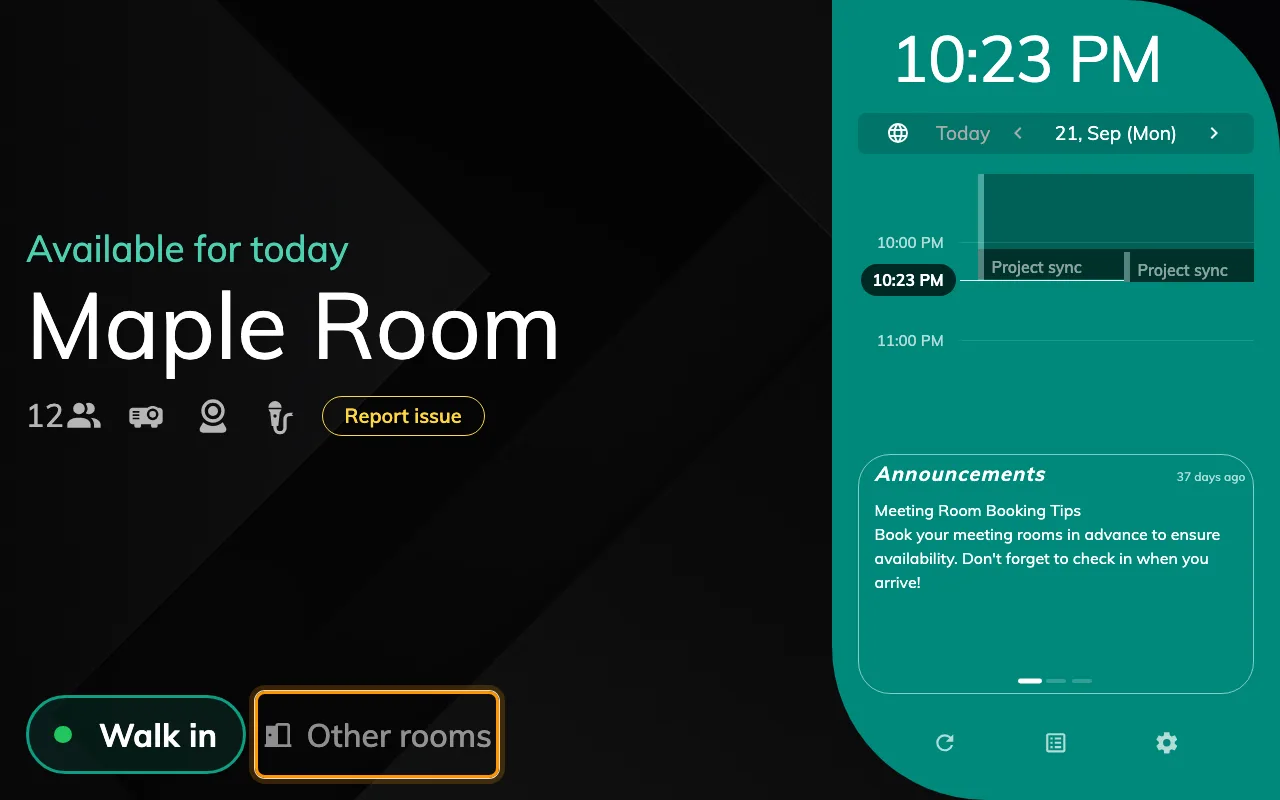
Other rooms — from Show other rooms button.
Canceling from the panel is not anonymous: unless the room books only from the panel, the person is asked to prove who they are first, the same way as for check-in.
Show cancel booking button
Door & extras — the door, and reporting a problem
| Setting | What it does | When to change it |
|---|---|---|
| Show open door button | The panel offers Open door, using the Qbic AC-500 relay board to trigger the door lock. | On only for panels wired to a lock; it does nothing without one. |
| Allow visitor open door — under open door | Lets an identified visitor open the door, not only staff. Needs the Visitor management licence. | On where visitors reach the room unescorted. |
| Open duration (in seconds) — under open door | How long the door stays open after the button, before it locks itself again (1–60). | Longer for doors people reach slowly; the default is ten seconds. |
| Card scan opens door during meeting — under open door | While a booking is in use, tapping a card opens the door directly instead of showing the extend / check-out dialog. | Off if a card tap during a meeting should offer actions rather than open the door. |
| Show report issue button | Lets anyone report a problem with the room through the panel. | Off where facilities requests come in some other way. |
| Show call service button | Offers Call service during an in-use booking with room service items or support links, on both designs. | Off by default; configure the room’s services before enabling it. |
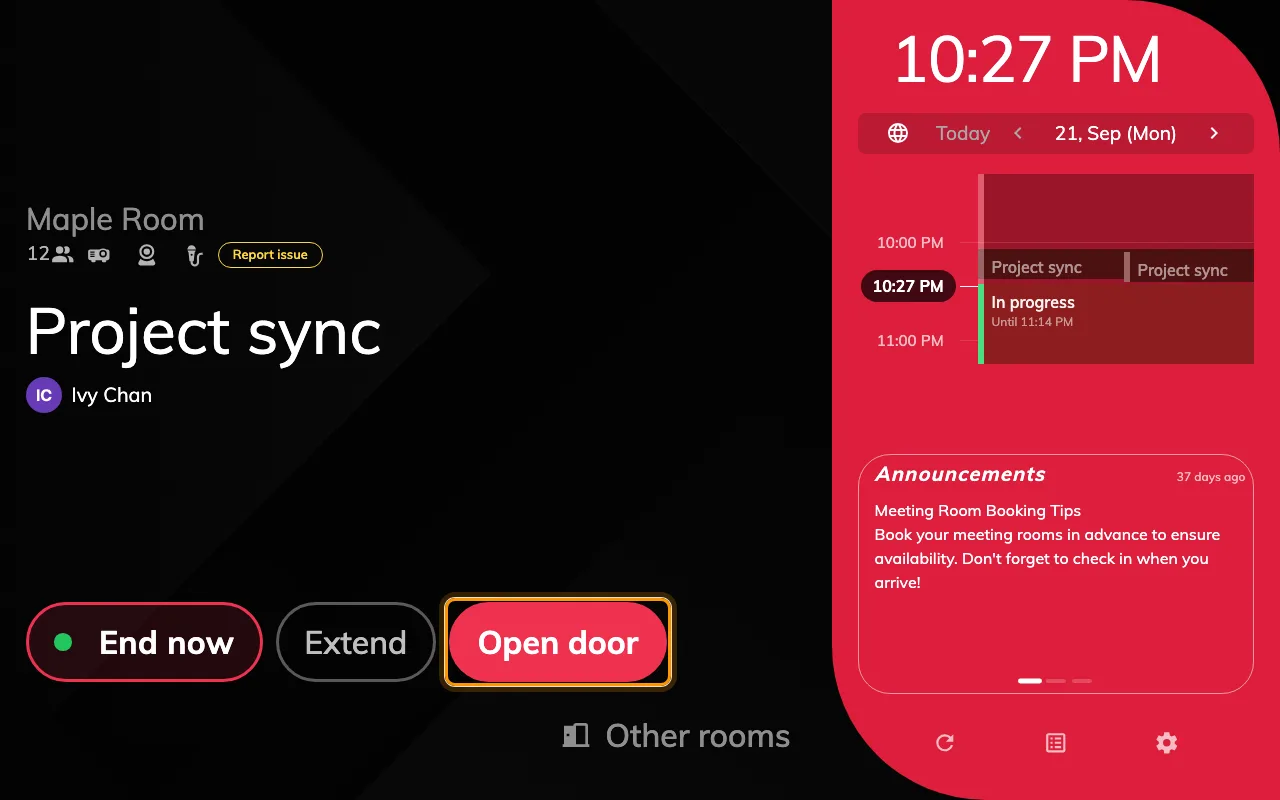
Open door — from Show open door button.
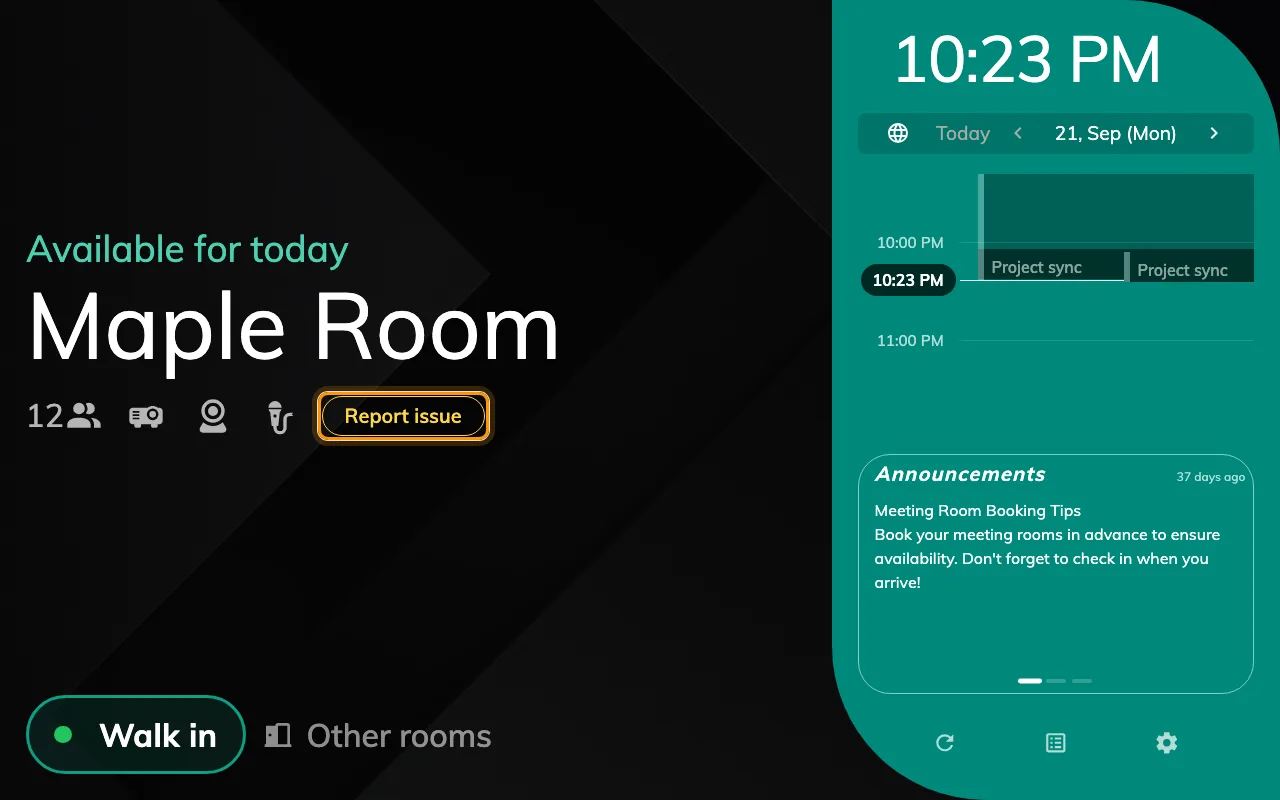
Report issue — from Show report issue button.
The In-room panel page has a group of the same name, carrying the two switches that let the panel speak — see The Meeting assistant panel.
When the cancel button is missing anyway
Five things remove it and only one is its own switch, so check the rest before changing a setting. Three are configuration: Show cancel booking button off, Enable show booking details off — which removes the dialog it lives in — or Touch screen mode off, which hides every button. The fourth is the booking: one checked in is ended with check-out, and one already ended or canceled has nothing to remove. The fifth is the Center design, which has no details dialog — see Choose a panel design.
Call a service during a meeting
Show call service button, under Door & extras, controls Call service on both panel designs. It appears only while a booking is in use, touch interaction is enabled, and the room has requestable service items or an enabled service-support link. It is off by default. Enabling it does not create a service: set up the room’s services first. It is separate from Show report issue button.
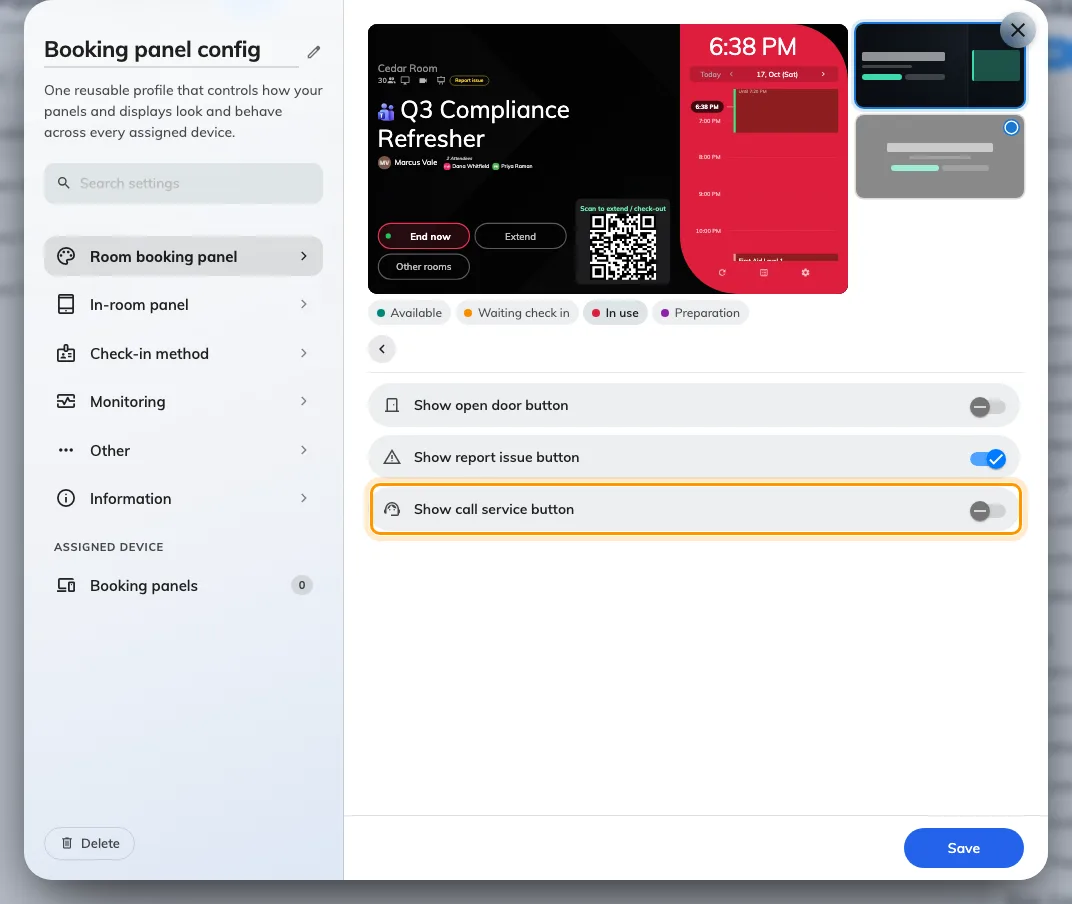
Door & extras includes Show call service button, separate from reporting a room problem.
What this does not control
- Canceling from anywhere else. The organizer can still cancel from the user app or their calendar. To freeze a booking near its start everywhere, use Limit user can edit or delete booking before it start in the resource policy — see Resource policy settings.
- Who counts as identified. The credentials the panel accepts are the Check-in method page — see How somebody proves who they are at the panel.
- Whether check-in is required, and its window. That is the resource’s policy, not the panel’s — see How check-in and no-show work.