

Put a Microsoft 365 or Google room on a booking panel
A room whose calendar lives in Outlook or Google Calendar drives a panel the same way any other room does — once four things are true. The order they have to be done in, and the one setting on the room's own calendar that decides whether anything reaches the wall at all.
A room whose calendar lives in Microsoft 365 or Google Workspace drives a booking panel exactly the way a room Offision owns outright does. Nothing in the pairing wizard asks which kind it is, and nothing on the panel behaves differently afterwards — the panel simply shows the room, and the room happens to be a mailbox.
What is different is everything that has to be true before you pair it. Four things, in this order, and each one is invisible from the panel: skip one and the panel comes up looking perfectly healthy while showing a room that is never busy.
What to have ready
- The calendar connection made, and still signed in
- The room existing as a room mailbox in Microsoft 365, or a resource calendar in Google Workspace
- Permission to change that room’s own calendar settings, for step 2
- A booking agent account set on the connection, if anybody who books this room is not an account in that same directory — without one they cannot book it at all, and a panel is where that shows up first. Set it in Sync rooms from Microsoft 365 or Connect rooms from Google Workspace
- The panel powered, on the network, and showing its six-character code
1. Connect the calendar
If it is not connected yet, do that first and come back. The choice that matters is the connection mode, because it decides how rooms arrive in step 3 — read Which Microsoft 365 connection to choose or Which Google Workspace connection to choose before you pick one.
2. Set the room to accept invitations automatically
Do this before anything else, and do it on the provider’s side. It is the step that is skipped most often, and it is the one whose symptom looks like a broken panel rather than a calendar setting.
Offision mirrors the room’s own calendar. A meeting reaches the panel once the room has answered the invitation — so a room that leaves its invitations unanswered shows nothing on the wall, and reads as free all day while Outlook shows it booked solid.
- Microsoft 365 — set the room mailbox’s calendar processing to accept automatically.
- Google Workspace — on the resource calendar, set Auto-accept invitations to automatically add all invitations. Set its Time zone while you are there, or every booking arrives out by a fixed number of hours.
Offision never sets this for you and never warns that it is missing.
3. Bring the room into Offision
The room has to exist as a bookable resource before a panel can be pointed at it. How it arrives depends on the provider:
| Microsoft 365 | Google Workspace | |
|---|---|---|
| How rooms arrive | Pick from a list of rooms, or sync the whole directory at once on an application-family connection | One calendar address at a time — there is no room picker |
| If a room is missing | Microsoft has usually not published it yet — that settles within a day. If it still does not appear, add it by mailbox address | The delegated account is not subscribed to that calendar yet |
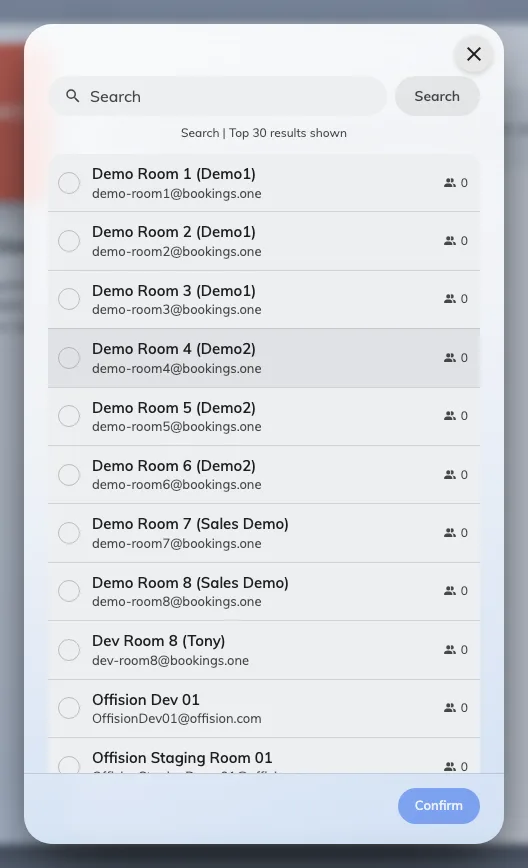
Choosing a Microsoft 365 room. On Google Workspace there is no picker — rooms are typed in by calendar address.
The full walkthrough for each, including the booking agent account that lets everyone book the room rather than only the people who have connected an account, is in Sync rooms from Microsoft 365 and Connect rooms from Google Workspace.
4. Pair the panel to that room
Now pair the panel as you would any other — Connect a booking panel to Offision walks the wizard.
Open Booking panelThe only step that needs care here is Resource. The synced room sits in the same list as every other room and looks no different, so if somebody created a room by hand with the same name earlier, both are on screen and only one of them is the one carrying the calendar. Pick the synced one.
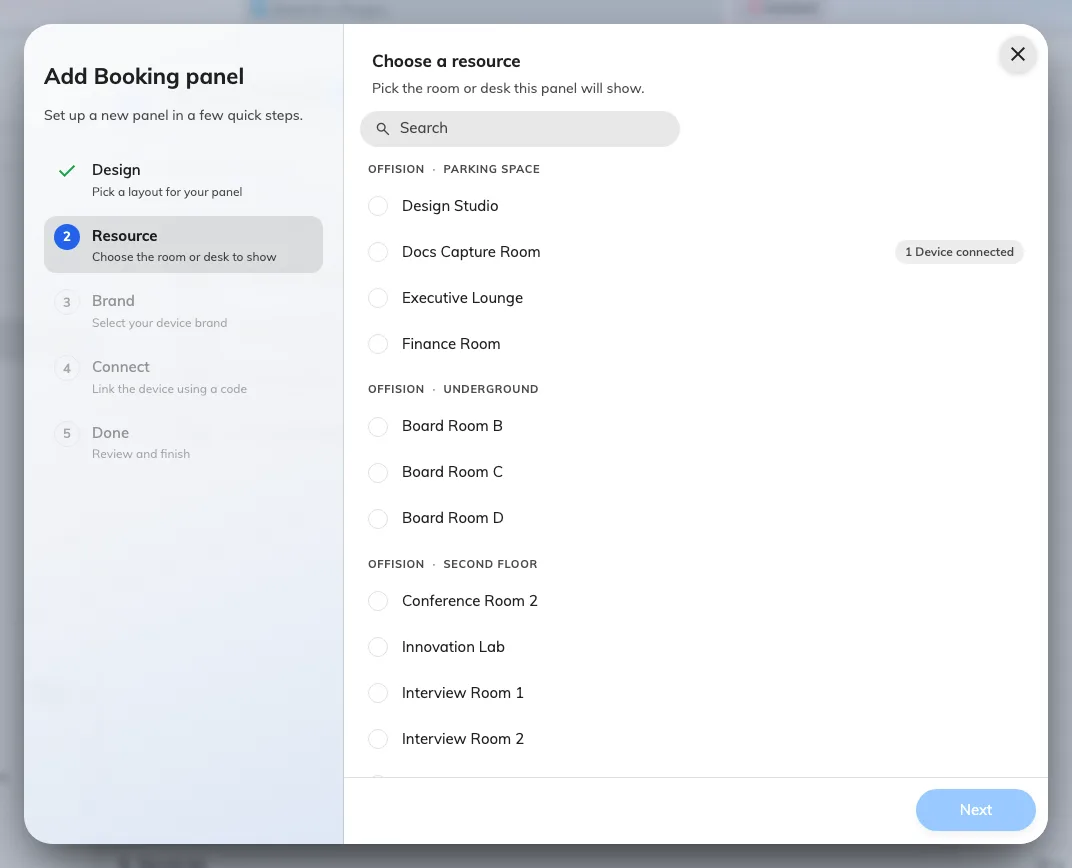
The Resource step: every bookable room in the estate, by building and floor.
5. Check it worked
Prove the whole chain rather than any one link, in both directions:
- Book the room in Outlook or Google Calendar, and watch the panel change
- Book it at the panel, and confirm it appears in the organiser’s calendar
- Leave the panel a minute and check its Connection status still reads online
- Have somebody who is not a Microsoft 365 or Google account book it at the panel — that is the check that proves the booking agent account is doing its job
How quickly the panel changes
Seconds, normally. A change in Outlook or Google Calendar is pushed to Offision, which pushes it straight out to the panel, so a meeting booked while you are standing at the door appears without anybody touching the panel.
If that push is ever missed, the panel notices on its own within about half a minute — it keeps checking whether what it is showing is still current. So the honest worst case is roughly thirty seconds, and rebooting a panel is never the fix for a booking that has not appeared yet. Wait a minute; if it is still not there, it is one of the causes below rather than a slow panel.
When it goes wrong
| What you see | Usual cause |
|---|---|
| The panel shows the room free, while Outlook or Google Calendar shows a meeting | The room is not accepting invitations automatically — step 2. The meeting never reached the room’s own calendar, so nothing was mirrored |
| The panel has not changed for hours, for every room | The connection’s sign-in has lapsed — see Bookings stopped syncing with the calendar |
| One room is stale and the rest are fine | That room’s connection was suspended, usually because the mailbox was renamed, deleted or had its sharing changed. Reconnect that room |
| The room is not offered in the wizard’s Resource step | It was never brought across — step 3. It is not an Offision resource yet |
| The panel shows the right room name but never any meetings | It is paired to a room created by hand that shares the name, not to the synced one. Change its room on the device |
| A meeting booked in Outlook is missing everywhere, not just on the panel | The room declined it — see A meeting booked in Outlook never appears in Offision |
| Bookings made in Outlook ignore the room’s policy | The mailbox accepts automatically, so Offision is never asked — see How a booking is validated |