

Play your company video on idle room panels
Turn idle booking panels into signage: a looping playlist of images, videos, YouTube clips and web pages. Which panels can download and play video, and how to set the playlist up.
A booking panel spends most of its day idle — a lit screen at every meeting room door with nothing to say. The screen saver turns that time into signage: a looping playlist of images, videos, YouTube clips or web pages that takes over after the panel has been left alone, and hands back to the booking screen the moment somebody touches it. A corporate video or a set of brand images on every panel in the building is the cheapest brand presence you will ever install — the screens are already on the walls.
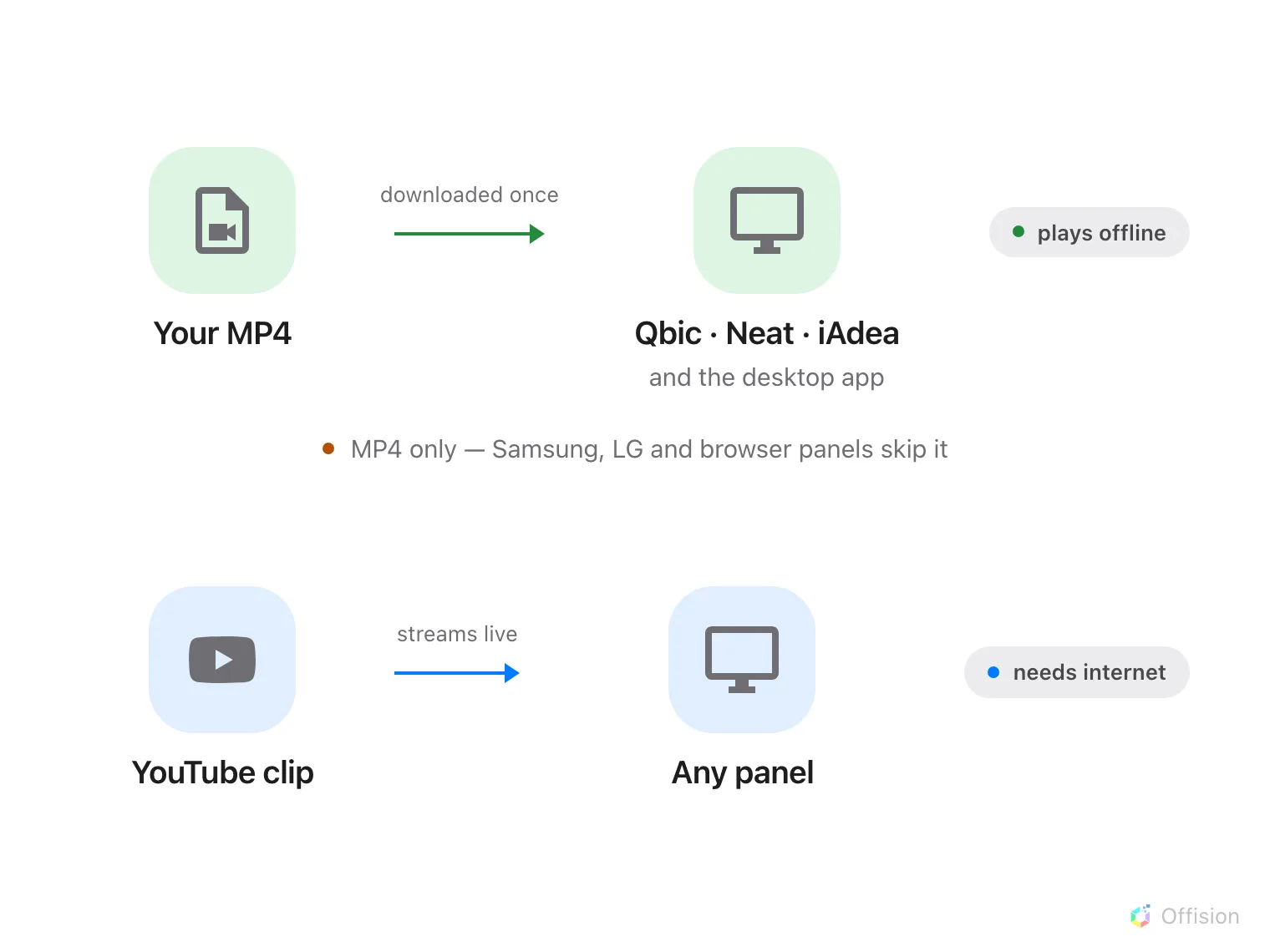
Your MP4 is downloaded once and plays offline — on the panels that support it; a YouTube clip streams live on any panel with internet.
Which panels can play video
Every panel can show the playlist’s images and web pages. Video is the part that depends on the hardware: an uploaded video is downloaded to the panel and played from its own storage — never streamed — so only panels with local storage can play one.
| Panel | Uploaded video (MP4) | YouTube |
|---|---|---|
| Qbic, Neat and iAdea Android panels | Downloaded once, then plays offline | Plays, needs internet |
| Windows and Mac desktop app | Downloaded once, then plays offline | Plays, needs internet |
| Samsung, LG and browser players | Skipped — the playlist moves to its next item | Plays, needs internet |
While a panel is still downloading a video, it skips that item and shows a small download badge; the video joins the loop as soon as the copy finishes. Once downloaded, it keeps playing through network outages — which is the reason to prefer an uploaded MP4 over a YouTube link for the video you want always on screen.
1. Open the panel configuration
Go to Devices › Booking panel › Panel configurations, click the configuration your panels use, and choose Edit in the detail panel on the right. Then open Screen saver & energy, the last group but one under the panel preview.
Open Panel configurations2. Turn on Screen saver
Switch on Screen saver. The playlist and its timing settings appear underneath only once the toggle is on — and until you add something to the playlist, the panel keeps showing its normal screen.
3. Build the playlist
Choose Add content. There are three kinds of item:
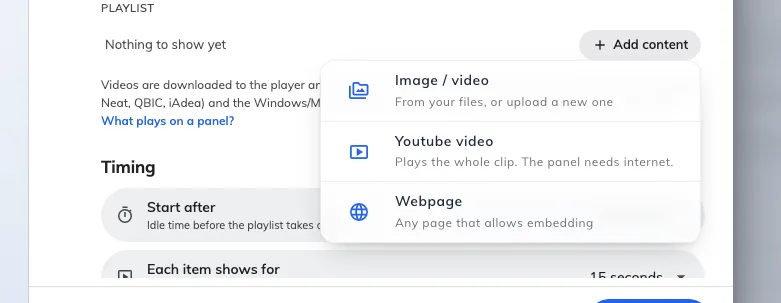
The three kinds of playlist item.
- Image / video — from your files, or upload a new one. This is the one to use for the company video: an MP4, downloaded to each panel and played locally.
- Youtube video — paste the link; the panel plays the whole clip, sound off. It streams live, so the panel needs internet every time it plays.
- Webpage — any page that allows embedding. Use Check if it can be displayed in the item editor to confirm the page permits it before trusting it to a wall of panels.
Each item opens on its own page, with a preview and the settings that apply to that kind. An uploaded image or video also gets How it fills the screen, sitting under the file itself:
- Crop to fill — the picture covers the screen and its edges are cut off. This is the default, and the right answer for a clip shot in the panel’s own proportions.
- Show all — the whole picture is shown, with bars at the sides. Use it for a portrait clip or a poster you cannot afford to crop.
- Stretch — the picture is distorted to fit exactly. Rarely what you want.
The preview above the row is drawn at the panel’s own shape and honours the choice, so it shows what the panel will show rather than a thumbnail.
The row is there for uploaded images and video only. A YouTube clip letterboxes itself and a web page lays itself out at the panel’s size, so neither has anything to fit.
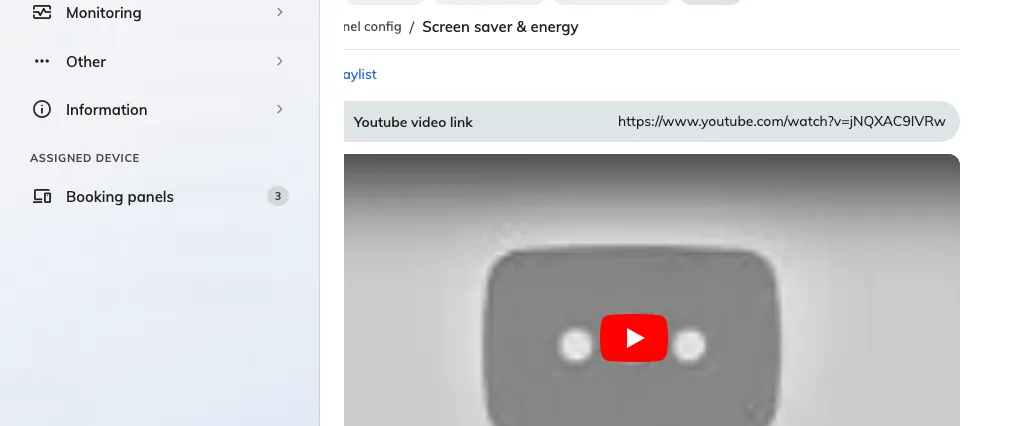
A YouTube item, with its preview.
The playlist plays in order and then loops; drag the handle at the left of a row to reorder.
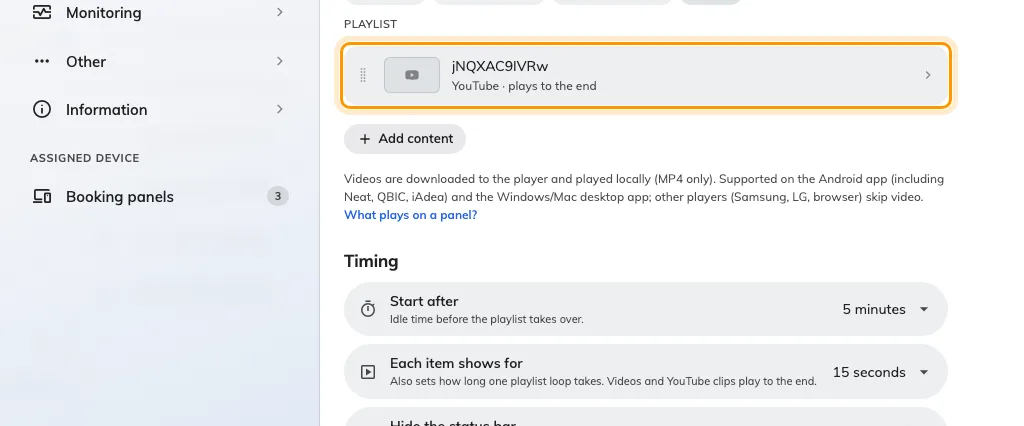
The playlist. Each row says what it is and how long it holds the screen.
4. Set the timing
Two settings under Timing decide the rhythm:
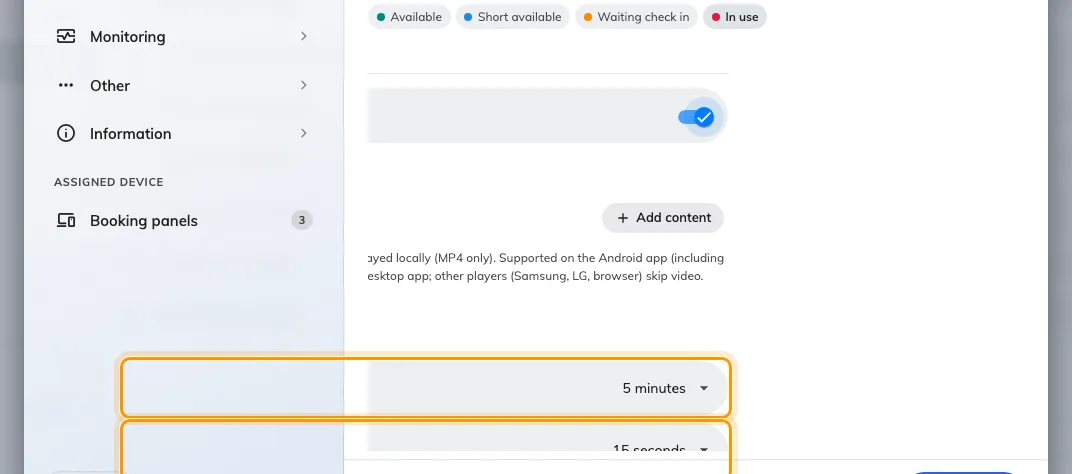
Start after, and how long each timed item holds the screen.
- Start after — how long the panel must sit untouched before the playlist takes over. A short setting turns the panels into signage almost permanently; a long one keeps the booking screen up through the working day.
- Each item shows for — how long an image or a web page stays up. Videos and YouTube clips ignore it and play to their end.
Hide the status bar, underneath, keeps the panel’s clock and icons off the artwork — worth switching on when the playlist is full-bleed brand imagery.
5. Save, and mind the blast radius
Save at the foot of the editor. Saving a configuration that already drives panels lists every panel the change reaches — that list is the answer to “which screens are about to start playing this”.
6. Check it on a panel
Leave a panel alone for the Start after time and watch the playlist come around once. For an uploaded video, give a freshly saved configuration a few minutes on the first pass — each panel is downloading its own copy, and skips the video until the download finishes.
What this does not control
- A sleeping panel shows nothing at all. Save energy mode always wins over the screen saver: once the screen turns off, the playlist stops until somebody wakes the panel. Both live on the same page — see Save energy on room panels.
- Uploaded videos are MP4 only. A file the panels may struggle with is marked in the playlist; the note under the playlist links to what to do about it.
- The booking screen always comes first. A touch interrupts the playlist instantly — the screen saver never delays check-in or booking.