

Connect Neat Pulse
Create an API key in Neat Pulse, paste it into Offision, and sync the rooms and devices — about ten minutes, plus one poll cycle before data shows.
Connecting Neat Pulse is one credential and one dialog: create an API key in Neat’s own console, paste it into Offision, then choose which rooms and devices to sync. Offision does the rest on a schedule.
What to have ready
- A Neat Pulse organization with its devices already enrolled and reporting
- A Neat Pulse sign-in that can manage the organization’s settings
- Somewhere secure to keep the key — a password manager, not a chat message
- About ten minutes, plus one poll cycle before the first readings arrive
1. Create the API key in Neat Pulse
Sign in at signin.pulse.neat.no and open Settings from the menu on the left. Near the bottom of the organization’s settings, open API keys.
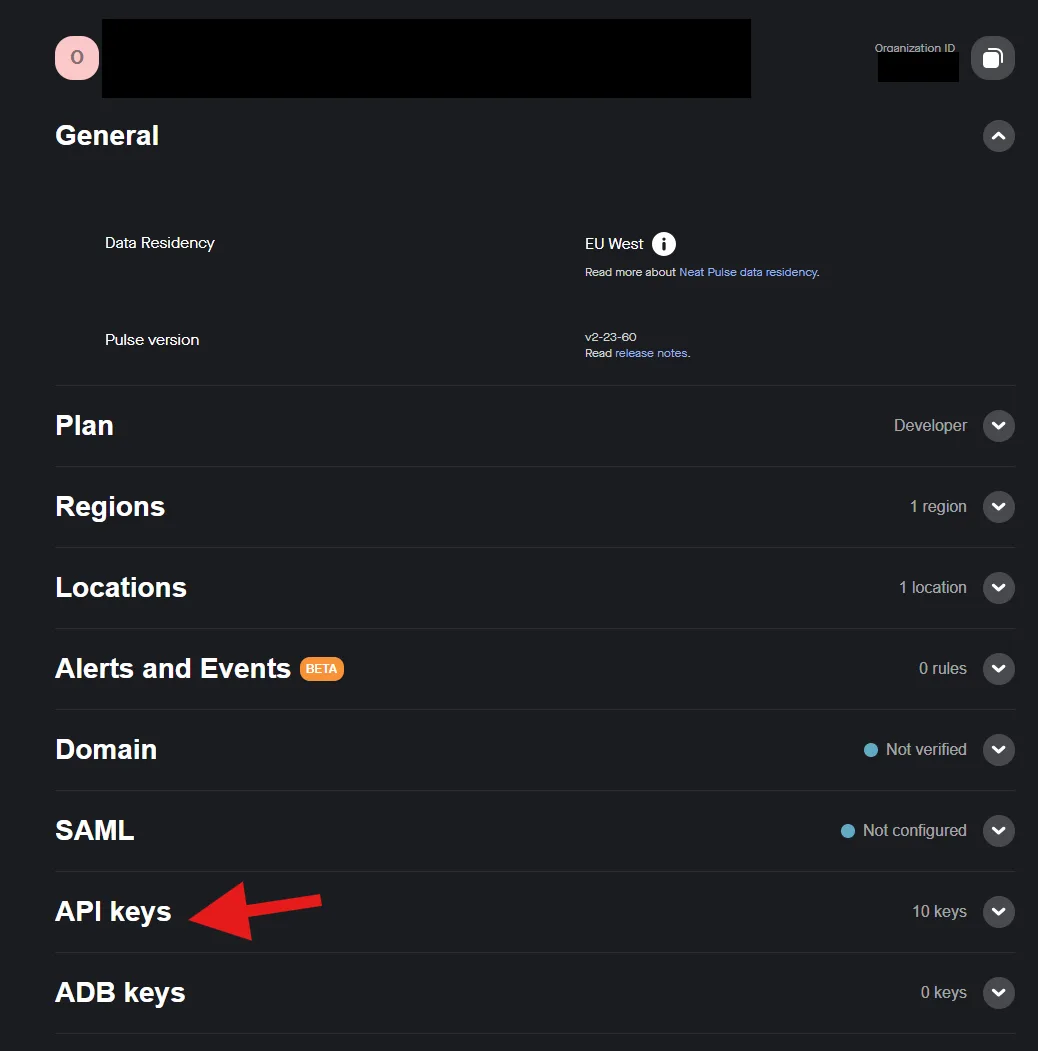
Neat Pulse's organization settings, with API keys near the bottom.
Choose Create API key and name the key after what will hold it — Offision beats Test 1 when someone audits the list a year from now. Under Scope, check both Read and Write: Read is what lets Offision pull rooms and sensor data, and Write is what lets it reboot a device later. Leave Api.Rotate unchecked. Then choose Create.
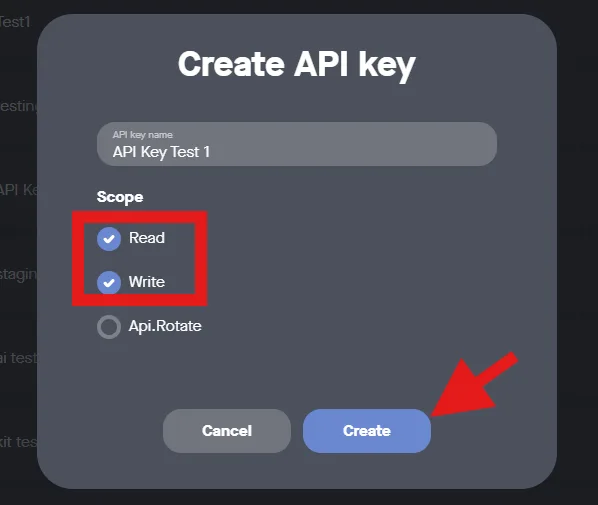
Both Read and Write, then Create.
The next screen is the only time Neat shows the key. Copy two values before closing it: the Key, and the Organization ID above it — Offision needs both, and people reliably save only the key.
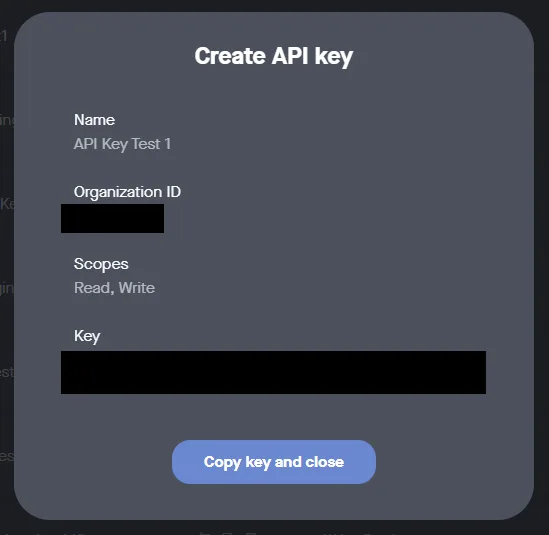
The one screen that shows the key. Save it and the Organization ID together.
2. Open Neat Pulse in Offision
The Neat Pulse tile is in the marketplace under IoT monitoring; the same connection also appears on Devices › Platform integration. Either opens the same dialog.
Open Integrations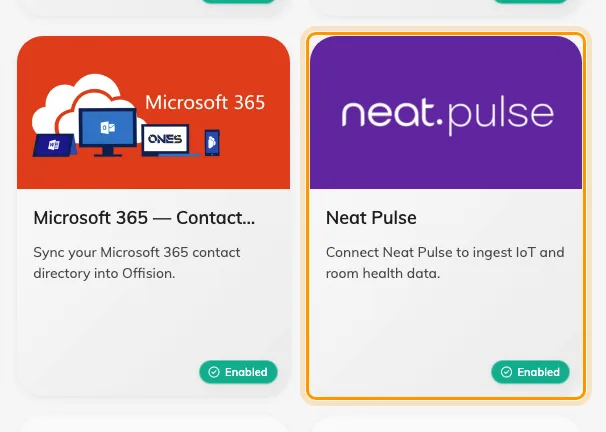
The marketplace, with the Neat Pulse tile.
3. Add the connection
Choose Add connection. The form opens on Guidelines — the key-creation walk-through from step 1, kept inside the product with a PDF to hand to whoever owns the Neat account. The fields are on Setup:
| Field | What to enter |
|---|---|
| Name | Anything that tells connections apart — the organization’s name works |
| Organization unit | Which part of the company owns the synced devices |
| API Base URL | Leave the default unless Neat has told you otherwise |
| Organization ID | The value copied in step 1, next to the key |
| API Key | The key itself |
| Poll interval (minutes) | How often Offision re-reads Neat Pulse — 5 is a sensible start |
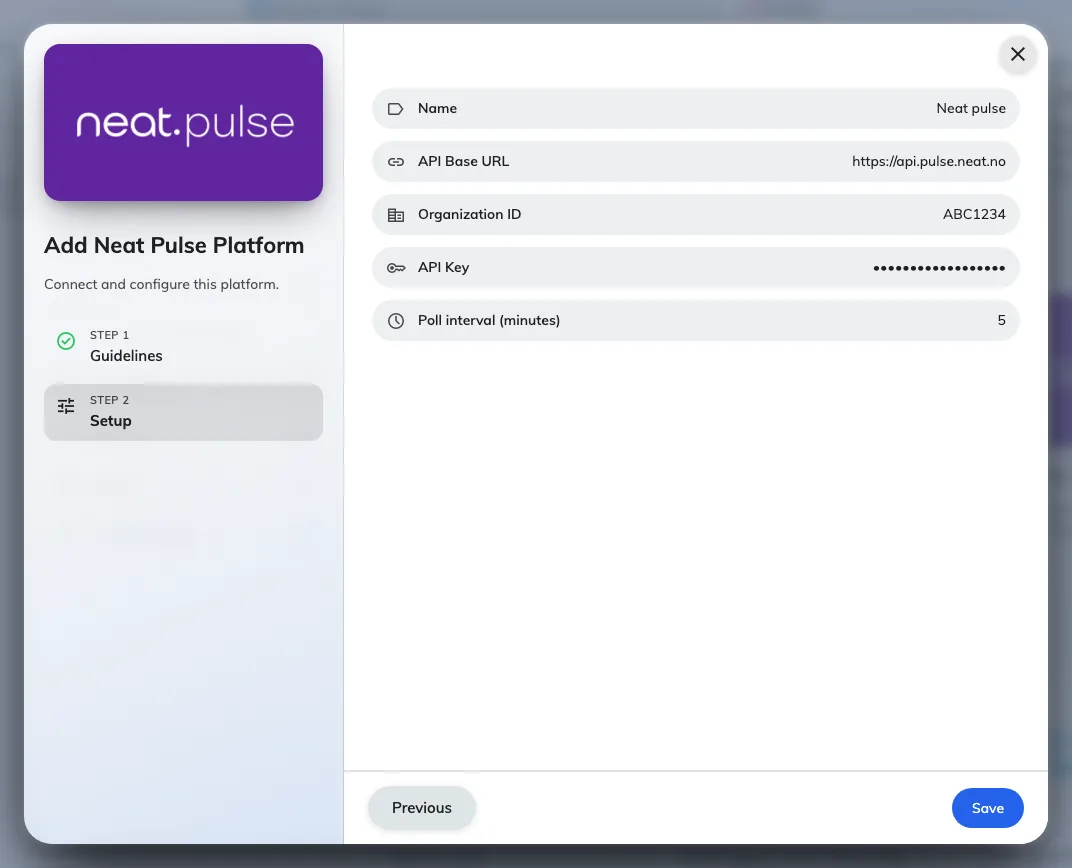
Add Neat Pulse Platform. The key field stays hidden as you paste.
Save, and the connection appears under Connections with a green dot.
4. Sync spaces & devices
Open the connection and choose Sync. The dialog lists everything the key can see, in two sections: Spaces — Neat’s rooms — and Devices, each showing its model, Serial, Room and whether it is Online. Syncing also brings each device’s IP and MAC address across.
Check a room and pick what its readings should feed under Link to: New space, Existing space, or — the choice that puts the data to work — Bookable resource, wiring the room’s sensors to one of your bookable rooms. Then check the devices and choose Sync.
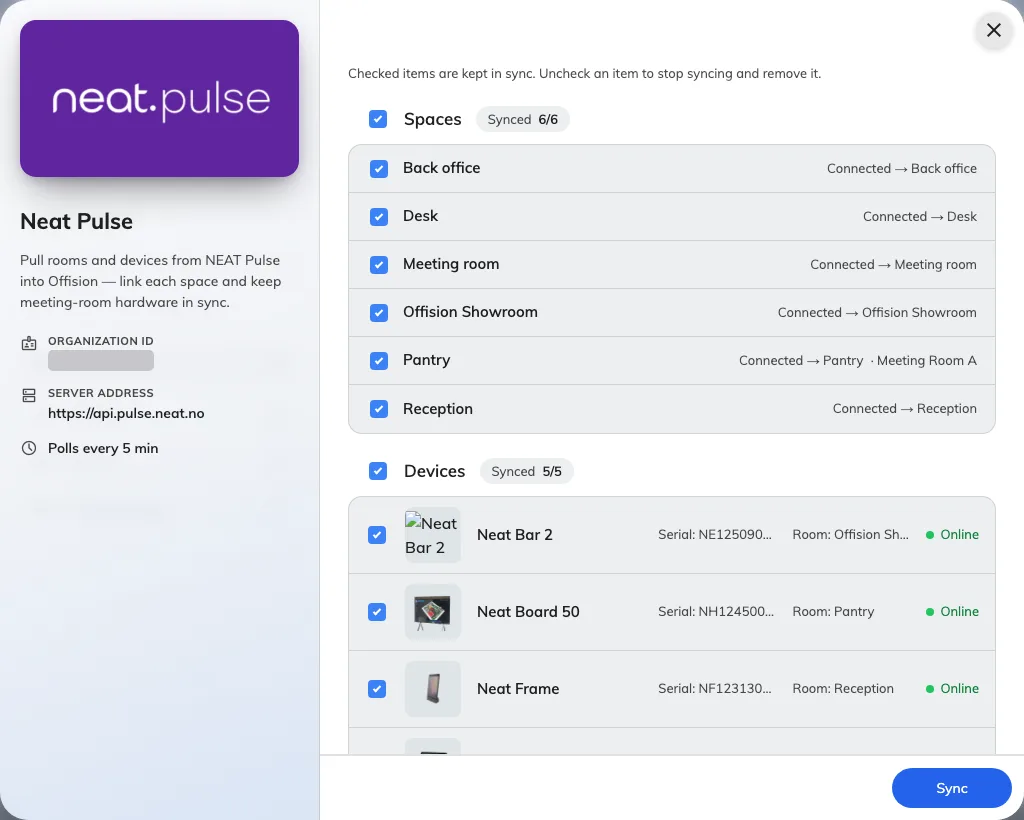
Rooms on top, devices below. Link to is where a room's readings get a destination.
5. Check it worked
Open Devices in the dialog’s rail and pick one — it should show Online. On its Status page, within one poll interval, the Sensor data tiles fill with the readings that model has — a people count on a bar or board, temperature and air quality where the model measures them.
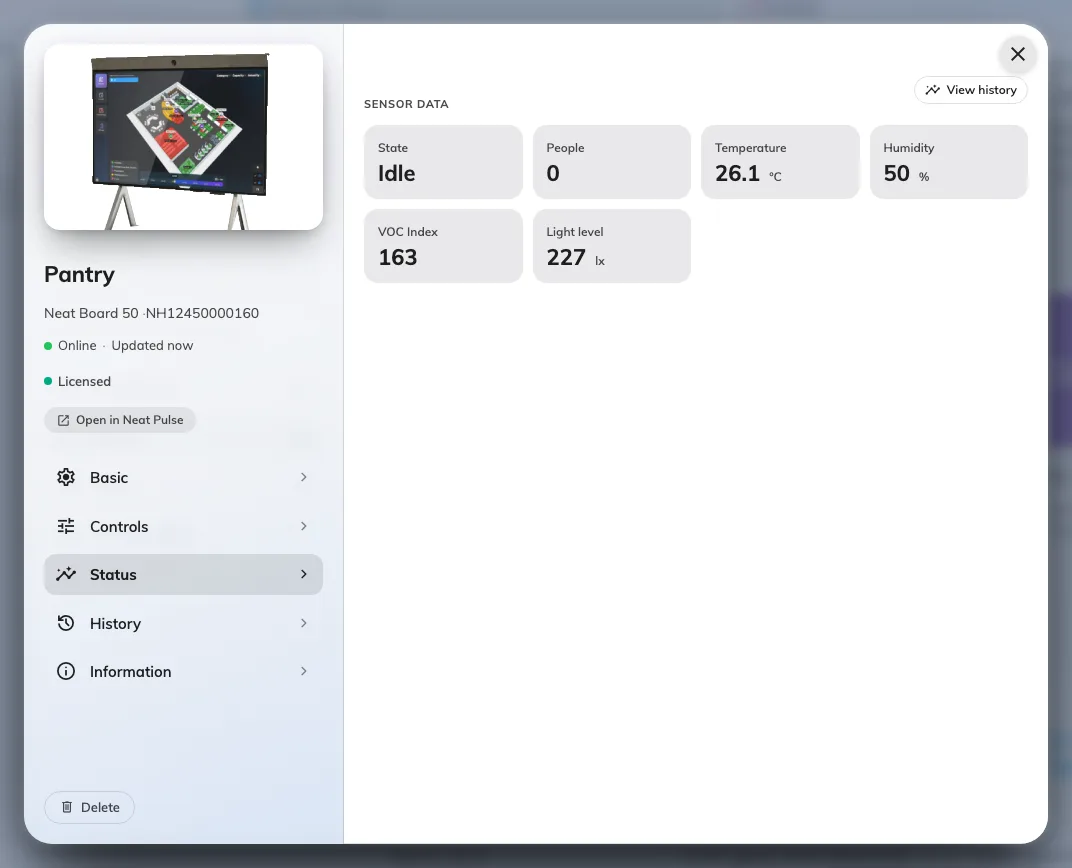
A synced Neat device's Status page, reporting its sensor suite.
Then check the other direction: Open in Neat Pulse on the same page should land on this exact device in Neat’s console — proof the identifiers match and not just the names. Where the readings go from here — rooms, the booking calendar, signage — is its own article: See Neat sensor data around Offision.
When it goes wrong
| What you see | Usual cause |
|---|---|
| The sync preview fails to load | The key has Write only — Read was left unchecked in step 1. Create a new key with both |
| Nothing listed under Spaces or Devices | Wrong Organization ID — the key opens a different, empty organization |
| Devices were checked but report skipped | Their room was not checked — the room must sync before anything in it |
| The connection shows Suspended | Repeated failed polls — usually a key revoked in Neat Pulse. Fix the key (Edit, paste the new one), then choose Resume |
| Editing the connection seems to lose the key | It does not — Leave blank to keep the current key means exactly that |
| A device is Online but a tile you expected is missing | That model does not have the sensor — see the per-model table |
| Tiles are empty right after syncing | The first poll has not run yet — wait one poll interval |