

See what every screen is showing
A wall of live screenshots, floor by floor, with the things worth worrying about badged on the tile — and a preview that takes over a screen, restarts it or makes it identify itself.
Screen monitoring answers a different question from the device table next to it: not is this thing answering but what is it actually showing. It is a wall of recent screenshots, one tile per screen, grouped by floor.
Open Screen monitoringReading the wall
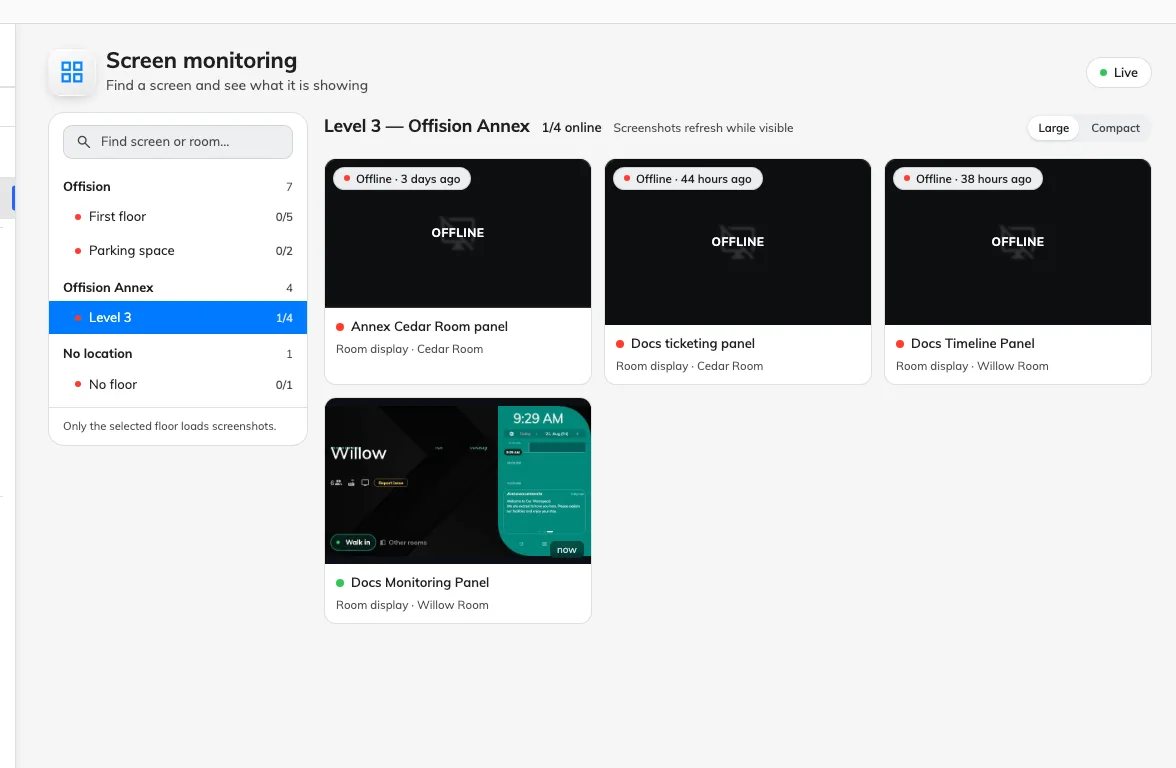
One tile per screen, grouped by floor, with a running count of how many are up.
Each floor heading carries {{online}}/{{total}} online, so you can see a whole floor’s health without reading a single tile.
A tile shows the last screenshot and how long ago it was taken. A screen that has gone offline keeps whatever it last sent, under a veil marked Offline — which is the useful thing about this page: you can see what a dead screen froze on. A screen that never sent one shows No screenshot yet instead.
Large and Compact change how many tiles fit. Two rules govern what you are actually looking at: Only the selected floor loads screenshots, so a floor you have not opened is not being polled at all, and Screenshots refresh while visible, so tiles update only while they are on screen. Scrolling down and back refreshes what you scroll past rather than everything at once.
Problems sort first, so a floor’s offline and warning tiles are the ones you land on and a healthy screen sits at the end of the row.
The badges
A tile can carry small warnings for things that are wrong without being offline:
- Battery {{value}}% — running low.
- Weak WiFi — connected, but marginally.
- CPU {{value}}°C — running hot.
- Storage {{value}}% — nearly full.
- No report for {{value}} min — the screen is technically connected but has stopped sending its health figures. Often the first sign of a device that is about to drop off entirely.
- {{count}} child devices affected — something hanging off this device is unhappy.
None of these are emailed. The offline alert fires on lost connections only, so a screen that is hot, nearly full and on a bad access point is a thing you find here rather than a thing that finds you.
Opening one screen
Click a tile.
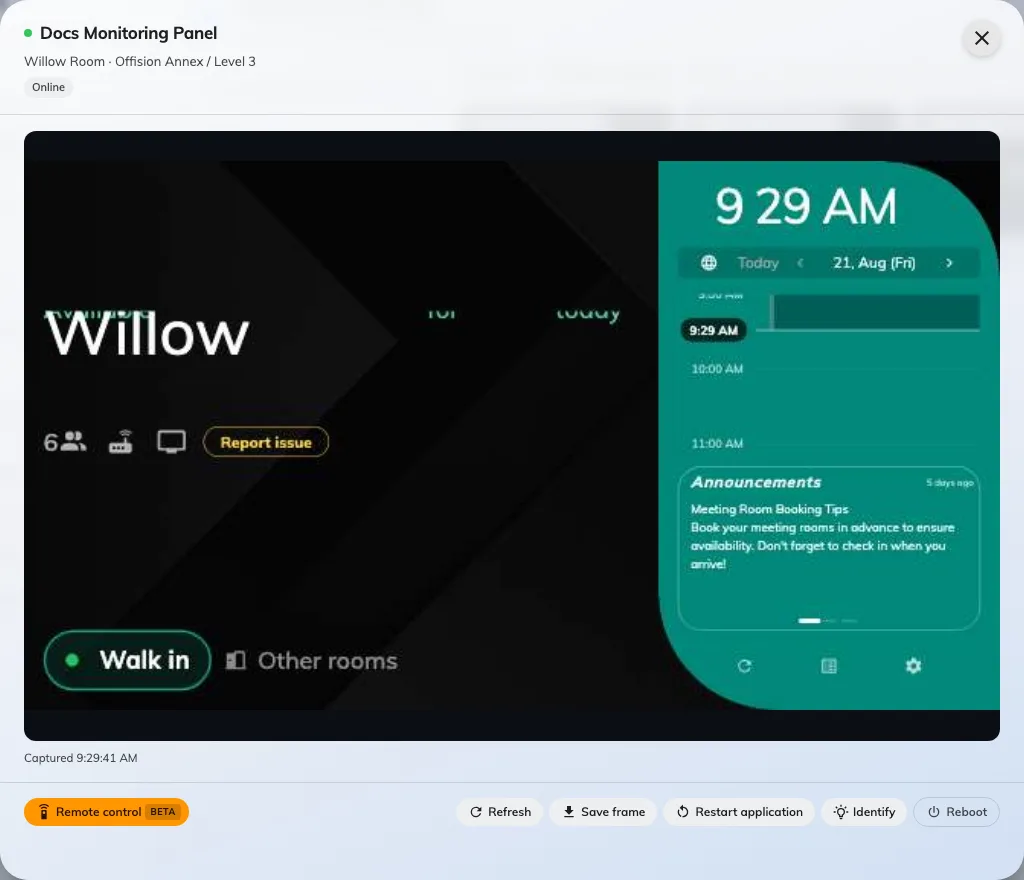
The preview, with the actions available on the screen it shows.
The preview shows the screenshot larger, with Captured and the time it was taken, and offers:
- Refresh — take a new screenshot now.
- Save frame — keep the current picture as a file.
- Remote control — Beta; drive the screen from here, ending with End remote control.
- Identify — make the screen announce itself, for finding one physically among several.
- Restart application — restart the Offision app on the device.
- Reboot — restart the device itself.
Start with Restart application. It is the quicker of the two and fixes most of what a screen gets stuck on; Reboot is for when it does not.
When the wall is empty
No screens yet with Screens appear here once a device is assigned to a player means the screens exist as records but no hardware has been paired to them. Pair the device first — a screen with nothing behind it has nothing to photograph, and for the same reason is never reported offline.