

Connect a Crestron room booking panel
A Crestron touch panel runs no Offision app — its built-in browser is pointed at Offision instead. What to set on the panel's own web page, and the six-character code that pairs it to a room.
A Crestron touch panel never installs an Offision app. Its own Crestron General Web mode is a built-in browser, and setup is nothing more than pointing that browser at Offision. That makes the job two halves: a few fields on the panel’s own settings page, then the same six-character pairing every Offision panel goes through.
What to have ready
- A panel on the certified list: TSW-1070, TSS-1070, TSW-770 or
TSS-770 (black or white,
-Sscheduling variants). Screen sizes and the full matrix are in Which booking panel hardware Offision supports - PoE+ power — the panels draw more than a standard PoE port supplies
- The panel’s IP address, shown on its Setting page
- About fifteen minutes
1. First time out of the box
A brand-new panel boots into Crestron’s own screen, and its settings are behind a gesture rather than a button:
- Press and hold five fingers on the screen for around 15–30 seconds. The panel opens its Setting page.
- Set the administrator username and password there. These are the credentials the rest of this article signs in with — keep them.
- Note the panel’s IP address from the same page.
A panel somebody has already set up skips this step; you only need its IP address and the credentials that were chosen then.
2. Open the panel’s settings page
On a computer on the same network, browse to https:// followed by the panel’s
IP address. The browser warns that the connection is not private — expected, as
the panel serves a certificate it signed itself. Proceed past the warning and
sign in on Device Administration with the panel’s username and password.
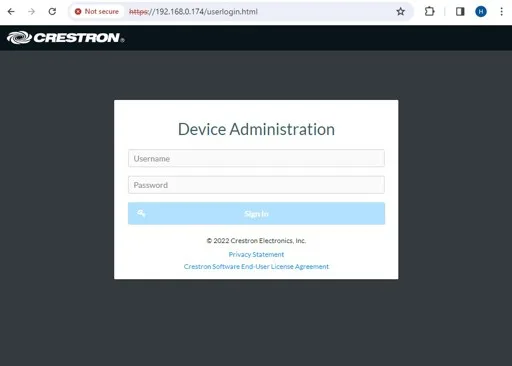
The panel's own sign-in. The certificate warning in the address bar is normal.
3. Set the time zone
Go to Settings and change the time zone to the room’s regional time zone. A panel on the wrong time zone shows every booking at the wrong hours, which reads as a broken integration when it is only a clock.
4. Point it at Offision
Still under Settings, scroll down to Applications and set:
| Field | Set it to |
|---|---|
| Application Mode | Crestron General Web |
| Crestron General Web › URL | the address below |
| Auto Update | leave on |
https://app.offision.com/player
Then Action › Save Changes, top right. The panel restarts its application and loads Offision.
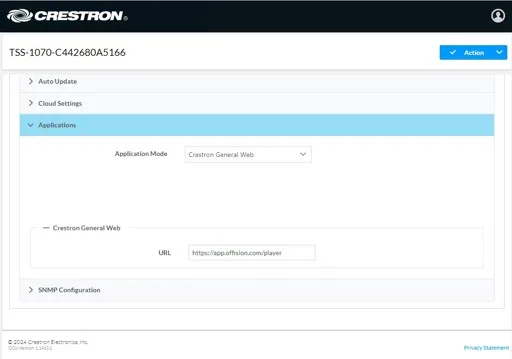
Applications, with Crestron General Web chosen and the URL filled in. Save Changes is under Action.
5. Pair the panel
After the restart the panel settles on a six-character code — it is now an ordinary Offision panel waiting to be claimed.
In the console, go to Devices › Booking panel › Devices and choose Add.
Open Booking panelPick Room booking panel, then the room, then Crestron room panels under Certified devices.
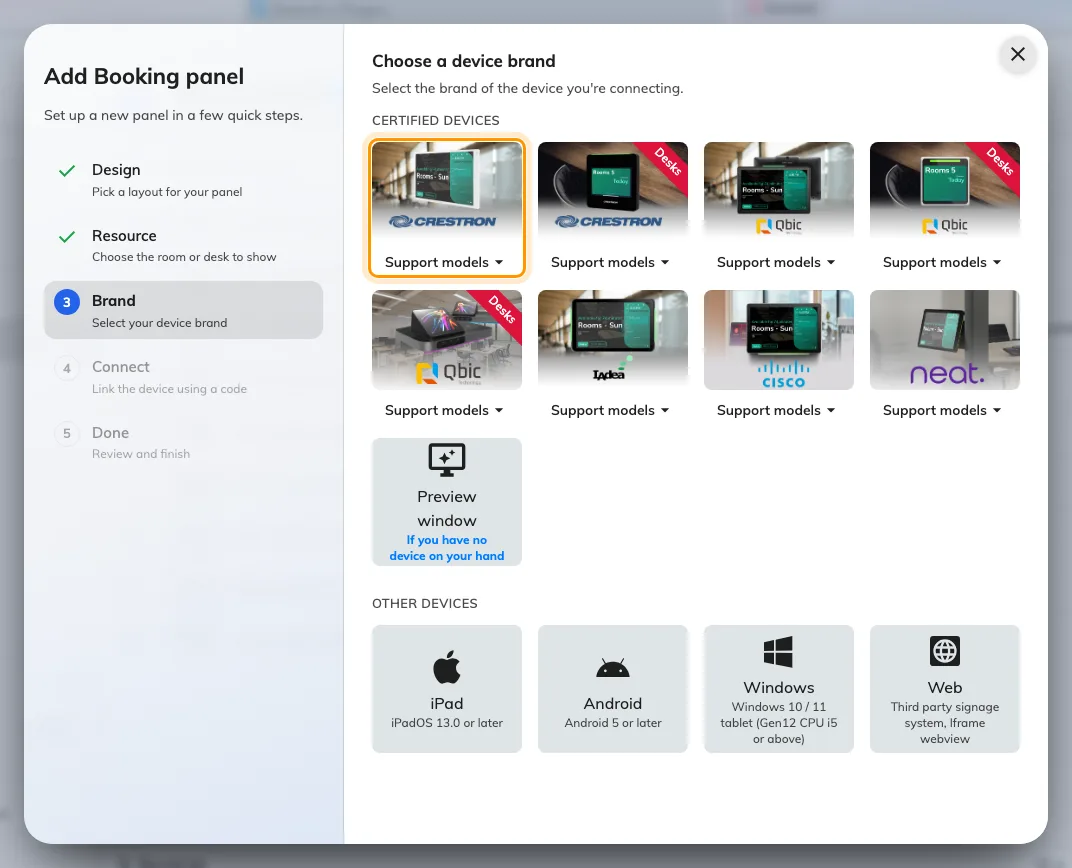
Crestron room panels, first in the certified devices grid.
Type the six characters from the panel; the field submits itself on the last one. The wizard’s steps, the code screen and the pass code every new panel raises afterwards are all covered in Connect a booking panel to Offision — including why the pass code should be changed before the panel goes up.
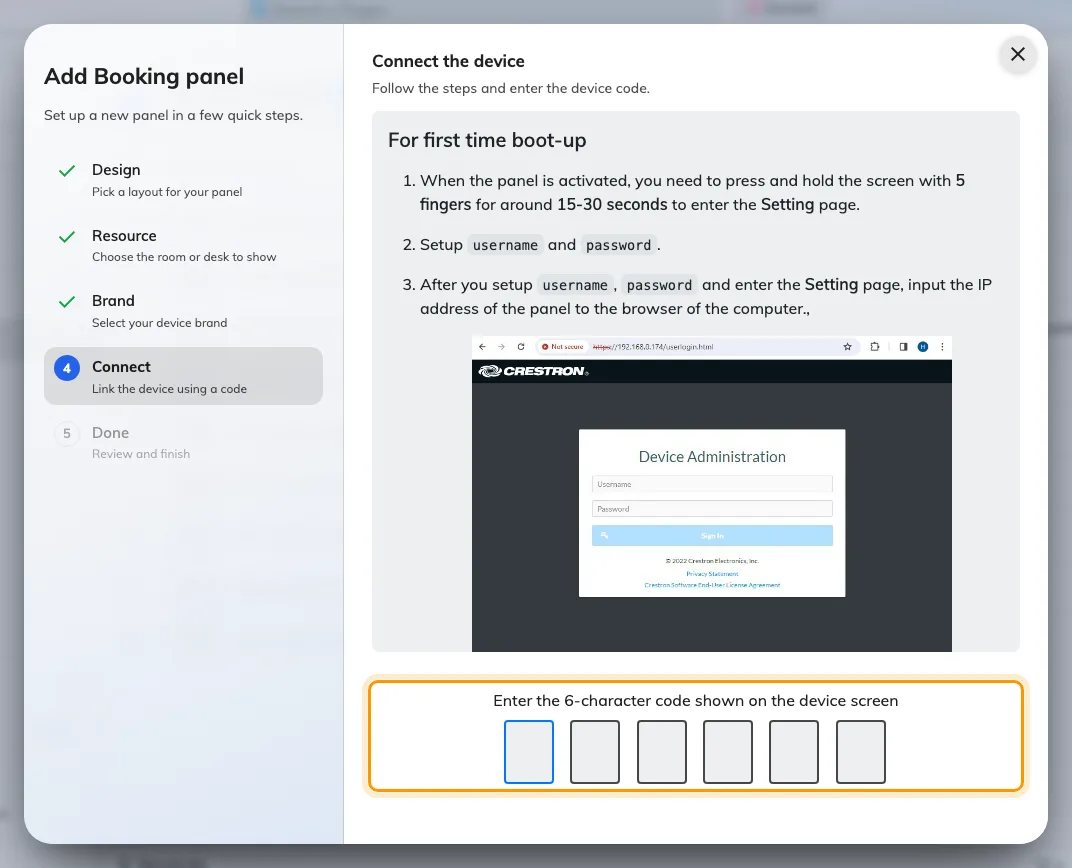
The Crestron guideline, and the field that claims the panel.
6. Check it worked
Within a few seconds the panel stops showing the code and starts showing the room. Its row in Devices › Booking panel › Devices goes online within a minute. Then prove it end to end: book the room for yourself and watch the panel change while you are standing at it.
When it goes wrong
| What you see | Usual cause |
|---|---|
| The panel still shows Crestron’s own home or calendar screen | Application Mode was not saved as Crestron General Web. Set it again and use Action › Save Changes |
| A blank or white screen after the restart | The URL is wrong, or the panel cannot reach your server. Check it against the address above, including the /player at the end |
| The browser cannot open the settings page | Use https://, not http:// — the panel refuses plain connections — and proceed past the certificate warning |
| The sign-in is refused | The credentials are per-panel, set at first boot on the Setting page. They are not your Offision sign-in |
| The code is refused | Read it off the panel again rather than retyping what you noted down — a panel that has slept or rebooted since is showing a different one |
| The panel shows a room or a board, and no pairing code | It is still claimed by an earlier record. Disconnect it there first — see Reuse a panel that was set up for something else |
| The panel says it cannot connect to the server | The panel’s network cannot reach the registration service — a network problem at the panel end, not something the console can fix |
What this does not do
- Fleet provisioning. The panel’s first-boot screen also offers claiming it into Crestron’s XiO Cloud. That is Crestron’s own management path; this article configures one panel through its own settings page.
- AV control. Pairing makes the panel a booking panel. Controlling its power, volume or LED bar as a managed device is a separate thing entirely — the panel as an AV device under a control processor.
- Desk panels. The TSS-470E desk panel pairs as Crestron desk panels in the same wizard, but its out-of-box flow differs and is not covered here.