

Set up a Neat Frame as visitor reception signage
A Frame is a portrait touchscreen that stands on a desk, which is what makes it a reception screen. Enrol it through Neat Pulse, then pair it as signage and give it a location — the setting that decides whose visitors it greets.
A Neat Frame is a 15.6-inch portrait touchscreen with a stand in the box, which is an unusual shape for a meeting device and exactly the right shape for a reception desk. Stood on the counter it welcomes people by name, and because it is a touchscreen an unexpected visitor can register on it without anybody being at the desk.
Offision treats a Frame as signage — a screen that plays a board. It is not a room panel, and it is not the visitor self-service panel type; what it shows is whatever content you point it at.
What to have ready
- A Neat Frame. It is the only model in the Frame family
- A Neat Pulse organisation with the Offision app available to enable
- A mains socket at the desk, and wireless coverage there
- About thirty minutes, including building the content
Both of those change how you plan the install. A landscape design letterboxes into the middle of a portrait screen and wastes the whole desk-height panel. And with no Ethernet, a reception desk on weak WiFi is a problem to solve before the Frame arrives, not after.
The camera and depth sensor belong to Neat’s meeting features. Offision does not use them, and a Frame showing a board is not watching the lobby.
1. Build the reception content
The content exists before the hardware does. Go to Signage › Content, choose Add, and pick Reception & lobby.
Open Signage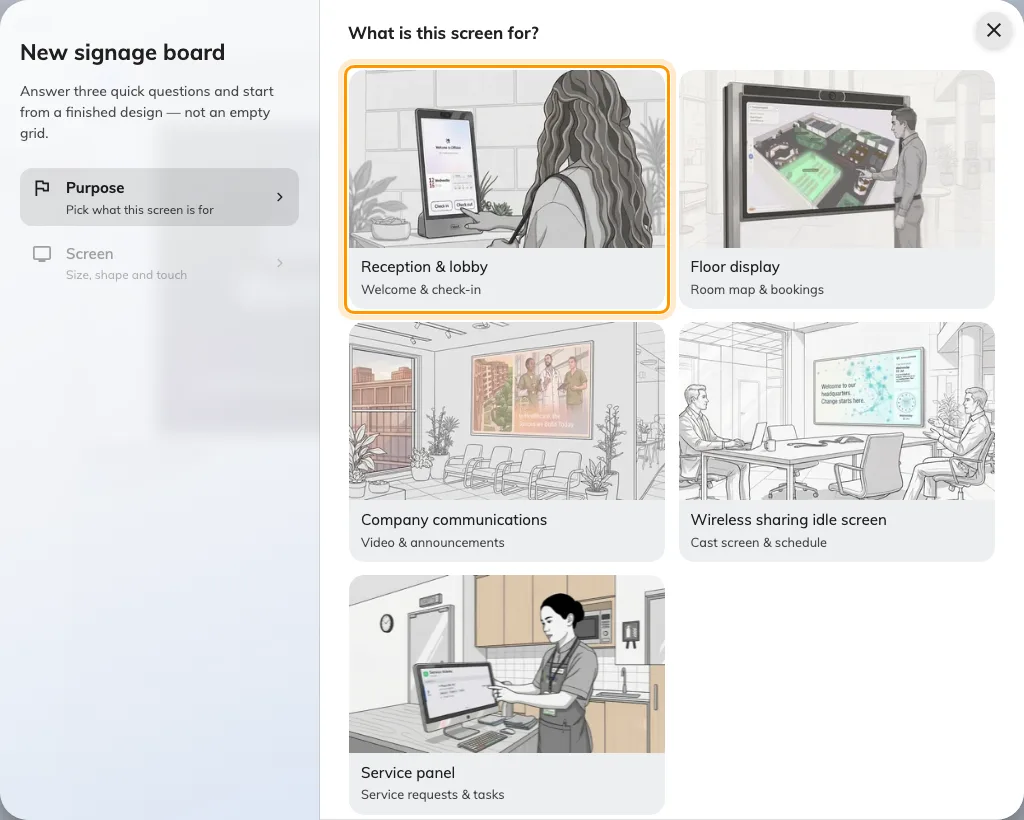
Reception and lobby, the first purpose. It seeds the design with a welcome screen and a walk-in code.
Answer the screen questions to match the Frame: a portrait 9:16 shape, and Touch screen on — a Frame is a touchscreen, and saying so is what turns the self-service buttons on instead of replacing them with a QR code.
Everything about what to put on that content — who the welcome screen greets, how the walk-in code behaves, what the self-service buttons do — is in Set up a lobby screen for visitors. Build it there, then come back here for the hardware.
2. Enrol the Frame in Neat Pulse
A Neat device takes its apps from Neat Pulse rather than from an address you type, and the enrolment is the same for every Neat device. It is explained once, with the two codes it involves, in Connect a Neat Pad room booking panel — read that if this is your first Neat device.
In short:
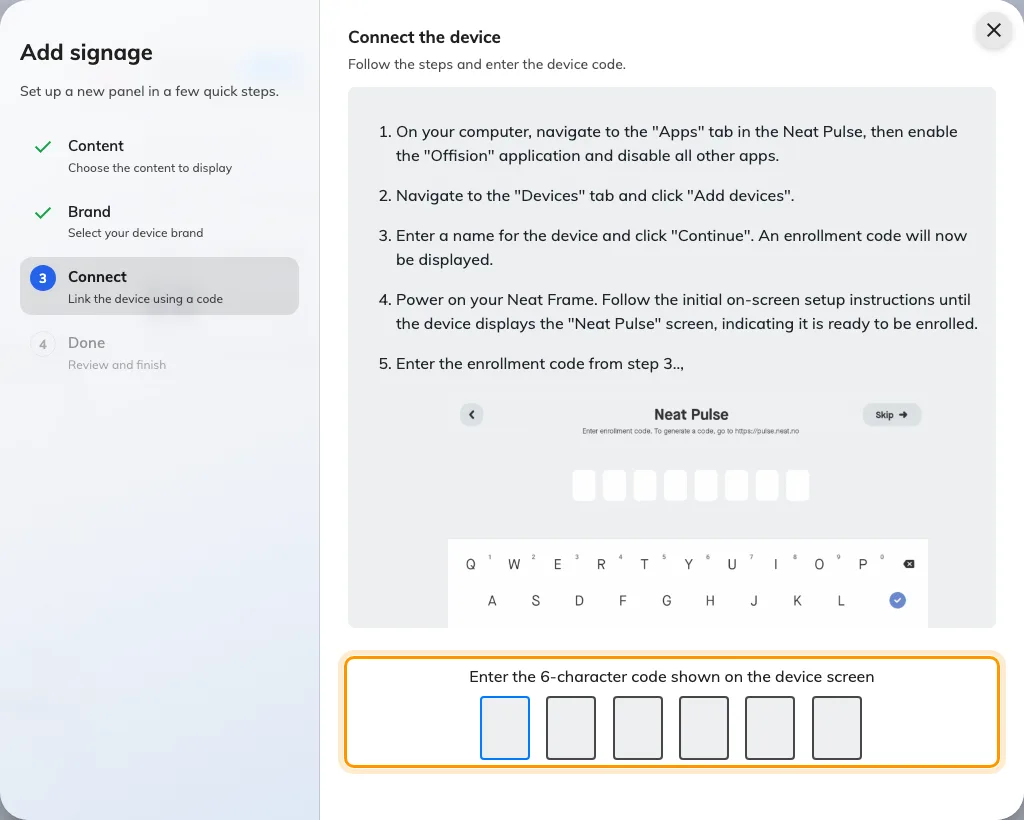
- In Neat Pulse, open the Apps tab, enable Offision and disable every other app.
- Go to Devices › Add devices, name the device and choose Continue. Pulse shows an enrollment code.
- Power on the Frame and follow its on-screen setup until it shows the Neat Pulse screen. Type the enrollment code.
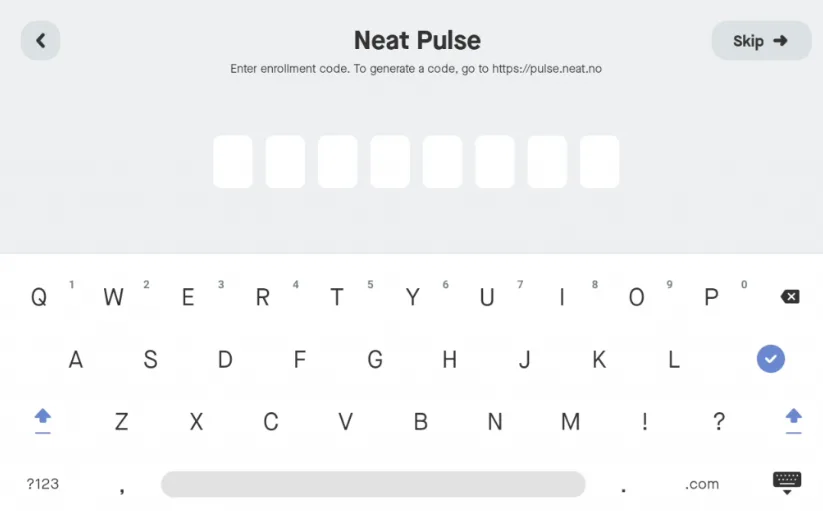
The Frame asking for the Neat Pulse enrollment code. This is Neat's code, not Offision's.
The Frame has no Choose Setup page of the kind a Pad has — it is a single device with nothing to attach to, so it goes straight to enrolment.
3. Let Pulse install Offision
Once the Frame pairs with Pulse, choose Continue on the device. On the Choose apps page, select Offision and choose Continue.
The Frame downloads and launches the app, then shows a six-character pairing code.
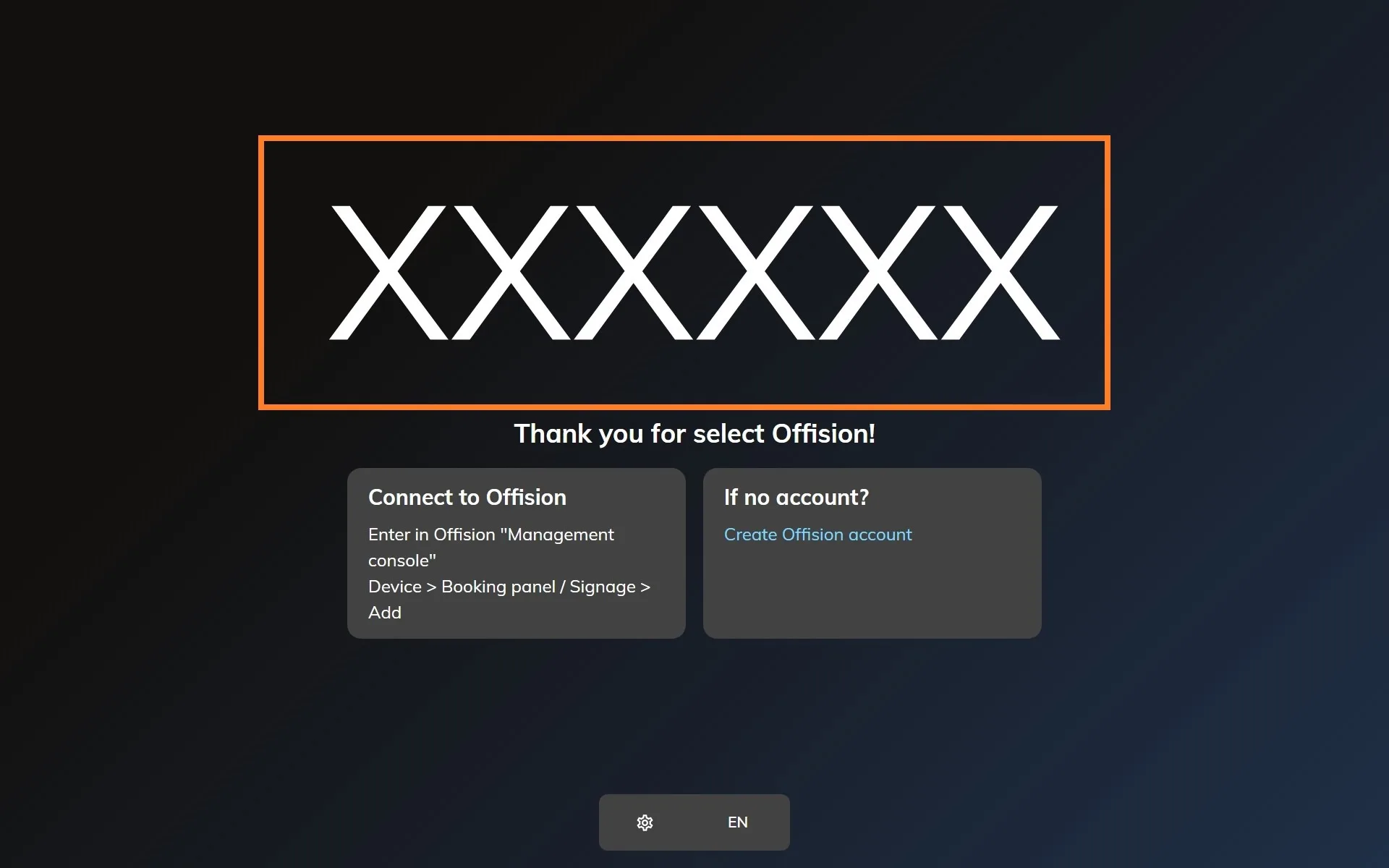
The Offision app on a freshly enrolled Neat device, waiting to be claimed.
4. Pair it as signage
In the console, go to Devices › Signage › Devices and choose Add.
Open Signage devicesThe wizard asks three things: the content this screen will play, the brand of hardware, and then the code. Choose the reception content from step 1, then Neat Frame.
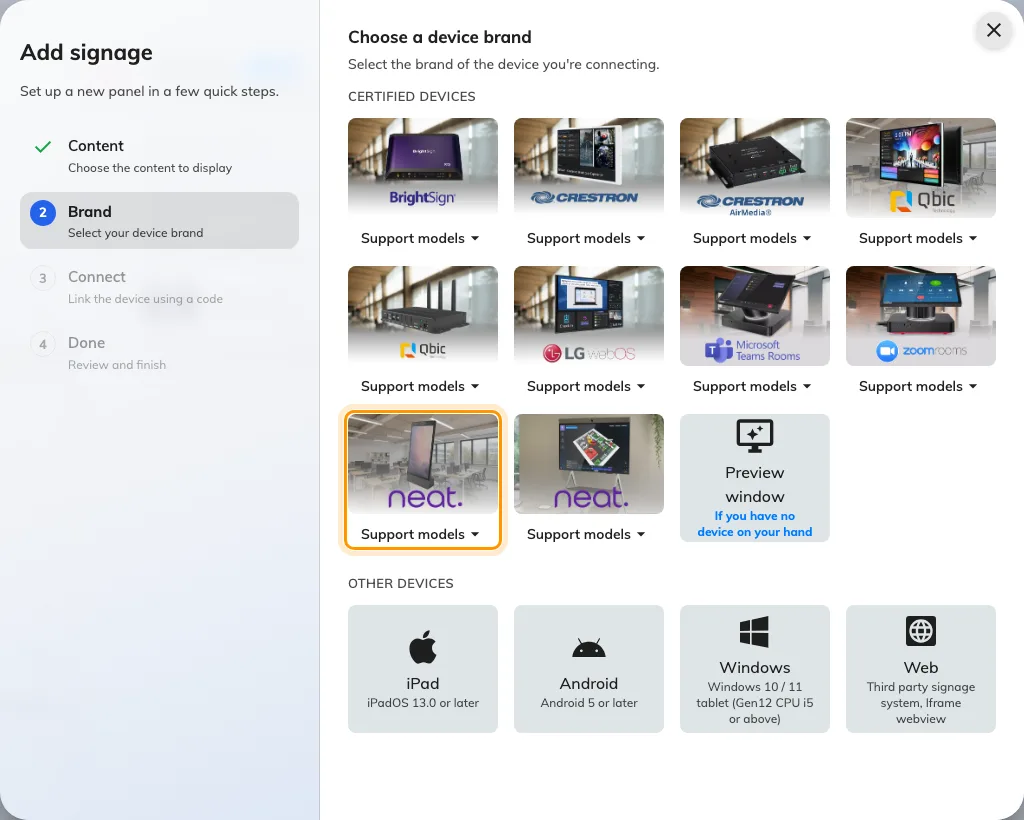
Neat Frame, ninth in the certified devices grid.
Type the six characters from the Frame. The field submits itself on the last one.
The Neat Frame guideline, and the field that claims the screen.
5. Give it a location
This step is not optional on a reception screen, and it is the one people skip.
The device’s location is what decides whose visitors it greets and, for anyone who registers on it, which building and floor they have arrived at. Place the Frame on the floor plan — the wizard offers Set location as it finishes, and the same thing can be done later from the device’s own row.
How to place it, and what the location then controls, is in Set up a lobby screen for visitors.
6. Check it worked
Within a few seconds the Frame stops showing the code and starts showing the content. Then check both directions, because a reception screen that only displays is half-installed:
- It greets. Invite a visitor for today, check them in, and watch the name appear on the Frame.
- It accepts. Tap the walk-in code or a self-service button on the Frame itself and go through registration. The visitor should appear in the console as having arrived at this building.
When it goes wrong
| What you see | Usual cause |
|---|---|
| The content is letterboxed with bars down both sides | The content was built landscape. The Frame is 9:16 portrait — rebuild the design in that shape |
| The self-service buttons are missing, only a QR code shows | Touch screen was answered no when the content was created |
| Nobody is greeted, though visitors are checking in | The device has no location, or its location is a different building. Set it on the floor plan |
| A walk-in registers against the wrong building | Same cause, seen from the other side — the walk-in registers where the device is placed |
| Choose apps does not list Offision | The Offision app was not enabled in the Pulse Apps tab. Enable it, then restart the Frame |
| The Frame drops offline through the day | WiFi coverage at the desk. The Frame has no Ethernet port to fall back on |
| The pairing code is refused | Read it off the Frame again — a device that has restarted since is showing a different one |
| The Frame shows a room or content, and no pairing code | It is still claimed by an earlier record. Disconnect it there first — see Reuse a panel that was set up for something else |
What this does not do
- It is not the visitor self-service panel. That is a separate device type with its own check-in flow. A Frame paired this way is a signage screen, and what visitors can do on it is decided by the widgets on the content. Changing a paired Frame to another job means releasing it first — see Reuse a panel that was set up for something else.
- It does not print badges. Badge printing is a printer connected to the reception setup, not something the Frame does — see Connect a label printer.
- It does not use the camera. No face recognition, no people counting, no video. Offision only draws on the screen.
- It does not manage the device. Firmware and which app runs stay in Neat Pulse. Sensor readings are a separate connection — see Connect Neat Pulse.
When a reception call does not connect
An Offision call can end because the person is busy, unavailable, or does not answer. The screen returns to the directory so the visitor can try another person or call again later; this does not mean reception check-in failed. Only one device answers a call. If another has already answered, a second device cannot start another conversation.
If the screen loses its connection, wait until it reconnects before trying again. Check the kiosk’s microphone and camera permissions when it cannot start a call. Teams and Zoom calls have their own provider flow; an Offision call’s status does not describe those calls.