

Show signage on a Zoom Rooms screen
Zoom Rooms carries digital signage with the licence you already have. Add Offision as a URL in the Zoom web portal and the room's screen plays your content whenever it is not in a meeting.
Zoom Rooms has carried digital signage for years, and it takes a web address as happily as it takes an image. Point it at Offision and the room’s screen plays today’s bookings whenever the room is not in a meeting — with no extra Zoom subscription, because signage comes with the Zoom Rooms licence the room already has.
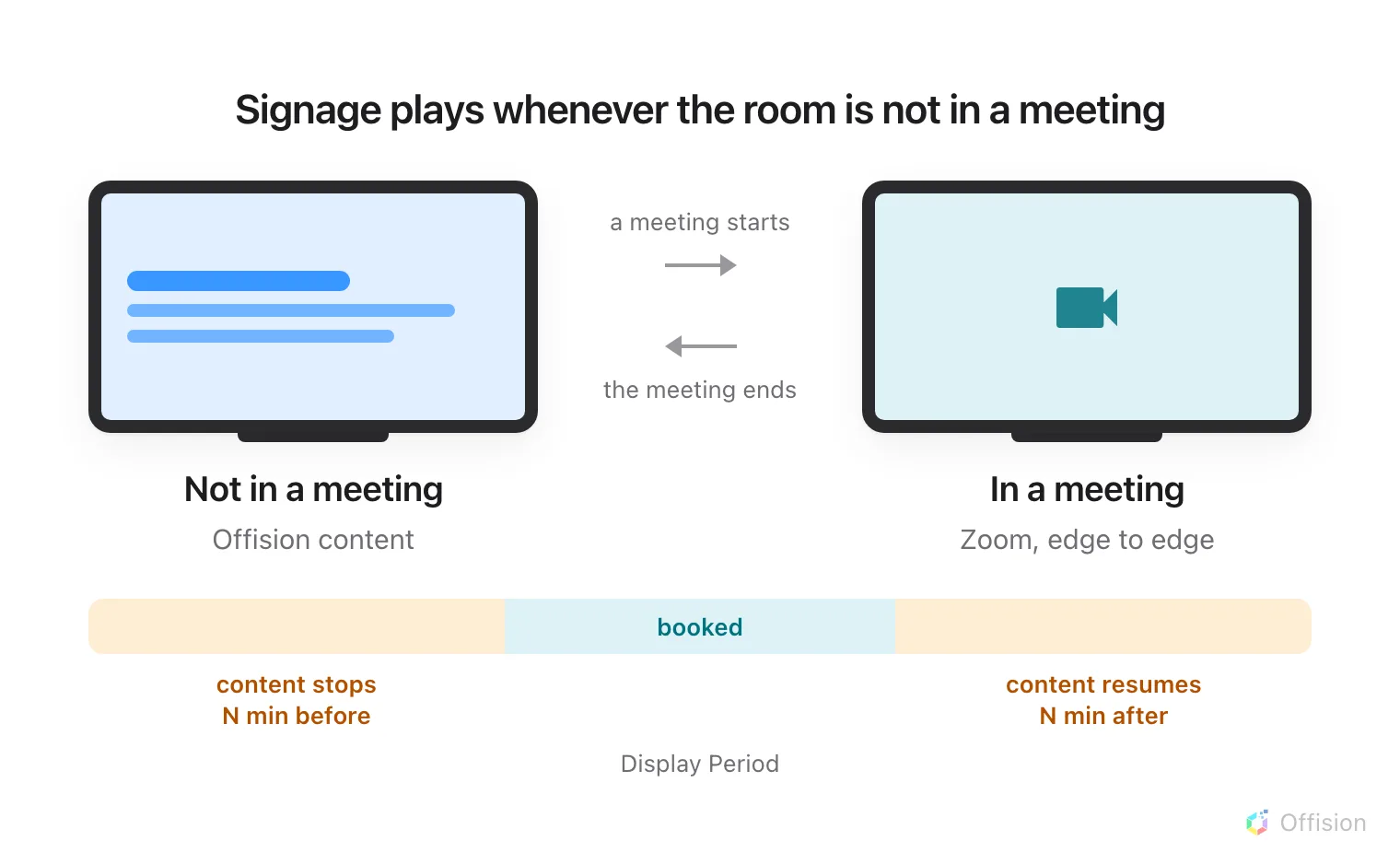
Signage plays whenever the room is not in a meeting — and the display period takes it off the screen for a while either side of a booking.
What to have ready
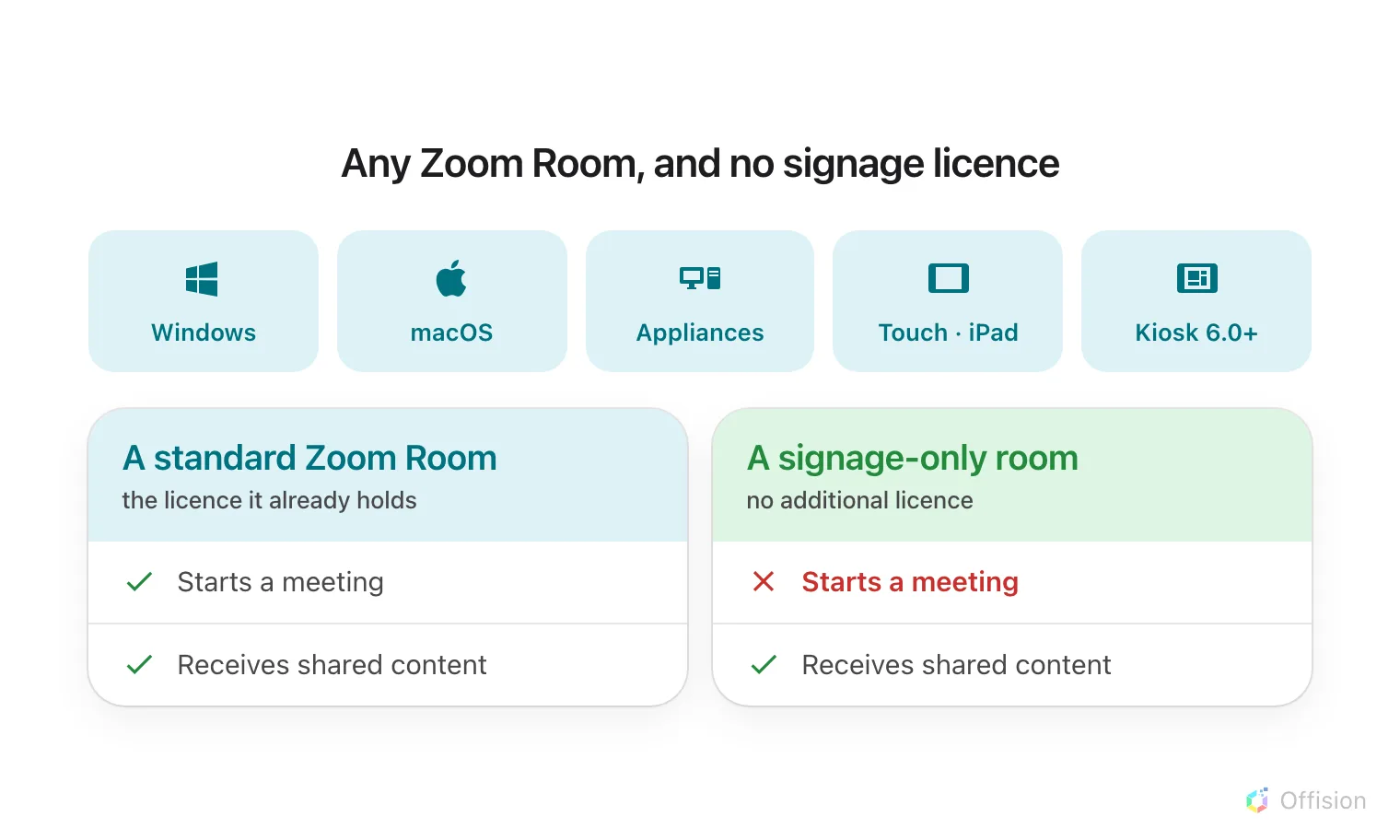
Signage costs nothing extra on a Zoom Room. A signage-only room costs nothing at all, and gives up exactly one thing.
- A Zoom Room on Windows, macOS, Appliances, Touch (iPad) or Kiosk 6.0 or later
- The Zoom Rooms licence the room already holds — signage is included, and there is nothing further to buy
- In Offision, an account that can manage signage and devices
- About fifteen minutes
1. Build the content
Signage content is a design, not a screen, and it exists before any hardware does. Create it first — see Build signage content for the whole of this step.
Choose the Wireless sharing idle screen purpose. It skips the screen question altogether because a room screen is always a 43-inch landscape 16:9 wall, and it starts you with a schedule beside the content.
Open Signage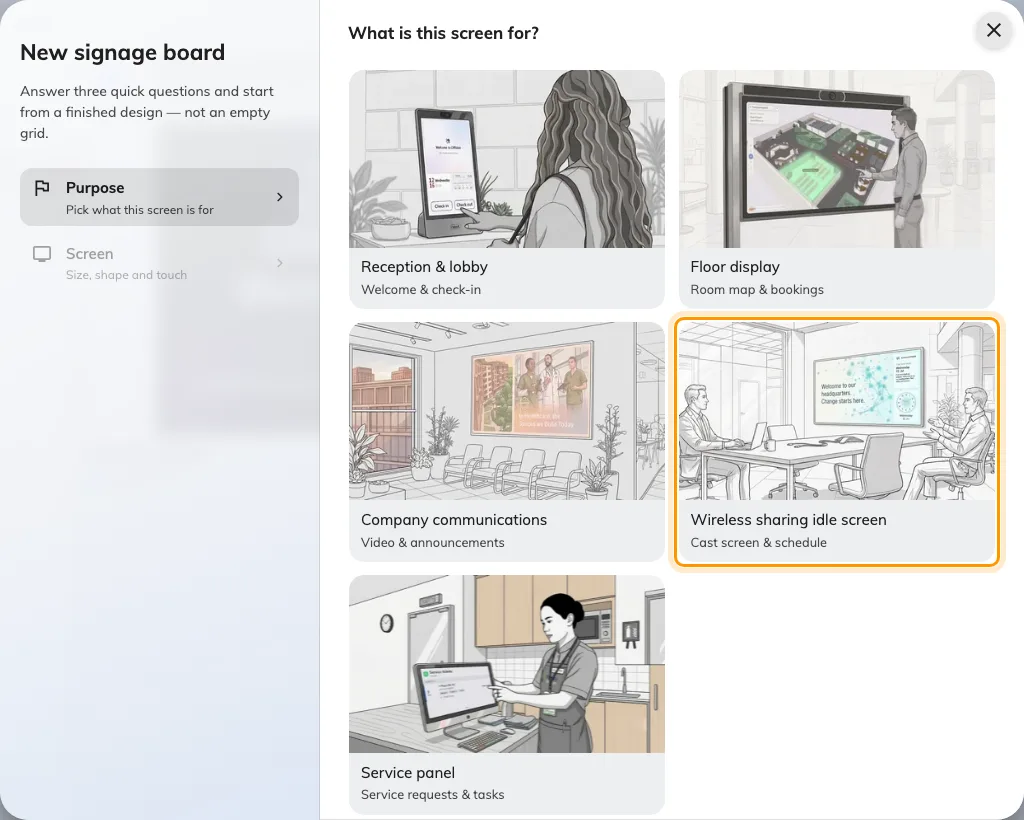
Wireless sharing idle screen, the fourth purpose.
Zoom Rooms draws nothing over the content, so no part of the design has to be kept clear. Reserved area on the Layout page exists for wireless-sharing boxes that paint their own card along the bottom, and should be left off here — it would only cost you a strip of screen for nothing.
2. Add Offision as signage content
Everything in this step happens in the Zoom web portal. Zoom’s own setup document is digital signage for Zoom Rooms.
- Open Room Management › Zoom Rooms, and choose the level this should apply at — the whole account, a location, a floor, or one room. Signage settings inherit downwards, so setting it once at a location covers every room under it.
- Open the Digital Signage tab and add content.
- Choose URL as the content type, and enter the address below.
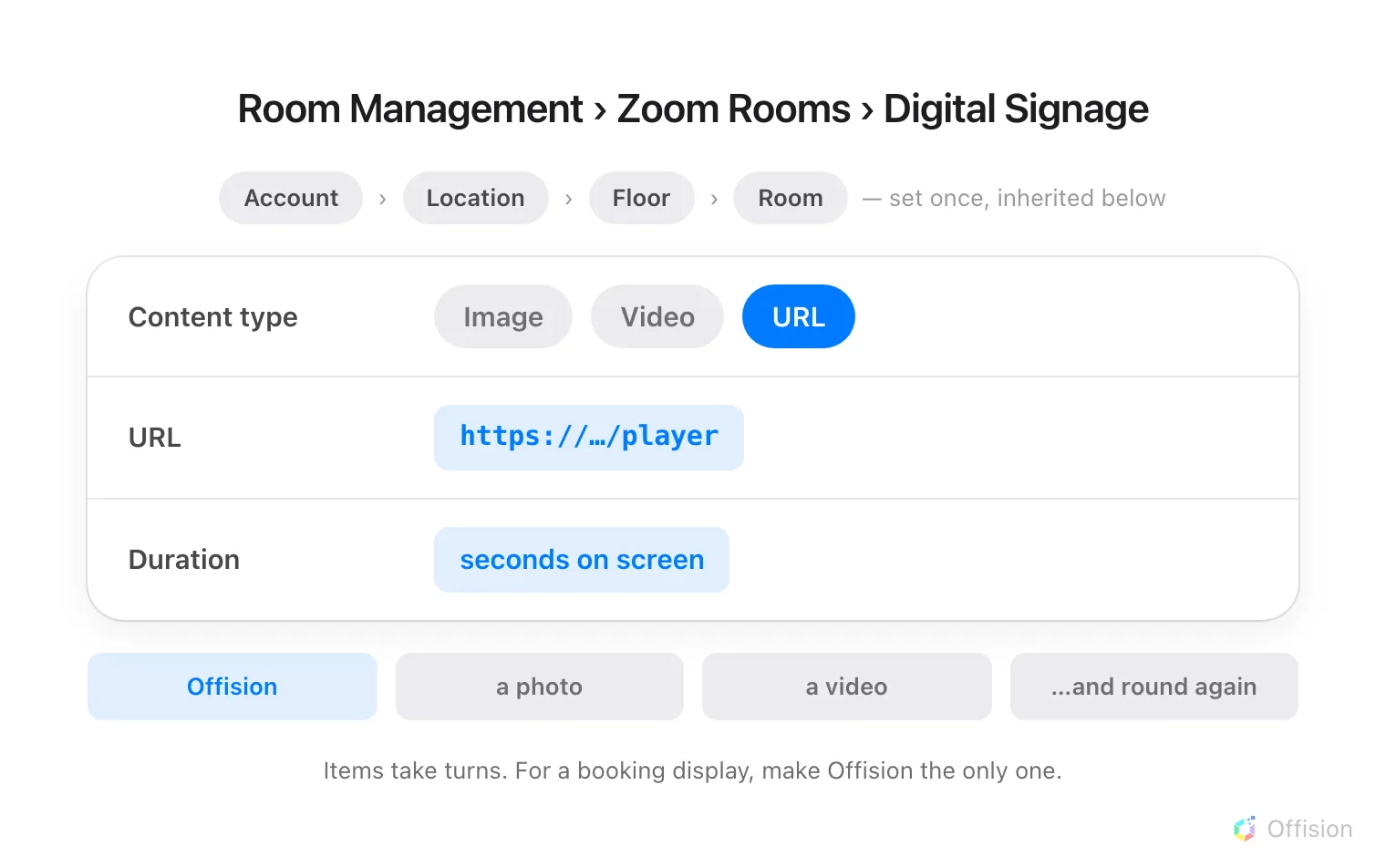
URL is one content type among several, so Offision takes its turn in the rotation like any image would.
https://app.offision.com/player
- Set its duration, save, and make sure digital signage is enabled for the rooms you want it in.
Two settings decide when any of it is seen. Display Period is two numbers, and both of them take content off the screen: how many minutes before a scheduled meeting the content stops, and how many minutes after one ends before it comes back. Set generously it can leave a room blank for a good part of the hour. And a room using signage cannot also use Control with Idle Time-Out under Device Operation Time — the two are mutually exclusive.
3. Pair the screen
Once signage starts playing, the room’s screen shows a six-character registration code. That code is what claims the screen.
In the console, go to Devices › Signage › Devices and choose Add.
Open Signage devicesThe wizard asks three things: the content this screen will play, the brand of hardware, and then the code.
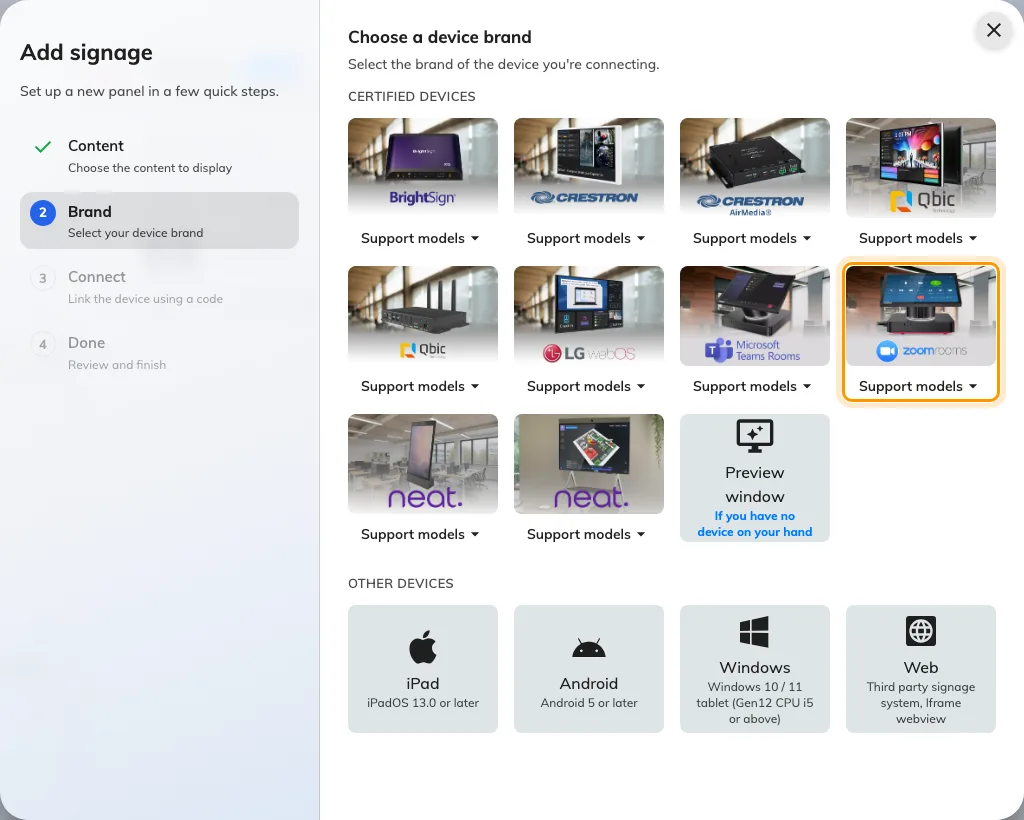
Zoom room device, in the certified devices grid.
Choose Zoom room device, then type the six characters from the screen. It submits itself on the last one.
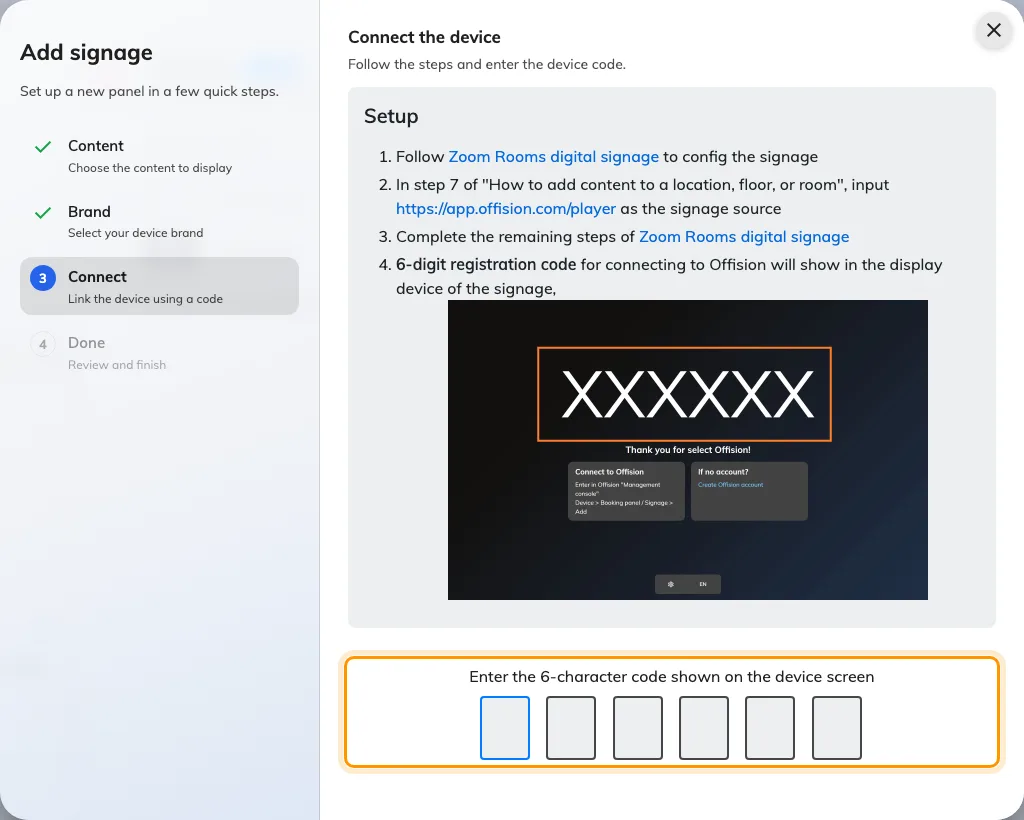
The brand's own guideline, and the field that claims the screen.
4. Check it worked
Within a few seconds the screen stops showing the code and starts showing the content. Then check both halves:
- In the console, the screen appears in Devices › Signage › Devices and is online.
- In the room, start or join a meeting. The meeting should take the whole screen, and the content should come back on its own once it ends.
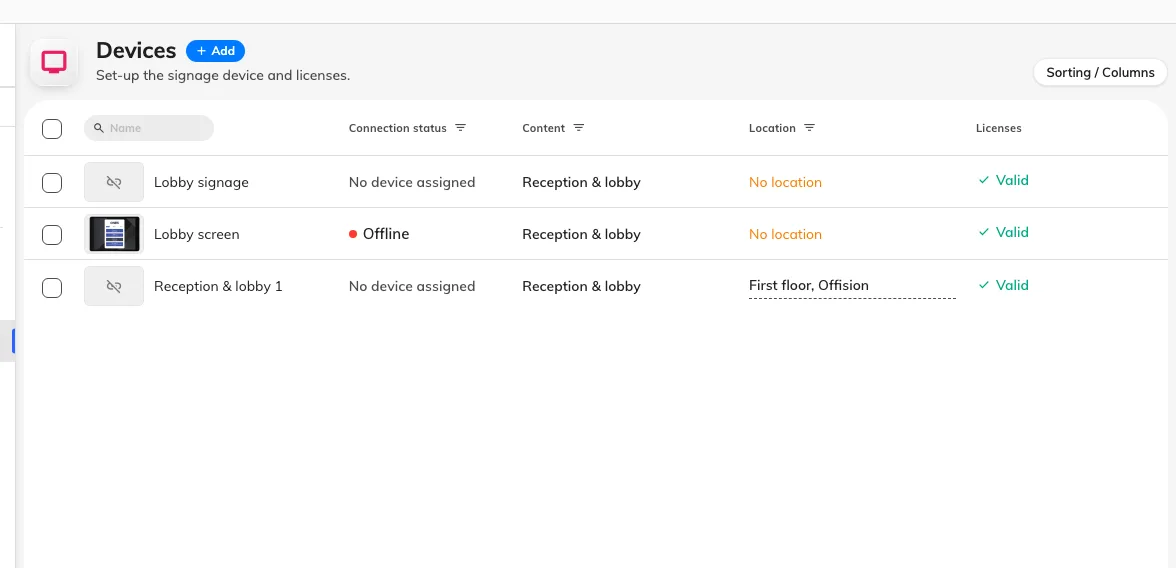
The signage device list. Connection status is where a paired screen reports in.
When it goes wrong
| What you see | Usual cause |
|---|---|
| The room never shows signage | Digital signage is not enabled for that room, or the setting was made at a level the room does not inherit from |
| The content flashes past every minute or so | Offision is one item in a rotation. Remove the others, or lengthen its duration |
| The URL was accepted but the screen stays blank | The address is wrong, or the room cannot reach it. Check it against the address above, including the /player at the end |
| Nothing shows on a room using Video + Content layout | That layout does not support web links. Move the room to a layout that does |
| Signage disappears well before the next booking | Display Period stops the content a set number of minutes before a meeting begins. Reduce that number |
| The code is refused | Read it off the screen again rather than retyping what you noted down. The code lives on an open connection, so a screen that has slept or rebooted since is showing a different one |
| A video on the content never plays | Uploaded video files are not supported on this hardware. Host the clip on YouTube and use the YouTube widget |
What this does not do
- Offision does not manage the device. It is not enrolled, monitored or updated from the console — the only thing Offision knows about it is the screen that paired.
- Offision does not decide when signage shows. Whether the room is in a meeting, and the display period around a booking, are Zoom’s.
- A signage-only room is still a Zoom Room to Zoom. It appears in the Zoom portal, and it can be invited to meetings; it simply cannot start one.