

Show signage on a Qbic screen
A Qbic BXP is a small box that drives an ordinary screen over HDMI. How to pair one as signage, and which model to buy for what the screen has to do — content only, a live floor plan, or a screen people touch.
A Qbic BXP is not a screen. It is a small fanless box that sits behind one: HDMI out to the display, Ethernet in, a power brick, and Android on the inside. The screen can be any commercial display you already own, which is what makes this the cheap way to put Offision on a wall that already has a television on it.
Because the box does the work, choosing one is a question about the screen’s job, not about the screen. A wall that loops announcements needs far less of a box than a wall drawing a live floor plan, and a wall people touch needs more again.
What to have ready
- A Qbic BXP player. The certified models are BXP-100, BXP-300, BXP-320, BXP-350 and the FHD-200
- The screen, an HDMI cable, and a mains socket behind it
- A network drop, or wireless coverage at the screen
- About thirty minutes, including building the content
Which model
The three below are the tiers, and the middle column is the question to ask yourself before ordering. The wizard’s own purposes line up with them, so pick the row that matches what this screen is for.
| Model | Buy it when the screen | Because |
|---|---|---|
| BXP-100 | Plays content and nothing else — announcements, a video loop, today’s bookings as a list | Everything on the screen is prepared in advance. The entry box plays it comfortably |
| BXP-300 | Draws a live floor plan — the Floor display purpose, a room availability map, an occupancy map | A floor plan is redrawn continuously as rooms change, not shown as a picture. That is real work every minute of the day |
| BXP-350 | Is touched — wayfinding, room search, self-service buttons | Touch has to answer instantly, and the screen is usually large and often 4K. Comfortable headroom is the point |
A BXP has no card reader and no light bar. Those belong to the booking panels; a signage screen is a screen. If people need to identify themselves at this screen, that is a kiosk rather than signage — see Set up a Qbic kiosk for reception.
1. Build the content
The content exists before the hardware does. Go to Signage › Content, choose Add, and pick the purpose that matches the screen: Company communications for a content wall, Floor display for a map, Reception & lobby for a welcome screen.
Open SignageAnswer the screen questions to match the display the BXP is plugged into — its shape, its size, and whether it is a touch screen. Everything about what goes on the content is in Build signage content.
2. Connect the box to the screen
HDMI from the BXP to the display, network, then power. Switch the display to that HDMI input and leave it there — a screen that auto-switches inputs is the commonest reason a signage wall goes blank on its own.
The box boots into Android.
3. Get the player onto the screen
A Qbic box that has never been set up boots into its own Configuration screen. Put the player address in the Content field there and choose PLAY:
https://app.offision.com/player
That is the browser route. The other is to install the Offision Android app on the box instead. The screen ends up showing a six-character pairing code either way.
On a signage screen the app matters more than it does on a booking panel. Uploaded video never plays in browser mode — the box has nowhere to download the file to, so the poster image stays up instead. A content wall built around a video loop is exactly the case where browser mode quietly fails. See Run the player as an app or in the browser for the choice, and Install the Offision app on a Qbic device for the steps.
4. Pair it as signage
In the console, go to Devices › Signage › Devices and choose Add.
Open Signage devicesThe wizard asks three things: the content this screen will play, the brand of hardware, and then the code. Choose the content from step 1, then Qbic signages under Certified devices.
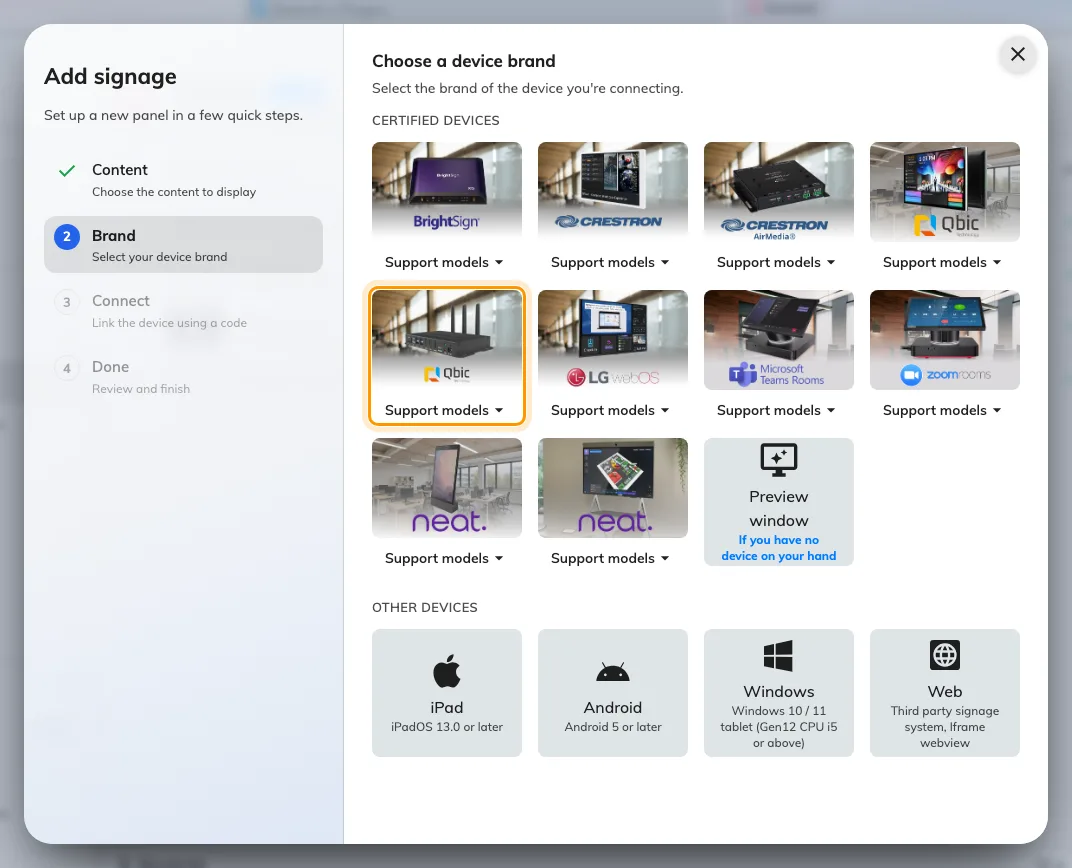
Qbic signages, fifth in the certified devices grid.
That tile covers every certified player — BXP-100, BXP-300, BXP-320, BXP-350 and the FHD-200 — and its Support models button links each of them to Qbic’s own page.
Type the six characters from the screen; the field submits itself on the last one.
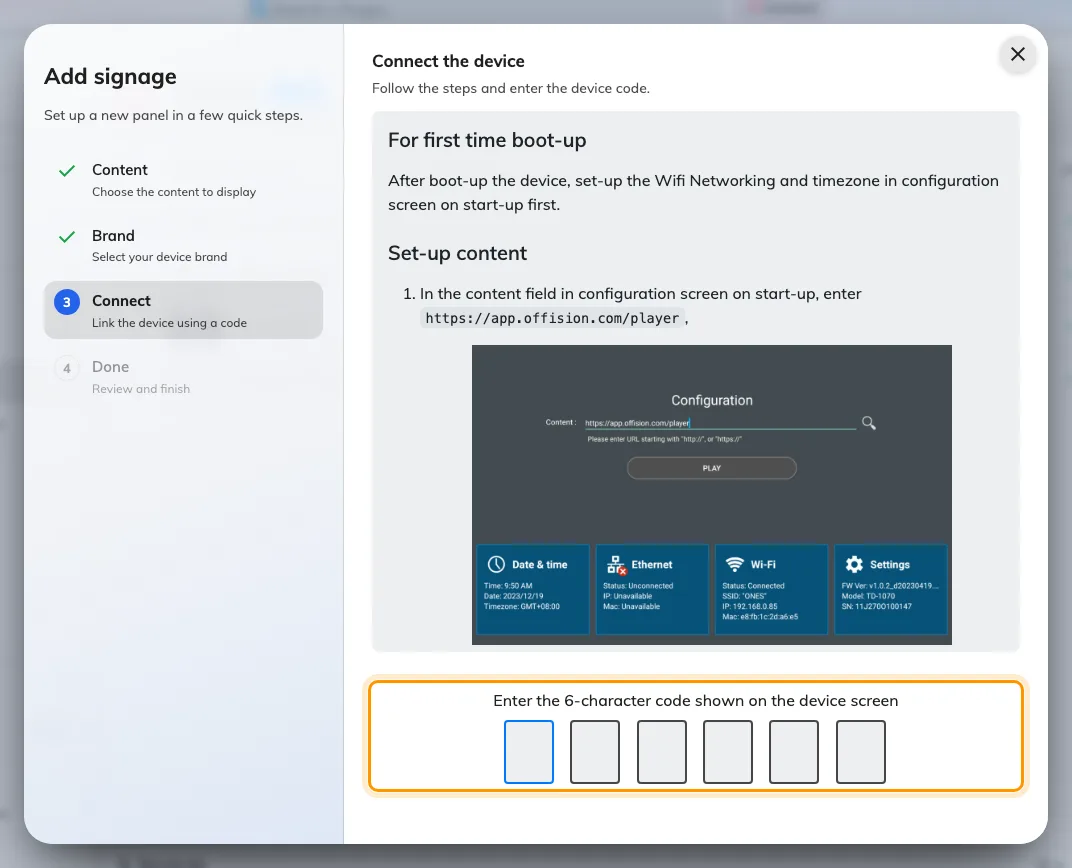
The Qbic guideline, and the field that claims the screen.
5. Check it worked
Within a few seconds the screen stops showing the code and starts playing the content. Its row in Devices › Signage › Devices goes online within a minute.
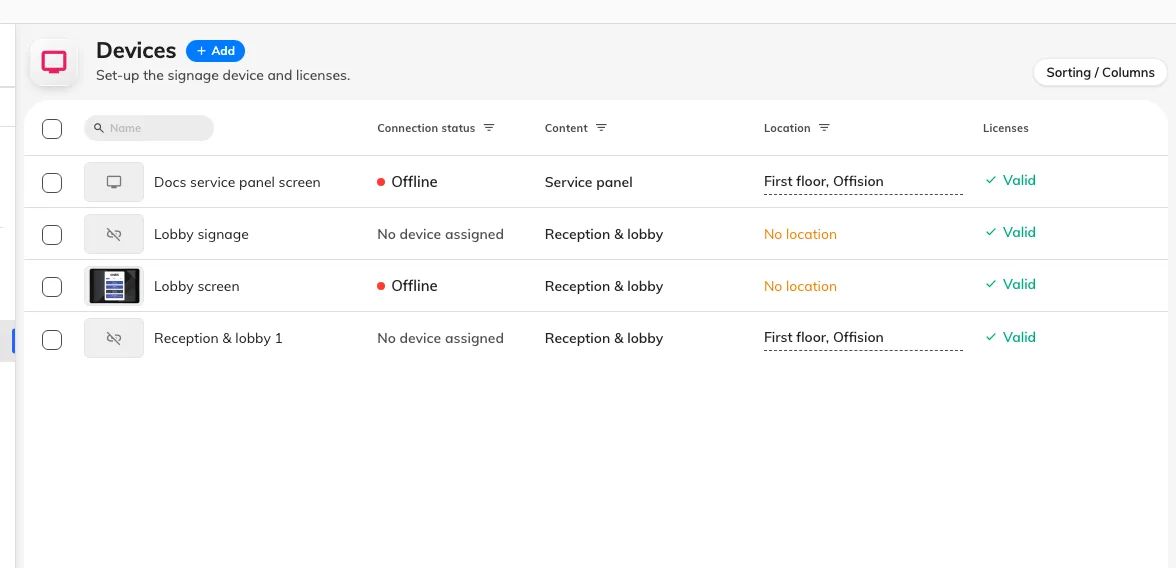
The signage device list. Connection status is where a paired screen reports in.
Then watch it for one full loop. On a screen with a video in the playlist, give a freshly saved content a few minutes first — the box is downloading its own copy, and skips the video until that finishes.
When it goes wrong
| What you see | Usual cause |
|---|---|
| The screen is black, the box’s light is on | The display is on a different HDMI input, or it auto-switched away |
| No pairing code, just an Android home screen | The player address was not opened, or the app was installed but never launched |
| The pairing code is refused | Read it off the screen again. A box that has restarted is showing a different one |
| The screen plays a room or a board, and shows no pairing code | It is still claimed by an earlier record. Disconnect it there first — see Reuse a panel that was set up for something else |
| The content plays but the video item is skipped | Browser mode: the box has nowhere to download the file to. Install the app |
| A video still does not play in the app | Give it time on the first pass, then check the file itself — an HDR or 10-bit export leaves a black screen on a player of this class |
| The floor plan stutters or lags | The box is under-specified for a live map. This is the BXP-100/BXP-300 line in the table above |
| Touching the screen does nothing | The content was built without Touch screen, so it has a QR code instead of buttons. Rebuild the content, not the hardware |
| The screen shows the wrong content | The content is chosen in the wizard, before the code. Change it on the device’s own row |
What this does not do
- It does not make the screen a booking panel. A BXP has no card reader and no light bar, and signage pairs through a different wizard than a room panel. Hardware that could do both has to be released from one before the other can claim it — see Reuse a panel that was set up for something else.
- It does not manage the box. Firmware, the network and the kiosk launcher stay in Qbic’s own tooling.
- It does not choose the display. Screen size, brightness and how it is mounted are the display manufacturer’s business, not Offision’s.
- It does not cover e-paper. See Connect Qbic e-paper tags.