

Show signage on a Microsoft Teams Rooms screen
A Teams Rooms device can fill its front-of-room display with Offision content between meetings. What it needs first is a Teams Rooms Pro licence — and there are several rooms this will not work in at all.
A Teams Rooms device already owns the screen at the end of the room, and since Teams Rooms 5.1 it can fill that screen with a web page while nobody is meeting. Give it Offision’s address as its signage source and the room shows today’s bookings between meetings instead of a Teams home screen.
Read the next section before anything else. Signage is a Teams Rooms Pro feature, and there are whole categories of room where Microsoft does not offer it at all — which is cheaper to find out now than after the content is built.
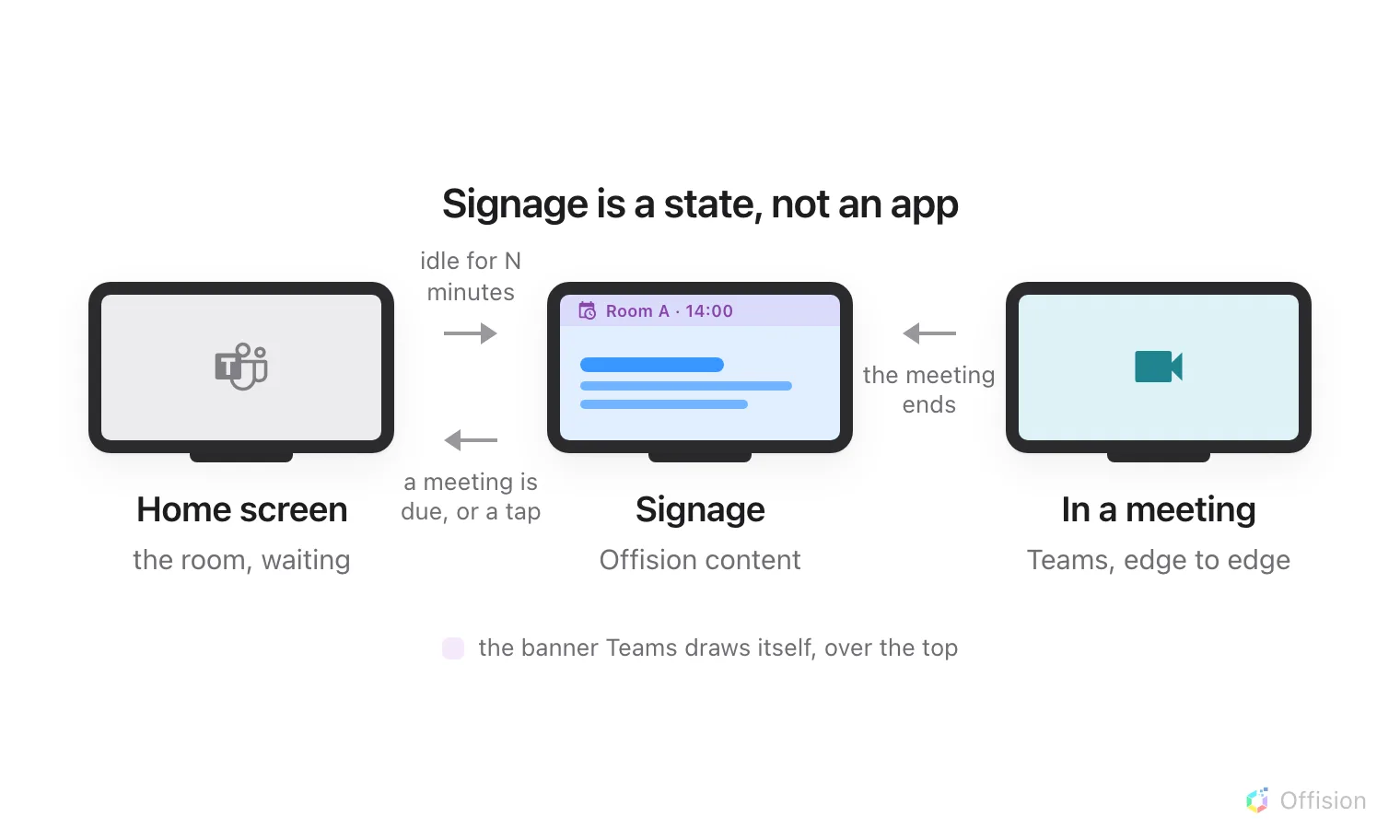
Signage is a state the device drops into when it has nothing else to do, and leaves the moment it does.
What to have ready
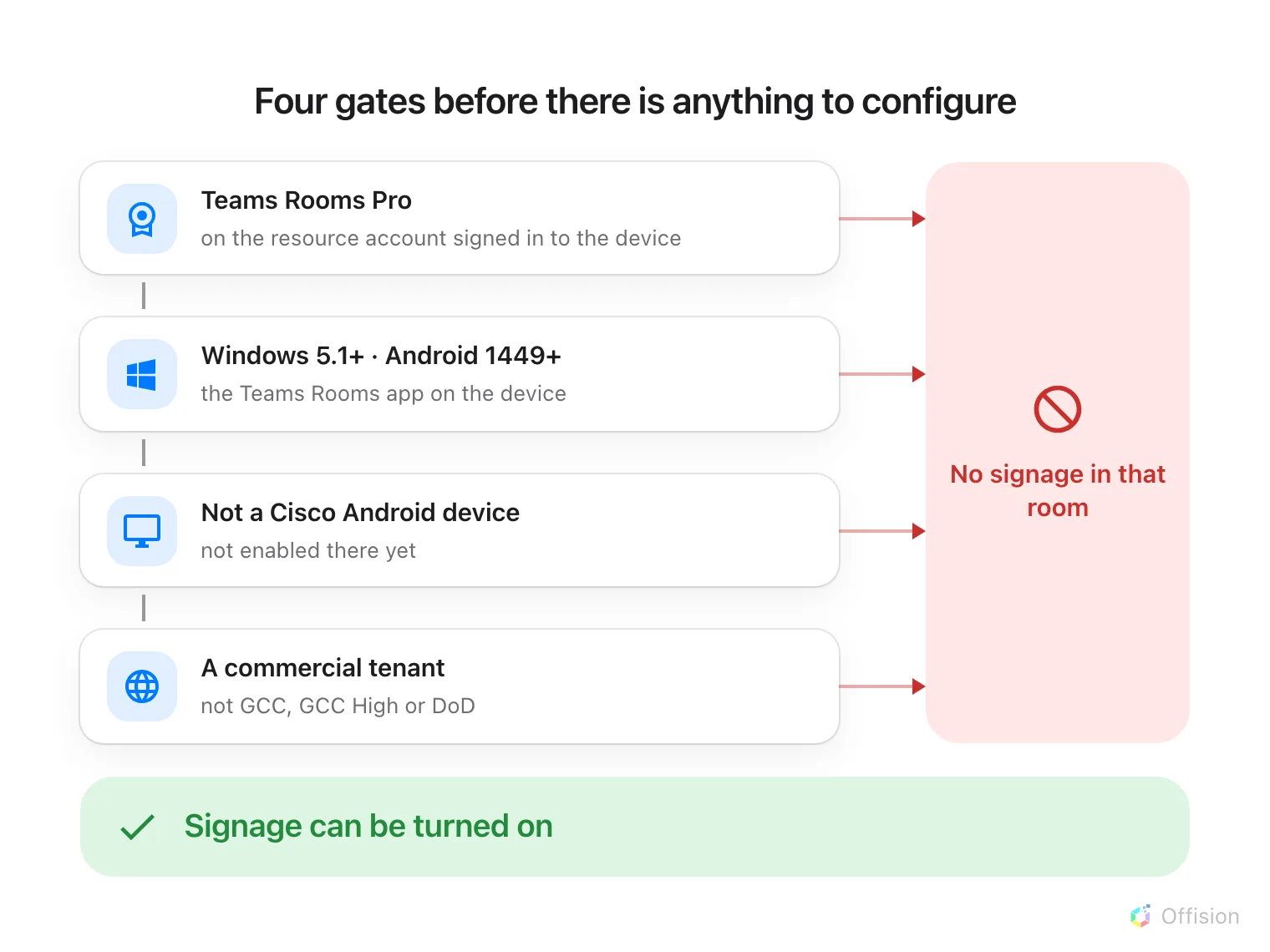
Four gates, and every one of them is Microsoft's. A room that fails any of them cannot show signage at all.
Every room you want signage in must clear all four:
- A Teams Rooms Pro licence on the resource account signed in to the device. This is the one that catches people. Without Pro there is no digital signage feature to configure, on any device.
- Teams Rooms on Windows 5.1 or later, or Teams Rooms on Android 1449 or later.
- Not a Cisco device running Teams Rooms on Android. Microsoft has not enabled signage there yet.
- A commercial tenant. Signage is not available through the multitenant management portal, or in GCC, GCC High or Department of Defense environments.
Then, in Offision, an account that can manage signage and devices — and about twenty minutes, most of it in Microsoft’s portal.
1. Build the content
Signage content is a design, not a screen, and it exists before any hardware does. Create it first — see Build signage content for the whole of this step.
Choose the Wireless sharing idle screen purpose. It skips the screen question altogether because a front-of-room display is always a 43-inch landscape 16:9 wall, and it starts you with a schedule beside the content.
Open Signage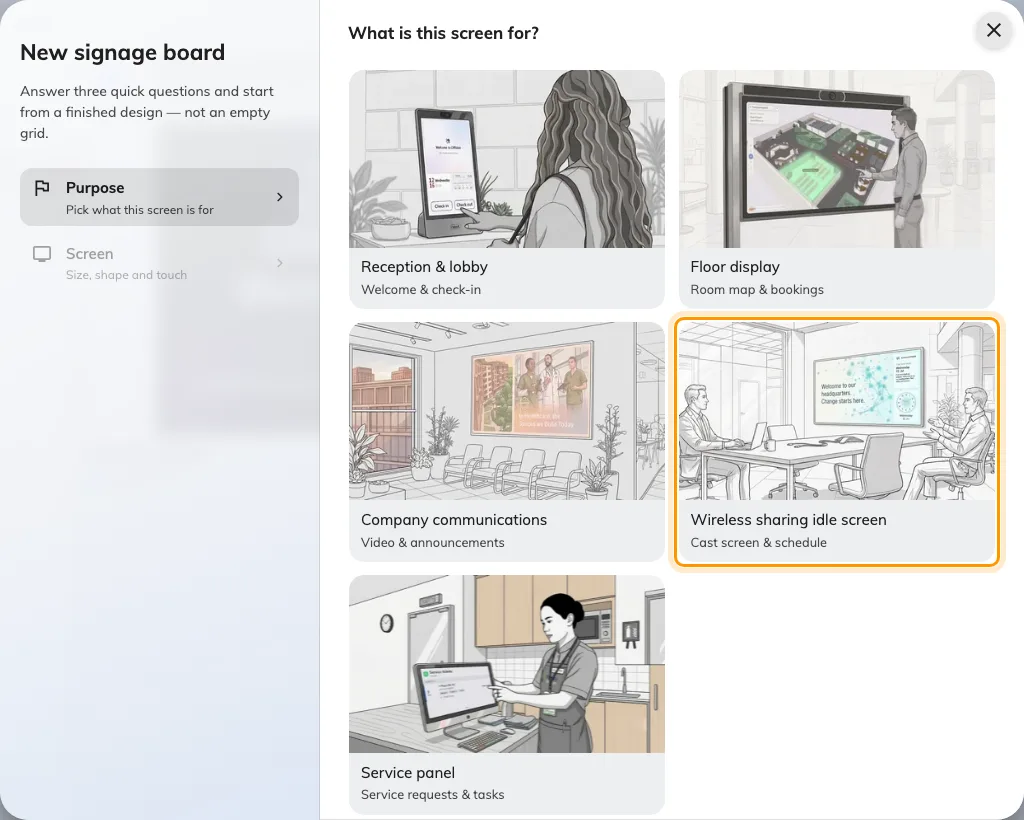
Wireless sharing idle screen, the fourth purpose.
2. Add Offision as a signage source
Everything in this step happens in the Teams Rooms Pro Management portal. Microsoft’s own setup document is Deploy digital signage on Microsoft Teams Rooms.
- Go to Settings › Digital signage and turn Digital signage on for the tenant.
- Choose Add source, name it, and choose Next.
- Choose Custom — not one of the third-party providers — and enter the address below as the web URL.
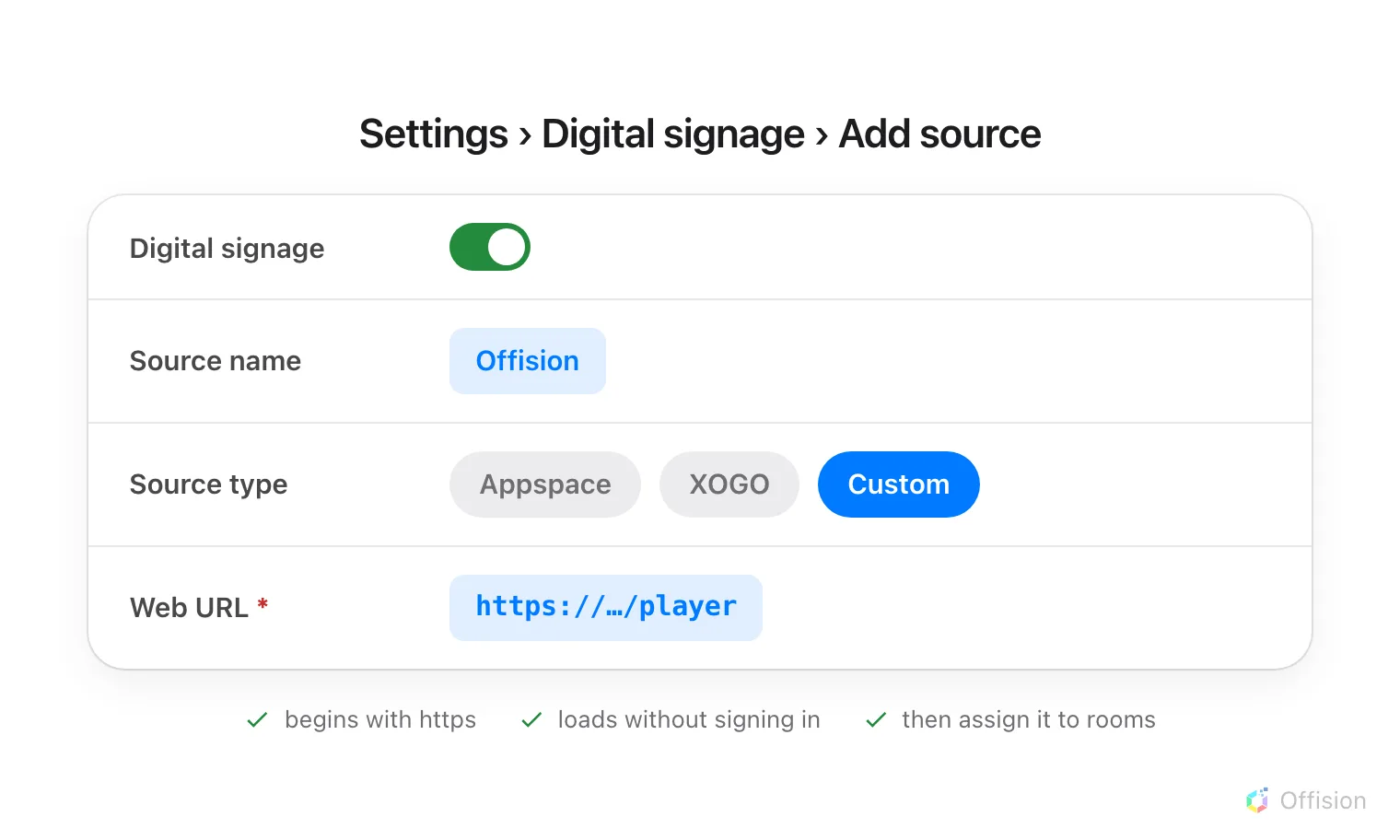
Custom is the option that takes an address of your own. The two named providers are separate subscriptions.
https://app.offision.com/player
- Accept the terms, review and submit.
- Assign the source to the rooms that will use it — either from the source, with Assign to rooms, or on one room at a time under Rooms › the room › Settings › Digital signage.
While you are in Preferences, the two timers are worth setting deliberately: the activation timer is how many idle minutes before signage appears, and the deactivation timer is how many minutes before a booked meeting it gets out of the way. Low values are what make the content something people actually see.
3. Pair the screen
Once signage activates, the front-of-room display shows a six-character registration code. That code is what claims the screen.
In the console, go to Devices › Signage › Devices and choose Add.
Open Signage devicesThe wizard asks three things: the content this screen will play, the brand of hardware, and then the code.
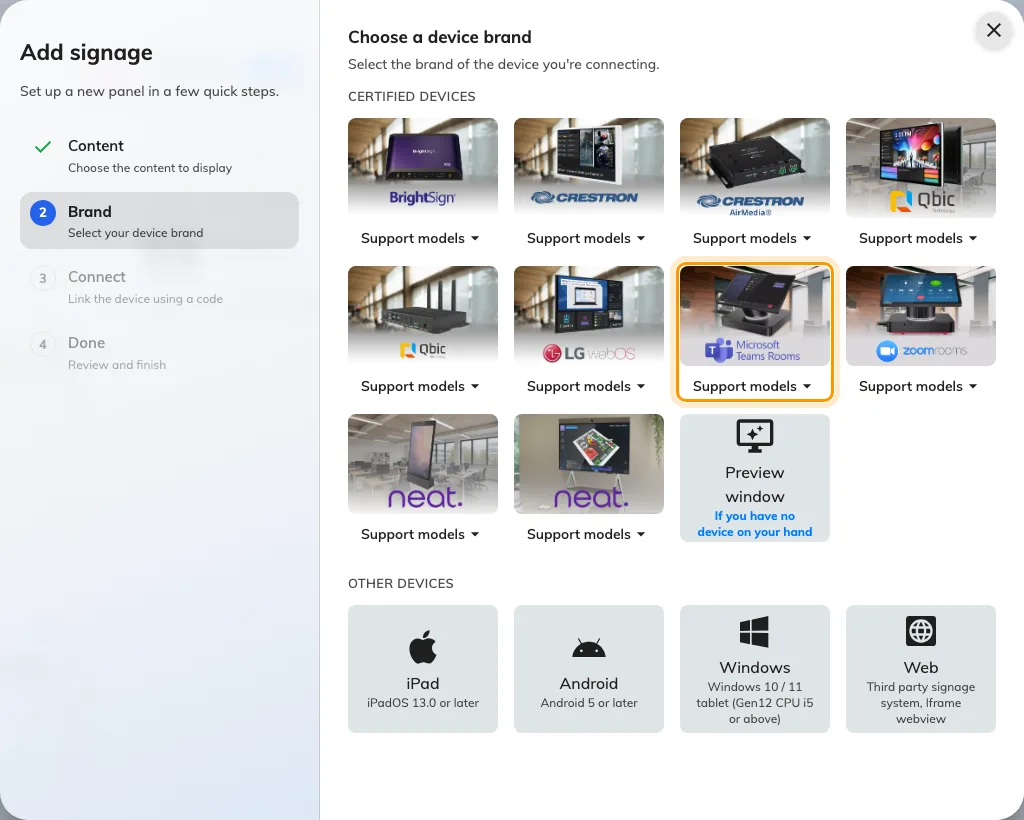
Microsoft Teams room device, in the certified devices grid.
Choose Microsoft Teams room device, then type the six characters from the screen. It submits itself on the last one.
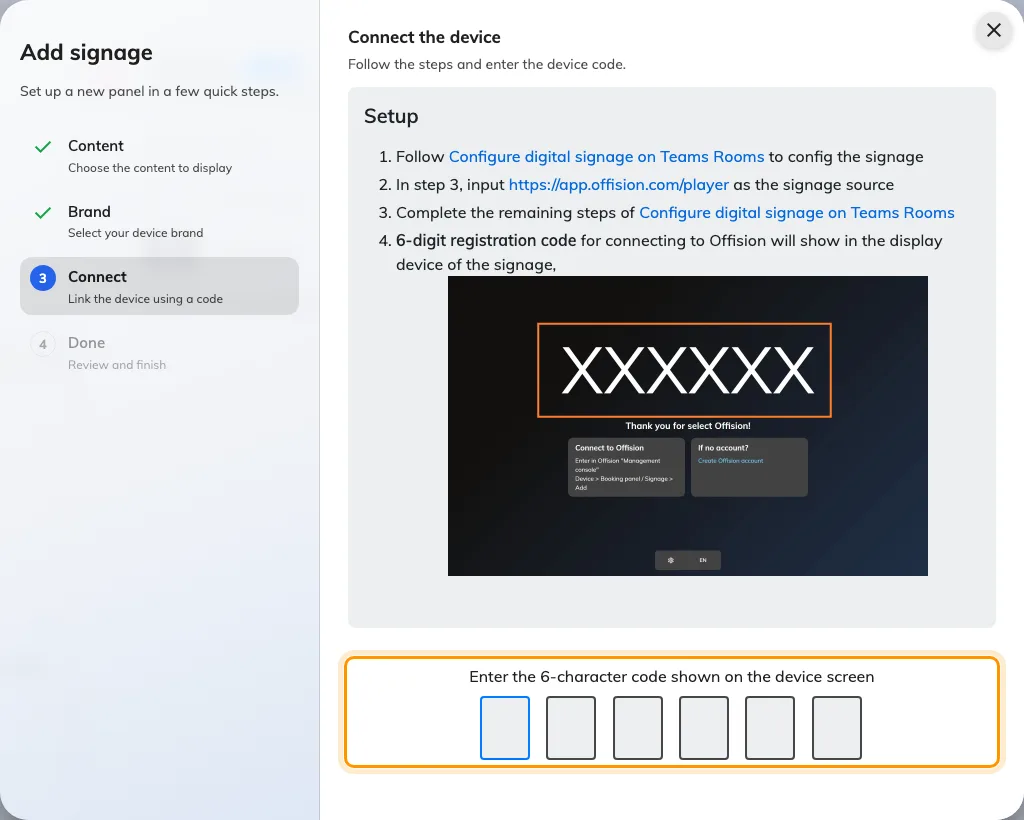
The brand's own guideline, and the field that claims the screen.
Waiting for the code is the awkward part of this brand: the device only shows it once signage activates, which is after the activation timer has run. Setting that timer to its lowest value while you install saves a lot of standing about.
4. Check it worked
Within a few seconds the screen stops showing the code and starts showing the content. Then check both halves:
- In the console, the screen appears in Devices › Signage › Devices and is online.
- In the room, tap the touch console. Signage should give way to the Teams home screen immediately, and come back on its own once the room is idle again.
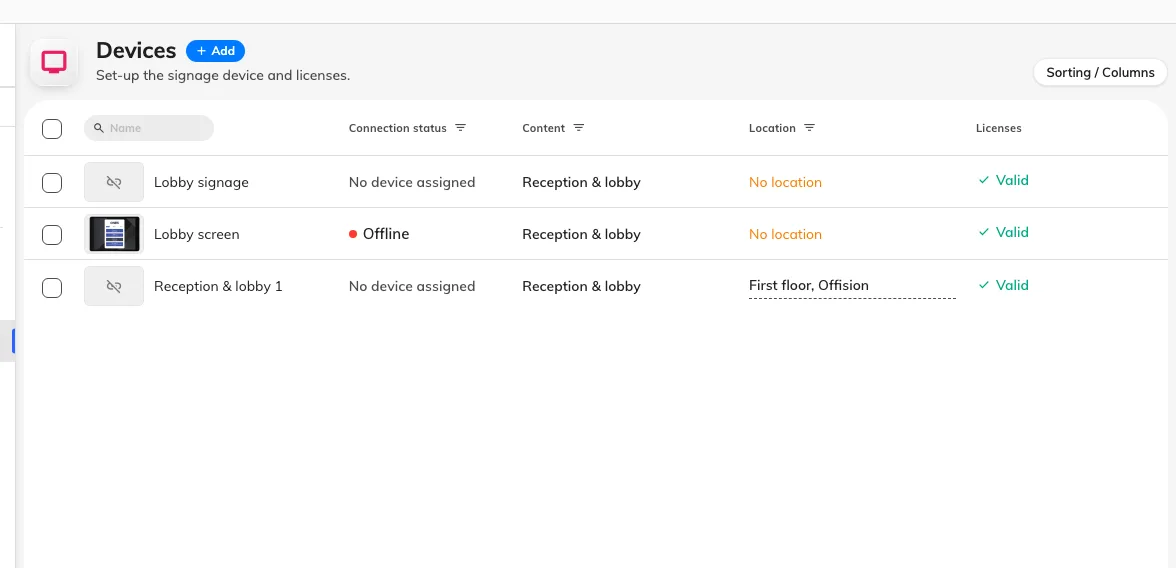
The signage device list. Connection status is where a paired screen reports in.
When it goes wrong
| What you see | Usual cause |
|---|---|
| There is no Digital signage section in the portal | The account is missing the digital signage tenant management permission, or the tenant is one of the unsupported environments |
| The room stays on the Teams home screen and never shows signage | No Teams Rooms Pro licence on that room’s resource account, the app is below the minimum version, or the source was never assigned to that room |
| The setting says it applied, but nothing changed | The room was in use, so it waited for the maintenance window. Push it again when the room is free |
| Signage appears, then the screen goes dark | The device is honouring the operating system’s screen time-out. Turn off Allow screen timeout when device is idle in Preferences |
| Signage never appears on a Cisco device | Not supported yet on Cisco hardware running Teams Rooms on Android |
| A blank screen, and the portal reports nothing | There is no signage health signal for a custom web URL. Check the address, then check the screen itself for the registration code |
| A video on the content never plays | Uploaded video files are not supported on this hardware. Host the clip on YouTube and use the YouTube widget |
What this does not do
- Offision does not manage the device. It is not enrolled, monitored, restarted or updated from the console — the only thing Offision knows about it is the screen that paired.
- Offision does not decide when signage shows. The activation and deactivation timers are the device’s, and so is the banner across the top.
- No health signal. Microsoft’s digital signage health monitoring covers its two named providers, not a custom web URL, so a screen that stops playing is diagnosed at the screen.