

Finding another room from the panel
The panel offers Other rooms whatever state its own room is in, and one switch turns it off along with every other way through to another room. What the six kinds of row mean, and how to close the whole thing.
A meeting is about to start and the room is taken. Other rooms answers that without anybody opening a laptop: the panel lists what else is free in the building, and booking one is two more taps.
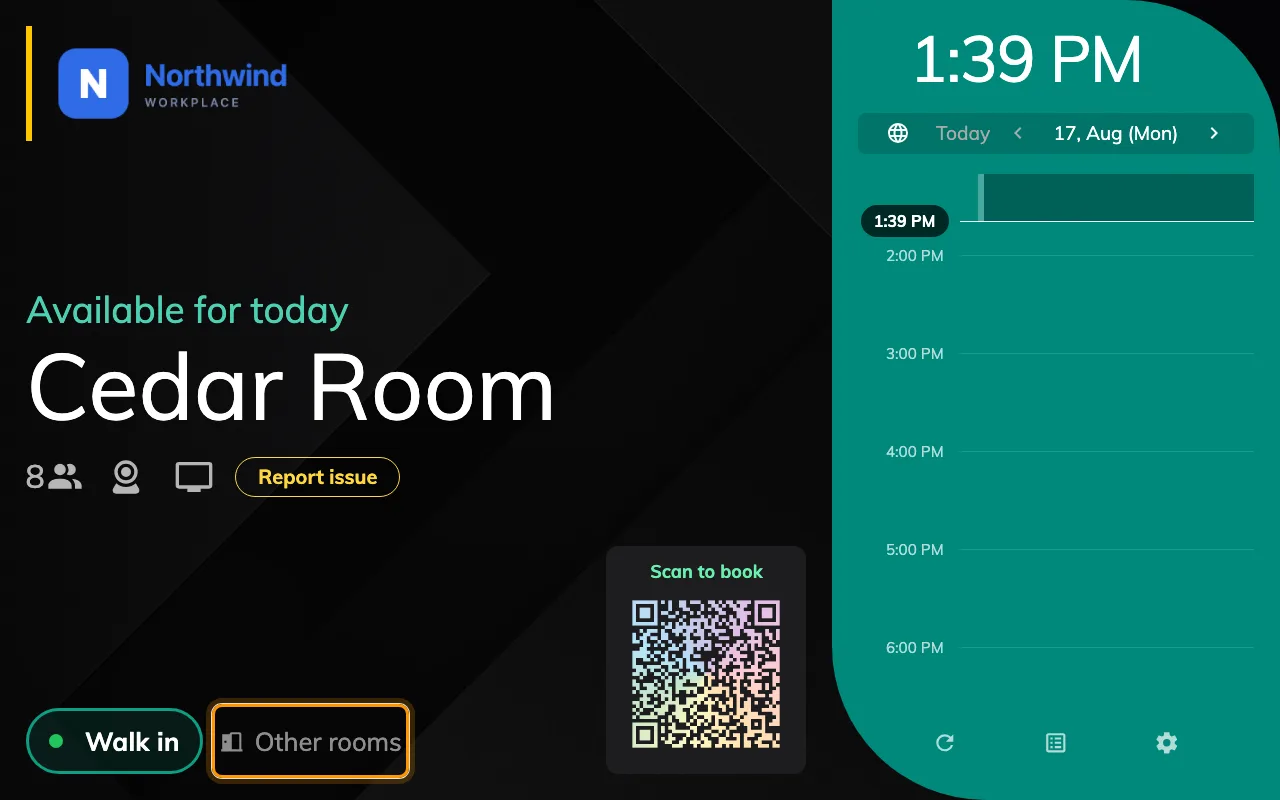
Other rooms on a free room, beside Walk in.
The button does not come and go with the room’s state. It is there whether this room is free, waiting for its organizer or in use — somebody standing at an occupied door is exactly who needs it. What changes is only what sits beside it: Walk in on a free room, Check in on one waiting, End now and Extend on one in use.
The list is the building, not the floor
Every row is a resource of the same kind as this panel’s room, in the same building, that the panel’s own room has been removed from. There is no capacity filter, no amenity filter and no floor filter — capacity and the amenity icons are shown so you can judge a row, not to narrow it.
The floor still matters, twice: rooms on the panel’s own floor are labelled This floor and are lifted above equally-good rows elsewhere. So the top of the list is the nearest good answer, not merely the first one.
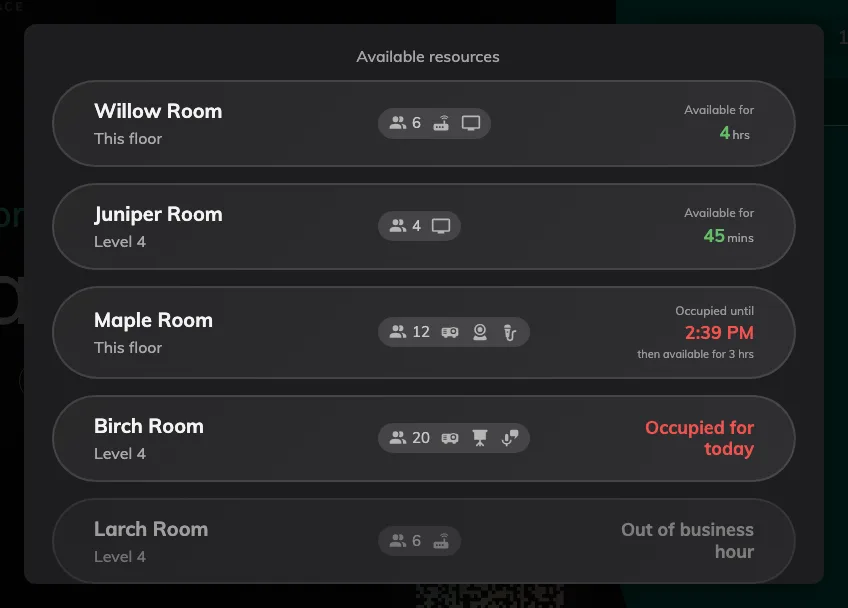
Free rooms first, longest free at the top, this floor ahead of the rest.
Six kinds of row
Four you can tap, and two of those are already busy — a room that frees up in twenty minutes is often the right answer, so the panel lets you take it and starts the booking then.
| The row says | What it means |
|---|---|
| Available for 4 hrs | Free now, for that long |
| Occupied until 14:27, then available for 3 hrs | Busy now, yours from that time |
| Occupied for today | Busy for the rest of the day |
| Out of service | A maintenance period covers now |
| Out of business hour | Outside its hours, and it may not be booked outside them |
| Out of booking period | Its booking window is closed |
The last three are greyed and do not respond to a tap. They are still listed deliberately: “the room exists and you cannot have it” is a different answer from “there is no such room”, and the reader standing at the door needs the first one.
Why a row is greyed
Each greyed state comes from a different screen, which is worth knowing before going looking:
- Out of service — a New out of service period on the resource itself.
- Out of business hour — the resource’s business hours, but only where its policy has Allow non-business hour booking off. With that on, a room outside its hours is still offered.
- Out of booking period — the policy’s Allow booking before a specific date / Allow booking after a specific date.
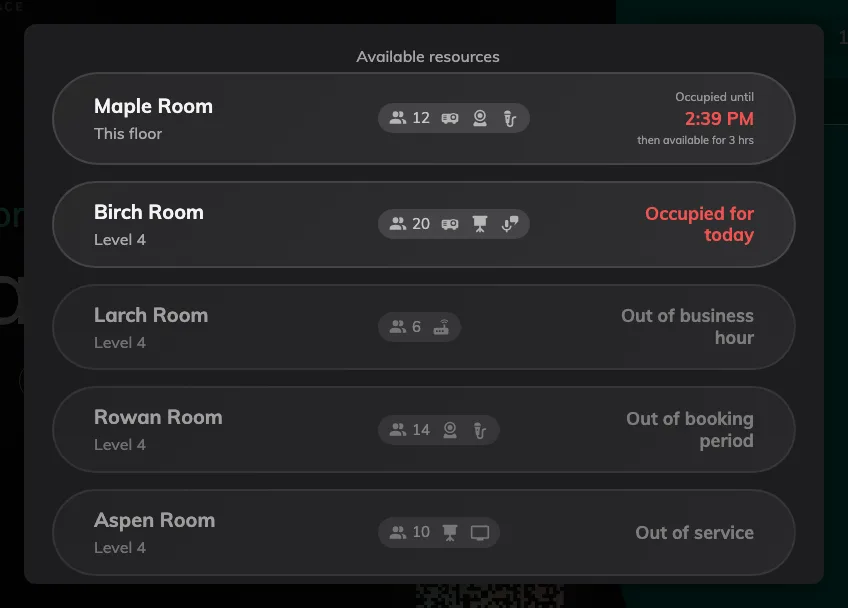
Further down the same list: blocked rooms stay visible, dimmed, and do not respond to a tap.
Turning the button off
Panels that stand somewhere people should not be self-serving a room — a lobby, a shared floor in a serviced building — can drop it. Show other rooms button is in the booking panel configuration’s Book from the panel group, and it is per configuration, so it lands on every panel that shares it. On the in-room panel the same switch sits under Use a booking.
Open Panel configurations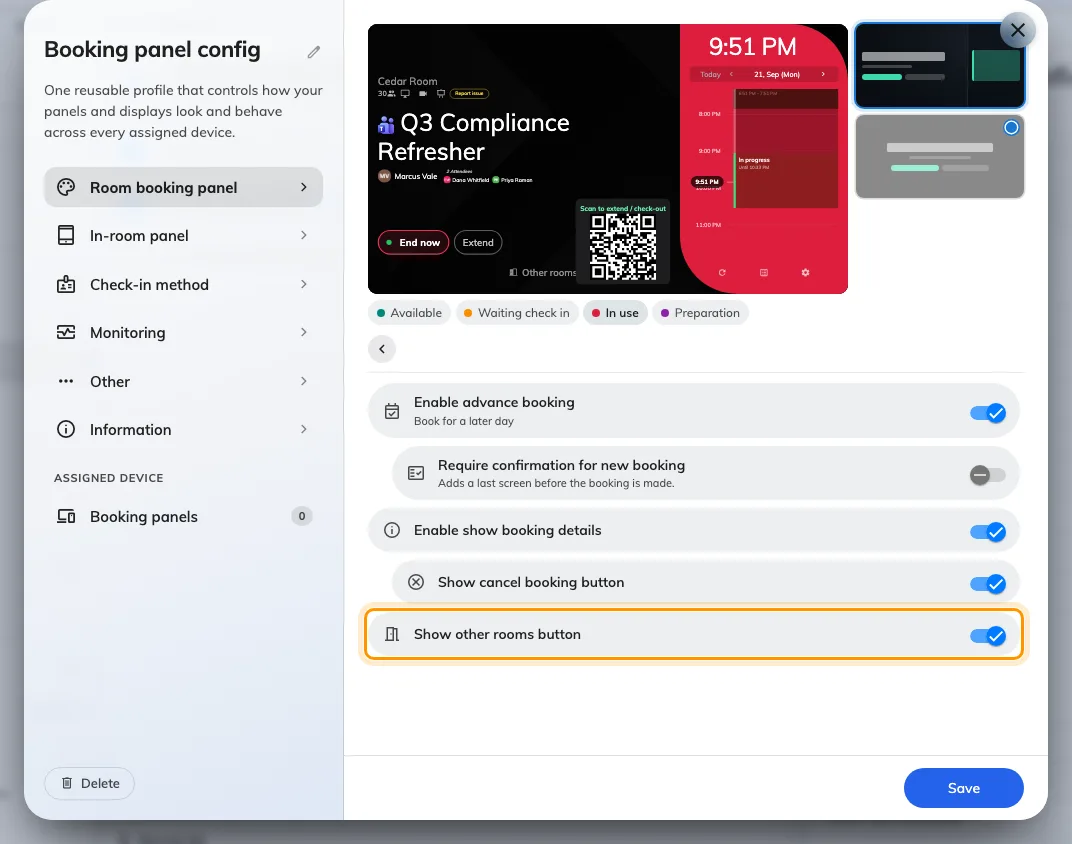
Show other rooms button, in the configuration's Book from the panel group.
Off, the button goes, and so does every other way through to another room:
- Other rooms on the room booking panel.
- Rooms nearby on the in-room panel, both on the hero and in the duration sheet.
- Move to Other Room, which the in-room panel offers when a meeting is nearly over or the next one is close.
- Find other available in the booking time picker, and the same link under the “next booking at” hint when a slot is restricted.
The hint itself stays, and so does the picker — neither is about booking elsewhere. One rule governs all of them rather than each button checking for itself, so a panel set not to book elsewhere cannot be talked into it by a route somebody has not thought of.
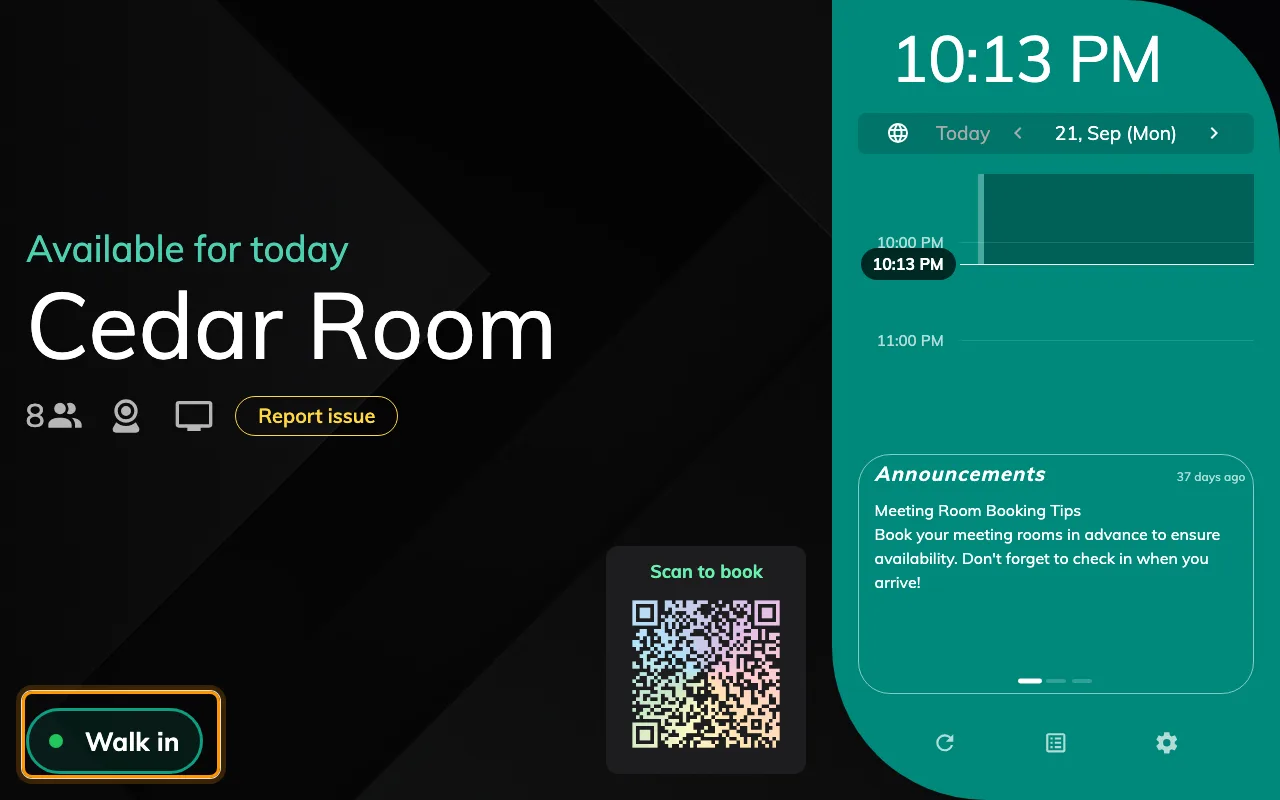
The same free room with the switch off: the action row keeps Walk in and nothing else.
Panels on the control skin show the same rooms as a Rooms nearby sheet instead, grouped under a heading per floor; the rows and their statuses are the same ones.