

Connect a Qbic room booking panel
A Qbic panel takes PoE+ and shows whatever its screen is pointed at, so setup is three things: power it, get the player onto it, and claim it with a six-character code. Includes the card reader that is built into its face, and the TD-0360 desk panel.
A Qbic panel is an Android screen with an Ethernet port on the back, and it arrives knowing nothing about Offision. Unlike a device managed from a vendor cloud, there is no enrolment step and no second account: you power it, you get the Offision player onto its screen, and you claim it with a six-character code.
The only decision that is not obvious is how the player gets onto the screen. A Qbic panel can run it as an installed Android app or in its own browser, and the two are not equivalent — the built-in card reader and offline video are the app’s. That decision is Run the player as an app or in the browser; this article assumes you have made it.
What to have ready
- A Qbic panel. The certified room models are TD-1070, TD-1070 Lite, TD-1050 Pro and TD-1060 Slim
- A switch port with PoE+ and headroom in its budget. A TD-1070 asks for 25 W, which a plain 802.3af port cannot supply
- Network the panel can reach your Offision server from
- About twenty minutes
The card reader is the reason to buy one
A Qbic panel reads a staff card on its own face — bottom right on a TD-1070, bottom centre on a TD-1050 Pro — with no reader hanging off it and nothing on the wall beside it. That is what separates these panels from a screen that happens to be the right size, and it is worth getting right at the order stage because none of it can be changed afterwards.
- The standard part reads 13.56 MHz cards.
- HID Global cards need the H version, which is a separate part number. A panel already on the wall cannot be upgraded to it.
- Some models also offer an O version, which reads a pass held in Apple Wallet. Offision does not use it. An O panel reads a 13.56 MHz card exactly as the standard version does, and a wallet pass tapped on it does nothing — so order the O version only for something other than Offision.
- The TD-1060 Slim has no built-in reader at all. It takes a USB reader, like a panel from a vendor that does not build one in.
- A Qbic panel reads the card’s serial number, which is not the number printed on the card. Enrol one card and tap it before importing the rest. The panel will tell you what it read — see Read a card number at the panel.
What a tapped card then does — and how a person’s card gets attached to them — is in Check in by tapping a staff card.
1. Power it and put it on the network
Mount the panel and take it back to a PoE+ port. It boots into Android.
Give it an address — DHCP over the Ethernet port is the normal answer, and the panel’s own settings are where a static one goes. Wi-Fi is an option on most Qbic models rather than a given, so on a panel ordered without it, Ethernet is the only way on.
2. Get the player onto the screen
A Qbic panel that has never been set up boots into its own Configuration screen. Put the player address in the Content field there and choose PLAY:
https://app.offision.com/player
That is the browser route, and it is the one the guideline in the wizard walks through. The other route is to install the Offision Android app on the panel instead, which is what makes the built-in card reader and uploaded video work — see Run the player as an app or in the browser for the choice, and Install the Offision app on a Qbic device for the steps.
Either way the panel ends up showing the same thing: a screen with a six-character pairing code on it, waiting to be claimed.
3. Add the panel in the console
Go to Devices › Booking panel › Devices and choose Add.
Open Booking panelPick Room booking panel, then the room this panel will show, then Qbic panels under Certified devices.
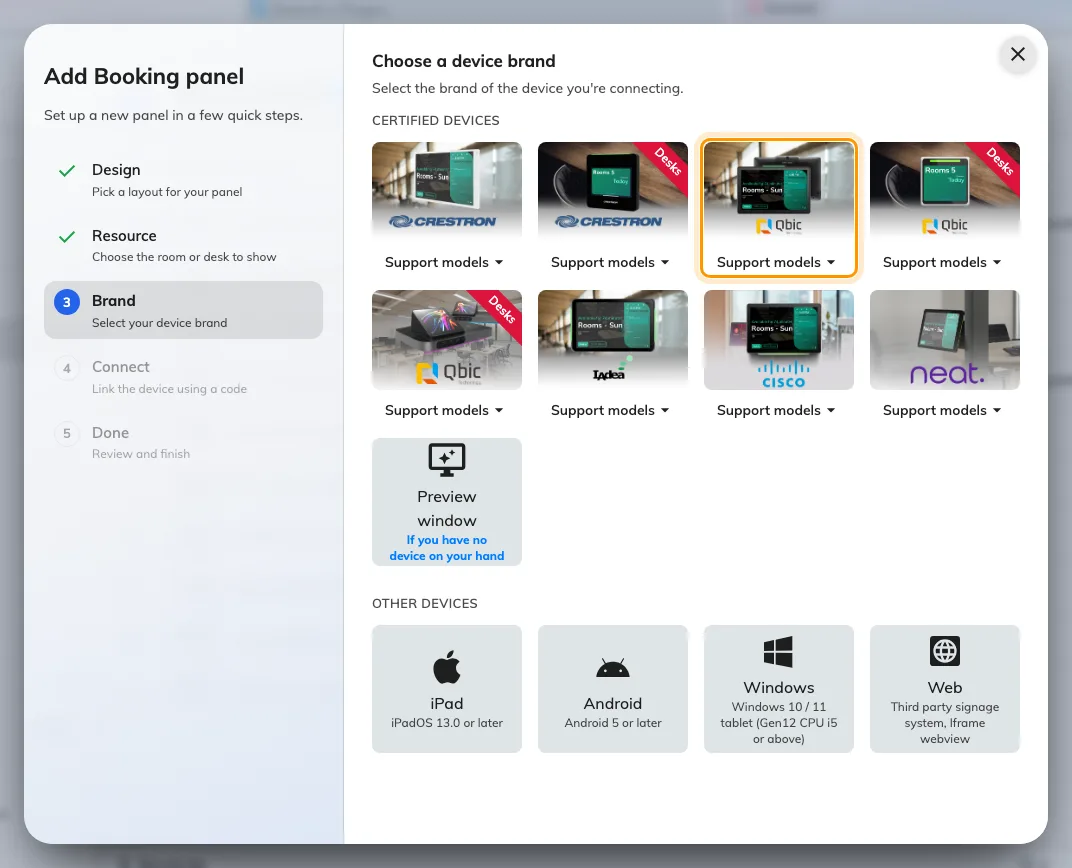
Qbic panels, third in the certified devices grid.
Three of the tiles in that grid are Qbic’s, and picking the wrong one is the easiest mistake to make here. Each tile carries a Support models button listing what it covers, linked to Qbic’s own pages:
| Tile | Models it covers |
|---|---|
| Qbic panels | TD-1050 Pro · TD-1060 Slim · TD-1070 Lite · TD-1070 |
| Qbic desk panels | TD-0350 · TD-0360 |
| Qbic docking | TDD-1000 |
4. Claim it with the code
Choosing the tile opens Qbic’s own installation guideline beside a single field. Type the six characters showing on the panel; the field submits itself on the last one.
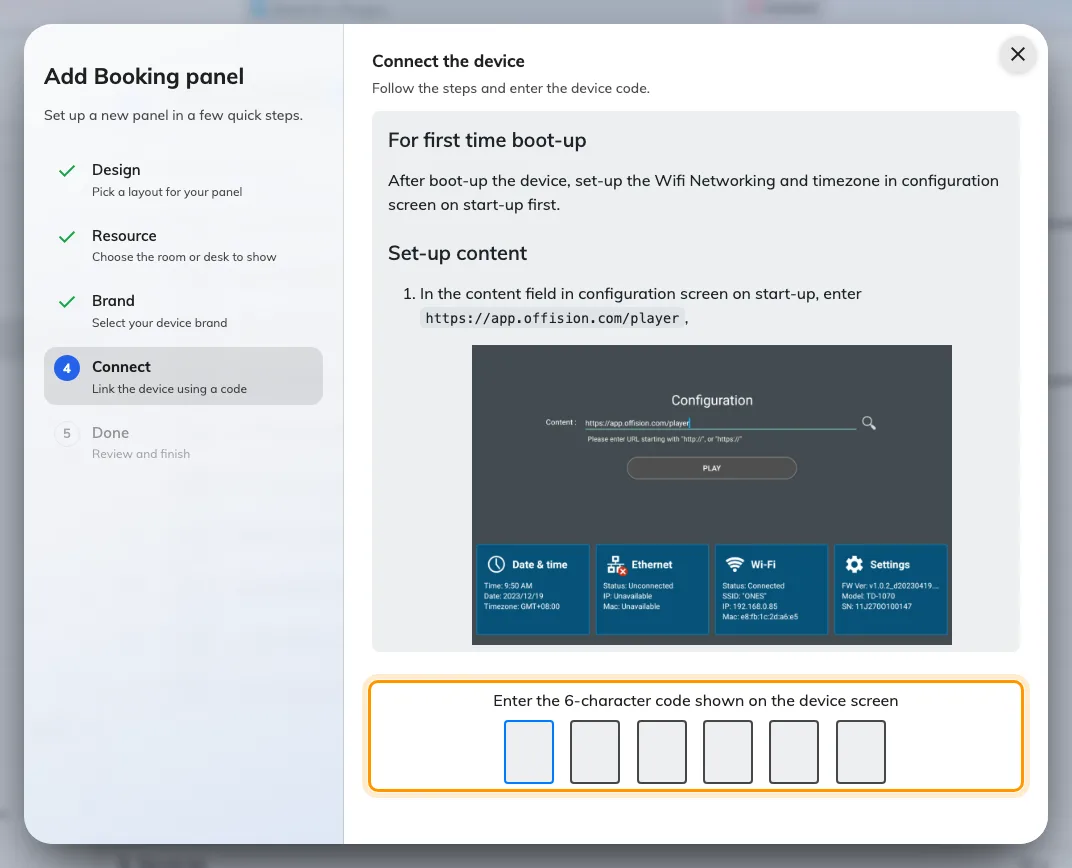
The Qbic guideline, and the field that claims the panel.
The rest of the wizard, and the pass code every new panel raises afterwards, are covered in Connect a booking panel to Offision — including why that pass code should be changed before the panel goes up.
5. Check it worked
Within a few seconds the panel stops showing the code and starts showing the room. Its row in Devices › Booking panel › Devices goes online within a minute.
Then prove it end to end, twice:
- Book the room for yourself and watch the panel change while you are standing at it, light bar included.
- Tap a card on the panel’s face, if you ordered it with the reader. A panel whose reader has never been tested is a panel nobody finds out about until the first Monday morning. The panel’s own console shows the number of the card just tapped, which is the number to enrol — see Read a card number at the panel.
The desk panel
A TD-0360 is the same idea at desk size: a 3.6-inch square screen that runs off USB from the desk rather than PoE, so it can go on a desk that has a socket but no network drop.
It pairs through the same wizard, with two differences: choose the desk panel kind rather than the room one, and pick Qbic desk panels in the certified grid instead.
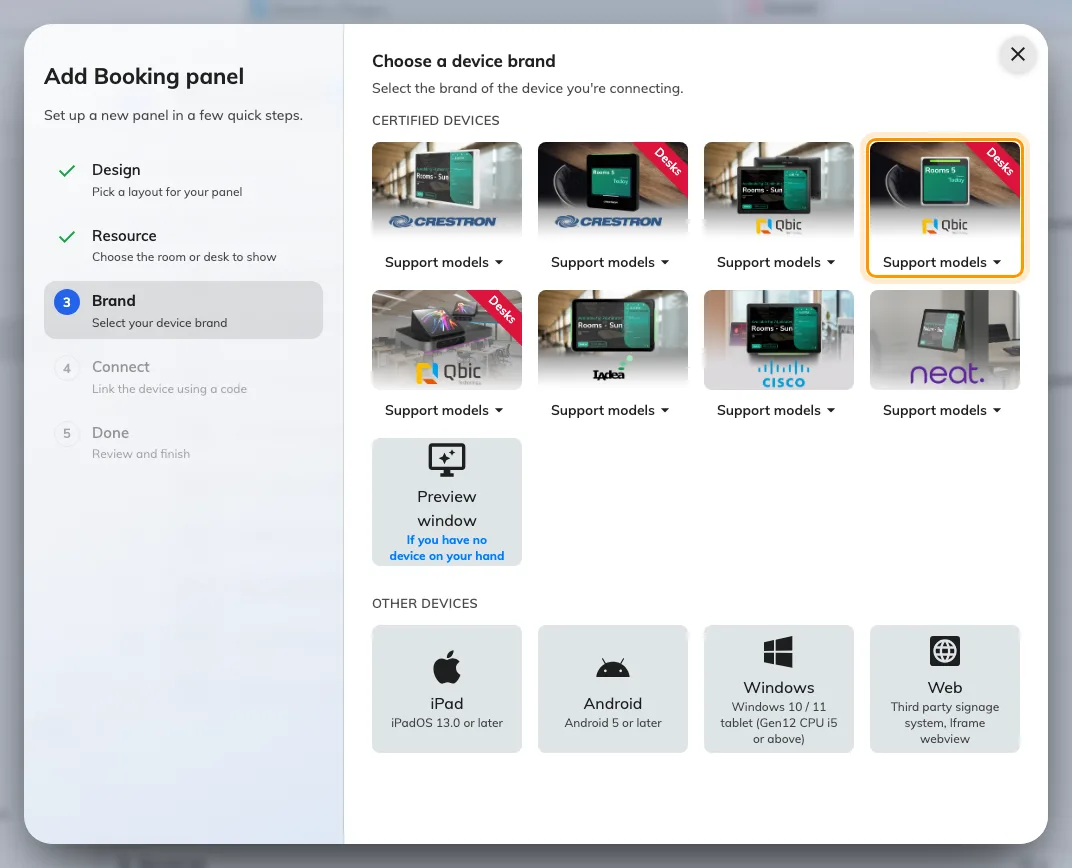
Qbic desk panels, fourth in the grid — the tile the TD-0360 pairs through.
The TD-0350 pairs through the same tile. The TDD-1000 is a dock as well as a panel — the USB-C cable that powers it charges the laptop plugged into it — and has a tile of its own, Qbic docking.
When it goes wrong
| What you see | Usual cause |
|---|---|
| The panel does not power on | The port is PoE but not PoE+, or the switch’s power budget is spent. A TD-1070 asks for 25 W |
| The panel boots but never reaches Offision | It has no address, or your network is not letting it out — see Put Offision devices on a locked-down network |
| No pairing code, just a browser home page | The player address was not opened, or the app was installed but never launched |
| The pairing code is refused | Read it off the panel again rather than retyping what you noted down. A panel that has slept or restarted is showing a different one |
| The panel shows a room or a board, and no pairing code | It is still claimed by an earlier record. Disconnect it there first — see Reuse a panel that was set up for something else |
| The panel is online but the light bar stays dark | The panel came up as a plain browser player: its local API did not answer the first probe, and the answer is cached. Reload the page on the panel |
| A tapped card does nothing | The panel is in a browser rather than the app, or the card is HID and the panel is not an H model. See A card tap does nothing |
| HID cards read as the wrong number | A Qbic panel returns the card’s serial, not the facility code and card number printed on it. Enrol from a tap, not from the printing |
| The panel is online but the room is wrong | The room is chosen in the wizard, before the code. Change it on the panel’s own row rather than re-pairing the device |
What this does not do
- It does not manage the panel. Firmware, brightness, the network and the kiosk launcher stay in the panel’s own Android settings. Offision knows about the player that paired, not about the box.
- It does not decide what the panel can do. The brand tile chooses which installation guideline you are shown. What the panel is capable of comes from the hardware and from whether it is running the app — see Which booking panel hardware Offision supports.
- It does not cover signage. A Qbic player driving a wall screen is a different device kind with a different wizard — see Show signage on a Qbic screen.