

Show signage in a third-party system or web view
Point another signage system's web page zone at the Offision player address and claim it with six characters — no app installed. What a web view can and cannot play, why uploaded video never starts, and why some screens ask to pair again.
A signage system you already run, a room system, a kiosk shell — anything that will load a web page and keep it on screen can show Offision. Nothing is installed. The other system opens one address, the player appears inside it and shows six characters, and the console claims it like any other screen.
This is the console’s Web tile, and what it lists under Support models says what it is for: Third party signage system, Iframe webview.
A web view is also the thinnest way to run the player. It has no storage of its own, so what it can play is narrower than what an installed app can — and the gap is silent rather than noisy. Read What a web view cannot play below before you plan a screen around it.
What to have ready
- A system whose web view is Chromium-based and reasonably current. Offision’s floor is Chrome 72; below it the player shows an unsupported-browser page rather than the content
- The zone or page in that system that you can point at an address, ideally full screen
- In Offision, an account that can manage signage and devices, and a piece of signage content already built
- About fifteen minutes
1. Point the zone at Offision
In the other system, set the page or zone to open this address:
https://app.offision.com/player
Nothing else goes in the address — no tenant, no board, no token. The player works out which tenant it belongs to from the pairing, not from the URL.
2. Read the six characters off the screen
The zone shows the player’s registration screen: six characters, and a note of where to claim them.
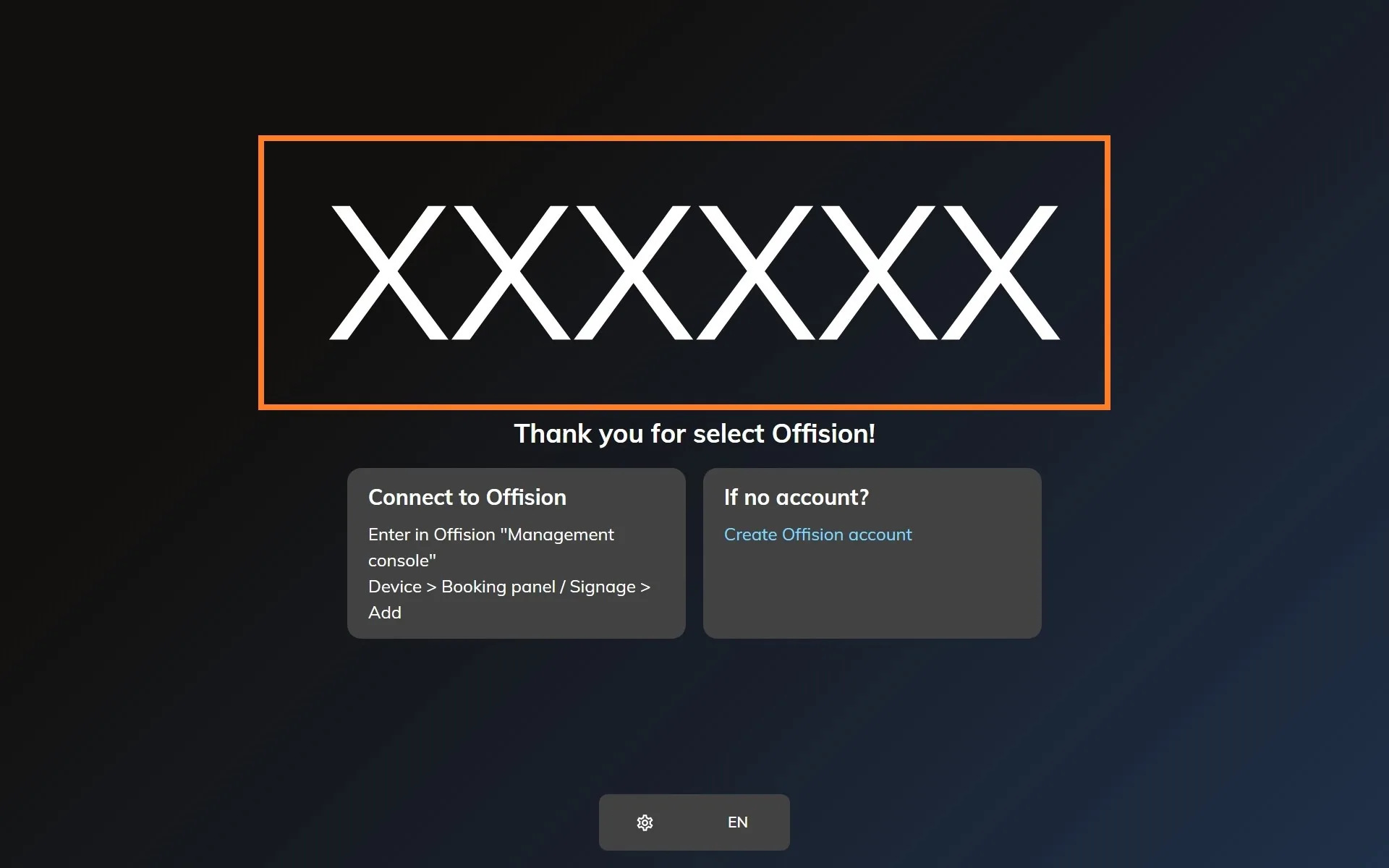
The player waiting to be claimed, running inside the other system's page.
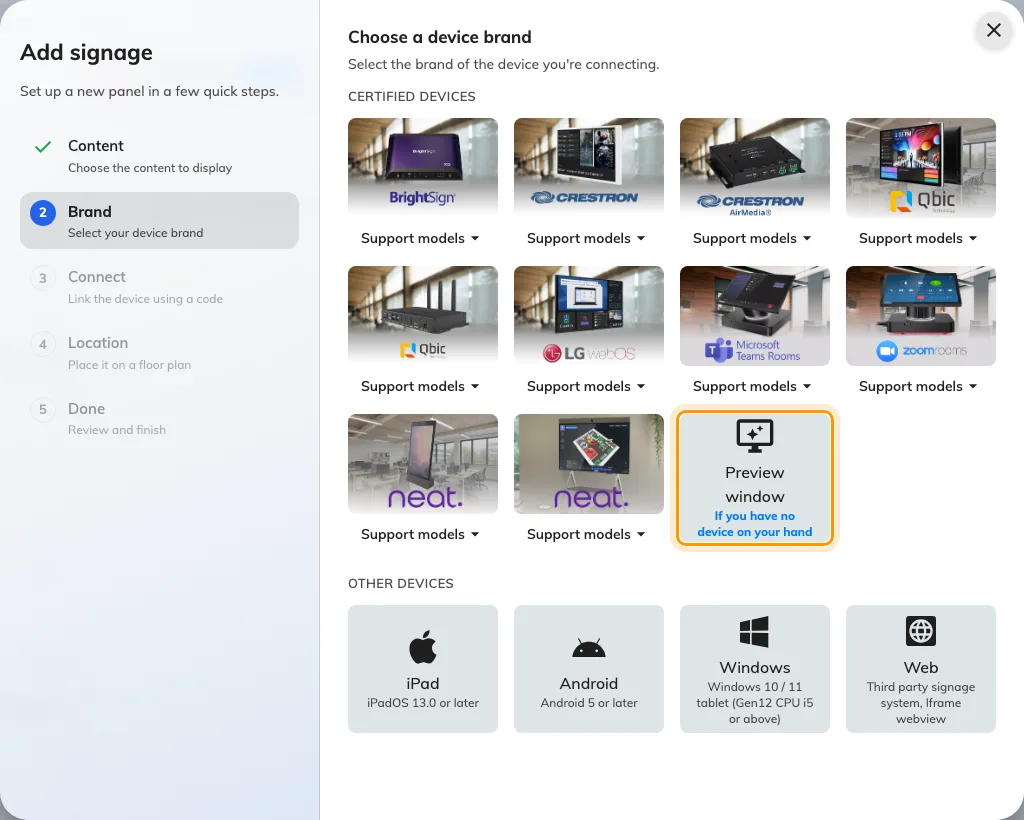
Preview window, after the certified brands — a player in a tab, with a code that is not the screen's.
3. Add the device in the console
In the console, go to Devices › Signage › Devices and choose Add.
Open Signage devicesThe wizard’s steps — the content, the brand, the code and the location — are the same for every screen, and are covered in Connect a signage screen to Offision. At the Brand step, take Web, last in the Other devices row under the certified tiles.
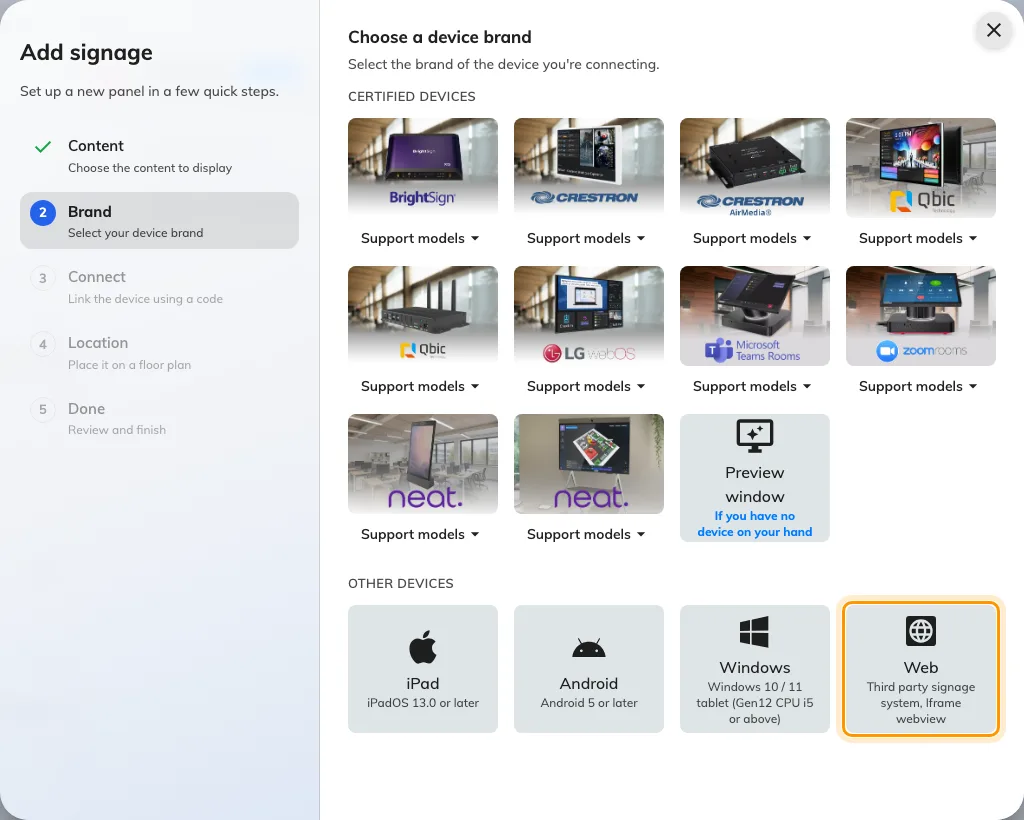
Web — third party signage system, iframe webview — last in the Other devices row.
4. Claim it with the code
The tile’s own short guideline opens beside the code field, carrying the same address. Type the six characters from the screen; it submits itself on the last one.
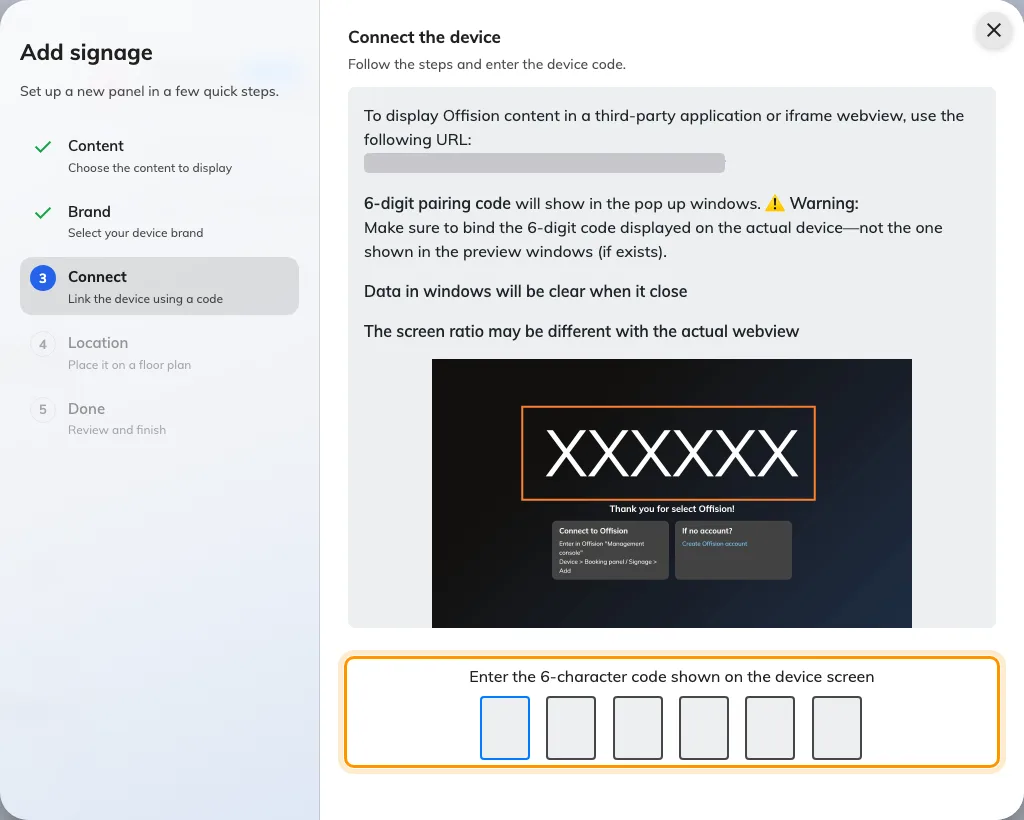
The Web guideline, and the field that claims the screen.
What a web view cannot play
The player keeps content on the device and plays the local copy, which is what lets a screen keep running through a network outage. A web view has nowhere to put a file, and the consequences are not errors — they are things that quietly never happen:
- An uploaded video never starts. Its poster image stays up and the design carries on around it. Nothing about this depends on the file, so re-exporting it or making it smaller changes nothing. Put the clip on YouTube and use the YouTube widget instead, which streams and plays either way.
- Sound never plays by itself. A browser will not unmute a clip that started without somebody touching the screen.
- Images and PDFs still show, fetched from the cloud as they play rather than from local storage — so a screen that loses the network loses the content until it is back.
Where the content is a video loop, install the app on the device instead of using its web view.
Check it worked
Within a few seconds the zone stops showing the code and starts playing the content. Then confirm both halves: the content is playing on the screen, and it appears in Devices › Signage › Devices and reports online.
Then restart the screen the way it will really restart — a power cycle, not a page refresh — and watch what comes back. A web view that keeps its site data returns straight to the content. One that clears it comes back asking to be paired again, and that is the thing worth knowing on day one rather than in a month.
When it goes wrong
| What you see | Usual cause |
|---|---|
| A code again after every restart | The web view clears its site data on close. The pairing is kept there, so the screen comes back as a new device. Claim it onto its existing row rather than adding a second, or use a system that keeps site data |
| An unsupported-browser page, or a blank zone | The web view is older than Chrome 72 |
| The code is refused | Read it off the screen again rather than retyping what you noted down. The code lives on an open connection, so a screen that has slept, reloaded or lost the network since is showing a different one |
| A video stuck on its poster image | Uploaded video does not play in a web view. Use YouTube, or install the app |
| The design is cut off, or letterboxed | The zone’s shape is not the content’s. The design is drawn to whatever the zone gives it — size the zone, or build the content to match |
| Two screens playing the same code’s content | A preview window was claimed instead of the screen |
What this does not do
- There is no board or content address to point at. The player address is the only one that works. A board opened on its own answers that it can only be displayed on a player device, and there is no share link to hand out.
- It does not save a device licence. A web view is a signage device like any other and holds one while it is paired.
- No hardware reaches it. No light bar, occupancy sensor, card reader or label printer, and no remote reboot — those come from a device vendor’s own bridge, and a third-party system has none.
- Full screen, kiosk and keeping the display awake are the other system’s job. Offision cannot take a screen full screen on its own.