

Make the text on a room panel larger
Make a booking panel easier to read from across the room or for someone with low vision — Text size for the room name and status, Timeline text size for the bookings in the schedule, and the display scale on the panel itself. Both text settings apply to the Scheduling design only.
Two settings make a booking panel’s text bigger, and neither one scales the whole screen. Text size sizes the room’s name and its status line, the words people read from the corridor. Timeline text size sizes the bookings in the schedule down the right-hand side, which people read standing at the panel. Both are settings of the panel’s configuration, and both apply to the Scheduling design only.
1. Open the panel’s configuration
Open Panel configurationsSelect the configuration the panel is on and open it with the edit action. It opens on Room booking panel: a live preview, with the groups of settings underneath.
2. Room name and status — Text size
Open Room details, the fourth group. Text size is its first row, with four choices: Maximize, Large, Normal and Small.
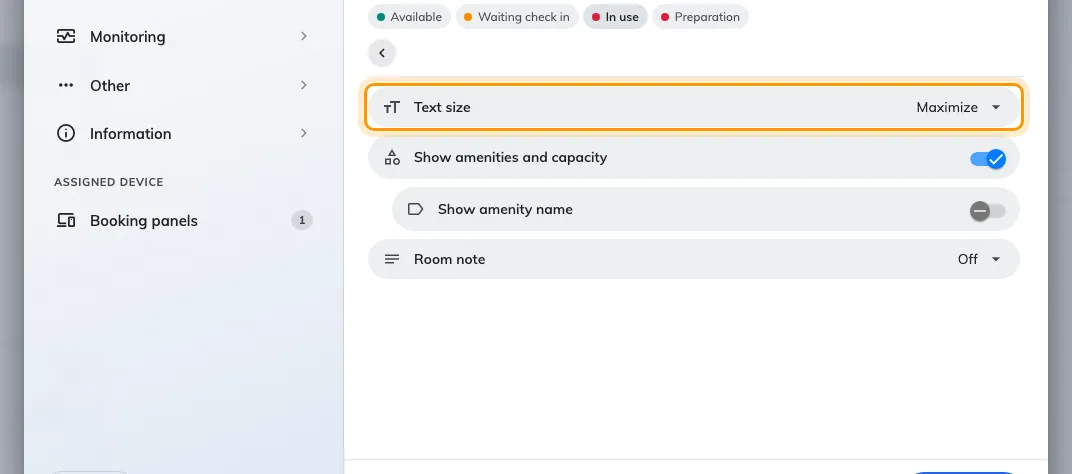
Room details, with Text size — Maximize, Large, Normal or Small — as its first row.
Maximize is the default, and it is usually already the largest. It does not pick a size: it fills the space the panel gives the room name, so a short name is drawn as large as that space allows. The catch is that a long name shrinks to fit. Large, Normal and Small are fixed sizes, the same for every room.
- For the largest possible text, leave Maximize on.
- If some rooms have long names that come out small, choose Large. Every name is then drawn at one size, and a long one wraps instead of shrinking.
The same setting sizes the status line under the name: Available, the time the room is free for, and the other room states. It does not size the meeting’s title. While a meeting is waiting for check-in or in progress, its title becomes the main text and the room name drops to a small label, whatever this is set to.
3. Bookings in the schedule — Timeline text size
Open Timeline & clock, the sixth group. Timeline text size has three choices: Normal, Large (a quarter larger) and Extra large (half as large again). Choose Extra large for a panel people read up close. The setting is there from 4.5.12.
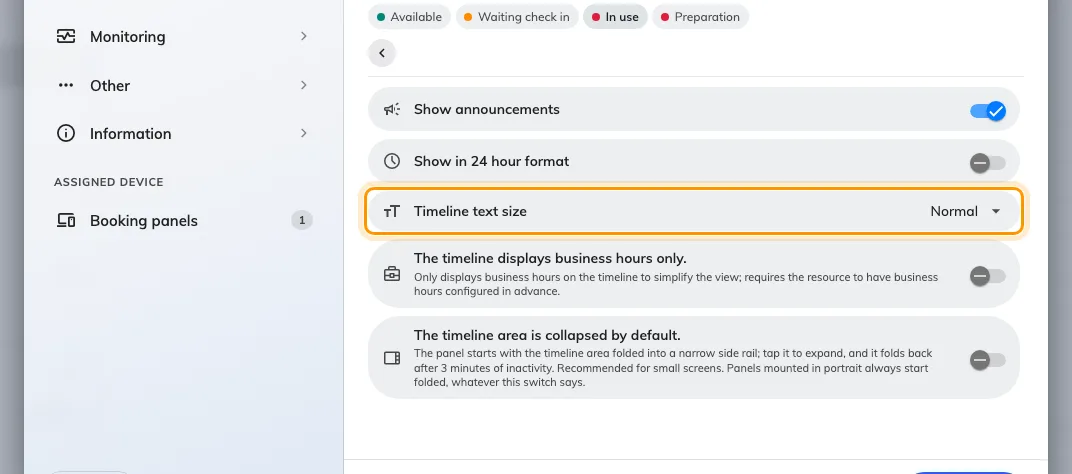
Timeline & clock, with Timeline text size — Normal, Large or Extra large.
It enlarges each booking’s subject, organizer and time. The hour labels and the marker for the current time stay the same size.
4. Save and check the panel
Save. If other panels use the configuration, a prompt lists them: read the list before confirming. The panel redraws within a few seconds.
Check it from where people actually read it, across the corridor for the room name and at arm’s length for the schedule.
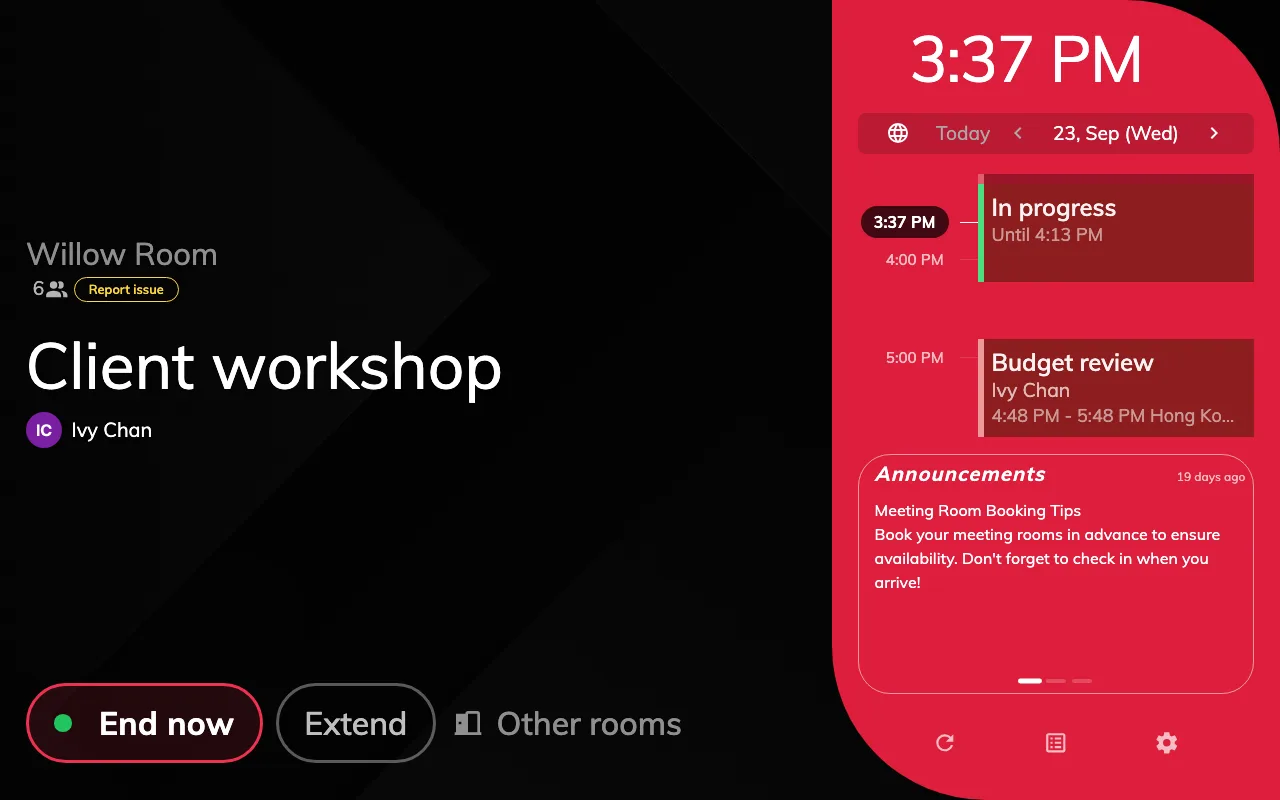
A panel with Timeline text size on Extra large. The schedule's bookings are half as large again; the hour labels are unchanged.
When the whole screen should be bigger
Change scale, in the manager console on the panel itself, magnifies everything on that one device: text, buttons and schedule together. It works on either design. The trade-off is space, because a larger scale fits less on the screen and a panel that fitted can stop fitting. It is a setting of the device, not the configuration, so it has to be set on each panel. Auto is the scale the panel picks for itself; see The panel is too cramped on a small screen for how to read the list.
What this does not change
- The Center design. Neither setting applies there. Center draws one column of text and sizes it from the text’s length, so a short room name comes out very large and a long one smaller.
- Small screens. A screen 560 pixels wide or narrower, or under 480 tall, switches to a compact one-column layout that ignores both settings.
- Colour and contrast. The panel has no high-contrast or theme setting. Status colours changes which colour each room state uses, not the text — see What the panel’s colours mean.
- The font. The typeface is chosen under Background & logo, and it applies to the whole panel.
- Text size in the app. The Font size a person chooses in their own Preferences (Normal, Large or Extra large) scales the app in their browser, not the panels — see Change your language, theme and time format.
- Signage screens. Text on signage is sized by the Font size of the signage design — see Widgets and the places they go.