

Connect an IAdea room booking panel
A WRP-1000 takes PoE+ and claims itself with a six-character code. Includes the card reader built into its face — the only one Offision supports that returns an HID facility code rather than a serial number.
An IAdea panel is an Android screen with an Ethernet port on the back, and it arrives knowing nothing about Offision. There is no vendor cloud to enrol it in and no second account to hold: you power it, you get the Offision player onto its screen, and you claim it with a six-character code.
The one decision worth making before you start is how the player gets onto the screen — as an installed Android app, or in the panel’s own browser. The built-in card reader is the app’s, which on these panels is most of the reason to buy them. That decision is Run the player as an app or in the browser.
What to have ready
- An IAdea panel. The certified models are the WRP-1000 and the XDS-1078-A9
- A switch port with 802.3at PoE+
- Network the panel can reach your Offision server from
- About twenty minutes
The card reader is the reason to buy one
Both panels read a staff card on their own face, bottom centre, with nothing plugged in and nothing on the wall beside them. What makes IAdea different from every other panel Offision supports is what comes back.
An IAdea panel decodes an HID Global card’s facility code and card number. Every other certified panel returns the card’s serial number instead — a different number, and not the one printed on the card. If your organisation already issues HID cards and holds their printed numbers, this is the panel that matches what you have.
Two things to settle at the order stage, because neither can be changed afterwards:
- The WRP-1000-A reads 13.56 MHz cards.
- The WRP-1000-H reads both 13.56 MHz and 125 kHz, and is the HID one. It is a separate part number; a panel on the wall cannot be upgraded to it.
Whichever you order, enrol one card and tap it before importing the rest — Read a card number at the panel is how you see what the panel made of it. What a tapped card then does is in Check in by tapping a staff card, and the other ways somebody can identify at a panel are in How somebody proves who they are at the panel.
1. Power it and put it on the network
Mount the panel and take it back to a PoE+ port. It boots into Android.
Give it an address — DHCP over the Ethernet port is the normal answer, and the panel’s own settings are where a static one goes.
2. Get the player onto the screen
A new IAdea panel starts on its own setup: tap the screen while it shows the PAUSE mark, accept the first page, and work through Network and Scheduling for the address and the time zone. Then choose Set content and give it the player address:
https://app.offision.com/player
That is the browser route, and it is the one the guideline in the wizard walks through. The other route is to install the Offision Android app on the panel instead, which is what makes the built-in reader — and its HID facility codes — work at all; see Run the player as an app or in the browser.
Either way the panel ends up showing a six-character pairing code, waiting to be claimed.
3. Add the panel in the console
Go to Devices › Booking panel › Devices and choose Add.
Open Booking panelPick Room booking panel, then the room this panel will show, then IAdea panels under Certified devices.
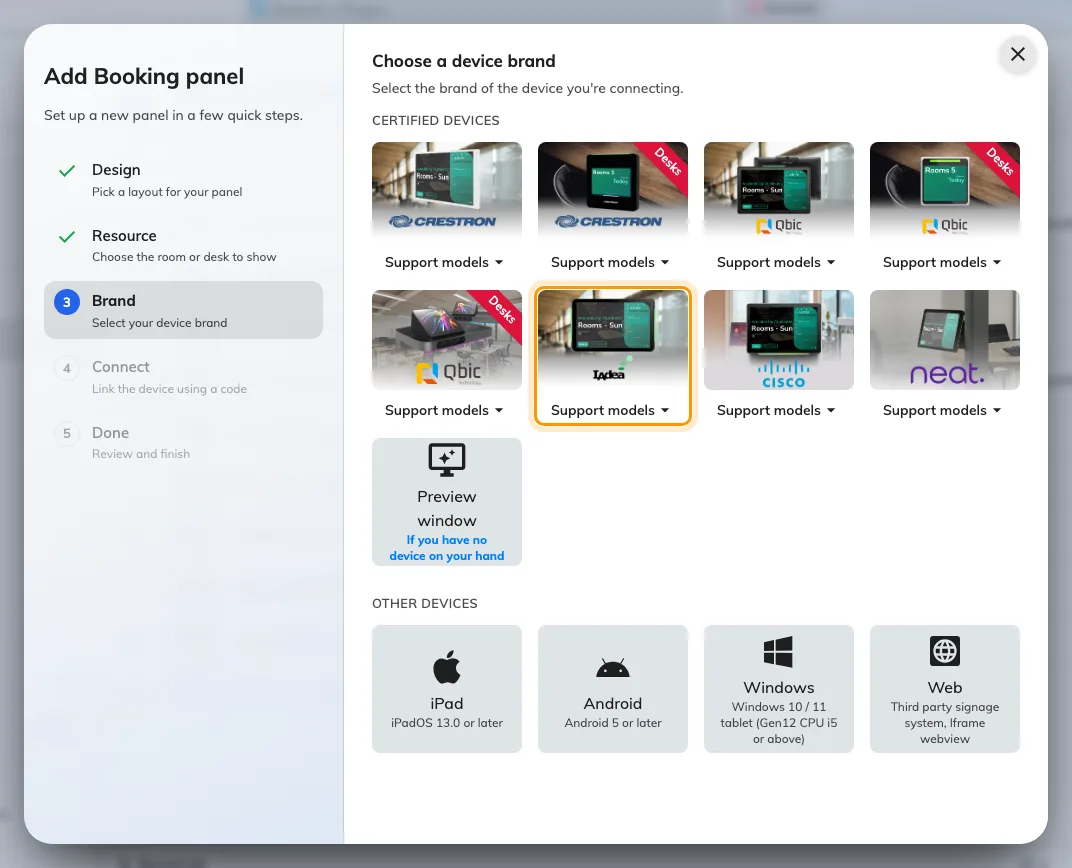
IAdea panels, sixth in the certified devices grid.
That one tile covers both certified models — WRP-1000 and XDS-1078 — and its Support models button links each of them to IAdea’s own page.
4. Claim it with the code
Choosing the tile opens IAdea’s own installation guideline beside a single field. Type the six characters showing on the panel; the field submits itself on the last one.
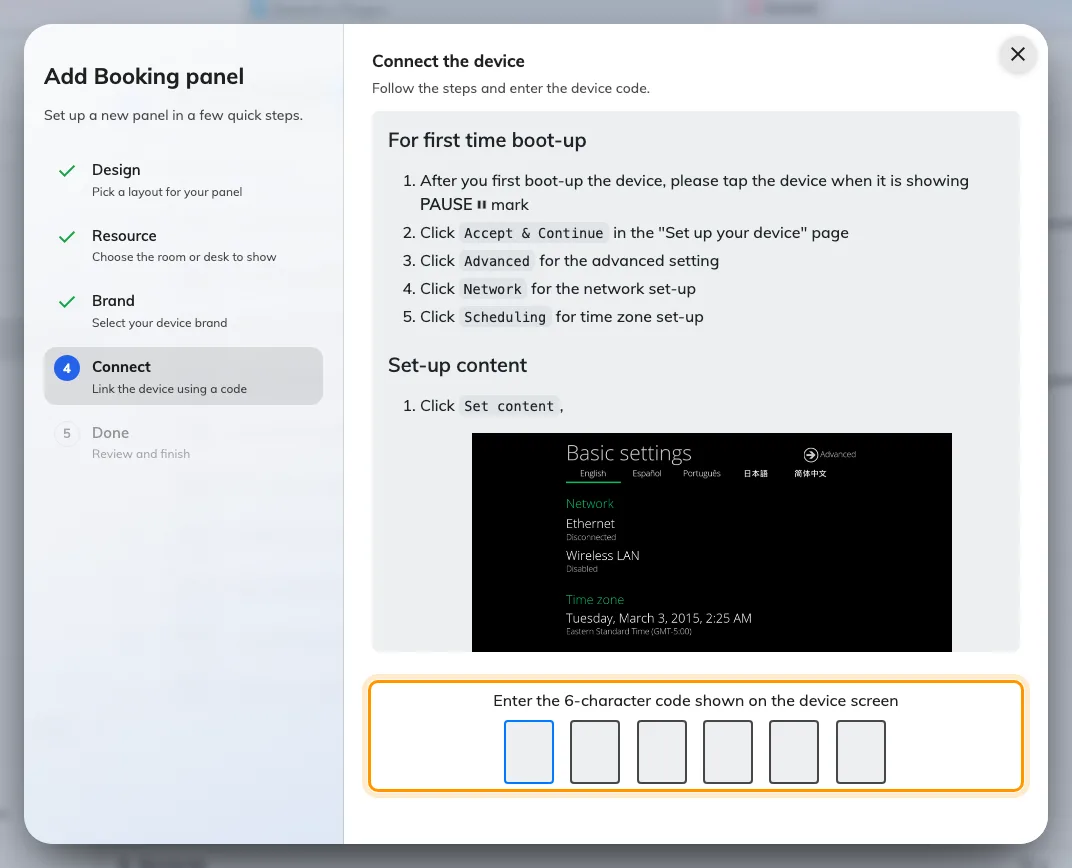
The IAdea guideline, and the field that claims the panel.
The rest of the wizard, and the pass code every new panel raises afterwards, are covered in Connect a booking panel to Offision — including why that pass code should be changed before the panel goes up.
5. Check it worked
Within a few seconds the panel stops showing the code and starts showing the room, and its row goes online within a minute.
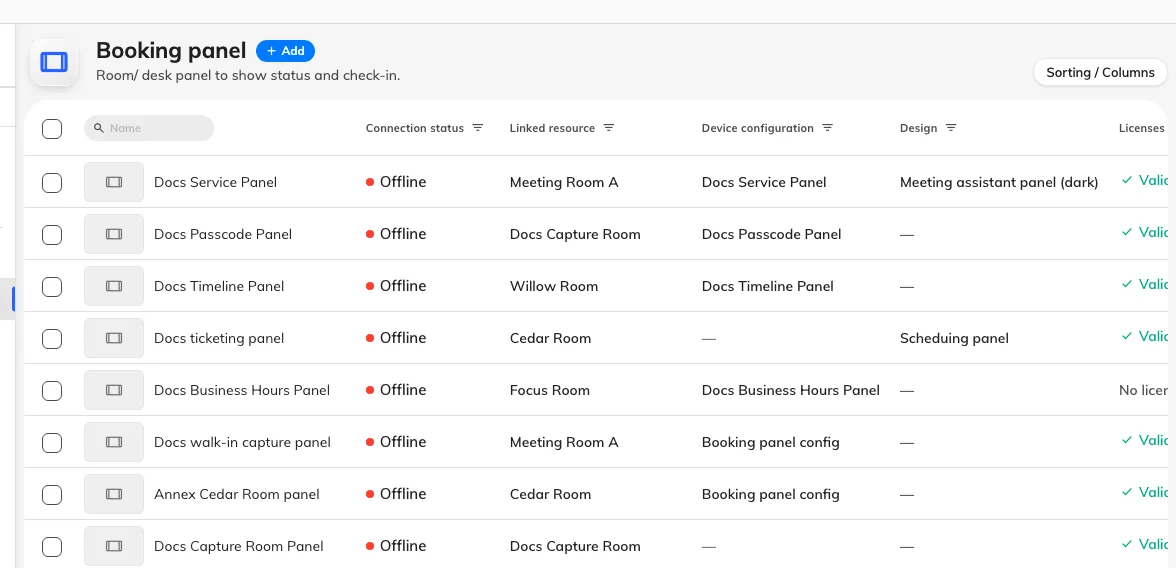
The booking panel list. Connection status is where a paired panel reports in.
Then prove it end to end, twice:
- Book the room for yourself and watch the panel change while you are standing at it, side lights included.
- Tap a card on the panel’s face and confirm the number Offision records matches the card. The panel’s own console shows what it read — see Read a card number at the panel. On an H model that number is the facility code and card number; if it is a long serial instead, the panel is reading through a USB reader or is not an H model.
When it goes wrong
| What you see | Usual cause |
|---|---|
| The panel does not power on | The port is PoE but not PoE+, or the switch’s power budget is spent |
| The panel boots but never reaches Offision | It has no address, or it cannot reach your server. This is between the panel and your network |
| No pairing code, just a browser home page | The player address was not opened, or the app was installed but never launched |
| The pairing code is refused | Read it off the panel again rather than retyping what you noted down. A panel that has slept, restarted or lost the network is showing a different code, or the cannot-connect message in place of one |
| The panel shows a room or a board, and no pairing code | It is still claimed by an earlier record. Disconnect it there first — see Reuse a panel that was set up for something else |
| The panel is online but the side lights stay dark | The panel came up as a plain browser player: its local API did not answer the first probe, and the answer is cached. Reload the page on the panel |
| A tapped card does nothing | The panel is in a browser rather than the app, or the card is HID and the panel is not an H model. See A card tap does nothing |
| HID cards read as a long serial | The tap went through a USB reader, not the panel’s own. Only the built-in reader decodes the facility code |
| The panel is online but the room is wrong | The room is chosen in the wizard, before the code. Change it on the panel’s own row rather than re-pairing the device |
What this does not do
- It does not manage the panel. Firmware, brightness, the network and the kiosk launcher stay in the panel’s own Android settings.
- It does not read a badge with the camera. The panel’s camera is what Face identification uses; nothing here scans a printed badge, and the QR method works the other way round — the panel shows the code and the person scans it. Both are in How somebody proves who they are at the panel.
- It does not decide what the panel can do. The brand tile chooses which installation guideline you are shown. What the panel is capable of comes from the hardware and from whether it is running the app — see Which booking panel hardware Offision supports.