

Show signage on a Windows screen
A Windows PC driving a display plays signage through the Offision desktop app's Panel mode. Where Panel mode sits, and the Windows settings — sign-in, startup, sleep — that decide whether the screen comes back on its own.
A Windows machine wired to a display — usually a small PC behind the screen — shows signage through the Offision desktop app. The app carries a Panel mode that hands the whole screen over to the player: the same player a certified signage screen runs, playing the same content and pairing with the same six characters.
Because the app is installed, the screen keeps its content on the machine rather than fetching it as it plays. An uploaded video is downloaded once and then plays from local storage, so the loop survives a network outage.
What to have ready
- Windows 10 or 11, on a 12th-generation Core i5 or above — what the console lists under Support models for this tile
- The display connected, and a network the machine can reach Offision on
- In Offision, an account that can manage signage and devices, and a piece of signage content already built
- About twenty minutes, including one restart to prove it comes back
1. Install the desktop app
offision.exe2. Turn on Panel mode
Open the app and, without signing in, choose Panel mode — on Windows it is at the top left, not the right. Signing in first is the common wrong turn: an account signs a person in, and what you are setting up is a device.
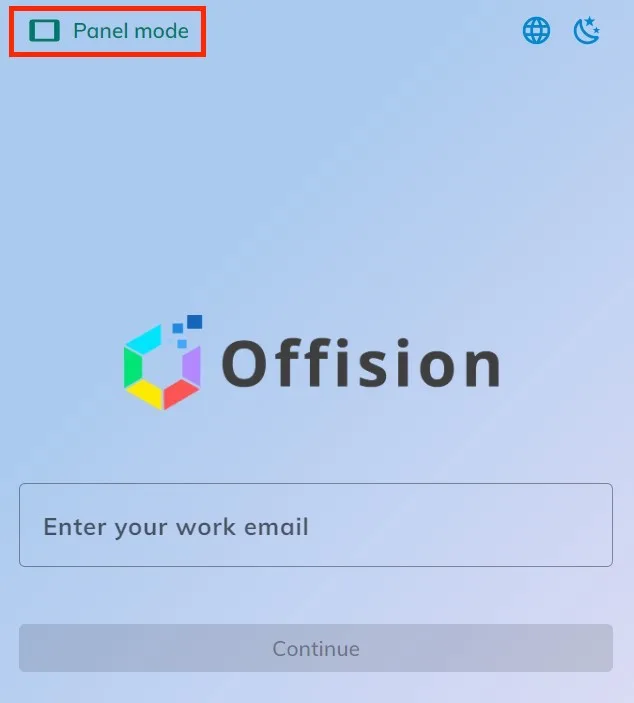
Panel mode, at the top left of the desktop app before anyone signs in.
The window turns over to the player and shows a six-character registration code. Leave it there.
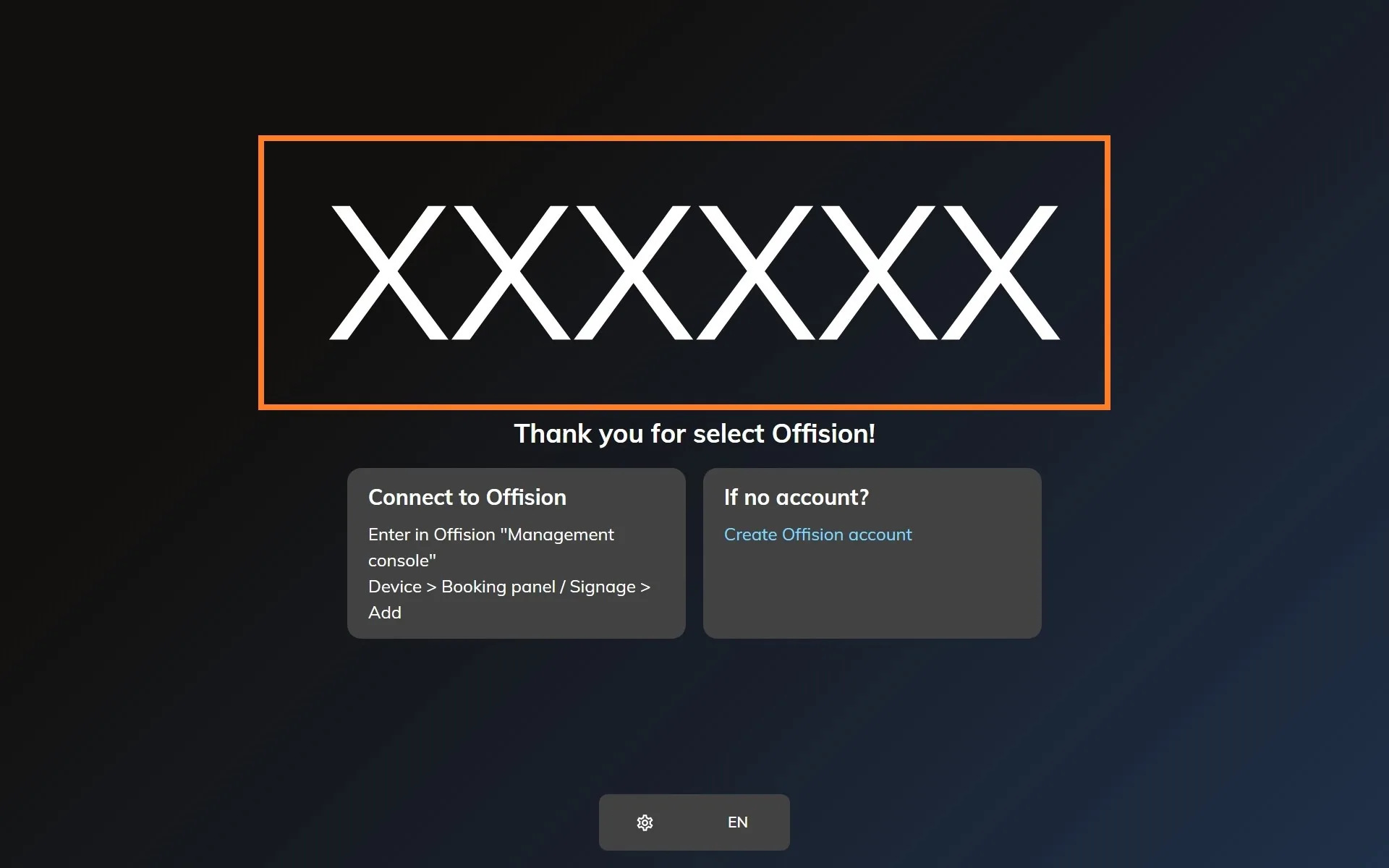
The player waiting to be claimed. The six characters are what the console asks for.
3. Add the device in the console
In the console, go to Devices › Signage › Devices and choose Add.
Open Signage devicesThe wizard’s steps — the content, the brand, the code and the location — are the same for every screen, and are covered in Connect a signage screen to Offision. At the Brand step, take Windows, in the Other devices row under the certified tiles.
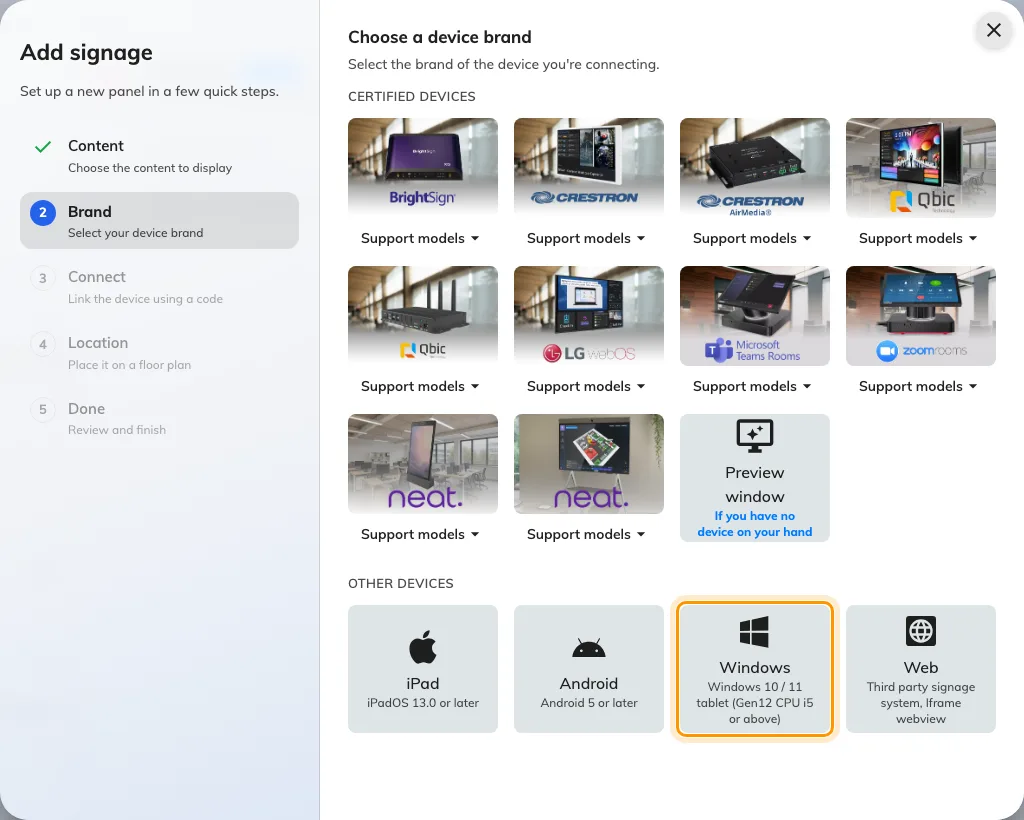
Windows, third in the Other devices row.
4. Claim it with the code
The tile’s own short guideline opens beside the code field. Type the six characters from the screen; it submits itself on the last one.
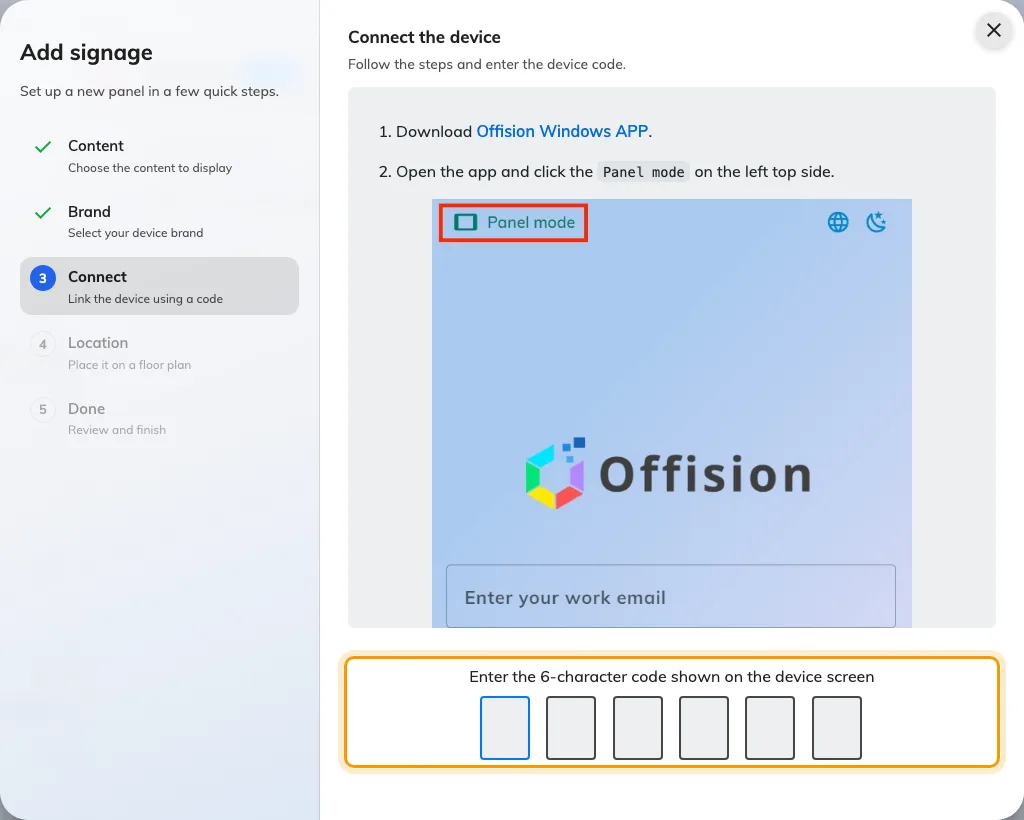
The Windows guideline, and the field that claims the screen.
5. Make it come back by itself
Offision cannot take a machine past the lock screen or launch itself after a power cut. Three settings on the PC decide whether the screen recovers unattended:
- Sign the account in automatically, so a restart reaches the desktop.
- Add the Offision app to startup, so reaching the desktop reaches the player.
- Turn off sleep and the screen saver for both the display and the machine.
Check it worked
Within a few seconds the screen stops showing the code and starts playing the content. Then confirm both halves: the content is playing, and the screen appears in Devices › Signage › Devices and reports online.
Then restart the machine and walk away. A signage PC is one nobody visits, so the only setup worth trusting is one that reaches the content with no password and no click.
When it goes wrong
| What you see | Usual cause |
|---|---|
| A sign-in form with no Panel mode button | That is Offision in a browser, not the installed app. Panel mode exists only in the app |
| The code is refused | Read it off the screen again rather than retyping what you noted down. The code lives on an open connection, so a machine that has slept or restarted since is showing a different one |
| The lock screen, after a restart | The account does not sign in automatically |
| The desktop, after a restart | The app is not in startup |
| A black display after a while | Sleep or the screen saver is still on — for the display, the machine, or both |
| A window with a title bar rather than a full screen | The player was opened but not left in Panel mode. Re-enter it from the app |
What this does not do
- It does not give the screen any hardware. No light bar, no occupancy sensor, no card reader — those come from a panel vendor’s own bridge, and a PC has none.
- It is a signage screen, not a booking panel. It plays content; it does not take a check-in at the door.
- It does not save a device licence. A paired screen holds one exactly like any other.
- Offision does not manage the machine. Windows updates, restarts and the account it signs in as are yours, and an update that restarts at midnight is the commonest reason a screen is blank in the morning.