

Show signage on a Crestron AirMedia screen
The AirMedia receiver already owns the room's big screen. Point its own signage setting at Offision and it plays your content between presentations — with the one layout switch that keeps the box's connection card off your content.
An AirMedia receiver is already the thing driving the screen at the end of the room, and it already has a digital signage setting of its own. Point that setting at Offision, and the screen that spends most of the day showing a join code spends it showing today’s bookings instead — then hands itself back the moment somebody presents.
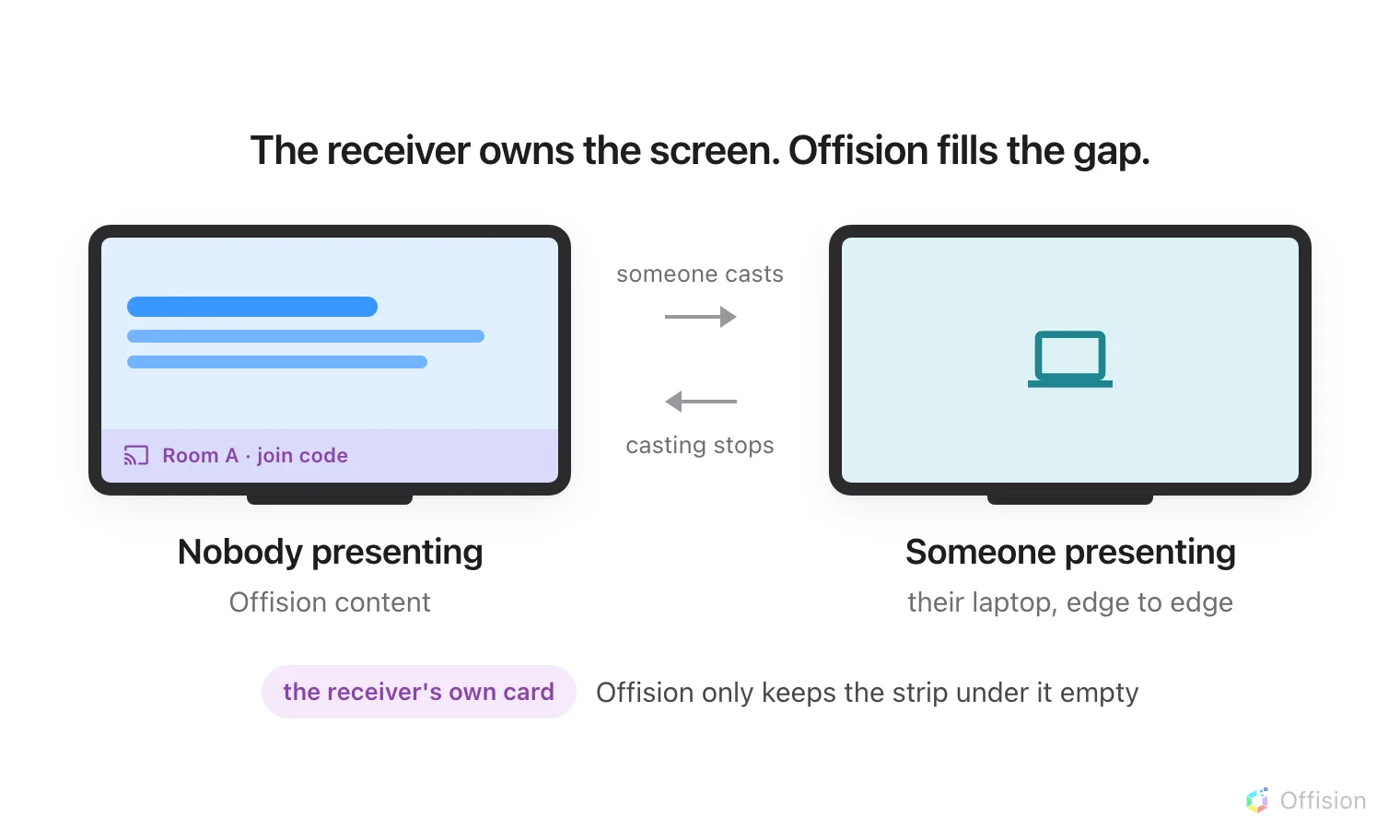
The AirMedia owns the screen throughout. Offision is only what it chooses to show while nobody is presenting.
What to have ready
- An AirMedia receiver on the supported list below, powered up and on the network
- Its own web address, and an administrator sign-in for it. On a receiver nobody has configured yet, the first visit to that page is where you set one
- The room’s screen connected to the receiver’s HDMI output and switched on
- About twenty minutes, plus one reboot of the receiver
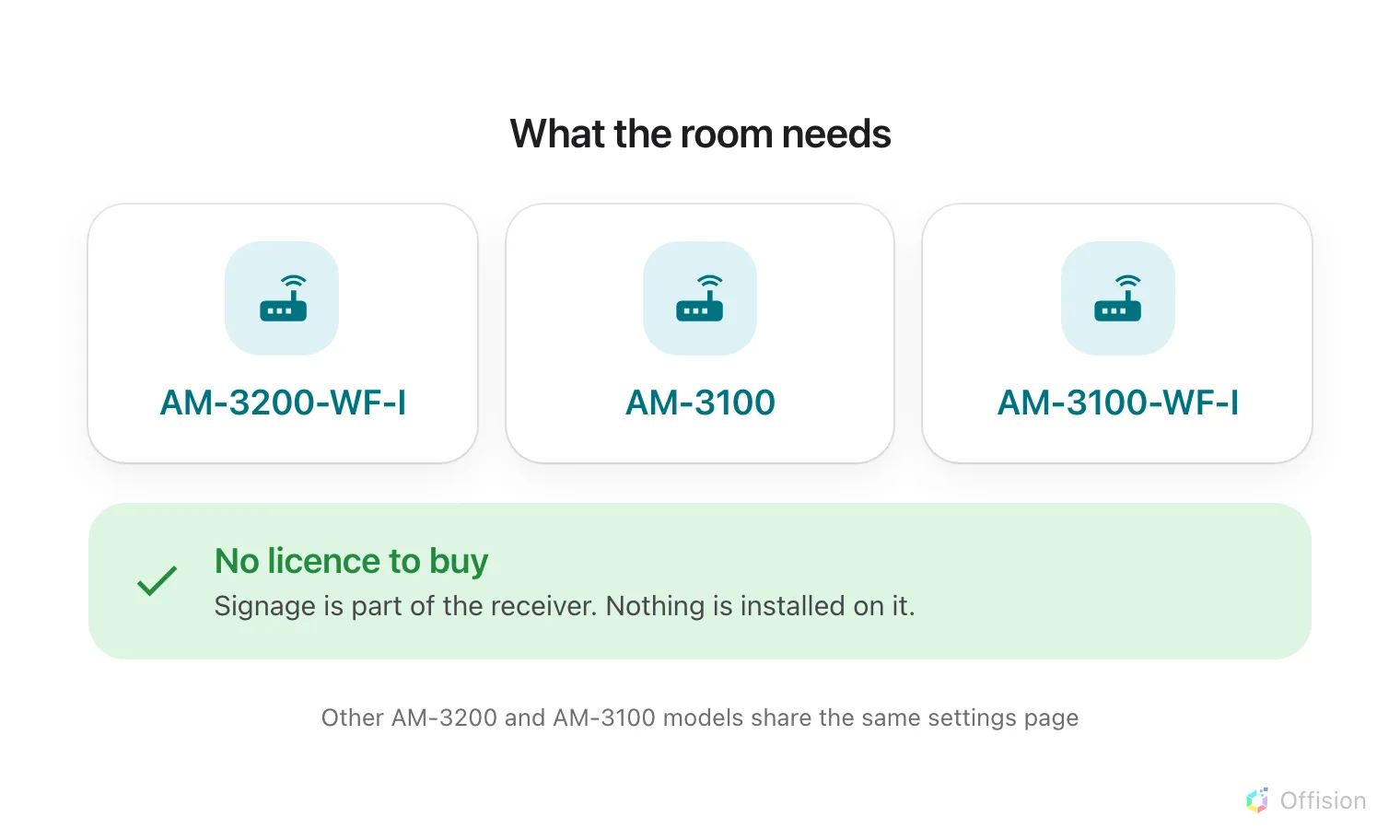
Signage is built into the receiver. There is nothing to buy from Crestron and nothing to install on it.
The receiver models Offision is certified against are AM-3200-WF-I, AM-3100 and AM-3100-WF-I. Other members of the AM-3200 and AM-3100 families share the same settings page and behave the same way; they are simply not the ones tested.
1. Build the content
Signage content is a design, not a screen, and it exists before any hardware does. Create it first — see Build signage content for the whole of this step.
Choose the Wireless sharing idle screen purpose. It exists for exactly this room: it skips the screen question altogether, because a receiver’s output is always a 43-inch landscape 16:9 wall, and it starts you with a schedule beside the content rather than a lobby welcome.
Open Signage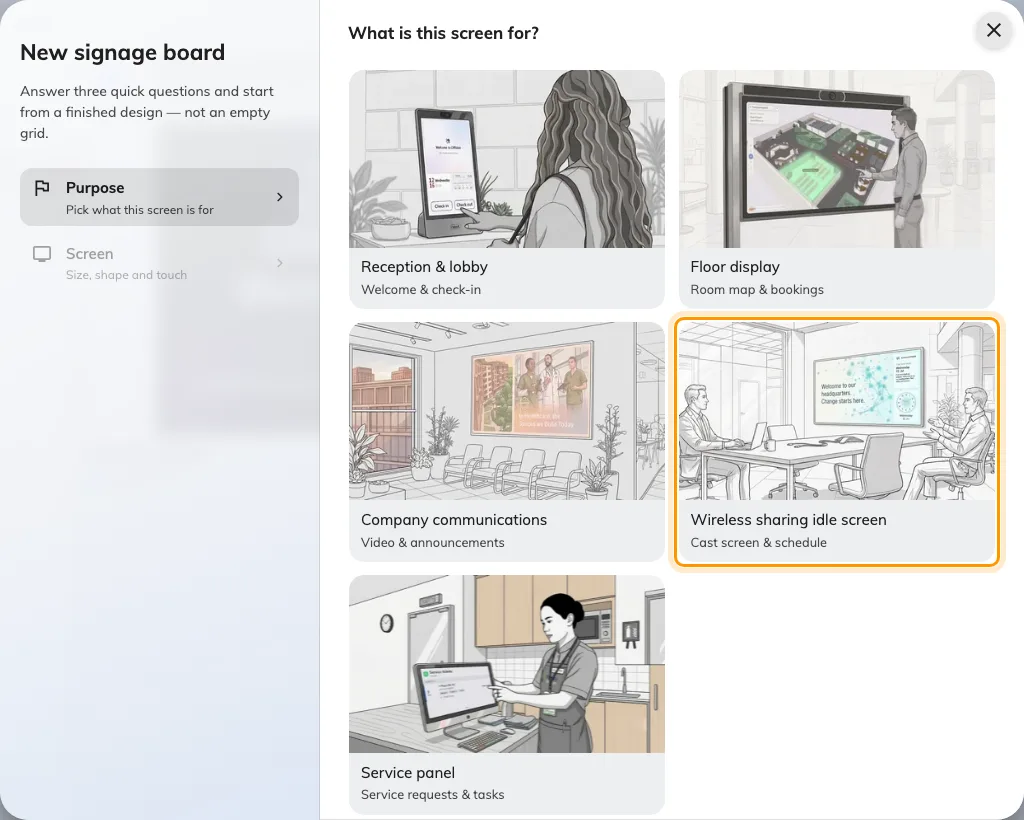
Wireless sharing idle screen, the fourth purpose.
2. Keep the bottom strip clear
The receiver paints its own connection card — the room name and the code to join — across the bottom of the screen. That card is not something Offision draws, and it is not something Offision can move.
Turn on Reserved area on the content’s Layout page. It keeps the bottom strip of the main stage empty so the card has somewhere to land that is not on top of your content. Nothing else shrinks. See Change a layout for where the switch is and what it does to the rest of the design.
The Wireless sharing idle screen purpose turns it on for you. Check it anyway if you started from a different purpose, because the switch only appears at all on a 43-inch-or-larger landscape 16:9 design.
3. Point the receiver at Offision
Everything in this step happens on the receiver, not in Offision. Crestron’s own reference for the page is the AirMedia Series 3 product manual.
- Open a browser at the IP address or host name the receiver is showing on the room’s screen, and choose Settings.
- Sign in. If nobody has signed in to this receiver before, this is where you set the user name and password.
- Go to Settings › Application Mode and set:
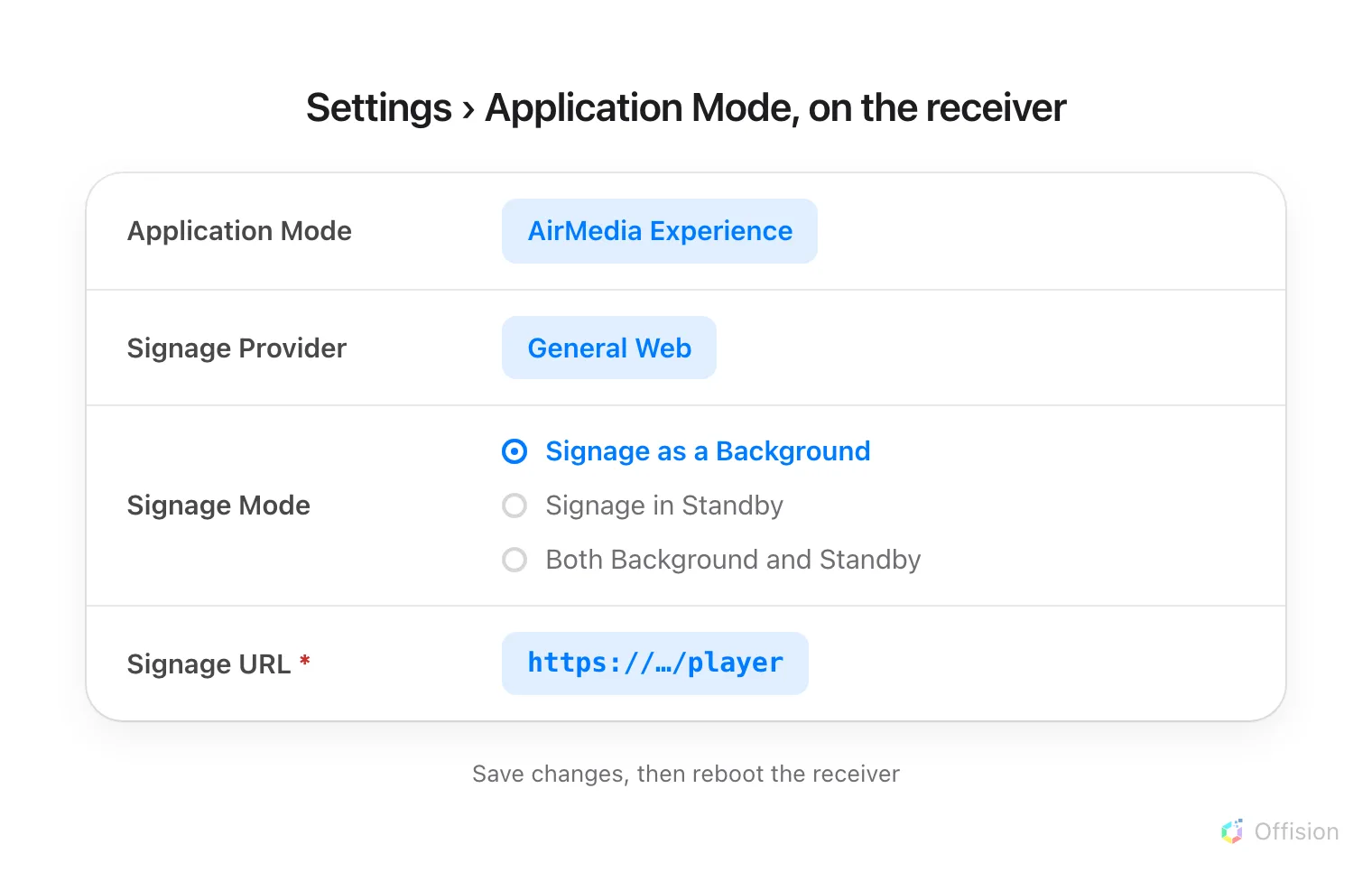
Four fields on one page. Signage as a Background is what puts the content on the screen rather than only on a sleeping one.
| Field | Set it to |
|---|---|
| Application Mode | AirMedia Experience |
| Signage Provider | General Web |
| Signage Mode | Signage as a Background |
| Signage URL | the address below |
https://app.offision.com/player
- Choose Save Changes, then reboot the receiver.
Signage Mode is the one worth understanding. Signage as a Background plays the content whenever nobody is presenting, which is what this article is for. Signage in Standby only plays it once the receiver has gone to sleep, so the screen shows the ordinary AirMedia home page all day and your content effectively never appears.
4. Pair the screen
After the reboot, the room’s screen shows a six-character registration code. That code is what claims the screen.
In the console, go to Devices › Signage › Devices and choose Add.
Open Signage devicesThe wizard asks three things: the content this screen will play, the brand of hardware, and then the code.
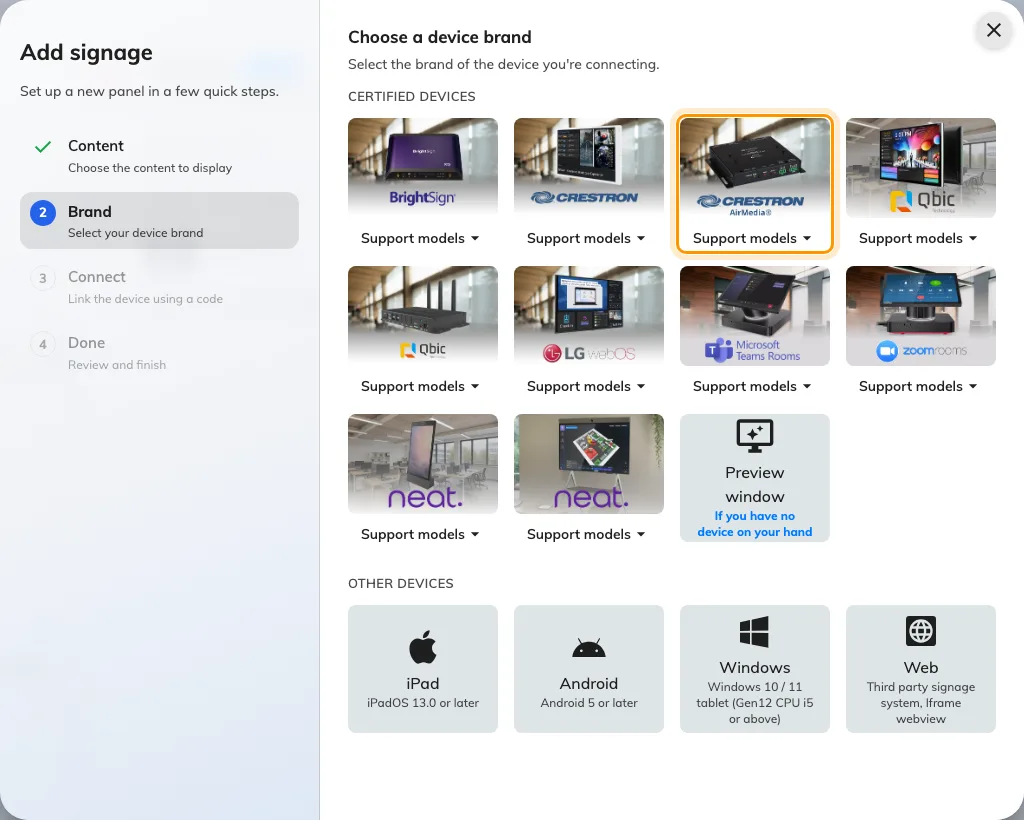
Crestron air media, in the certified devices grid.
Choose Crestron air media, then type the six characters from the screen. It submits itself on the last one.
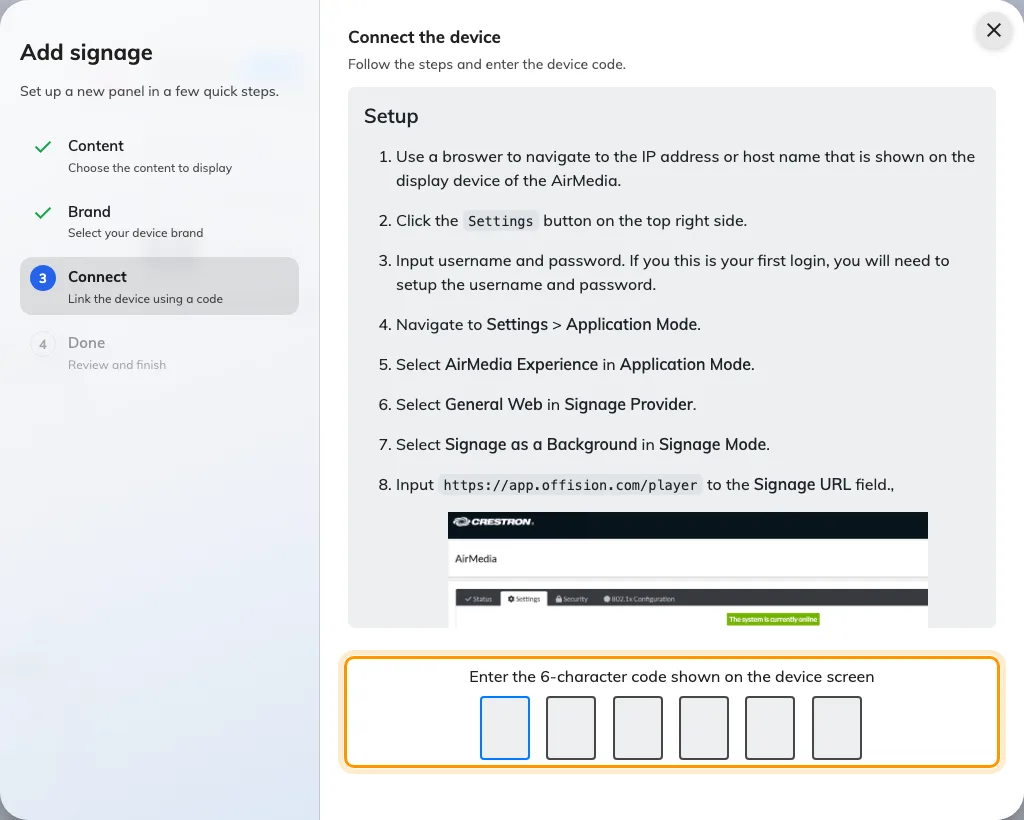
The brand's own guideline, and the field that claims the screen.
5. Check it worked
Within a few seconds the screen stops showing the code and starts showing the content. Then check both halves:
- In the console, the screen appears in Devices › Signage › Devices and is online.
- In the room, cast something from a laptop. The presentation should take the whole screen, and the content should come back on its own when you stop.
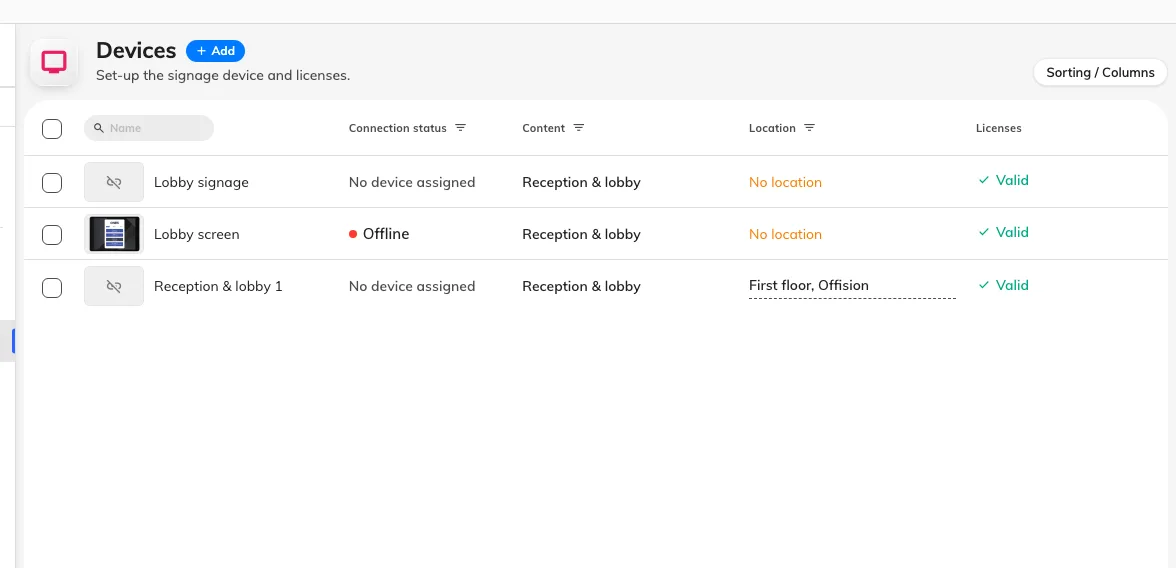
The signage device list. Connection status is where a paired screen reports in.
Test the casting half. A screen that plays content beautifully and then refuses to get out of the way for a presentation is worse than no signage at all, and it is not something the console can tell you.
When it goes wrong
| What you see | Usual cause |
|---|---|
| The screen still shows the ordinary AirMedia home page | Signage Mode is Signage in Standby. Set it to Signage as a Background |
| A blank or white screen after the reboot | The Signage URL is wrong, or the receiver cannot reach it. Check it against the address above, including the /player at the end |
| The code is refused | Read it off the screen again rather than retyping what you noted down. The code lives on an open connection, so a screen that has slept or rebooted since is showing a different one |
| It paired, then went back to showing a code | The receiver was rebooted inside the five-minute window. Pair it again and leave it alone |
| The connection card sits on top of the content | Reserved area is off, or the design is not a 43-inch landscape 16:9 one, which is the only shape the switch appears on |
| The content never gets out of the way when someone casts | Application Mode is not AirMedia Experience |
| A video on the content never plays | Uploaded video files are not supported on this hardware. Host the clip on YouTube and use the YouTube widget |
What this does not do
- Offision does not show the join code. The receiver paints its own card; Offision only keeps the strip under it empty. There is no widget that reads the code, and no way to put it somewhere else on the screen.
- Offision does not control the presentation. Nothing on the content can start or stop casting, or disconnect whoever is presenting.
- A receiver added this way is a screen, not a managed device. Controlling its power, volume, mute or input is a separate thing entirely — that is the AirMedia as an AV device under a control processor, not as a signage player.