

Connect Qbic e-paper tags
E-paper room, desk and equipment labels driven by a Qbic BXP over Bluetooth. What to buy, how to register the controller and its tags, and where the access token that joins the two is created.
An e-paper tag is a battery label, not a screen. It has no network of its own and nothing to touch: it sits on a door or a desk showing a picture, and it holds that picture for months without power. Something else has to draw the picture and carry it over.
That something is a Qbic BXP running the Offision controller app, with a Bluetooth dongle in its USB port. The BXP reads each room’s status from Offision, renders it, and sends it to the tag over Bluetooth. So the work is in three parts: register the controller and its tags in Offision, create the token the BXP will sign in with, and point the BXP at Offision.
What to have ready
- A Qbic BXP with a mains socket and a network drop
- A Bluetooth dongle for its USB port. It is a separate purchase — a BXP does not come with one, and without it the controller has nothing to send over
- The tags, with their MAC addresses written down, and the rooms or desks they will name already created in Offision
- About forty minutes for the first controller
1. Add the controller
Go to Devices › E-paper, choose Add, and pick Qbic.
Open E-paper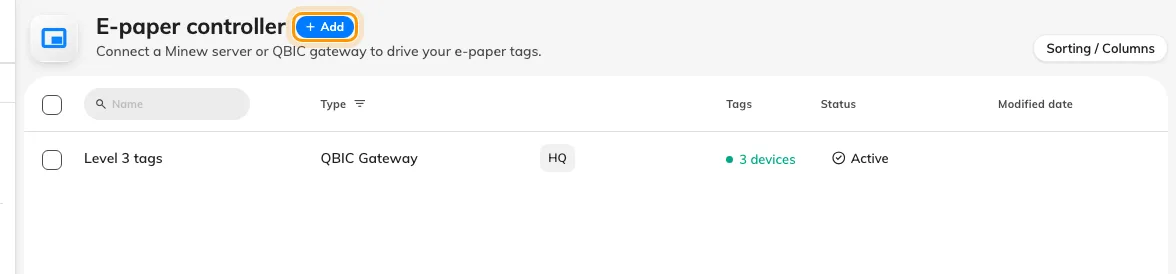
E-paper controllers. One row per BXP driving tags.
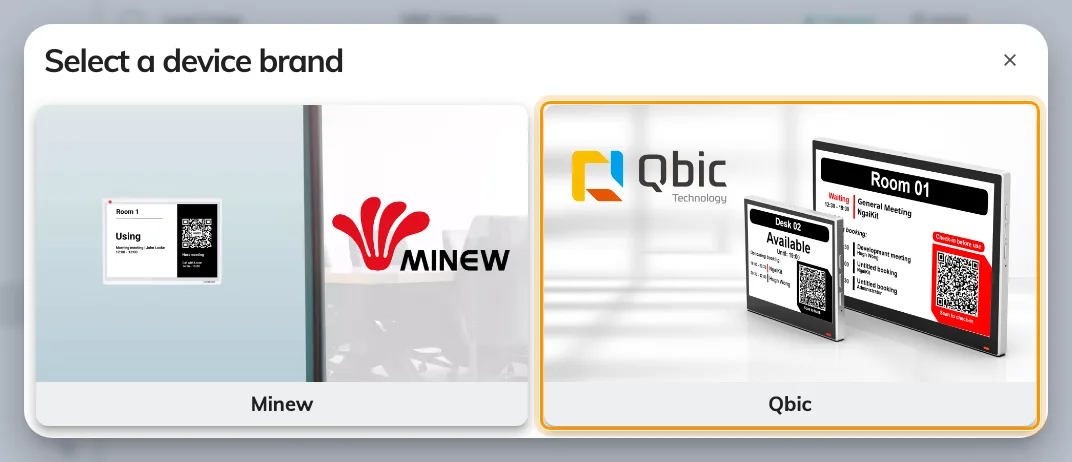
Select a device brand, with Qbic ringed.
Then name it and set Language settings — the language every tag on this controller renders in, which is a property of the wall rather than of whoever is signed in. Show QR code puts a scannable code on the tag so somebody standing at the door can book or check in from their phone. To hide it, turn that toggle off and save — the tags redraw without it on their next pass. It is a setting on the controller, so it goes for every tag the controller drives; there is no per-tag switch.
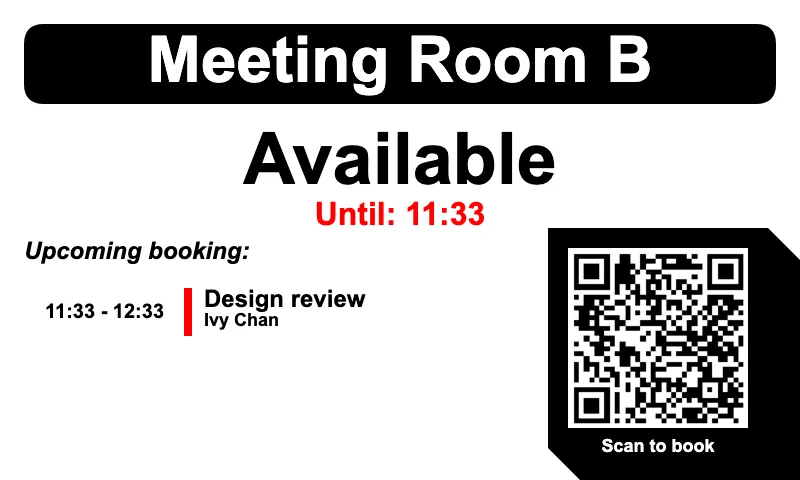
What a room tag holds with Show QR code on: the room, how long it stays free, the next booking, and a code to scan.
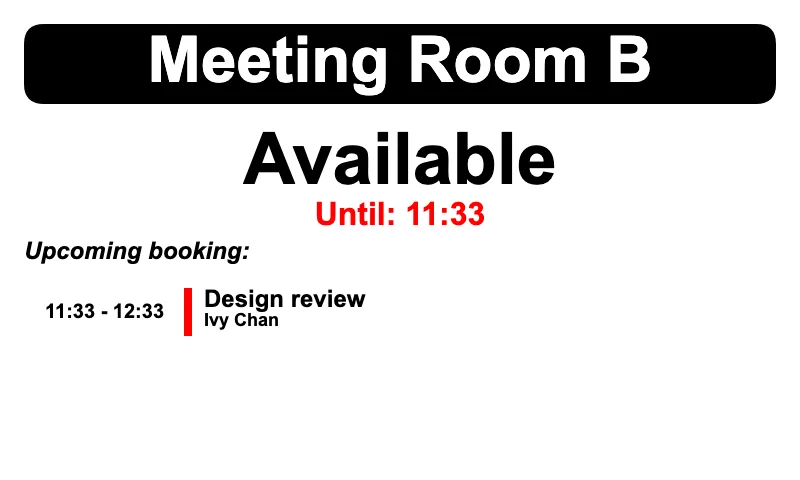
The same label with the toggle off. Everything else is unchanged.
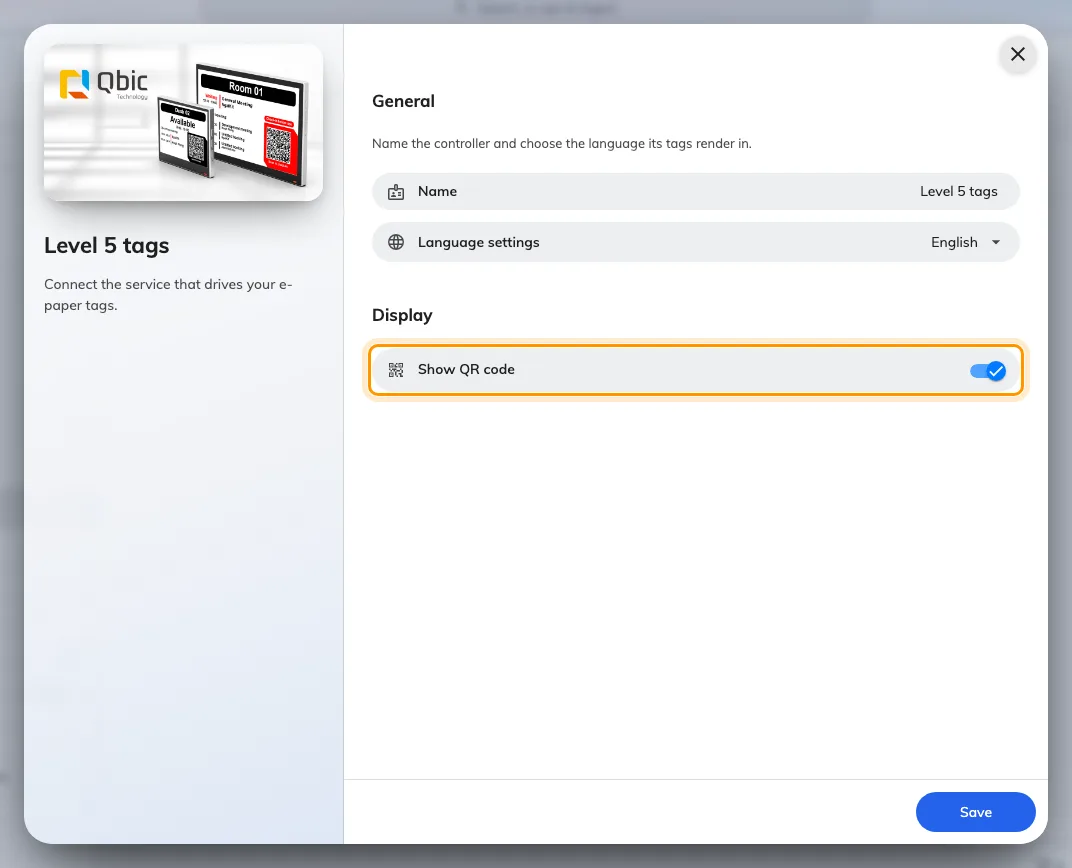
A new Qbic controller: its name, the language its tags render in, and the QR code toggle.
2. Add the tags
Save the controller, open it again, and go to its Tags page.
Each tag is one row: its MAC Address, what kind of label it is — Room booking, Desk booking, Equipment booking, Signage or Microphone indicator — and the resource it names. A Signage tag takes an uploaded image instead of a resource; every other kind binds to a room, desk or item.
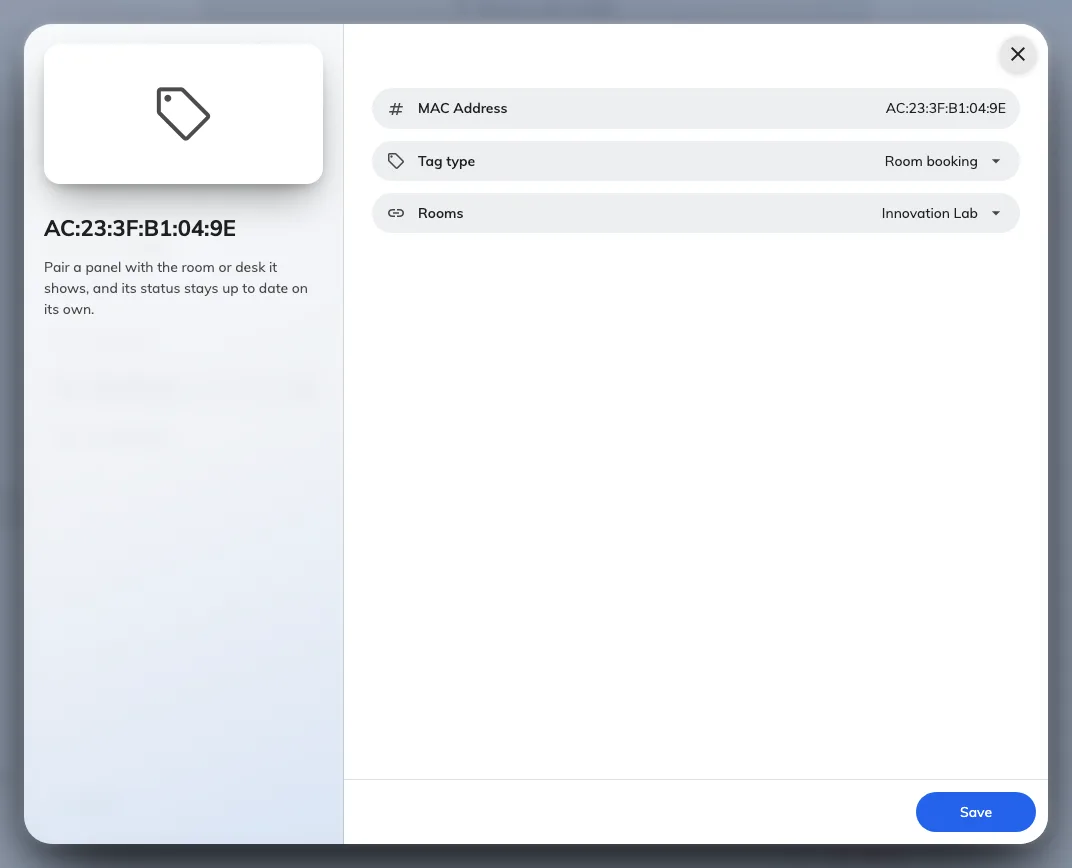
One tag: the MAC address off its label, what it is for, and the room it names.
The type decides the layout. The size is not yours to choose — the tag reports the panel it is, and the controller draws to that: a room label on the 7-inch panel, a desk label on the 4-inch one.
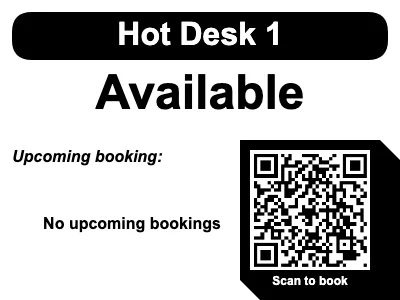
A desk tag on the small panel. Same information, less room for it.
Qbic tags are typed in, not discovered — the BXP only recognises a tag after Offision has told it which addresses to look for. For a floor at a time, use Batch edit tags in the overflow menu beside Add tag: it opens one row per tag, so a spreadsheet of MAC addresses goes in as fast as you can paste it.
3. Create the access token
The BXP signs in to Offision as an integration client, not as a person. Create an Access token on the API authentication page and copy it when it is shown — it is shown once and masked afterwards.
Open API authenticationEverything about that page — the two credential types, the module scopes, the IP and expiry guards — is in Connect your own systems.
4. Point the BXP at Offision
A BXP that has never been set up boots into its own Configuration screen. Put the controller address in the Content field there and choose PLAY:
https://app.offision.com/qbic
The controller app opens. On its Setting page, fill in Server url and paste the Access Token, then Save settings. The Status row above the form should turn to Connected and name your account.
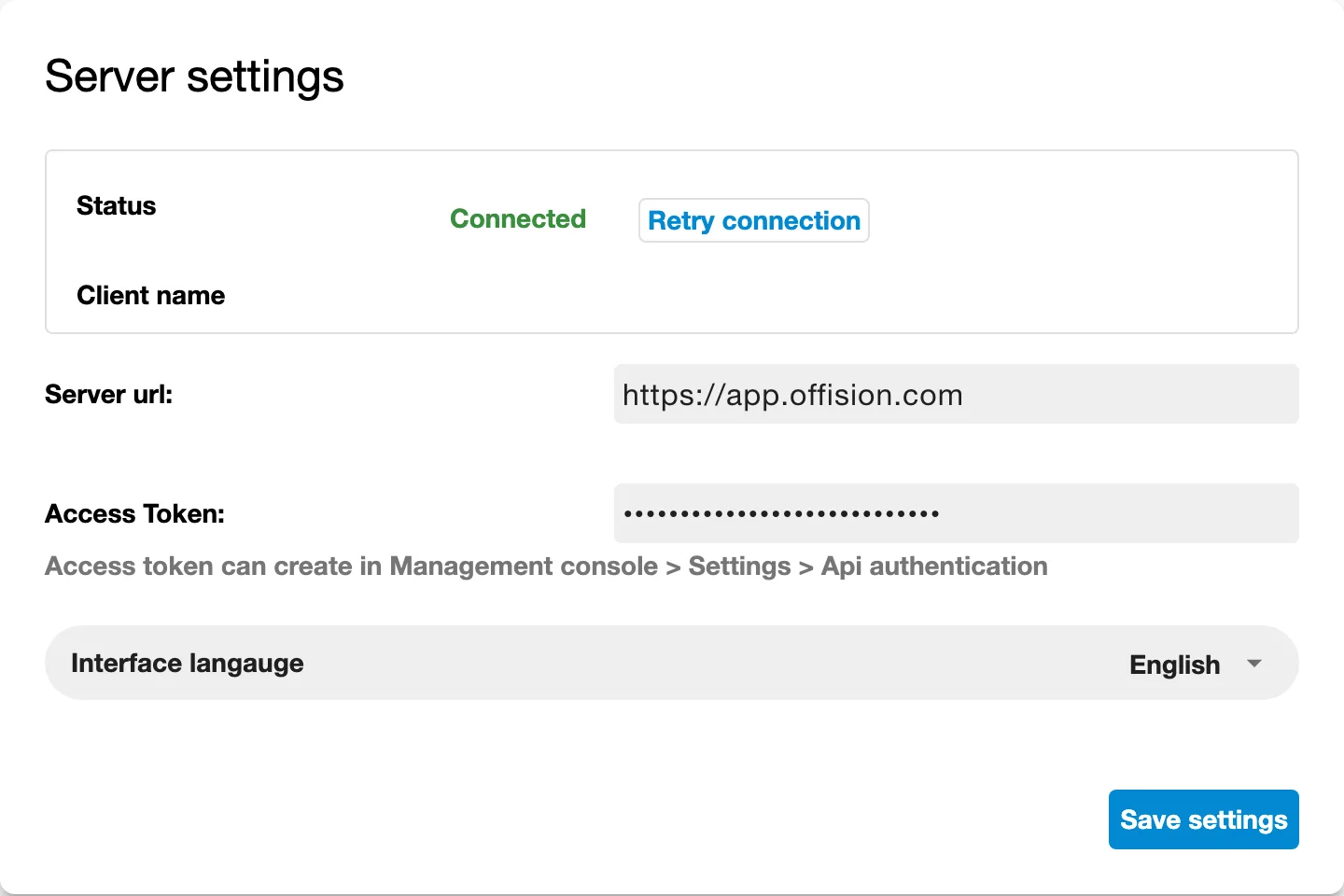
Server settings on the BXP: the status row above, the access token below.
Last, open the E-paper page, choose the controller you created in step 1, and Save. The app reloads and starts driving that controller’s tags.
5. Check it worked
Give it a few minutes. The first pass has to find every tag over Bluetooth before it can send anything, and the pictures then go out one at a time — see How fast Qbic e-paper tags update.
Then check both ends. On the wall, a tag should be showing its room or desk. In the console, its row on the controller’s Tags page reports a battery percentage and a green dot, and the same tags appear in Device monitoring.
Book the room from your phone and watch the label change. E-paper is black, white and red, and red is what a busy room turns.
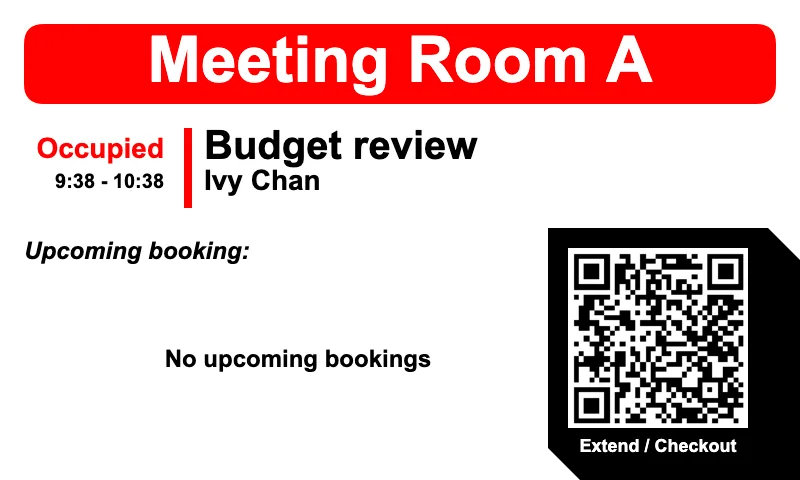
The same room, occupied: who has it, until when, and a code that now offers Extend and Checkout.
When it goes wrong
| What you see | Usual cause |
|---|---|
| Status stays Not connected | The server url is wrong, or the token was regenerated afterwards. A regenerated token invalidates the old one immediately |
| The controller app never loads on the BXP | The address in Content was not the controller address, or the box is offline. Check it in a browser on the same network first |
| No dongle listed on the E-paper page | The dongle is not seated, or the BXP is below firmware 2.12.0 |
| A tag never appears, though its row exists | It is out of the dongle’s range, or its battery is flat. A tag has to be heard before it can be driven |
| The MAC address is refused | It is already on another tag, or the format is wrong — the field normalises to AA:BB:CC:DD:EE:FF |
| A tag goes grey about ten minutes after the BXP is unplugged | That is the timeout. A Qbic tag is marked offline after ten minutes without a status report |
| A tag is stuck on an old picture | Identical content is deliberately not re-sent. It repaints on a real change, or on the next hourly pass |
| Every tag is slow when many change at once | Expected — they queue. How fast Qbic e-paper tags update explains what a second dongle buys |
What this does not do
- A tag is not a booking panel. It has no touch, no card reader and no light bar. Somebody standing at the door books through the QR code or their phone — for a panel, see Connect a Qbic room booking panel.
- It does not manage the BXP. Firmware, the network and the Android launcher stay in Qbic’s own tooling.
- It does not set what a tag shows. The layout comes from the resource and the controller’s display language, not from a per-tag design.