

Mount a panel in portrait
What a room panel draws when the device is turned on its side, why the schedule column folds itself away there, and the one configuration switch worth turning on before you rotate the first one.
A panel does not have a portrait setting. Turn the device on its side — in the device’s own display settings, or by mounting it that way — and the panel follows the screen: the same two panes, side by side, redrawn for a screen that is now narrower than it is tall.
That is the part that surprises people. The schedule column keeps its share of the width, and at 800 pixels across that share is a sliver — so on a portrait panel the column starts folded into its tap rail on its own, whether or not the configuration asks for it. The room’s name, status and buttons get nearly the whole width; the clock stands on its side in the rail.
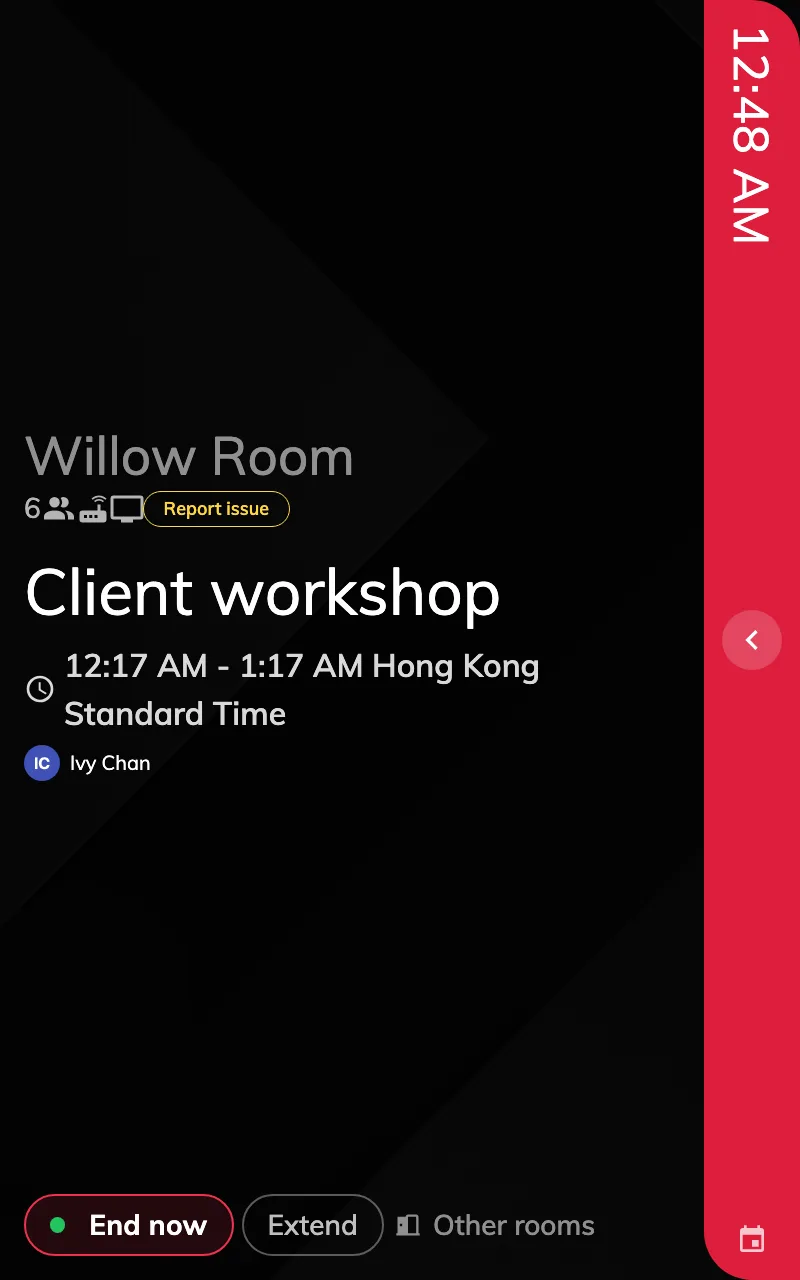
A panel on its side. The schedule column is folded into the rail on the right.
1. Rotate the device
Rotation is the device’s, not Offision’s. Set it wherever that device keeps its display orientation — on an Android panel, its own display settings — and the booking panel redraws itself the moment the screen turns. Nothing to save in the admin console.
2. Turn on the collapse switch anyway
Open the panel’s configuration and, in the Timeline & clock group, turn on The timeline area is collapsed by default.
Open Panel configurationsOn a portrait panel the switch changes nothing you can see — the column is folded already. Two reasons to turn it on regardless:
- The configuration then says what the panel does. Somebody reading it later should not have to know that portrait folds the column by itself.
- A configuration is shared. If it also serves small landscape panels, they get the same relief — the column folds for them too, which is what the cramped-panel article recommends.
Saving a configuration that panels are already on raises a confirmation naming them. Confirm it; each panel picks the change up within about a second.
3. Check it on the panel
Tap the rail. The column slides open to its full width with the day’s schedule in it, and a chevron on its edge folds it back by hand. Left alone it re-folds after three minutes without a touch, so a panel someone opened at nine is not still open at noon.
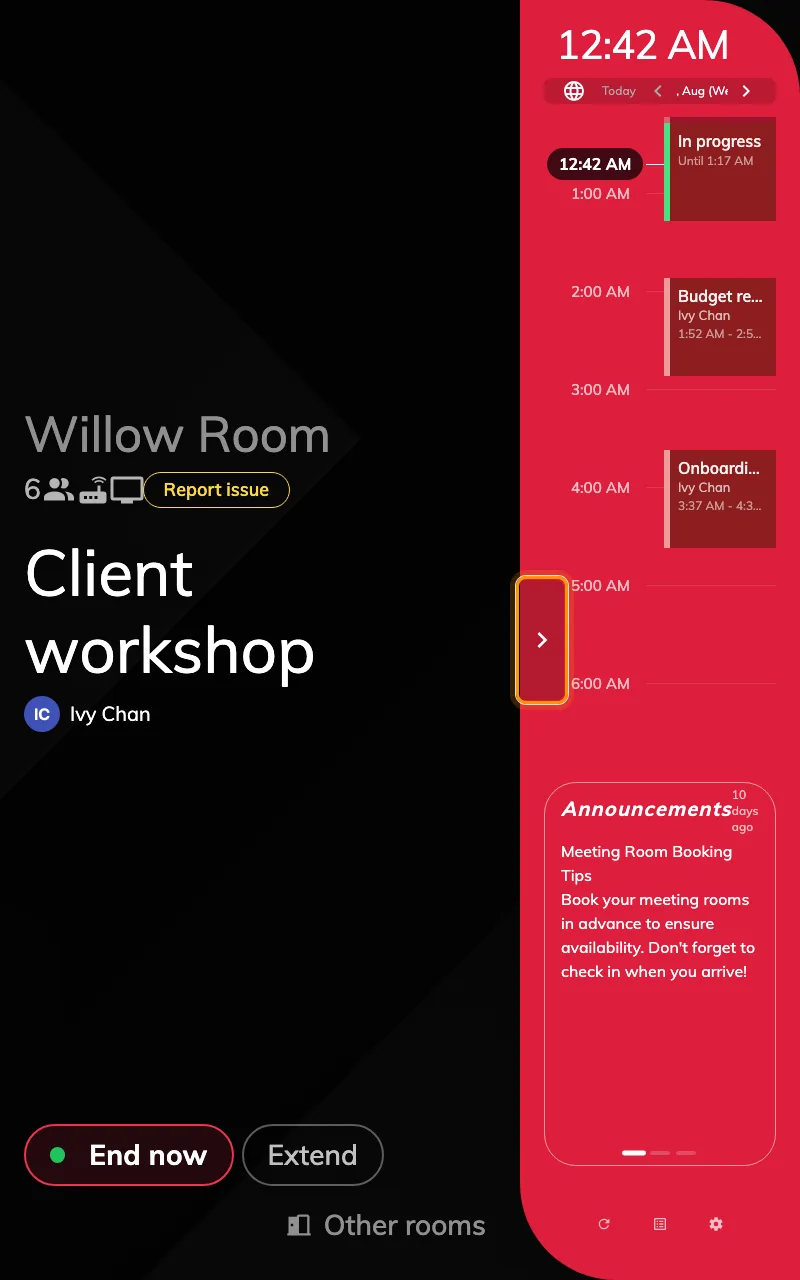
The same panel after a tap on the rail. The chevron folds it back.
While the column is open the room’s own details narrow to make room for it. That is the expected trade — the column is a thing somebody opens to look at, not the panel’s resting state.
What this does not control
- The compact layout. A screen 560 pixels wide or narrower, or under 480 tall, draws the single-column layout with no schedule anywhere — a phone-sized door plate, not a rotated 10-inch panel. Nothing here applies there.
- The Center design. It has no column in either orientation.
- The panel’s language, logo or buttons. Those come from the same configuration as in landscape; see Panel configurations.