

Let people identify with a passcode at the panel
The identification method that needs no card reader, no camera and no phone — four to eight digits each person sets on themselves. Turning it on, what the panel asks for, and how to give somebody a new one when they forget theirs.
Four of the five ways a panel can identify somebody depend on something being present: a card reader on the panel and a card in their pocket, a camera on the panel and photos of their face, a phone with the app signed in. Any of those can be missing on the day, and two of them can be missing from the hardware forever.
User passcode is the one that depends on nothing. Each person sets four to eight digits on themselves in the app; at the panel they pick their name and type them. It works on the cheapest panel you own, it works for the person who left their badge at home, and it is the only method a contractor with no company phone can use. Turn it on everywhere and the other four become conveniences rather than requirements.
1. Turn on User passcode
The identification methods are set once for the whole organisation, on User identify settings. Turn on User passcode — “Input user passcode to validate identity.”
Open Check-in method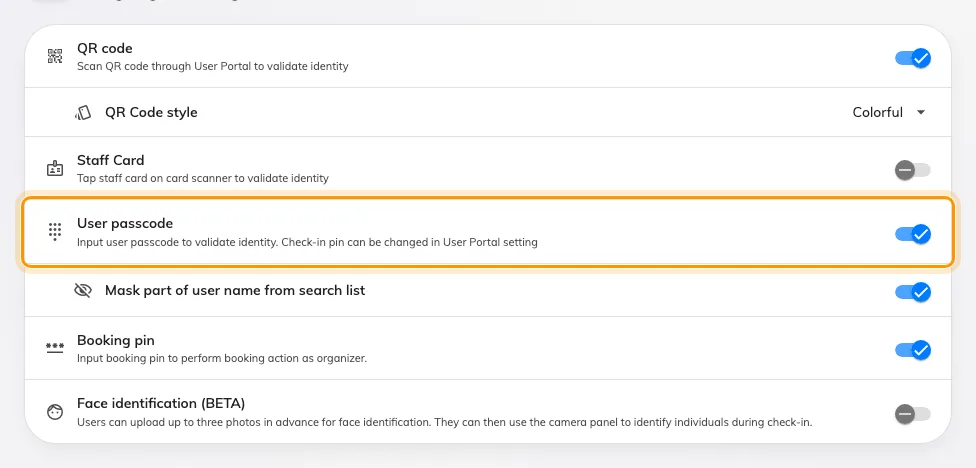
User passcode, with the masking option that appears underneath it.
The page’s own rule is at the top of the card — “Enable at least one of the following check-in methods on the device.” — so this is safe to add and only the last method standing cannot be removed.
2. Decide whether to mask names
Mask part of user name from search list appears underneath, and only once the method above it is on.
It matters because of what the panel has to do on a walk-in: with no booking to work from, it offers a search of everybody in the directory, and that list is readable by whoever is standing there. Masking hides part of each name and address, so somebody still finds themselves by typing their own name but cannot browse the staff list off a screen in a corridor.
Turn it on for any panel in a public or semi-public space. Leave it off only where the panel is behind a controlled door.
3. Per-panel, if you need it
Unlike the booking pin, this method can be overridden on an individual panel: a panel configuration’s Check-in method page carries User passcode in its own list. The values people type still belong to them and are still set in one place — it is only whether the panel offers the method that varies.
How somebody proves who they are at the panel covers that screen, and the option of asking for nothing at all.
4. Tell people to set theirs
Nothing works until each person has a passcode, and until step 1 is done the row does not exist in their profile to find. So announce it after you turn it on, not before.
Point them at Set your user passcode, which is one screen and about a minute. You cannot set one on their behalf in bulk; each person types their own.
5. What the panel does with it
Where more than one method is enabled the panel asks first — Choose authentication method — and User passcode is the orange tile.
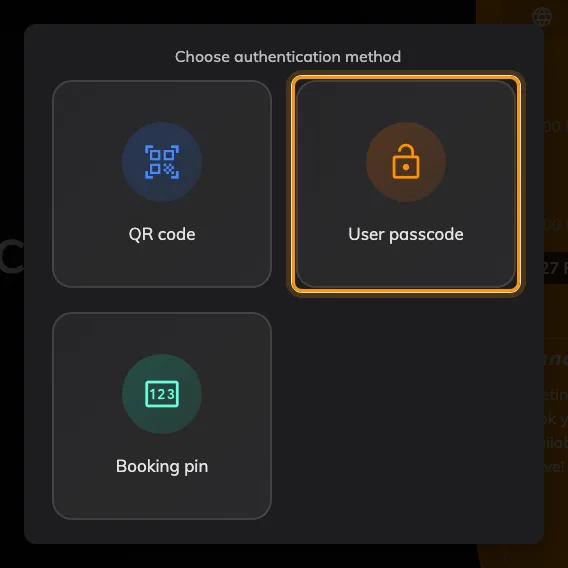
User passcode among the methods on this panel.
Then it establishes who, and it does that three different ways depending on what it already knows:
- One candidate — checking somebody’s own booking in — it skips straight to the number pad.
- Several candidates — a booking whose policy allows attendees to check in, check out and extend — a short list of the people invited.
- No candidates — a walk-in, where there is no booking yet — the search screen, with an on-screen keyboard, over the whole directory. This is the one masking applies to.
Somebody who has not set a passcode still appears in those lists, greyed. Tapping their name answers “You need to set up a user passcode in the user app first” rather than failing silently, which is worth knowing before the first report comes in.
6. When somebody forgets theirs
Open Directory → the person, and the User passcode row in the panel on the right. Type four to eight digits and save.
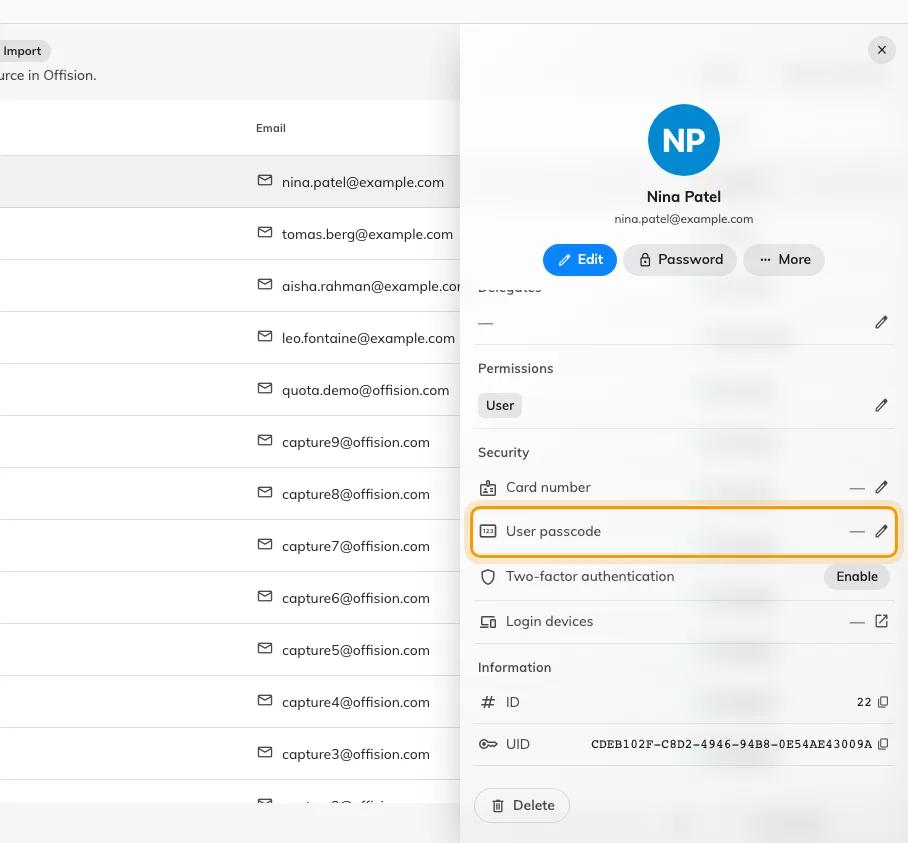
The User passcode row. A dash means none is set; the value is never shown.
Two things to say out loud when you do it:
- You cannot read the old one. Nowhere in the console shows the value — the row and the list column carry a tick or a dash and nothing else. So this is always “here is a new one”, never “your one is 4416”.
- Tell them to change it. The code you just typed is a code you know. Ask them to go into their profile and replace it.
7. Check it worked
Set a passcode on yourself, book a room with a panel outside it, and check in with the orange tile. The booking should go to in-use under your name.
Then try it the other way round: pick somebody in the search list who has no passcode, and confirm the panel says so rather than accepting anything.