

Save energy on room panels
Let panels switch their screens off when nobody is there. What it saves, how to tie it to your rooms' business hours so panels stay awake through the working day, and what to check when one never sleeps.
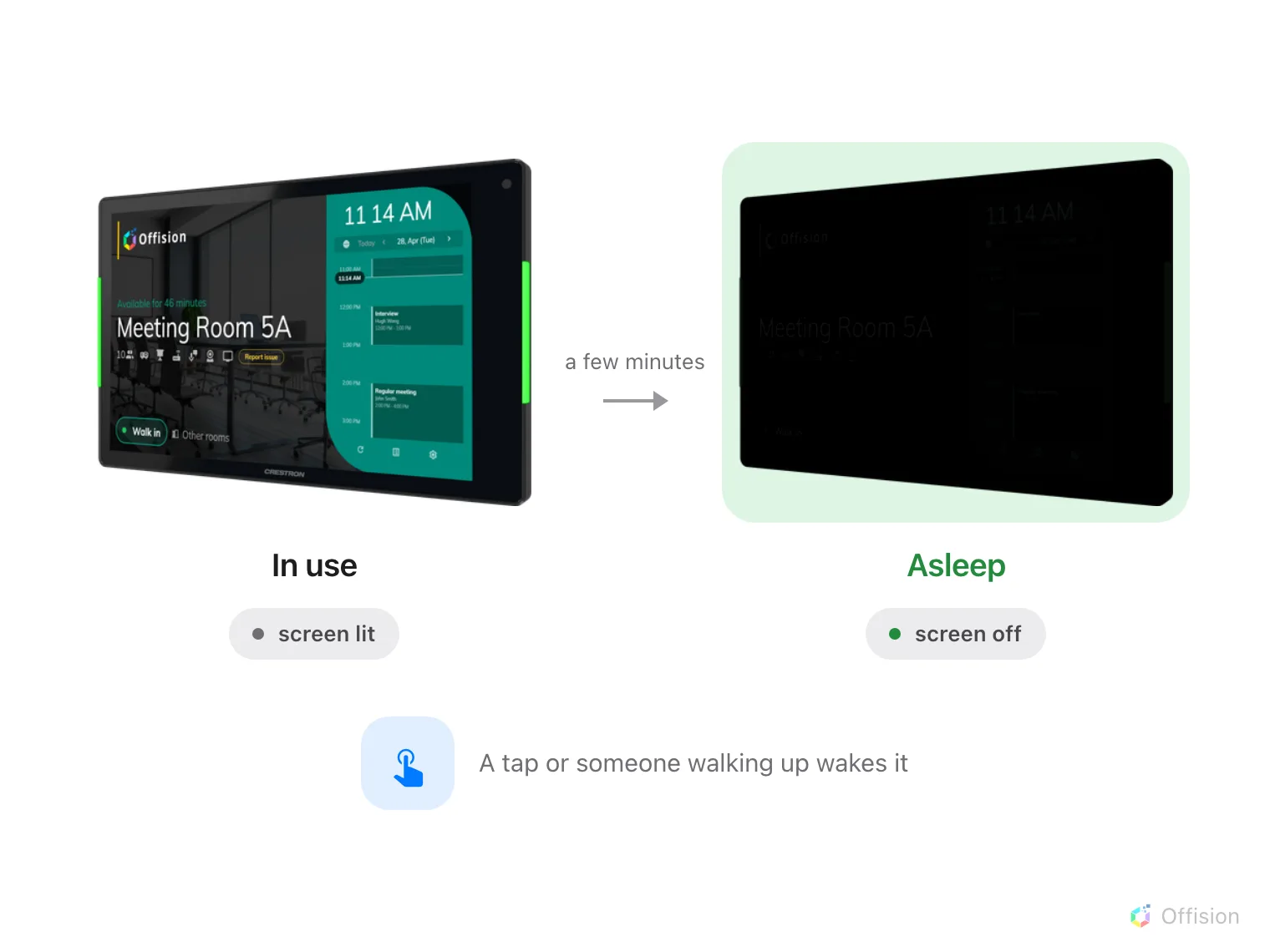
Left alone, a panel turns its screen off — and on a panel that can switch its backlight off with it, that is most of the power it draws.
A booking panel outside a meeting room is on every hour of the year, and for most of those hours there is nobody in the corridor to read it. Save energy mode is what stops it lighting an empty corridor.
What it actually saves
The largest single draw in a panel is its backlight, not its processor. So the saving depends entirely on whether the panel can switch that backlight off, or can only paint its screen black and leave the light behind it burning.
| Panel | What happens in save energy mode | Power saved |
|---|---|---|
| Qbic Android panels, TD- and HC-series | The backlight switches off | Yes — a panel asleep uses less than half the power it does lit |
| iAdea panels | The LED status bar dims; the screen backlight stays on | The status bar only |
| Samsung, LG, Crestron, Cisco, Neat, desktop and browser players | The screen goes black | None — the backlight stays lit |
Every panel shows the same dark screen, so the row above is the only way to tell which ones are actually saving anything. It is worth checking before you promise a number to anyone. On the panels that only go black it is still worth having — a dark corridor at night is usually the point, and the panel stops burning its screen in.
Set it up
1. Give the rooms a business hour
Go to Booking › Booking hours and create the opening hours the site works to, then open each room under Booking › Rooms and set its Business hour.
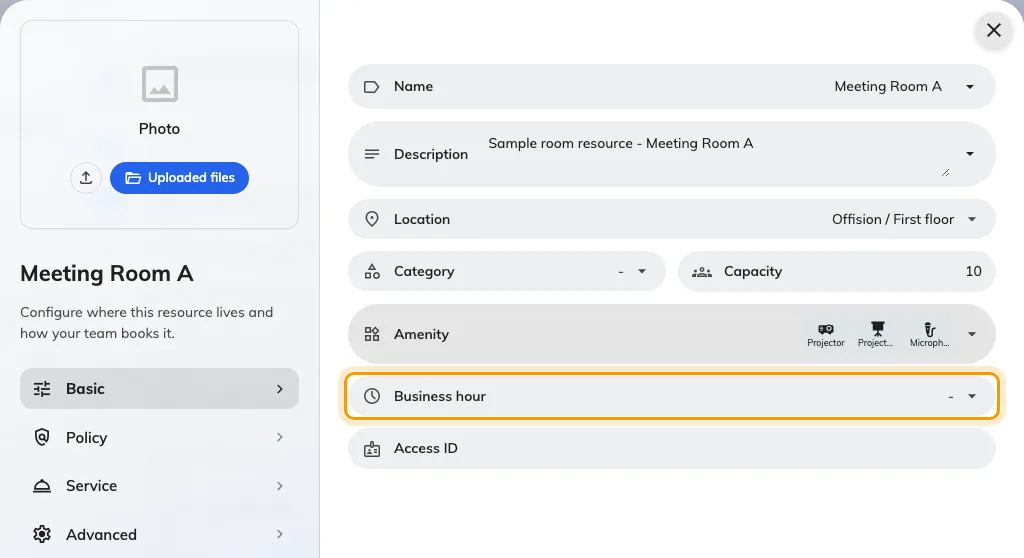
The business hour on a room.
The hours come from the room, not from the panel and not from the system default. One business hour can serve a whole floor, so this is the field to change later when the building’s hours change — not the panel settings.
2. Open the panel configuration
Go to Devices › Booking panel › Panel configurations and open the configuration your panels use. Choose Edit in the detail panel on the right.
Open Panel configurationsEverything below reaches every panel on this configuration and no others. Where only some rooms should sleep, give them a configuration of their own.
3. Go to Screen saver & energy
The editor opens on Room booking panel, whose settings are grouped into tiles. Screen saver & energy is the last of them before the design-by-purpose overrides.
4. Turn on save energy mode
Switch on Enable save energy mode, then set Turn off screen after — the idle time before the screen goes dark. The choices run from 15 seconds to 5 minutes.
Three minutes suits a corridor panel. Shorter than a minute is worth avoiding on panels people walk past all day, because the screen spends its time waking and sleeping rather than being either.
5. Turn on Only outside business hours
This is the switch that ties the panel to the room. With it on, the panel stays awake right through the room’s opening hours and only starts counting down once they end. Leave it off and the panel sleeps whenever it is left alone, at three in the afternoon as readily as at midnight.
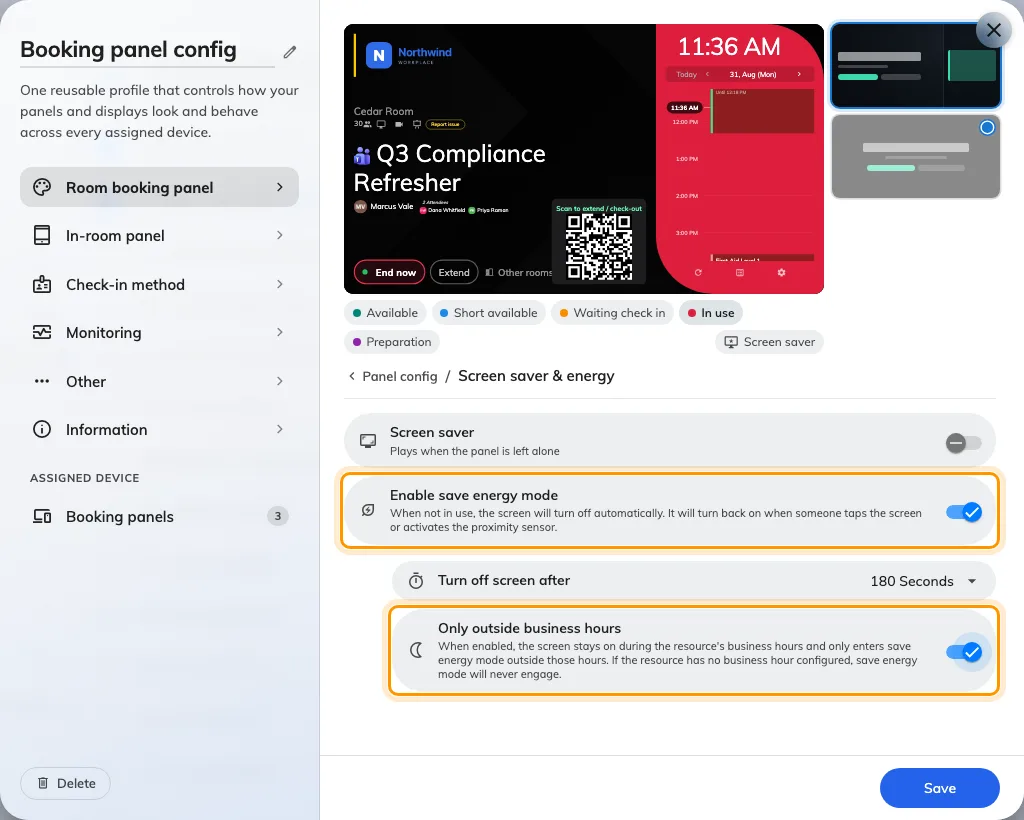
Save energy mode, restricted to the hours outside the room's business hour.
This switch arrived in 4.5.0.
6. Save, then check a panel
The save bar sits at the foot of the editor. Wait until the room’s business hours have ended, leave a panel alone for the time you set, and look at it. It should be dark, and it should come back the moment you touch it.
What wakes a sleeping panel
A touch. Any tap or drag anywhere on the screen.
Somebody walking up. Qbic HC-series panels carry a proximity sensor, and the panel watches it while asleep — anyone closer than about a metre and a half wakes it before they have touched anything. Panels without that sensor wake on touch alone.
A meeting starting. On an in-room panel, the room turning busy wakes the screen by itself, with a short welcome that names the organizer.
If a panel never turns its screen off
Stand at the panel and leave it alone for longer than its Turn off screen after time. If it goes dark and comes straight back on by itself, start at solution 2. If it never goes dark at all, start at the top.
The room has no business hour
Most commonThis is the answer far more often than the other four together.
Only outside business hours asks one question — is it inside the room’s business hours right now? A room with no business hour assigned answers yes, at every hour of every day, so the panel is never allowed to sleep.
Open the room under Booking › Rooms and check its Business hour. Either give it one, or turn Only outside business hours off.
Open Standard RoomsPeople keep walking past it
CommonA sleeping Qbic HC-series panel watches its proximity sensor constantly. Anyone within about a metre and a half resets the idle countdown without touching anything — so a panel in a busy corridor can spend the whole working day restarting its timer.
You will recognise this one because the panel does sleep late at night and never during the day.
Raise Turn off screen after so short interruptions do not matter, or turn on Only outside business hours so the daytime traffic stops counting at all.
It is showing a screen saver, not staying awake
CommonA panel playing a screen saver playlist looks lit, and from ten metres away it is easy to read that as “it never turned off”.
The two never run together — an asleep panel shows nothing at all, so save energy mode always wins over the screen saver. Open Screen saver & energy and check which of the two is actually switched on.
The screen is dark but the panel is still lit
Less commonHere the panel does sleep — it just does not get any dimmer, and up close you can see the backlight still burning behind a black screen.
That is the table at the top of this page: only some panels can switch their own backlight off. Nothing is misconfigured, and there is no setting that changes it. It is what the hardware can do.
It is an in-room panel and the room is busy
Less commonThe in-room rule needs the room to be free and the next booking to be more than ten minutes away. A room booked back to back never satisfies both, so its panel stays awake through the day — by design, because a panel that sleeps ninety seconds before a meeting starts is a panel people think is broken.
Check the room’s day. If it is solid, the panel is behaving correctly.