

Set the pass code that unlocks a panel's settings
The four to six digits that stand between a passer-by and a panel's own settings, where Offision can be restarted or closed and the panel unpaired. Where it comes from, the two places it can be changed, and why the console can overwrite it but never read it.
Behind the room a panel is showing sits the panel’s own settings console, and it is not a booking screen. It changes the language and the display, restarts Offision, hands the screen back to Android and — in the last card on its Setting page — wipes the pairing and sends the panel back to a registration code. The pass code is the only thing in front of all of that.
It is four to six digits, and it lives on the device, not on your server. That single fact explains everything else on this page: every panel leaves the factory on the same 0000, no two panels have to share a code, and the console can push a new one down but can never show you the current one.
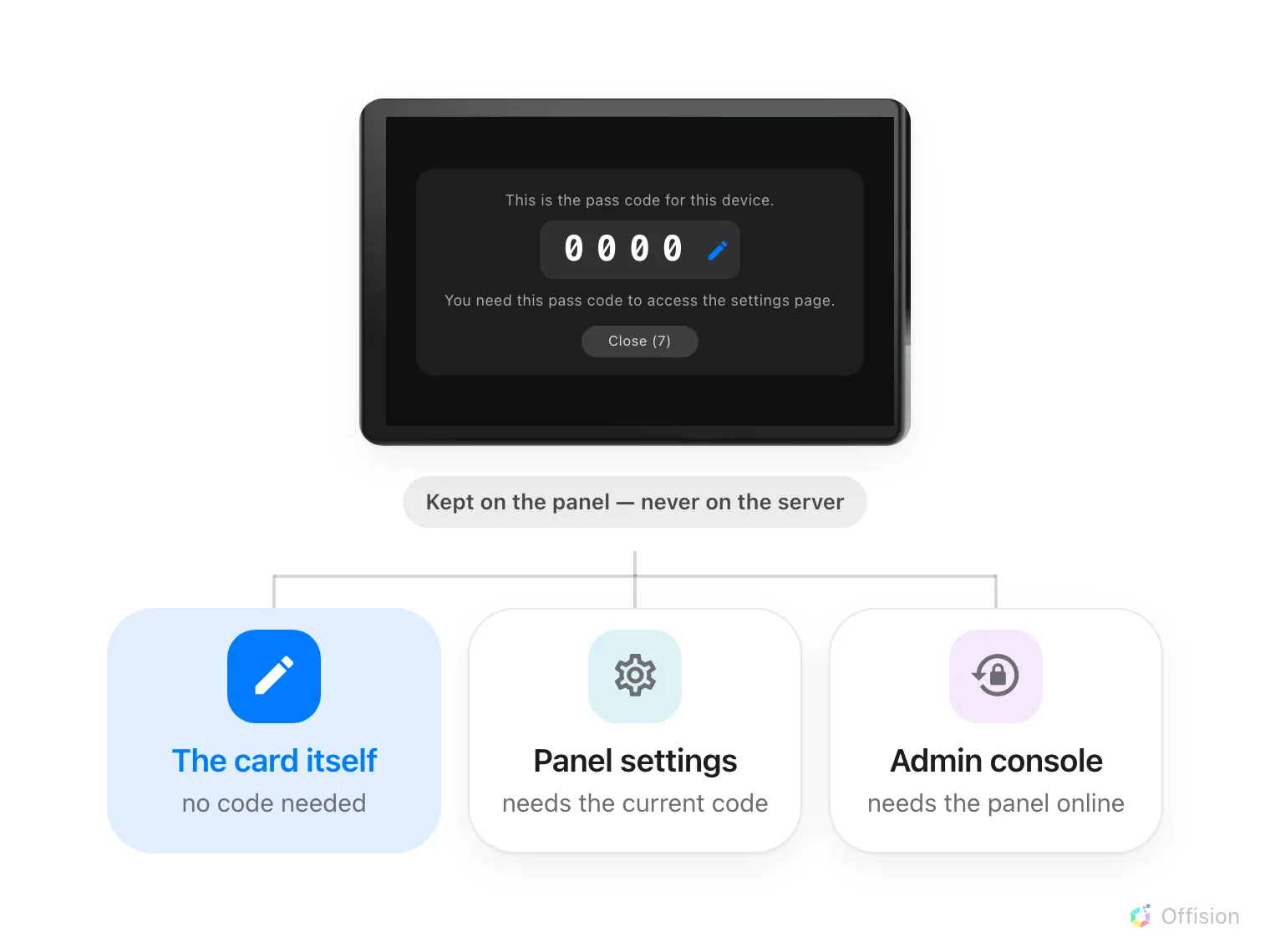
The card a panel raises to itself, seconds after it is paired.
1. Change it while the panel is new
A few seconds after a panel lands on its room it raises the card above by itself. Nobody asked for it; it appears because this is the one moment somebody is certain to be standing at the panel, and it closes itself on a ten-second countdown.
The pencil in the corner of the digits opens Edit pass code without going anywhere else, and this is by far the cheapest moment to set one. The panel asks twice — Enter new pass code, then Confirm new pass code — on its own keypad. If the two do not match it quietly starts over at the first screen rather than telling you so; watch for the heading changing back.
2. On the panel, afterwards
Once that card is gone, the same change lives behind the pass code you are trying to replace.
Tap the panel to bring up its control bar and choose the settings button. The panel asks to be unlocked, then opens its console over the room, on Overview. Setting, fifth in the left-hand list, carries Change pass code in its Device group — the same two-step keypad as before.
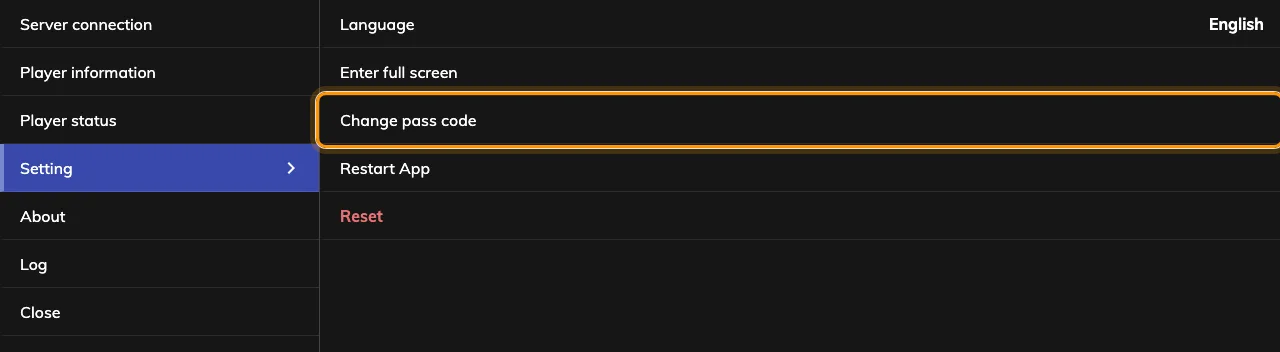
The panel's own Setting page: Change pass code, and at the foot the action cards it protects.
The cards at the foot are what the pass code is for, and each asks to be confirmed before it acts: Restart Offision, and last and in red Unpair device, which forgets the server and the pairing and sends the panel back to a registration code. Panels running the installed Offision app carry two more — Reboot device, and Back to Android (Back to iPad on an iPad), which closes Offision and opens the device’s home screen. These used to be rows named Restart App, Reset and Leave Offision.
The round X at the console’s top right closes it, as do three minutes without a touch, and the room underneath carries on where it was, without restarting.
3. From the console, when nobody is at the panel
Since 4.5.9 the console can push a new code down to a panel without anyone standing at it. Go to Devices › Booking panel › Devices and select the panel’s row. Reset passcode sits with Real-time screen and Reboot at the top of the detail panel.
Open Booking panel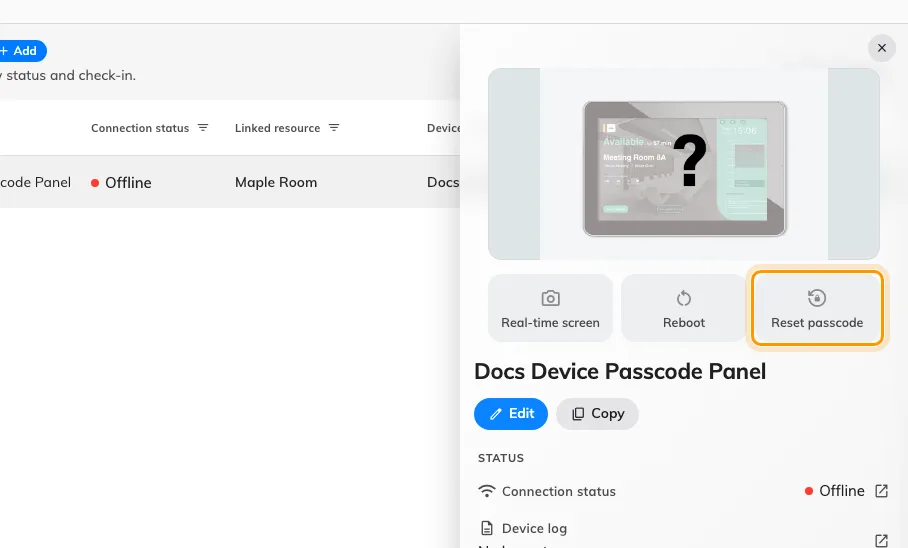
A panel's detail, with the action that overwrites its pass code.
Type the new code into New passcode and again into Confirm passcode — 4-6 digits, and the button stays disabled until both match. Saving takes a moment longer than most: the console waits for the panel itself to confirm it has stored the code, so a save that succeeds is proof the panel applied it.
Three things about this route are worth knowing before you rely on it:
- The panel must be online. Reset passcode is greyed with Device is offline against a panel that is not answering, and there is no queue — the code is not delivered later.
- It overwrites, it never reveals. There is nowhere in the console that shows a panel’s current pass code. A lost code is replaced, not recovered.
- Signage screens too. The same detail panel serves Devices › Signage › Devices and the device monitoring list, so a reception kiosk or a lobby screen is reset exactly the same way.
4. Check it worked
Walk to the panel and open its settings with the new code. Then try the old one: the keypad should refuse it with Invalid pass code and clear itself. A panel that still takes the old code did not receive the change — which, on the console route, means the save did not finish.
What this pass code does not control
- Who may check in at the panel. The User passcode a person types to identify themselves is a different thing entirely, set by each person on themselves — see Let people identify with a passcode at the panel.
- Other panels. This code belongs to one device. Unlike the buttons, the skin and the identification methods, it does not come from a shared configuration, so changing it changes nothing else — see How a panel gets its settings.
- Leaving the app on every panel. Back to Android appears only where the panel is running the installed Offision app and has a home screen to return to. A panel showing the player in its own browser has nowhere to go, so the card is absent.
- Retiring a panel. Unpair device releases the hardware from the panel’s end, as Disconnect device does from the console, and also wipes the panel’s own settings. Neither deletes the record — see Connect a booking panel to Offision.
- A panel that starts again. Anything that clears the panel’s storage — Unpair device, a factory reset, a re-pairing, a reinstalled app — puts it back on 0000.