

Sync rooms from Microsoft 365
Bring room mailboxes into Offision — a few by hand, or every room in the directory automatically — and set the booking agent account that lets everyone book them.
A room mailbox in Microsoft 365 becomes a bookable resource in Offision, and from then on the two calendars stay in step in both directions.
There are two ways to get them in — one room at a time, or the whole directory at once — and which are available depends on how you connected.
What to have ready
- The Microsoft 365 integration already connected
- The room mailboxes created in Microsoft 365
- A Microsoft 365 account to act as the booking agent, if anybody who books these rooms is not a Microsoft 365 account in this directory — ideally a new one created for this, not a real person’s
1. Open connected resources
Open IntegrationsOpen the Microsoft 365 tile, then on the integration card choose the Connected resources row. Everything in this article is on that screen.
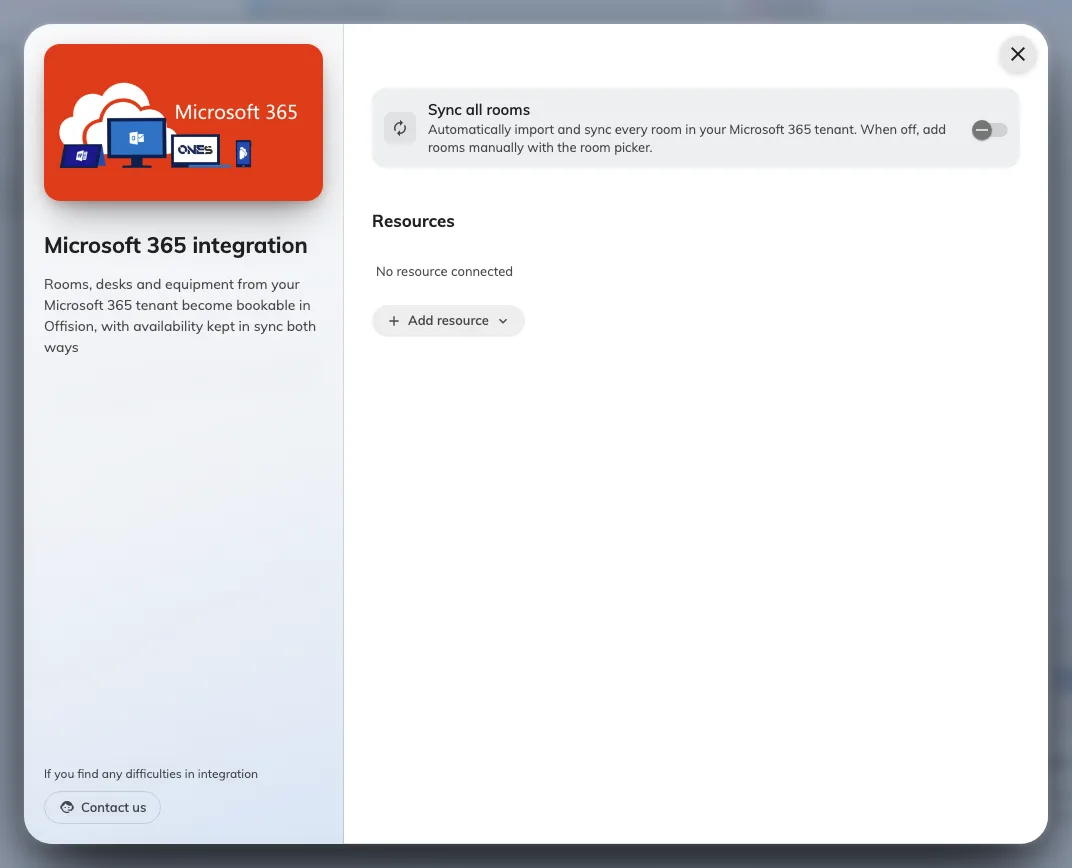
Connected resources, where rooms are added and the room sweep is turned on.
2. Add rooms one at a time
Choose Add resource, then Room, and search. Search runs when you ask it to, not as you type — each search goes to Microsoft, so search-as-you-type would be slow and rate-limited rather than helpful.
Rooms already connected are shown as Connected and cannot be added twice.
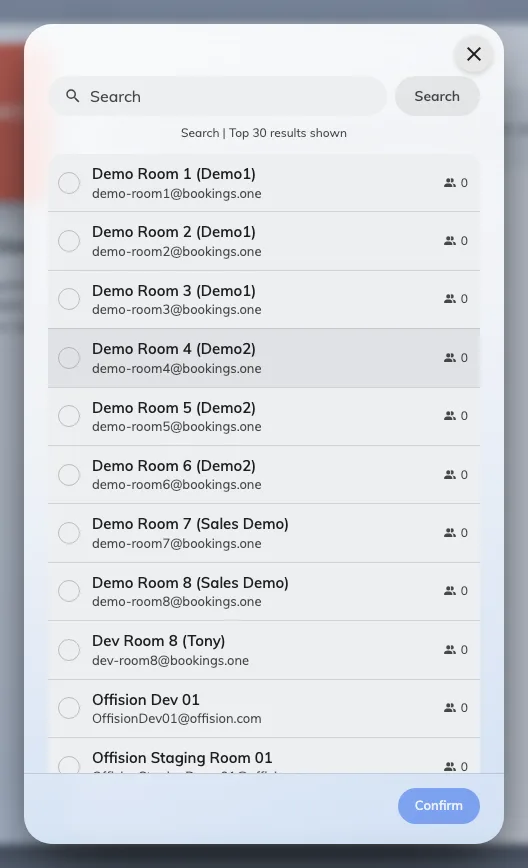
The room picker, listing rooms from the directory with their capacity.
If a room does not appear, it is usually one Microsoft has not published to its directory yet — a mailbox created recently takes a while to show up there, and that normally settles within a day. Offision lists what Microsoft gives it, so waiting is the first answer.
If it still does not appear, use Room not listed? Enter email address manually and type the mailbox address. That also covers the other case: a mailbox that is not a room mailbox — a shared mailbox or a distribution list — which Offision can link but Microsoft will not list.
Desks and equipment always use the address field, for the same reason.
3. Or sync every room automatically
On an application-family connection there is a Sync all rooms switch. Turned on, every room in your Microsoft 365 directory is imported and kept up to date, and the Add button becomes Resync.
Turning it on shows a preview first — every room it would import, with capacities and a count — so you can see exactly what is about to arrive before confirming.
If there is no Sync all rooms switch, your connection is a delegated one and cannot enumerate the directory. Rooms come one at a time, and that is expected — see Which Microsoft 365 connection to choose.
4. Set the booking agent account
Whether you need this at all depends on who books these rooms. Microsoft 365 does not let an account outside your organisation book a resource, and any Offision user who is not a Microsoft 365 account in this directory is exactly that. The Booking agent account is the Microsoft 365 account those bookings are made on behalf of.
- Everyone who books is a Microsoft 365 account in this directory — you do not need one. Each person books as themselves.
- Anyone else books too — Offision-only accounts, or people from another connected directory — you do. Without it they silently cannot book these rooms, which is the complaint “only some people can book the room”.
Open the Booking agent account row on the integration card and sign in with the account. Use a new Microsoft 365 account created for this purpose — bookings will be made in its name, and it must outlive whoever set the integration up.
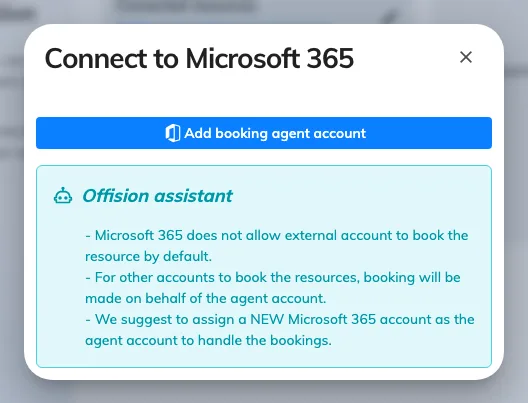
The booking agent account, which bookings are made on behalf of.
Until one is set, the card shows No account with a warning, and only the accounts already connected can book these rooms.
5. Check it worked both ways
For one synced room:
- Book it in Offision and confirm it appears in Outlook
- Book it from Outlook and confirm it appears in Offision
- Have someone who is not a Microsoft 365 account book it, to prove the booking agent account is doing its job
- If the room has a panel, check the booking shows there — see Put a Microsoft 365 or Google room on a booking panel
When it goes wrong
| What you see | Usual cause |
|---|---|
| A room is not in the picker | Microsoft has usually not published it yet — wait, then add it by address. It may also not be a room mailbox |
| Adding a room fails | The connection cannot open that mailbox’s calendar — on a delegated connection, that means the delegated account has no access to it |
| That room is already connected | The mailbox is linked already, possibly on another integration |
| Only some people can book a synced room | No booking agent account is set, and the people who cannot book are not accounts in this directory |
| No Sync all rooms switch | A delegated connection, which cannot enumerate the directory |
| Every synced room disappeared at once | A room sweep ran against a directory it could not read. Check the connection before turning the sweep back on |
| Bookings stopped reaching Outlook for one room | The mailbox was renamed, or its calendar permission changed after it was linked |
| Bookings stopped reaching Outlook for every room | The connection’s sign-in has lapsed. Look for the Action required card on the console’s home page — see Bookings stopped syncing with the calendar |