

Which Microsoft 365 connection to choose
Application and delegated are the two ways Offision reaches Microsoft 365. The difference is who approves the connection and how far it reaches: application is one admin approval and everything then syncs itself, while delegated runs as one signed-in account and reaches only what that account can see.
Offision talks to Microsoft 365 through one connection, and that connection is made one of three ways. They all sync room calendars. What separates them is how much else arrives on its own, and who has to approve it.
One connection — or several: a second Microsoft 365 organisation, or Google Workspace alongside, each gets a card of its own. See Connect more than one directory.
Make this choice before you connect. You can change it later, but two of the changes are one-way.
Application or delegated
An application connection acts as Offision itself. One administrator approves it once for the whole organisation, and no mailbox is involved. A delegated connection acts as one signed-in Microsoft account, and reaches only what that account can reach.
That is what each one costs. Application mode is slower to start — you are waiting on a Global Administrator — and then there is nothing to keep running. Delegated mode starts without an administrator, but the work is per item and it comes back: every room mailbox has to give the delegated account access in Microsoft 365 before Offision can add it, and the account’s stored sign-in lapses if it goes unused.
| If you are | Choose | Because |
|---|---|---|
| Rolling Offision out to all staff, and want the least to run afterwards | Application mode | one approval, then rooms, people and groups keep themselves up to date |
| Starting with one department or a pilot, or unable to get a tenant-wide approval | Delegate mode | nobody with administrator rights is involved, and only the accounts and rooms you name are connected |
| Held to a security policy that will not allow reading anyone’s personal calendar | A resource-only mode, with your own Entra ID app | Offision reads resource calendars and nothing else |
The narrow reach is the reason to choose delegated, not a fault in it. The resource-only modes narrow it further, to resource calendars alone — and you give up single sign-on and people sync in exchange.
The three ways
| Application mode | Delegate mode | Your own Entra app | |
|---|---|---|---|
| Whose app registration | Offision’s | Offision’s | yours |
| Who approves it | a Global Administrator, once | any one mailbox, by signing in | whoever owns your app registration |
| Calendars | sync | sync | sync |
| Rooms | sync by themselves | you add each one | depends on the mode you pick |
| People | sync by themselves | you import them | depends on the mode you pick |
| User groups | sync by themselves | not available | depends on the mode you pick |
| Stores a client secret | no | no | yes, yours |
The chooser shows the same thing as four small lights — green for automatic, amber for something you do by hand, grey for not available at all.
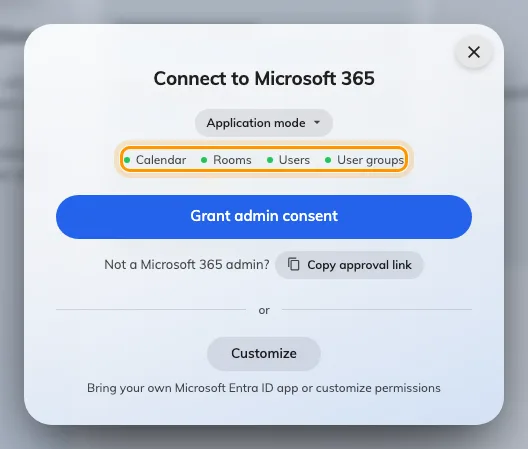
The connect dialog, on application mode, with the four sync lights.
Application mode
Your Microsoft 365 Global Administrator approves Offision once, for the whole organisation. Nobody else is ever asked to approve anything, and no individual mailbox is involved — which is why rooms, people and groups can all keep themselves up to date.
Offision stores no client id and no client secret for this mode. It records which Microsoft 365 directory was approved, and when.
This is the right choice for most organisations. See Connect Microsoft 365 in application mode.
Delegate mode
One person signs in with a Microsoft account, and everything Offision does runs on that account’s calendar permission. Nobody with administrator rights is involved and nothing is granted organisation-wide: the connection sees the mailboxes that one account can see, and no more.
So rooms are added one address at a time — each after the delegated account has been given access to that room mailbox in Microsoft 365 — people are imported rather than synced, and user groups are not available at all. See Connect Microsoft 365 in delegate mode.
Your own Entra ID app
If your security policy will not accept Offision’s app registration, register your own in Microsoft Entra ID and give Offision its credentials. You then choose the mode yourself, from five:
| Family | Mode | Room calendars | Single sign-on | People sync | Use case |
|---|---|---|---|---|---|
| Application | Complete mode | yes | yes | yes | all staff |
| Application | Resource only mode | yes | no | no | higher security |
| Delegated | Complete mode | yes | yes | yes | all staff |
| Delegated | Standard mode | yes | yes | no | one department |
| Delegated | Resource calendar mode | yes | no | no | higher security |
The connect wizard lists the exact Microsoft Graph permissions each mode needs, with a Copy button, so you can hand the list to whoever owns the app registration. See Connect Microsoft 365 with your own Entra ID app.
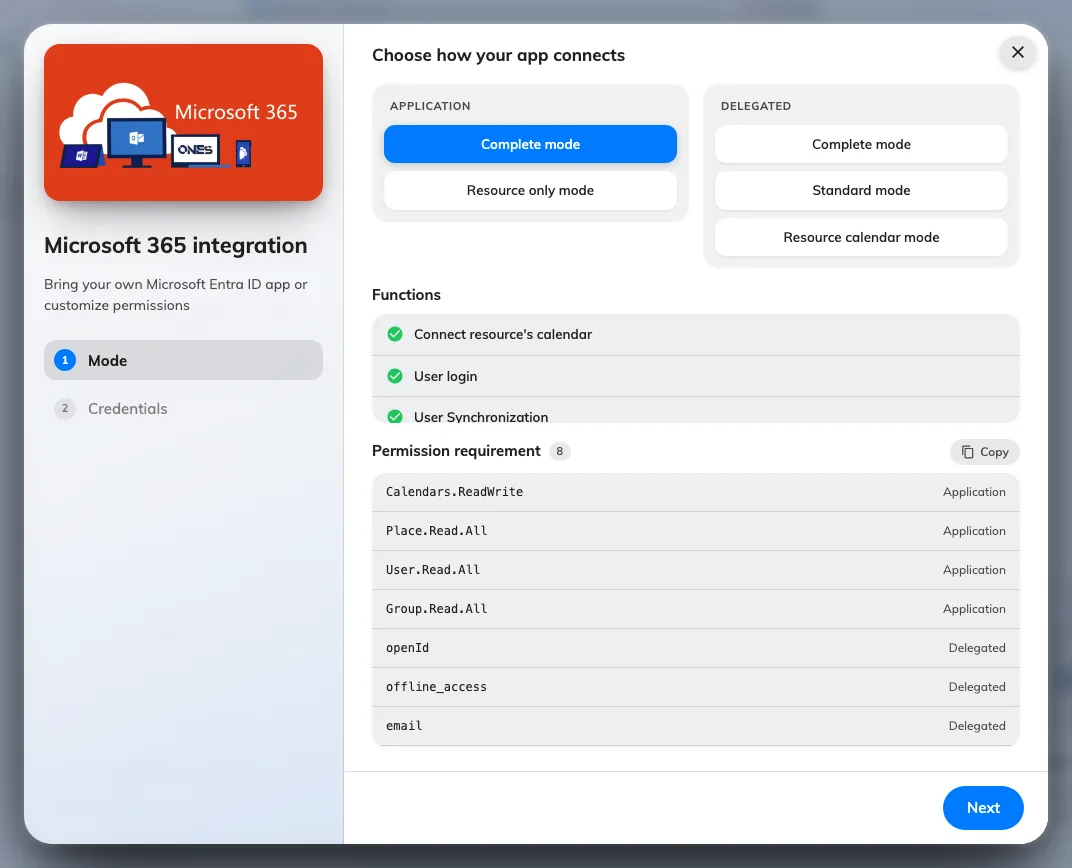
The customize wizard's mode step: Application on the left, Delegated on the right.
The booking agent account
Microsoft 365 does not let an account outside your organisation book a resource. So when someone books an Offision-only account, the booking has to be made on behalf of a Microsoft 365 account — the Booking agent account.
Without one, only the accounts you have connected can book your synced rooms, and everyone else silently cannot. Set one up as part of Sync rooms from Microsoft 365, and use a new account created for the purpose rather than a real person’s.
You are not locked in
From the integration’s actions menu you can convert between modes later.
- The three modes that reach user calendars — delegate mode, Standard mode and the delegated Complete mode — convert freely among themselves.
- Resource calendar mode and Resource only mode convert both ways.
- Resource only mode to Complete mode is one-way.
- Application mode to your own application permission is one-way.
The two one-way conversions are one-way because going back means asking your administrator to approve Offision all over again, so Offision does not offer it as though it were a toggle.
Where to start
Open IntegrationsOnce connected, the things worth setting up next are people, rooms and sign-in.