

Which Google Workspace connection to choose
Offision connects to Google Workspace two ways, and the second one lets you pick a mode. Read this once before you connect, because the choice sets what people can do afterwards.
Offision talks to Google Workspace through one connection, and that connection is made one of two ways. Both sync calendars. What separates them is whose application registration is used, and how much choice you get over what Offision may reach.
Make this choice before you connect. Both ways end at the same Google sign-in screen, but only one of them lets you decide what that sign-in covers.
One connection — or several: a second Google Workspace organisation, or Microsoft 365 alongside, each gets a card of its own. See Connect more than one directory.
The two ways
| Quick connect | Your own OAuth app | |
|---|---|---|
| Whose app registration | Offision’s | yours, in Google Cloud |
| What you type in | your Customer ID | Customer ID, Client ID, Client secret |
| Who approves it | any one Google account, by signing in | the same, against your own app |
| Mode | fixed | you choose one of three |
| Stores a client secret | no | yes, yours |
| Setup time | about five minutes | half an hour, across two people |
Quick connect is right for most organisations. Register your own app when your security policy will not accept Offision’s, or when you want a mode narrower than the default — see Connect Google Workspace with your own OAuth app.
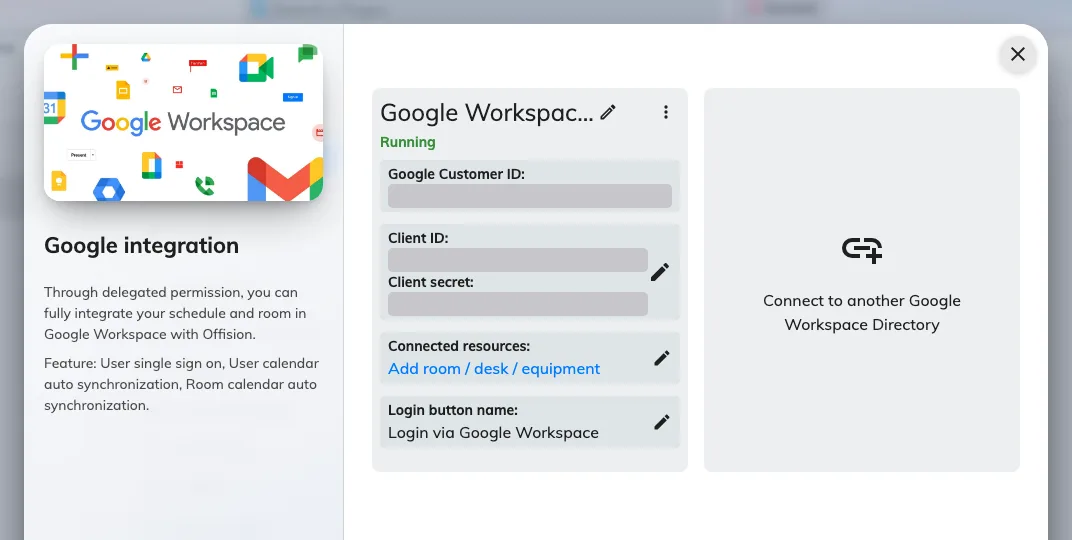
A connected Google Workspace integration, with everything it manages on one card.
Everything runs as one delegated account
This is the single most useful thing to understand about the Google integration, and it explains most of what follows.
Offision does not act as an application against your Google Workspace organisation. It acts as one Google account you sign in with — the delegated account — and it can reach exactly what that account can reach, no more.
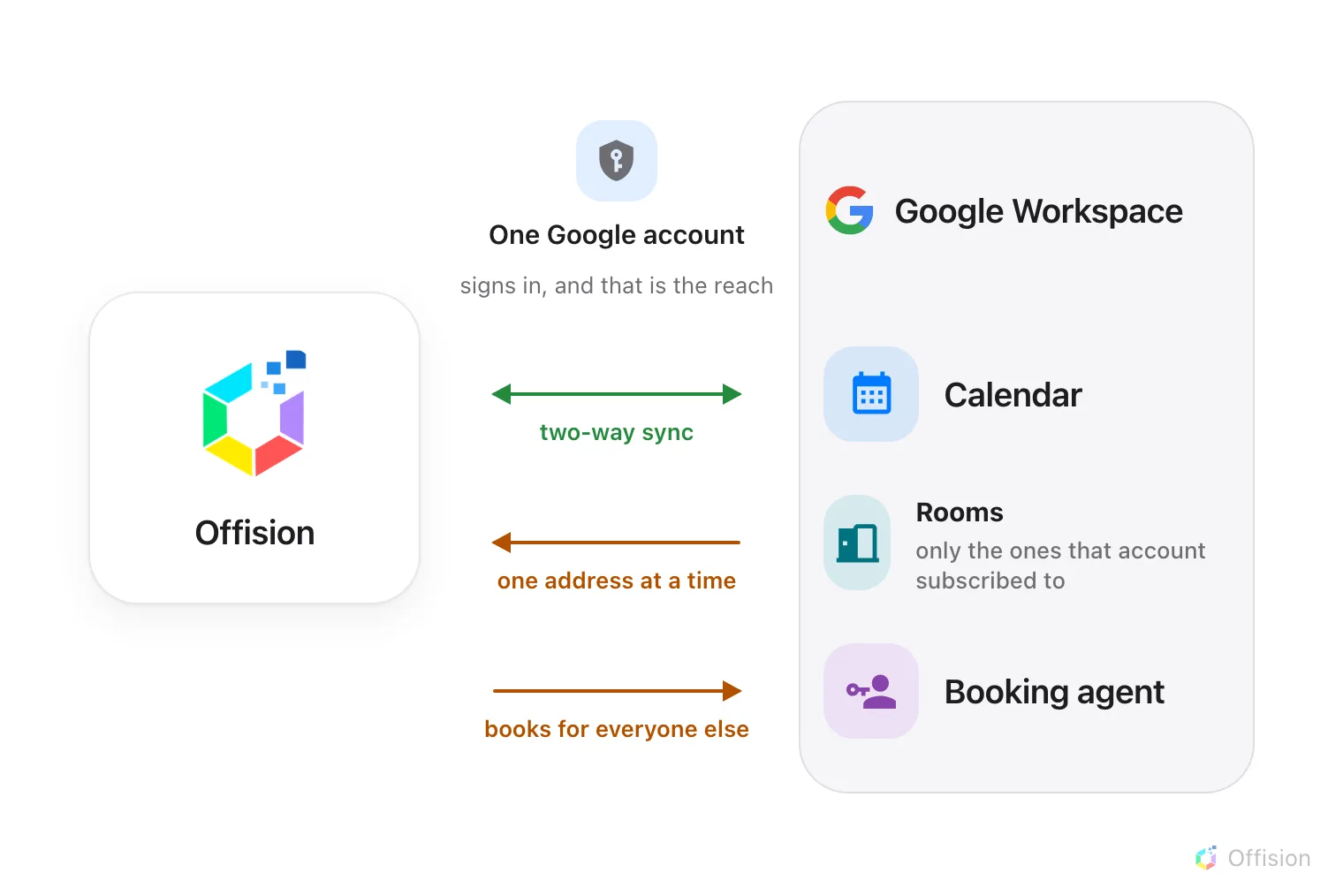
One delegated account in the middle. Offision sees what it sees — which is why rooms arrive one at a time.
Three consequences, all of which surprise someone who connected Microsoft 365 first:
- Rooms are added one calendar address at a time. There is no room browser and no sweep that imports every room in the directory. Offision reads the delegated account’s own calendar list, so a room only becomes addable once that account has subscribed to it in Google Calendar. See Connect rooms from Google Workspace.
- People and user groups do not sync. Add people the ordinary ways — invite them, import them, or let them arrive on first sign-in. Google is a calendar and sign-in integration, not a directory one.
- Someone has to book on everyone else’s behalf. Google refuses bookings from accounts outside your organisation, and every Offision-only account is exactly that. That is what the booking agent account is for, below.
The three modes
Only the custom setup offers a choice. Quick connect uses a fixed mode equivalent to Standard.
| Mode | Room calendars | User calendars | Single sign-on |
|---|---|---|---|
| Complete mode | yes | yes | yes |
| Standard mode | yes | yes | yes |
| Resource calendar mode | yes | no | no |
Resource calendar mode is the narrow one, and it is narrow on purpose: Offision reaches room calendars and never touches anybody’s personal calendar. Sign-in is not merely switched off in this mode, it is unavailable — the setting is absent. Choose it when reaching staff calendars would not survive a security review.
The booking agent account
Google Workspace does not let an account outside your organisation book a resource. So when someone books who is an Offision account rather than a Google one, the booking has to be made on behalf of a Google account — the booking agent account.
Without one, only the accounts you have connected can book your Google rooms, and everyone else silently cannot. Set one up as part of Connect rooms from Google Workspace, and use a new account created for the purpose rather than a real person’s.
What Google will not do
Worth knowing before you plan around it, because Microsoft 365 does all three:
- Offision cannot send email through your Google Workspace organisation
- Equipment and desks are added by address, never enumerated
- Contacts do not sync
Where to start
Open IntegrationsOnce connected, the things worth setting up next are rooms, sign-in and Google Meet links.