

Compare room schedules and move a booking
Put several rooms side by side on one calendar to see which is free — and which hours each one already fills — then drag your own booking to a different time or a different room. What the coloured blocks mean, what the confirmation asks you, and the dozen reasons a booking refuses to move.
The booking form shows you one room’s day. The resource calendar shows you several rooms’ days at once, side by side — which is how you answer “so which of these is actually free at three”, and how you see which hours a room fills week after week. And once your own booking is on that grid, you can move it by dragging it: to another time, or onto another room.
1. Open the calendar
There are three doors, and which one you take decides how many rooms you get:
- Resource calendar in the app’s navigation — every room you are allowed to book, always in comparison mode. This is the one to use when you do not yet know which room you want.
- In the resources list, select several rooms, then Compare schedule(s) — the same grid, narrowed to the rooms you picked.
- Select a single room and choose Check schedule to see just that one.
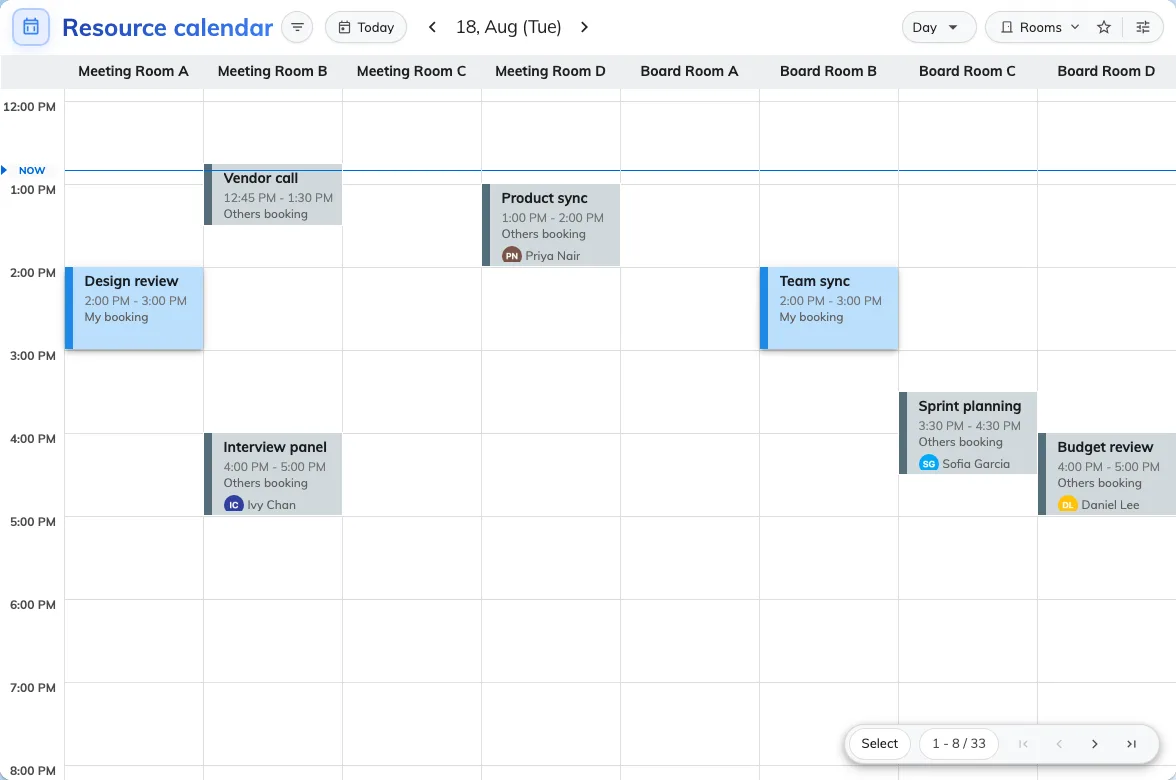
Several rooms on one grid. Each column is a room; the blocks are the bookings already on it.
2. Choose how to lay it out
The view menu holds three layouts, and they trade rooms against days:
- Day — one column per room, one day. The most detail, the fewest days.
- Week — one row per room, one column per day. Good for “is this room free any time on Thursday”.
- Month — a whole month, with two layouts of its own: Resource keeps a row per room, Calendar drops the rooms and gives you the familiar month grid with the room name printed under each booking.
Two switches under them widen what the grid covers, each where it makes sense: Show full day opens the hours outside business hours, and Show weekend adds Saturday and Sunday to the week and month views.
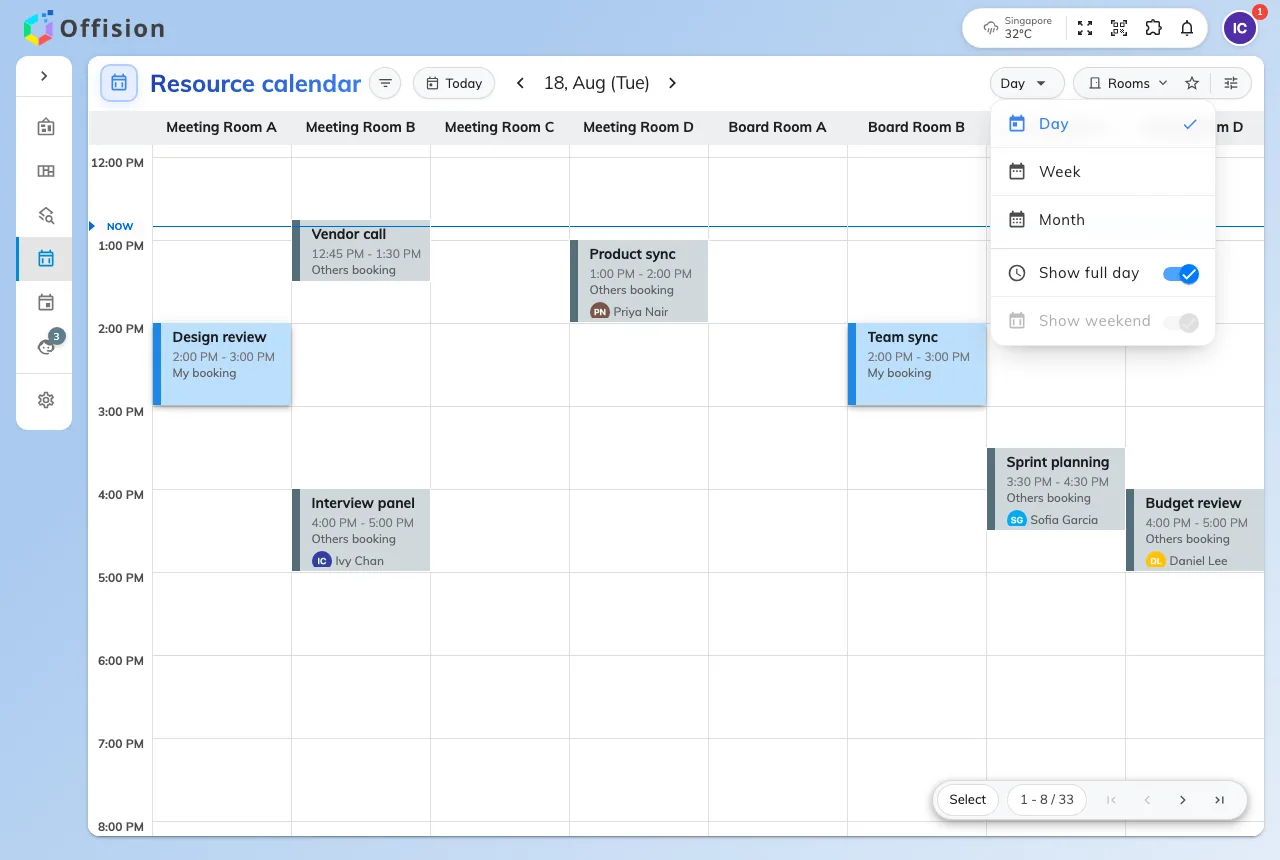
The view menu, on Day. Show weekend is greyed because a single day has none.
3. Narrow what you are comparing
A handful of rooms fit across a screen; a whole building does not. The counter in the bottom corner says how many you are looking at out of how many there are, and pages through the rest — but filtering down to the rooms you would actually book beats paging through the ones you would not. Two panels do that.
The filter panel on the right narrows the rooms: by type and category, by Location, by how many people they seat, by what is in them, and by whether you have starred them. Order, at the top, sets the room order — see Sort the room list.
The Booking filters panel on the left narrows the bookings: Booking status — Pending approval, Booked, Waiting check in, In use, Used, No show — and Only my bookings, which is the fastest way to find the one you came to move. Go today and the date picker move the whole grid.
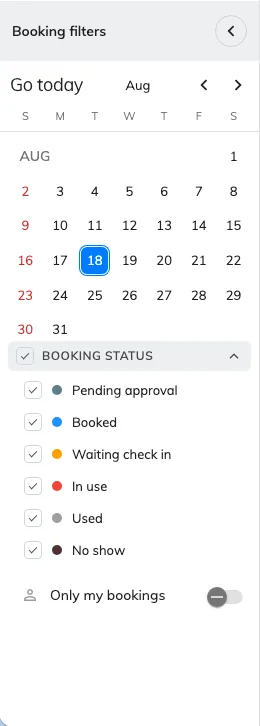
Booking filters. Only my bookings leaves just the ones you can drag.
4. Read the grid
Solid blocks are bookings, and each says whose it is: My booking stands raised in blue and is the only kind you can pick up, Others booking is flat and inert. A block reading Reserved instead of a subject is somebody’s booking your company has chosen to keep private, and one reading Waiting approval is still with a reviewer.
Everything behind the bookings is the room telling you when it can be used:
| What you see | What it is |
|---|---|
| Tinted background bands | The times this room can be booked |
| A grey band | Outside business hours |
| A red block | A business holiday |
| A green band | Preparation time before or after a meeting |
| A hatched Split or Combined block | The room is unavailable because a combinable room that shares it is booked. It is a consequence, not a booking — it cannot be opened or moved |
The line across the grid is the current time. Other people’s bookings appear as they are made; you do not need to refresh.
5. Move it
Pick up your booking and drop it where you want it:
- Drop it higher or lower in its own column to change the time.
- Drop it on another room’s column or row to change the room.
- Drag its bottom edge to make the meeting longer or shorter.
It snaps to fifteen minutes. On a phone or a tablet, press and hold the booking for a moment before dragging — a quick swipe scrolls the calendar instead.
If your booking holds more than one room, dragging it onto a new column swaps only the room you dragged. The rest of the booking is untouched.
6. Confirm the change
Letting go does not save anything. Edit Booking opens instead and shows you what you just did, as before → after: Resource change, Time change, or both.
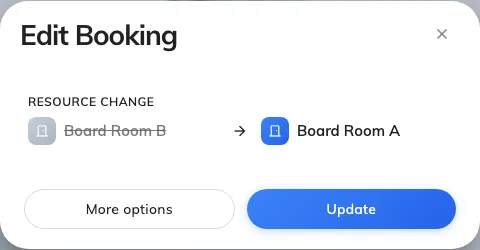
Edit Booking, after dragging a meeting to another room.
- Update applies it.
- More options opens the full booking form with the new time and room already filled in — take this route when you want to change the attendees, the services or anything else at the same time.
- Closing the dialog puts the booking back where it was. Nothing is saved.
If the room you moved to has terms and conditions, you are asked to accept them before the change goes through.
7. Check it worked
The block stays where you dropped it and a confirmation tells you the booking’s new state. Read that state rather than assuming: a room that requires approval turns your move back into a request, so the answer there is waiting approval, not booked.
When a booking will not move
Most of these are the product refusing on purpose. They are listed with the ones you will meet most often first.
| What happens | Why |
|---|---|
| The block will not lift at all | It is not yours, or it is no longer editable — a meeting in progress is fixed, and so is one that has finished. Change a meeting under way from the room panel instead |
| This resource is read-only | You may see that room’s schedule but not book it |
| This resource is walk-in only. Not allow booking from here | That room is taken by turning up at it, not by reserving it |
| Please select a future time | You dropped it somewhere that has already passed |
| You are asked about the series first | It is a repeating booking. Choosing this booking keeps the quick confirmation; this and after or the whole series opens the full booking form instead of applying the drag directly |
| An error appears only after Update | Clashes, quotas and booking rules are checked when you save, not while you drag — so a drop that looked fine can still come back refused, and the booking returns to where it was |
| Nothing happens on a hatched block | Split and Combined blocks are not bookings |
What this does not do
Dragging changes the time and the room. It does not touch the subject, the attendees, the services or anything else on the booking — for those, use More options and edit the form.
It also never moves somebody else’s booking. If a colleague is in the room you need, the calendar can show you that, but the change is theirs to make.
And it is not the only place you can drag. If you already know which booking you want to move and just need it at a different time, your own calendar does the same gesture without the other rooms in the way — see Reschedule a booking on My calendar.
One layout is weaker than the others: the Month view’s Calendar layout has no room columns, so a booking dropped there can only change date, never room.