

Change your language, theme and time format
Everything about how Offision looks and reads, in one panel behind your picture: the interface language, the clock, dark mode and the size of the text — and which of them follow your account rather than staying in the browser you set them in.
Offision keeps everything about how it looks and reads in one group called Preferences, behind your picture. The language, the clock, dark mode and the size of the text are all there, and each takes effect the moment you choose it.
1. Open your preferences
On a computer, choose your picture at the top right of the toolbar. The panel that opens has your account down the left and your settings down the right; Preferences is the group below Security settings.
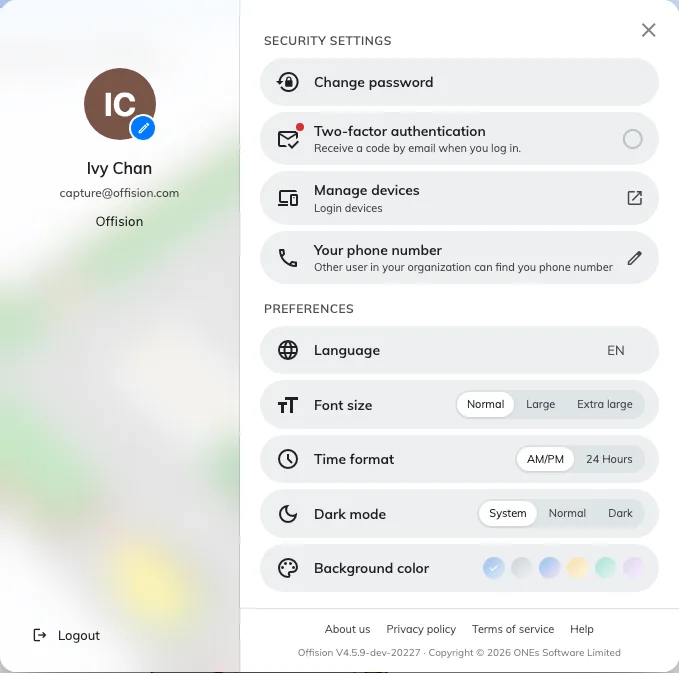
The profile panel. Preferences is the group at the bottom of the right column.
On a phone, tap your picture at the top of the home screen and scroll down to Preferences. It is the same set of settings, with one exception noted in step 5.
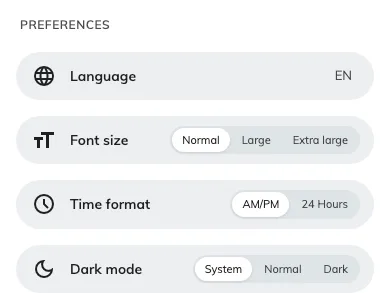
The same group on a phone, where the profile is a page rather than a panel.
2. Change the language
Language offers only the languages your company turned on, so the list is usually short — and where your company uses just one, the row is not there at all.
- Four or more and the row shows the one you are on as a short code on the right — EN — and opens a menu naming each language in its own words: English, 日本語, 繁體中文.
- Three or fewer and they sit inline as short buttons instead — EN, 繁, 日 — so the choice is one tap with no menu.
The app changes language immediately, and this is the only setting on the panel that follows your account — sign in on another computer or on the phone and your language comes with you. If your company later stops offering the language you picked, Offision quietly moves you to the first one on its list.
Which languages reach this row is decided by an administrator — see Choose the languages your company offers.
3. Change the clock
Time format has two settings, and it changes every time Offision shows you — anywhere in the app: your calendar, a booking, a page of search results.
| AM/PM | The twelve-hour clock: 2:30 PM. This is where you start. |
| 24 Hours | The twenty-four hour clock: 14:30. |
4. Change the theme
The row is called Dark mode, but it is a choice of three rather than a switch:
| System | Follow the computer or phone. If your device turns dark in the evening, so does Offision, while you are looking at it. This is where you start. |
| Normal | The light theme, always. Despite the row’s name, this is the one to choose when you do not want dark mode. |
| Dark | The dark theme, always, whatever the device is doing. |
5. Size the text, and pick a background
Font size — Normal, Large or Extra large — scales the whole app rather than one screen, so a large setting stays large everywhere.
Background color offers six shades for the page behind your content. It is on the computer panel only, not on the phone, and it keeps a separate choice for the light theme and the dark one — so setting a background while in dark mode does not change how the app looks when you switch back.
6. Check it worked
Close the panel and open your calendar. A time on it should be reading the way you asked — 14:30 rather than 2:30 PM — and the page should be in the theme and the language you chose. Reopening the panel shows your choices marked.
What these settings do not change
Your email stays in your company’s languages. Offision writes its emails — booking confirmations, visitor invitations, approval requests — in the one or two languages your company chose for email, identically for every recipient. Choosing Japanese for yourself does not make your booking confirmations Japanese. The notifications that reach your phone are the exception: those do follow your language.
There is no time zone here, because Offision uses your device’s. Times are always shown in the time zone your computer or phone is set to, not one you pick and not the company-wide time zone an administrator set. Change your device’s time zone — flying somewhere, or correcting a wrong setting — and Offision notices within seconds and shows Time zone changed: “Detected your device’s time zone changed, please refresh the browser for apply the new time zone”. Choose Refresh. Until you do, the times on screen are still the old zone’s.
The order of a date, and the day the week starts on, are fixed. Offision writes dates the same way and starts the week on Sunday whatever language you choose. Picking German or Japanese translates the names of the months and days; it does not rearrange them.
When your settings come back different
Everything on this panel except the language is remembered by the browser you set it in. A different browser, a private window, another computer, or the Offision app on your phone each start again at the beginning — System theme, AM/PM, Normal text.
That is worth knowing before you go looking for a fault: a 24-hour clock that has “reset itself” is almost always a second browser rather than a lost setting. Set it again there, and it stays.