

Set your user passcode
A short code of your own that identifies you at a room panel — no card, no phone, nothing to install. Where to set it, the rules it has to meet, what the panel does with it, and what happens if you forget it.
The screen outside a meeting room has to know who you are before it will check you in, give you another twenty minutes, or hand the room back early. It can read your staff card, or a code on your phone, or your face — and each of those is something you can turn up without.
A user passcode is the one that never is. It is four to eight digits you choose yourself: you type your name on the panel, then the digits, and you are identified. No card in your pocket, nothing to unlock, nothing to install. It also works on panels that have no card reader and no camera, which is most of them.
1. Open the User passcode row
Choose your picture in the top right corner. Under Security settings, the row is User passcode — “For quick booking or check-in on the panels.” A dot on the icon means you have not set one yet.
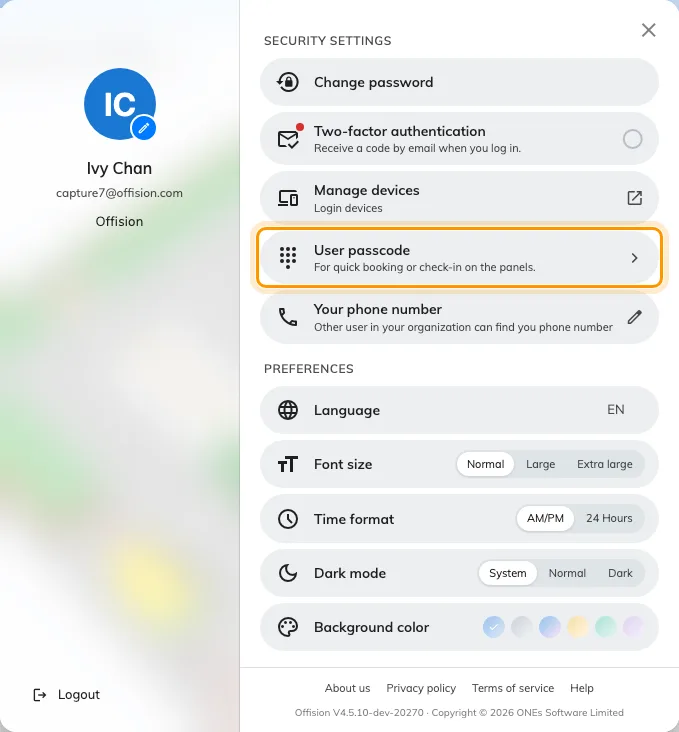
Your profile panel. User passcode, under Security settings.
On a phone the same row is on the Profile page.
2. Turn it on and choose your digits
Turn on to use passcode is the switch at the top. With it on, type your code into User passcode — “Must be 4-8 digit numbers”, and the counter beside the field shows how many you have used. Digits only; letters are not accepted. The eye at the end of the field shows what you typed, and the panel hides the digits when you use it later.
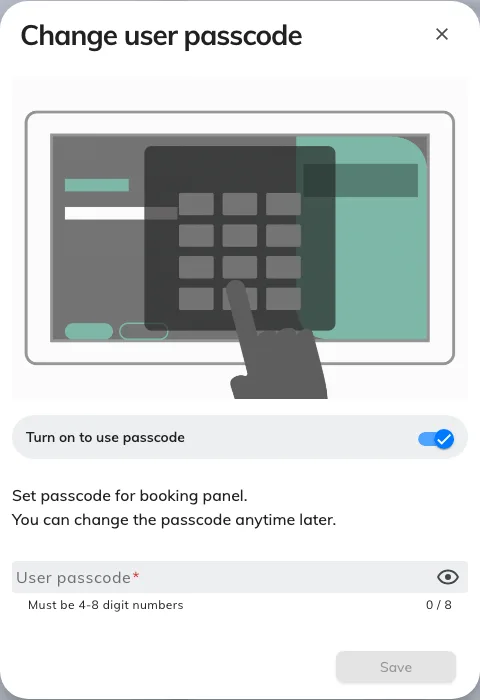
Set user passcode the first time; Change user passcode after that.
Then Save. There is nothing to confirm and nothing to type twice, so read it back to yourself before you save.
Two things it deliberately does not do: it never expires, and it does not have to be different from anybody else’s. Nobody sees it but you — which is the reason to make it something other than the year you were born.
3. Use it at a panel
At the room, tap Check in. If your company offers more than one way of identifying yourself the panel asks which — User passcode is the orange tile — and then puts up a number pad.
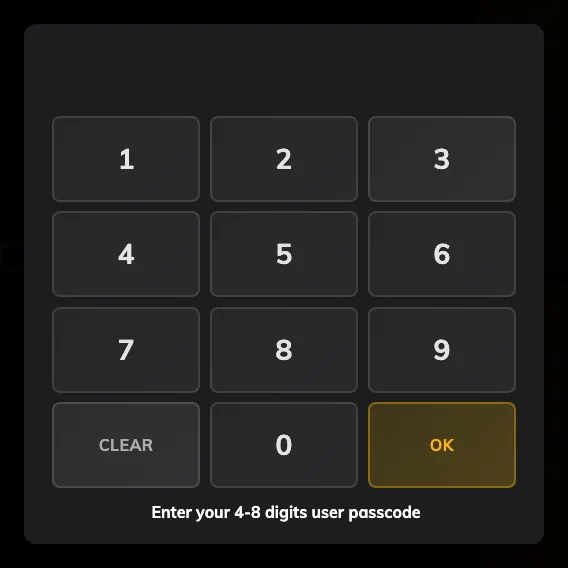
The number pad, with a reminder of how many digits to expect.
Depending on what you are doing, the panel may ask which of you is standing there first:
- Checking into your own booking — it already knows, and goes straight to the pad.
- A booking with other people on it — a short list of everyone invited, so an attendee can check the room in without waiting for the organiser.
- Taking a free room on the spot — a search box and an on-screen keyboard, because the panel has nobody to guess from. Type enough of your name to find yourself.
The same passcode also checks you out and extends. It is not only for arriving.
Changing it, or turning it off
The same row, any time. Open it, type a new code, save — the old one stops working immediately.
Turning Turn on to use passcode off and saving shows “User passcode was disabled” and takes you out of the panel’s list altogether: your name is still there, but greyed, and tapping it says to set a passcode in the app first. Use one of the other methods after that.
If you forget it
Nobody can read it back to you — not the help desk, not an administrator. What they see is a tick meaning you have one, or a dash meaning you do not.
What an administrator can do is set a new one for you, on the spot. Ask them for one, use it, then come back to step 2 and change it to something they do not know.
What this does not cover
- Signing in. The passcode is not your Offision password and cannot be used to sign in anywhere — see Change your password.
- The code in a meeting invitation. That is a booking code: it belongs to one booking rather than to you, it arrives by email, and anyone holding it can check that booking in — see Find and share your booking code.
- Whether you are allowed to do the thing. Identifying yourself and being permitted to book, extend or cancel are separate questions. A correct passcode can still be followed by a refusal.