

Why a room refuses your booking
The Book button is disabled until all required fields are complete and the booking meets the room's policy rules. Check the validation message above the button to see which rule blocked your request.
The Book button remains disabled until all required fields are filled in and your request satisfies the room’s booking policies. When a policy rule blocks your request, Offision displays a red message directly above the button.
Common booking refusal messages
| Message | Meaning and resolution |
|---|---|
| Conflict with … | The room is already booked for part or all of your selected time slot. Choose another time or select a different room. |
| “you have another booking” | Your account already has an overlapping booking during that time. Reschedule or cancel your existing booking first. |
| “…only allows bookings within 60 days” | The selected date is further ahead than the room’s advance-booking limit allows. See Limit how far ahead people can book. |
| “This resource only supports walk-in bookings.” | The room cannot be booked in advance. You can only claim it in person at the room panel when it is free. |
| “…is not allowed to book as out of business hour” | Your start or end time falls outside the room’s configured operating hours. Adjust the time slot to stay within business hours. |
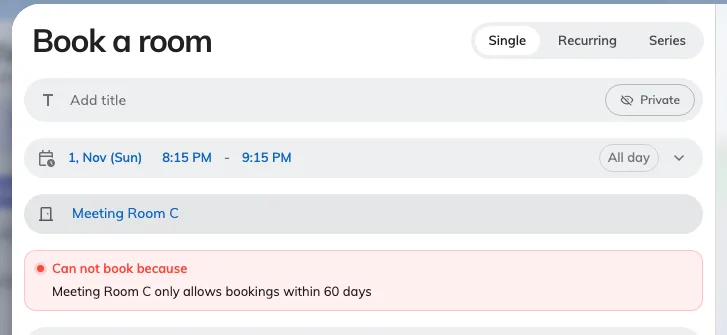
A booking placed past the room's advance-booking window, with the Book button disabled.
Who can change these rules
These messages reflect policy rules configured by your workplace administrator for that specific room. For step-by-step instructions on completing the booking form, see Book a meeting room.